Appearance
Warehouse
Warehouse runs a warehouse on scans instead of paperwork: goods are received, checked, put away, picked, packed and shipped, and every box carries its own label and history. Operators work from a tablet that shows only their tasks; supervisors and the office watch the whole operation from Today, which opens on what is stuck and why. Because it runs on Omaya, it also knows where tagged pallets and forklifts really are, how long stock sat outside its temperature range, and when a truck is at the dock.
Who uses it
AzmanWarehouse OperatorLeeWarehouse SupervisorSureshWarehouse Gate GuardAishaFacilities Manager
| Role | What they do with Warehouse | At Northwind |
|---|---|---|
| Operator | Works the tablet: receives deliveries, puts stock away, picks, packs, ships, counts, issues materials | Azman Yusof |
| Supervisor | Everything an operator does, plus quality control, approving counts and the exceptions (substituting a unit, bypassing QC, adjusting stock); watches Today and the alerts | Lee Wei Ming |
| Office | Orders, inventory and the ledger; looks things up with QR scan | — |
| Guard | The gate: lets goods out on a gate pass and books them back in | Suresh Pillai |
| Manager | Everything, plus Setup: areas and bins, items, people, alert rules | Aisha Rahman |
The warehouse is the Northwind Distribution Centre in Shah Alam, Northwind's own store for valves, fittings, fasteners and a few chilled and frozen chemicals. It works Monday to Saturday, 07:00–19:00.
A day at Northwind Tower
On Saturday 3 October the tower is quiet, but the distribution centre is working.
| Time | What happens | How |
|---|---|---|
| 08:05 | Azman picks sales order SO-2225 for Northport Refinery Services, packs it and ships it from Dock 1 on a Kargo Express truck at 09:35. | Pick, Pack and ship |
| 10:20 | He picks and packs SO-2226 for Tanjung Fabrication. It waits under Ready to ship for the afternoon truck. | Pack and ship |
| 11:50 | A delivery from Orchid Valve Trading (PO-1043) is received. Lee passes the QC sample; half the boxes are put away before lunch, the rest wait under Putaway. | Receive, Put away |
| 13:40 | Azman starts picking SO-2227 for Lumen Engineering. | Pick |
| 14:30 | Kestrel Industrial Supply's truck arrives with PO-1042: 40 brass valve bodies and 80 gaskets on delivery order DO2091877. Azman receives them as six labelled boxes, Lee inspects the boxes the app samples, and by 14:58 every box is in a rack bin the app suggested. | Receive, QC, Put away |
| 14:38 | A chilled delivery from Coldlink Chemicals (PO-1044) is received and waits for QC. The cold room has just been above 8 °C, and Alerts shows it. | Alerts |
| 15:00 | Lee reviews Monday's cycle count of eight Racking A bins: one box was not found. He decides whether to approve it. | Count |
| All day | Suresh watches the gate. Two valve bodies went out yesterday on a gate pass to Selatan Plating Works and are due back by 7 October. | Gate passes |
In the tower, Security Watch receives the warehouse's after-hours signals, and OAIA can summarise the warehouse's week for Aisha.
How to find your way around
Open Warehouse from Apps. What you see depends on your role:
- Operators and guards get Floor, Inventory, Live map and Alerts. Floor is the tablet home.
- Supervisors, office and managers also get Today, Orders and Reports. Anyone who may configure the app also gets Setup.
Floor
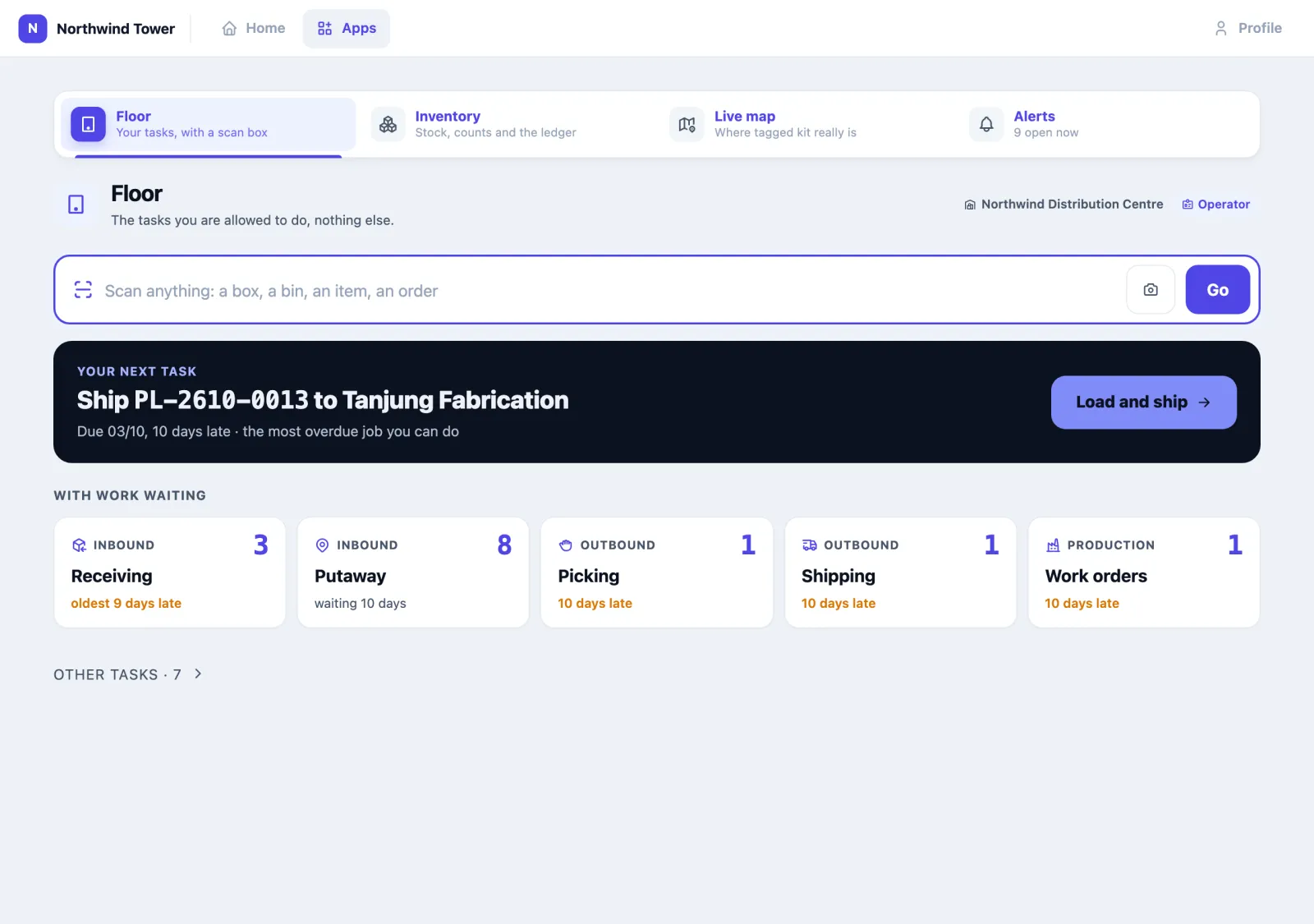
Floor puts the next thing to do first:
- The scan box takes anything: a box label, a bin label, an item barcode or an order number. A hand scanner types into it and presses Enter; the camera button reads a label with the tablet's camera. A job or order opens its task; a box, a bin or an item opens QR scan. A code nothing has is explained in a sentence under the box, which gives a short shake.
- Your next task is the single most urgent job you are allowed to do: the most days late, or if nothing is late, the one waiting longest. One button opens it.
- With work waiting shows only the tasks that have work, each with how much and the oldest wait (oldest 9 days late, waiting 10 days).
- Other tasks holds every other task you may use, folded away; it remembers whether you left it open.
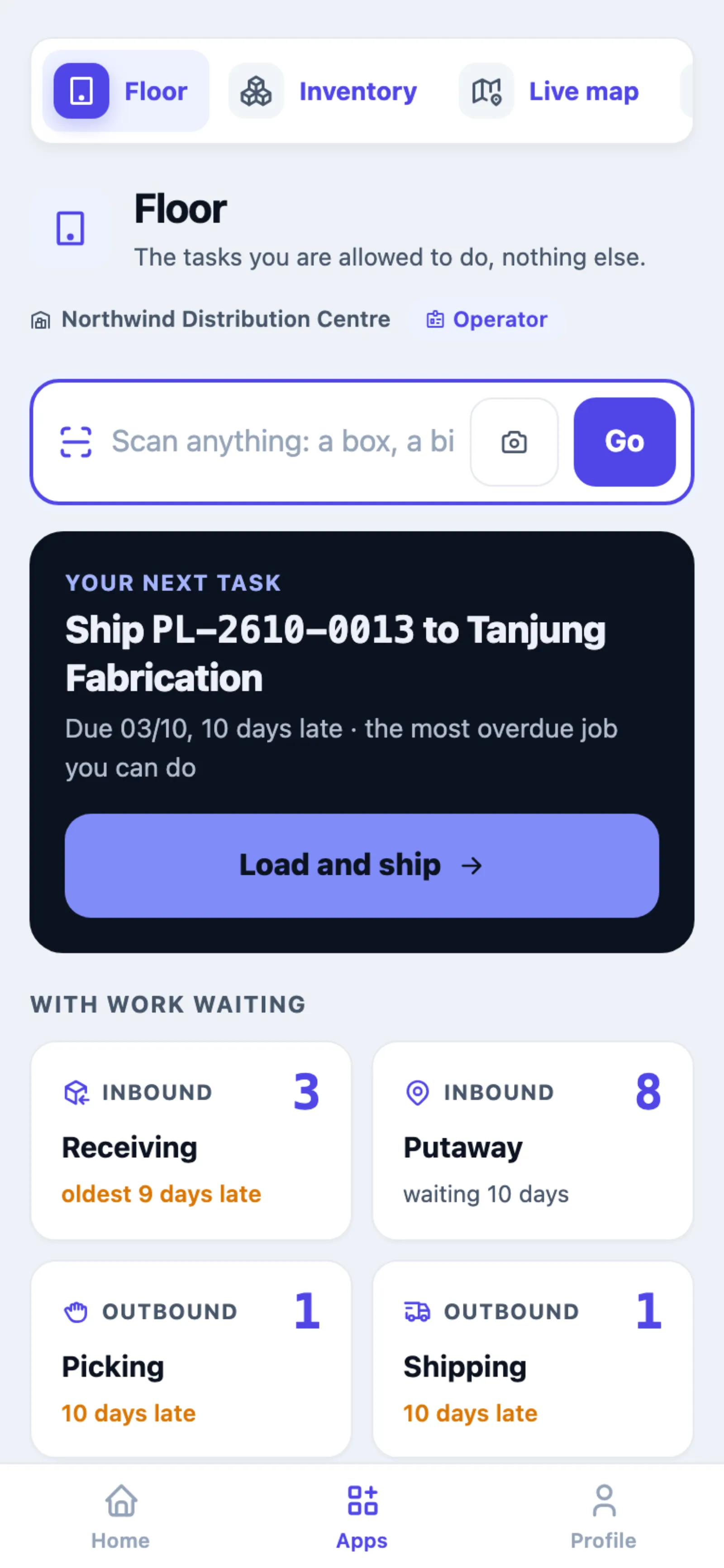
Every task screen has the same kind of scan box, and every scan answers at once: a green ring and the line ticking off when it is right, a short shake, a red border and a sentence saying why when it is not. A phone also buzzes on a wrong scan.
The badge next to the site name (Operator, Supervisor, Guard, Manager) is your role. If a task you need is missing, ask your manager to change your role or tasks under Setup → People.
Today
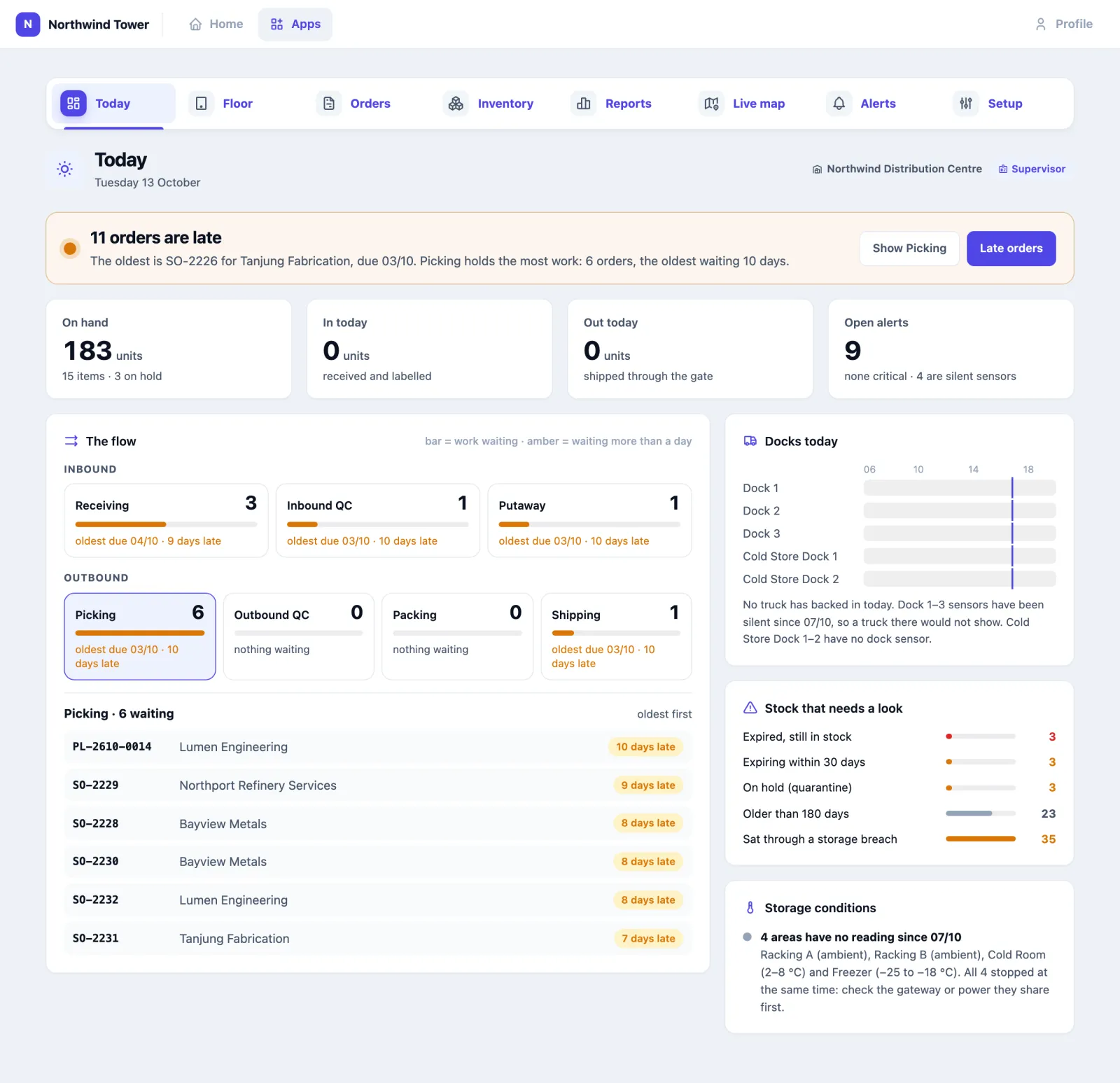
Today (desk roles) answers "is anything stuck?" before anything else:
- One sentence at the top: how many orders are late, whether the floor has gone quiet (nothing has moved on the floor since 3 Oct), the oldest late order and which stage holds the most work. Show … picks that stage below; Late orders opens Orders with only the late ones.
- Four numbers: units on hand, in today, out today and open alerts (and how many of those are silent sensors).
- The flow: every inbound stage (Receiving → Inbound QC → Putaway) and outbound stage (Picking → Outbound QC → Packing → Shipping) with how much is waiting and the oldest wait. Amber means waiting more than a day; the one stage holding the most late work pulses gently. Click a stage to list its orders, oldest first.
- Docks today: each dock door by the hour, with the trucks that backed in and a line for now. It says so when a dock's sensor is silent, so an empty row is not read as "no truck".
- Stock that needs a look: expired, expiring within 30 days, on hold, older than 180 days, and stock that sat through a storage breach.
- Storage conditions: each area's reading, and areas that went silent at the same moment grouped into one line with what to check first.
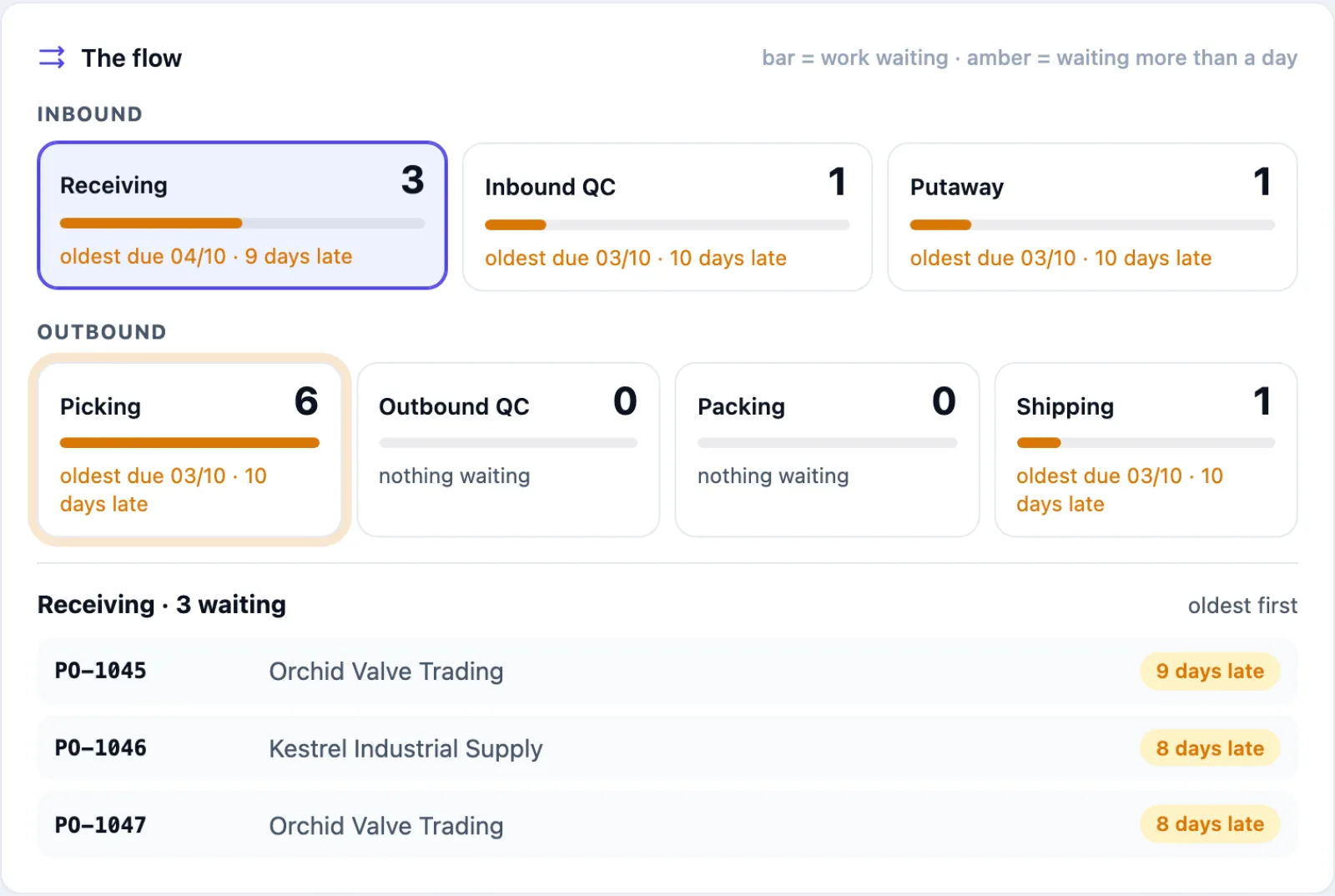
The page refreshes itself every 30 seconds and keeps the stage you picked.
Motion
Pages move to show what changed, never to decorate: cards arrive one after another when a page opens, numbers count up, bars grow, an order glides to its new stage, a new alert slides in, and a scan rings or shakes. If your device is set to reduce motion, everything appears at once and nothing moves.
How to receive a delivery
- On Floor, tap Receiving. The right-hand card lists what is Being received and the purchase orders Expected.
- Under A delivery has arrived, scan or type the PO number in Purchase order and the supplier's paperwork number in Supplier's delivery order no., then tap Start receiving.
- For each item, scan its barcode (or type its SKU) and fill in Qty per box and Boxes (labels). Add the Batch and Expiry for batch-tracked items, the Serial numbers for serial items (one per box), and BLE tag on the pallet if the pallet carries an Omaya tag. Press +.
- Each box gets its own label straight away, listed under Labels on this receipt — print them and stick them on. Reprint all prints the lot again.
- When everything is in, tap Close receiving. If less arrived than the order says, the app asks first; what did not arrive stays open on the PO. The goods received note opens to print for the supplier's driver (also under Print GRN on the receipt's page).
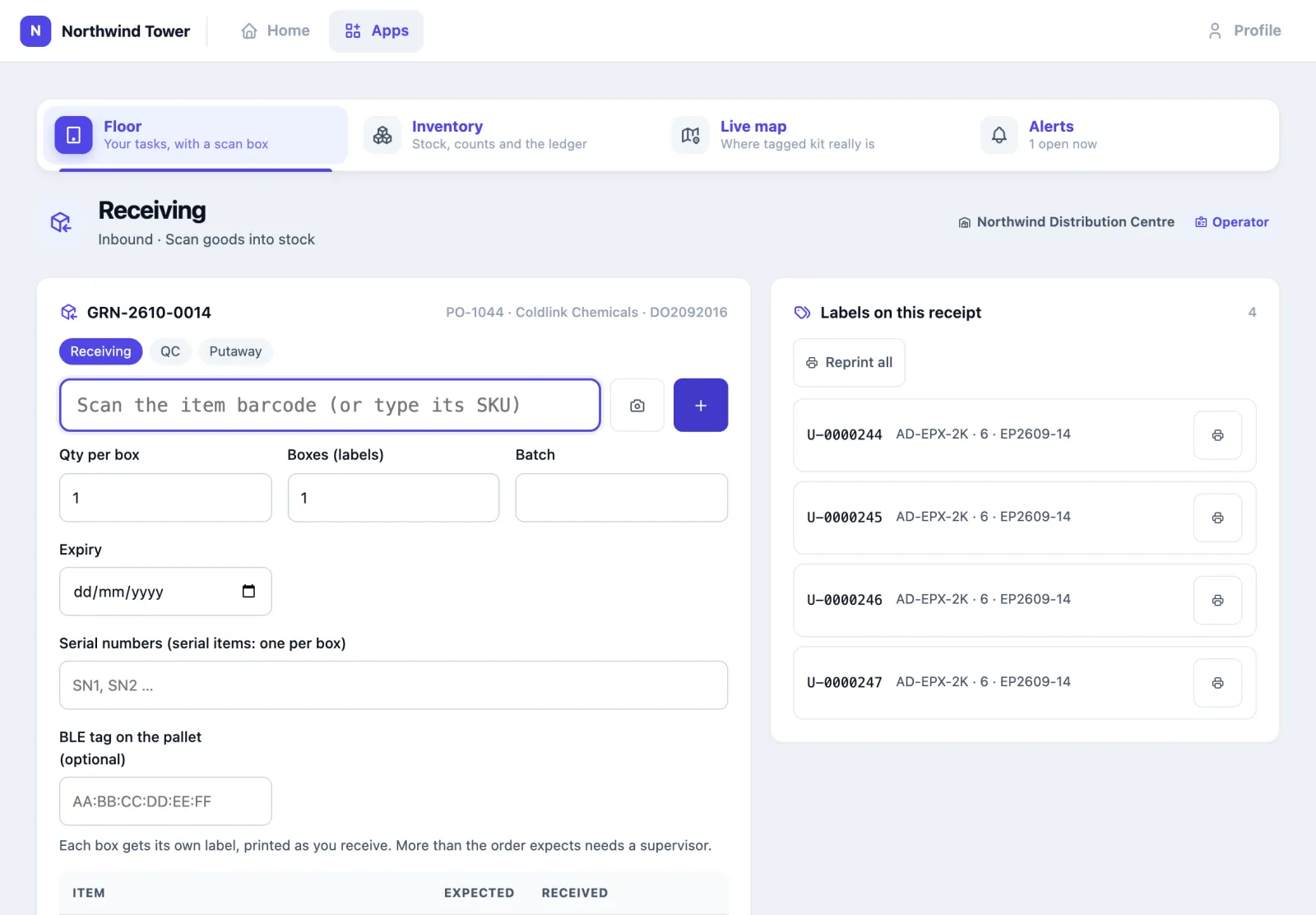
Closing receiving tells the ERP what came in and draws the QC sample: a share of each item's boxes, picked at random. Boxes that are not sampled are available at once and can be put away; sampled boxes wait for QC. An item set up with no QC skips it.
You cannot receive more than the order expects. If a supplier over-delivers, a supervisor receives the extra. A PO has one receipt open at a time: if a second delivery arrives while the first is still being received, carry on with the open receipt. A PO on hold cannot be received. Goods already past their expiry date are refused too; a supervisor can receive them if they must come in.
Returns work the same way from the Returns tile, without a purchase order: pick the customer, give a reference, and every returned box comes in held for QC. QC then inspects every returned box, not a sample; only items set up with no QC skip it. When the return names the sales order (scan it in Purchase order), only items that order shipped can come back, up to what it shipped less what has already come back on it; a supervisor can accept more.
How to inspect a sample (QC)
- On Floor, tap Quality control under Inbound (or Outbound for picked orders). Open the receipt.
- The sample on the right lists each box to inspect, marked to inspect.
- Scan a box from the sample, then tap Pass, Fail this unit or Fail the lot. For a fail, write what was wrong in Finding (for a fail) first.
- When every sampled box has a result, the receipt moves on to Putaway.
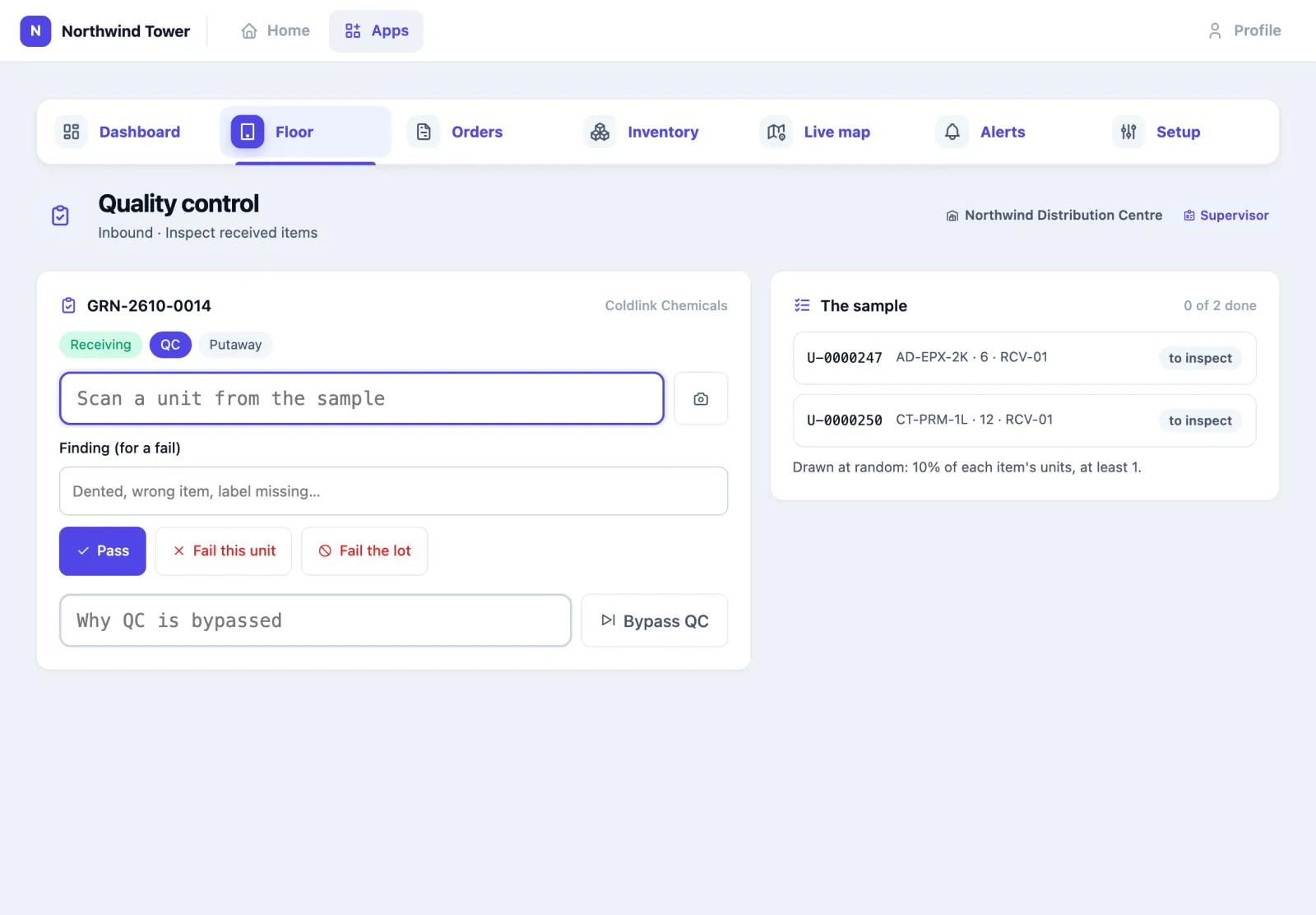
A failed box is put on hold (quarantine). Fail the lot holds every box of that item on the receipt. A supervisor who must let a delivery through without inspecting can write a reason and tap Bypass QC; the reason is kept on the receipt.
How to put stock away
- On Floor, tap Putaway. Waiting to be put away lists the boxes still in receiving, production or staging.
- Scan a box label (or tap it in the list). The app shows what it is and Suggested bins, best first: a bin that already holds the same item and batch, then the same item, then an empty bin.
- Take the box there and scan the bin label to confirm.
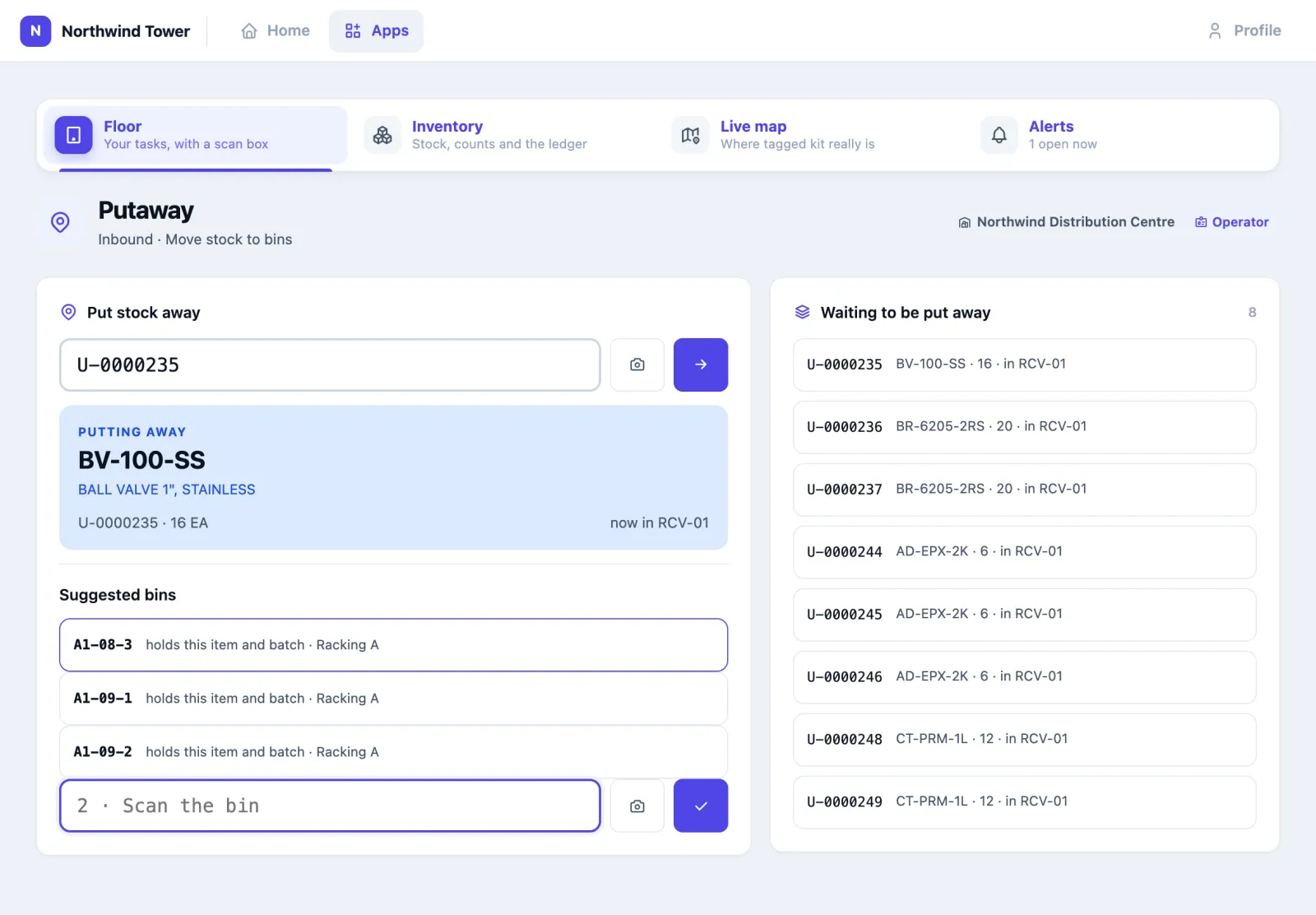
Suggestions only include storage areas the item is allowed in: chilled stock is never suggested for an ambient rack, and a held box can only go to quarantine. A blocked or full bin is skipped. When the last box of a receipt is stored, the receipt is done.
How to pick an order
- On Floor, tap Picking. Sales orders to release lists orders the ERP has sent; tap Release on one to make its pick list. Releasing reserves stock, earliest expiry first by default; anything not in stock is backordered on the line rather than quietly left out. Stock past its expiry date is never reserved, and scanning an expired box is refused: hold or scrap it under Quarantine.
- Open the pick list. A bar shows N of M lines; Next · go to shows the bin in large letters, the item, the box to take and Qty to pick, and on the right the current line is highlighted and finished lines are ticked.
- Scan the box (or tap An item to use the camera). Leave the quantity empty to take what the screen says. Taking part of a box splits it, and the part you took gets its own label.
- When every line is picked, tap Close picking.
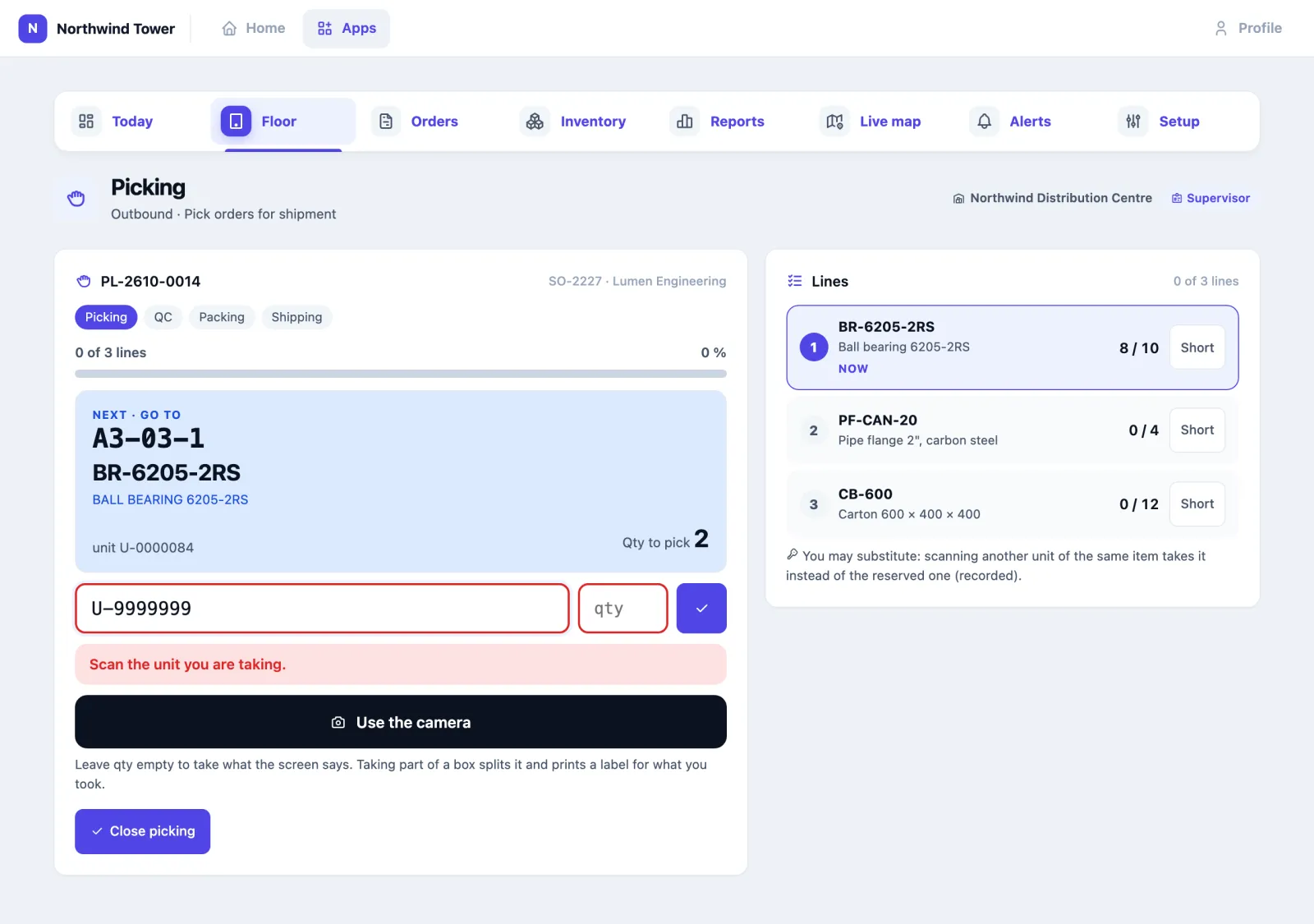
Scanning a different box of the same item than the one reserved is a substitution. Only someone holding that exception may do it, and the ledger records it. If a bin is empty when it should not be, a supervisor taps Short on the line: the rest is backordered.
How to pack and ship
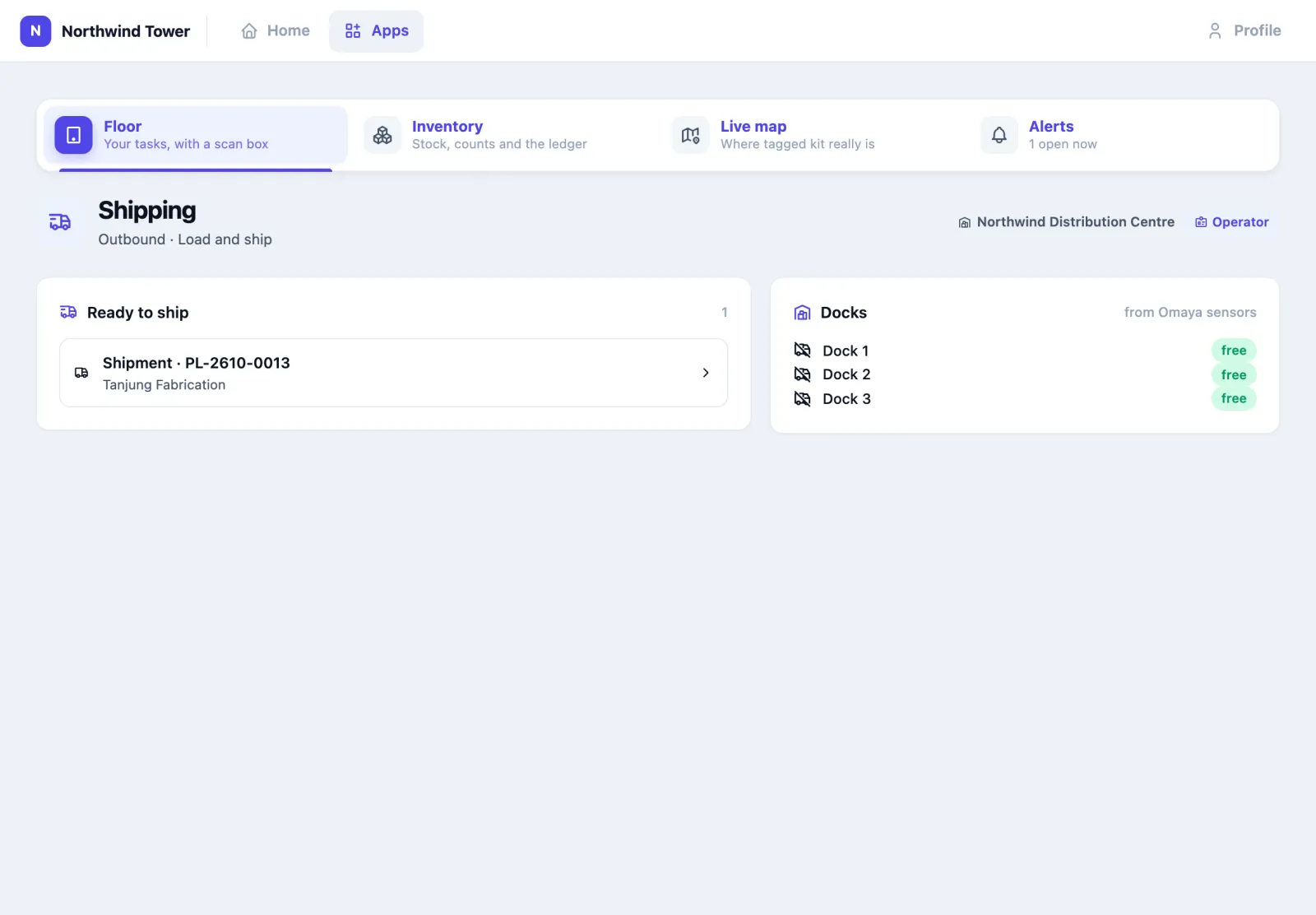
- Packing: open the order under Ready to pack, choose A new package or an existing one under Pack into, and scan each picked box into it. Tap Packing done — it prints every package label.
- Shipping: the order appears under Ready to ship. The Docks card shows which docks have a truck, from Omaya's dock sensors.
- Open the shipment, fill in Vehicle, Carrier, Consignment / DO no. and the Dock, and tap Load and ship. Everything on it leaves stock, the order is updated and the ERP is told. The delivery order opens to print for the driver and the customer to sign (also under Print delivery order on the job's page).
If an order must not go out after all, a supervisor can cancel its job from the job's page at any stage before shipping: reserved stock is released, packages are undone and every box is available again where it stands — put them away.
How to look something up (QR scan)
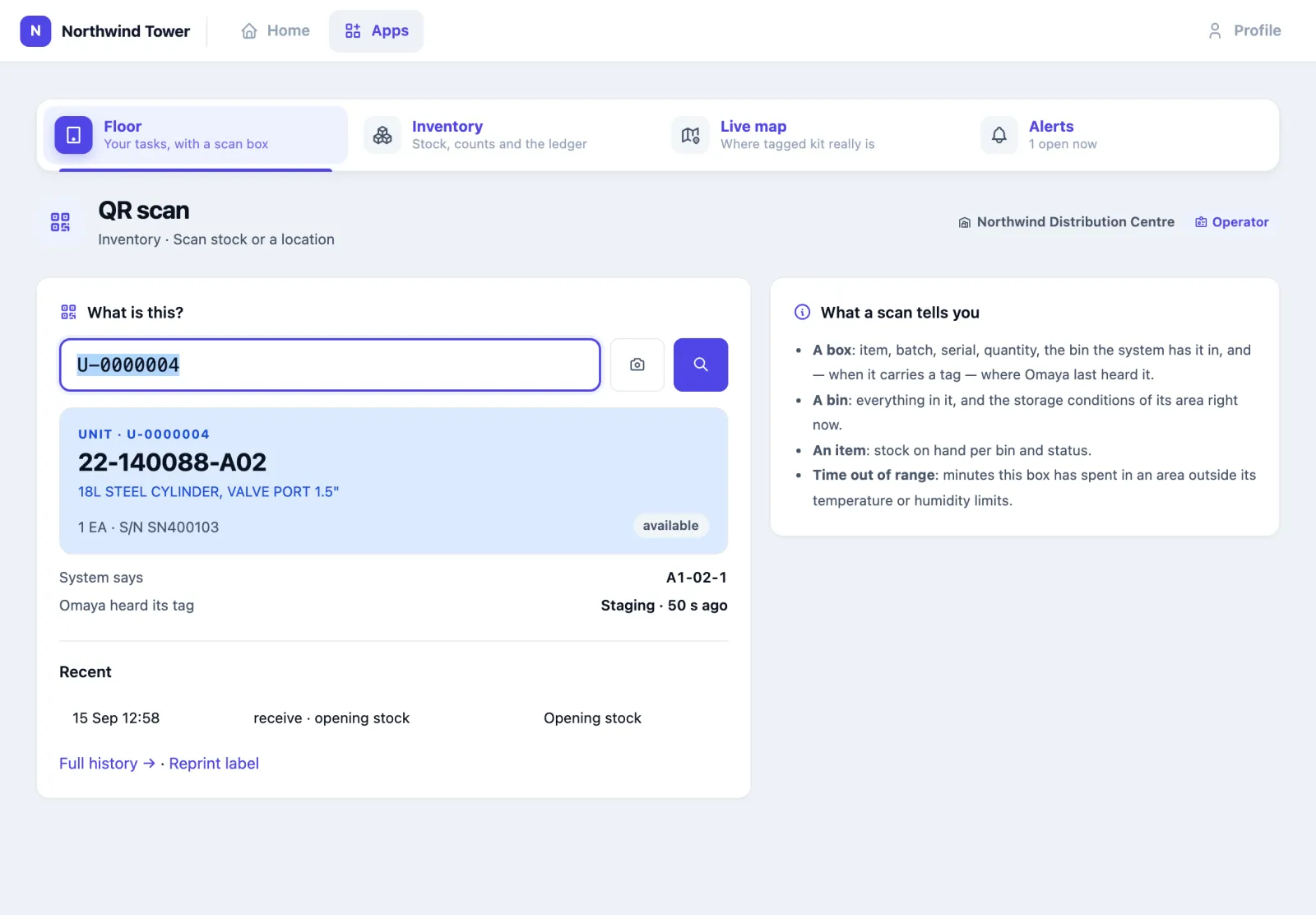
On Floor, tap QR scan (or use the scan box on Floor) and scan anything:
- A box: the item, batch or serial, quantity, status, the bin the system has it in, and — when the box carries a tag — where Omaya last heard it. Below, its recent history, Full history and Reprint label.
- A bin: everything in it, and the conditions in its area right now.
- An item: stock on hand per bin and status.
How to move, split, merge or hold stock
All on Floor, under Inventory:
- Stock transfer — scan the box, then the bin it goes to. A reason is optional.
- Stock breakdown — split a box into two, each with its own label.
- Stock combine — merge boxes of the same stock into one; the retired labels say where they went.
- Stock in and Stock out — add or remove stock with a reason. Both need the adjust exception; without it the screen says Stock out needs a supervisor.
- Quarantine — scan a box and Put on hold with a reason, Release to stock, or Scrap it (it leaves stock). Releasing and scrapping need the adjust exception. Only a box that is available or on hold can be scrapped: one reserved for an order, picked or in QC belongs to its job.
A serial-numbered box is always taken whole: Stock out and counts treat it as one or none.
Return to supplier (on Quarantine, for someone with the adjust exception): scan each box going back — usually boxes held after a failed QC — choose the supplier (or leave it to the one the boxes came from), type the supplier's RMA / debit note no., and tap Raise return. The boxes go to the gate on a return pass (RTV-…) and its note opens to print. When the guard taps Let out at the Gate, they leave stock and the ERP is told (warehouse.supplier_return).
Every one of these writes a line in the ledger with your name.
How to count stock
Counting does not stop the warehouse: stock picked or moved after a count starts is not counted as missing.
- On Floor, tap Stock count. Under Start a count, choose an area or bins; leave Blind count on so counters do not see what the system expects.
- Scan the bin you are counting (1 · Bin you are counting), then every box in it (2 · Scan each box). Items counted loose: scan the barcode and type the quantity. Only untracked items can be counted loose; a batch or serial item is counted by its box labels (a box with no label is added with Stock in). Several people can count the same area at once.
- Tap Finished — send for review.
- A supervisor opens Inventory → Counts, reads the variance and chooses Approve and post, Send back for recount or Cancel.
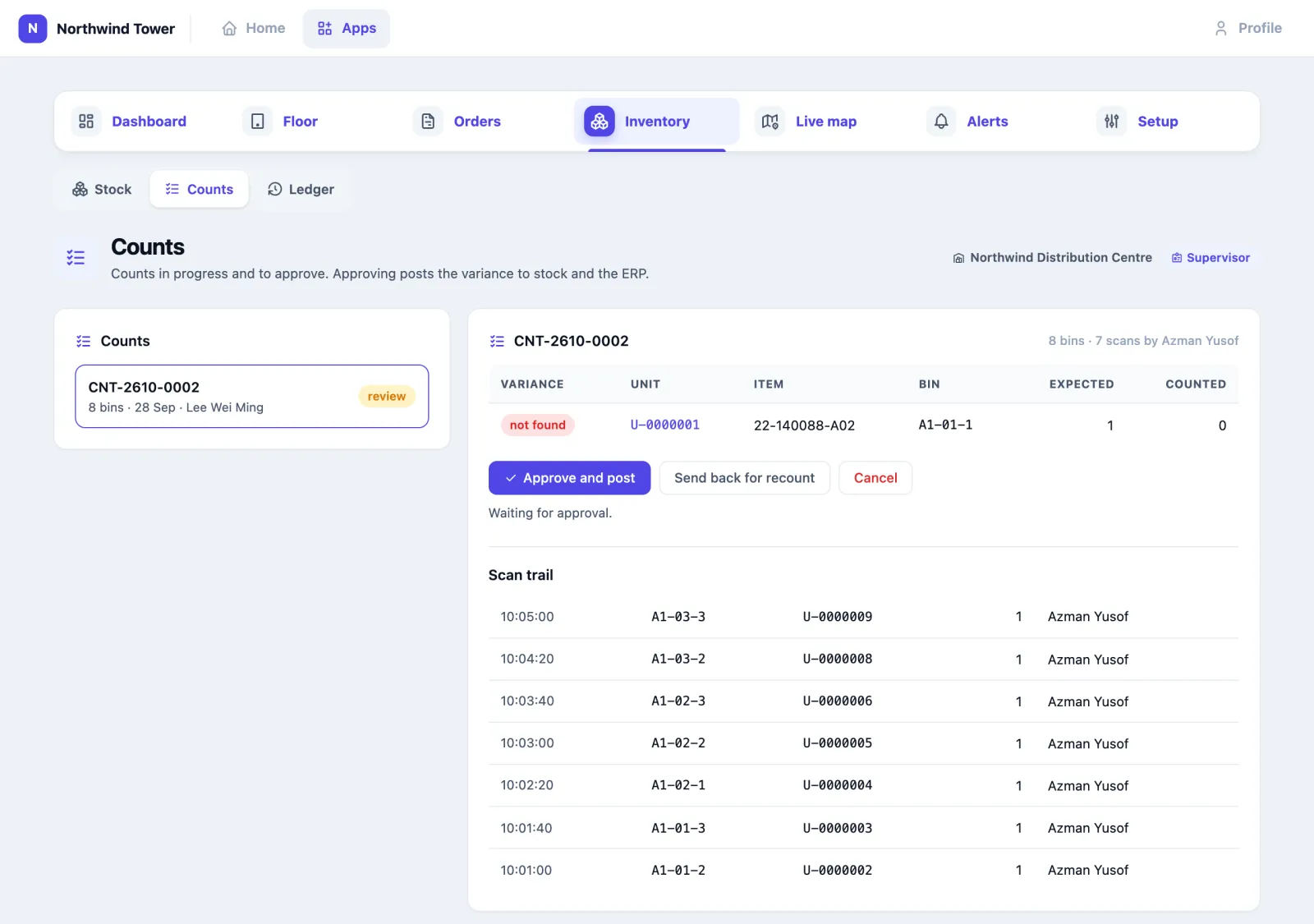
The variance says what kind each difference is — not found, found in another bin, quantity differs, found but not expected — and approving posts each line through the ledger and to the ERP. Approving needs the approve count exception.
How to issue materials and report production
On Floor, tap Work orders and open one from Open work orders.
- To issue materials, scan each material box; leave the quantity empty to issue what is still needed. Issuing part of a box splits it.
- To report what was made, choose the Output, enter quantities and tap Report and print labels. Finished goods wait in the production area, where Putaway finds them. Reporting more than the work order asks for needs a supervisor.
- To return unused material, scan the label of a unit issued to this work order under Return unused material; leave the quantity empty to return all of it. It comes back into the production area with a label for Putaway, and the material line is credited.
A work order is done when its output is reported and its materials are issued. If some materials will not be used, a supervisor opens the order under Orders and taps Close work order.
How to send goods out on a gate pass
Work that goes to a subcontractor (plating, machining) leaves on a gate pass and stays on Northwind's books while it is away.
- In Work orders, under Subcontract — gate pass, scan each unit going out, choose the Subcontractor (left blank, it is the work order's own; the list offers partners set up as subcontractors), the Expected back date and the Vehicle, and tap Issue gate pass. The units move to the gate and the gate pass opens to print.
- At the gate, the guard opens Gate, checks the pass and taps Let out.
- When the goods return, the guard taps Back in — or the receiving operator enters the pass number under Goods coming back from a subcontractor on the Receiving screen. Returned goods come back held for QC, and what came back counts against the work order's output for the same item, so the order completes when the subcontractor's work is back.
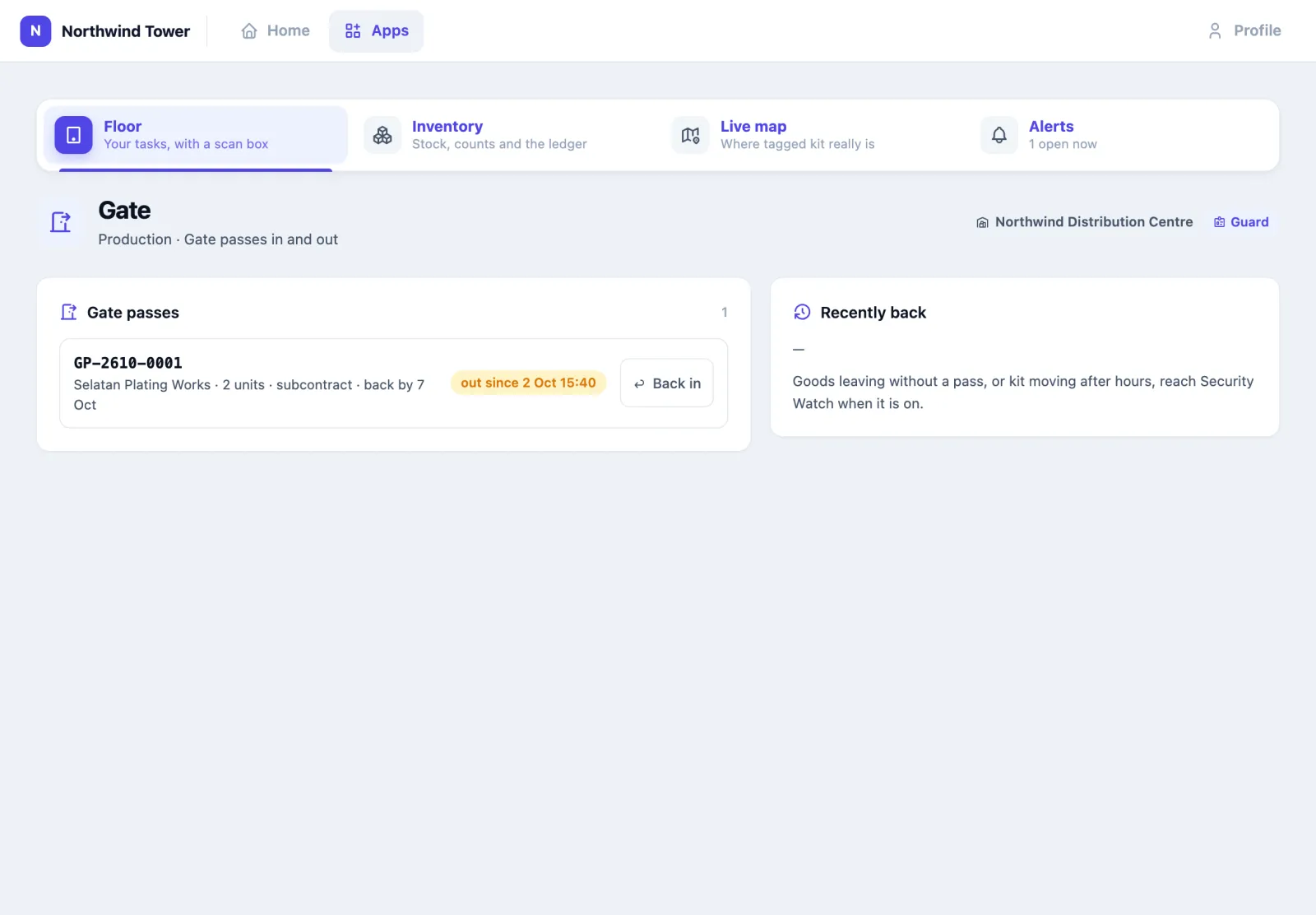
A pass past its expected date raises an alert.
How to follow orders
Orders (desk roles) lists purchase, sales and work orders as the ERP sent them.
- The chips at the top filter: All open, Late, Purchase orders, Sales orders, Work orders and Returns, each with its count. The status list adds done and cancelled orders.
- Each order shows how late it is (10 days late, due today, due in 3 days, counted in the site's days), a progress bar and its status. An order is not late on its due day, only once that day is over.
- Find an order or partner searches order numbers and partner names.
- Click an order to open it in place: its steps (for a sales order Pick → QC → Pack → Ship) and each line's done against ordered, with Open order for the full page.
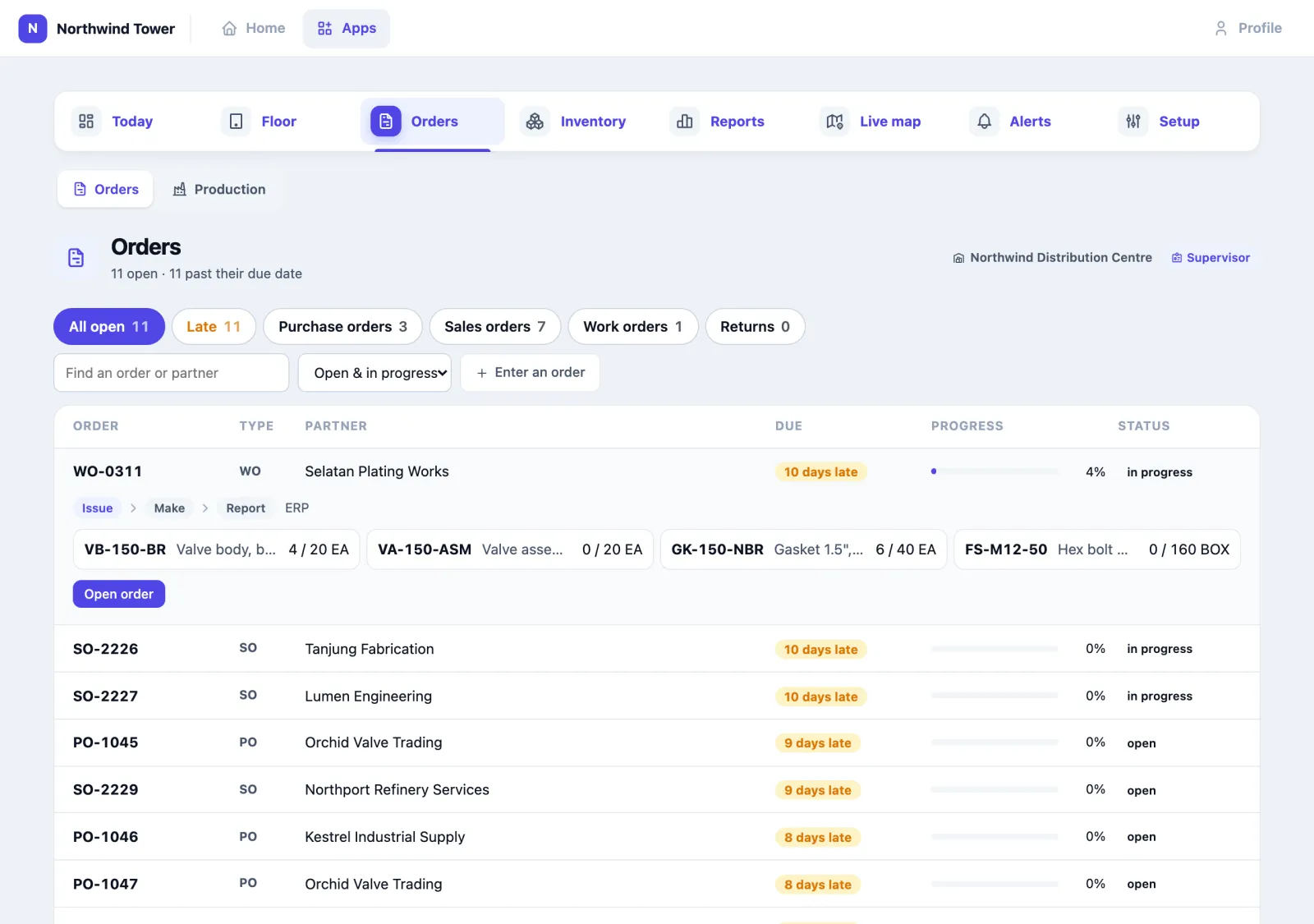
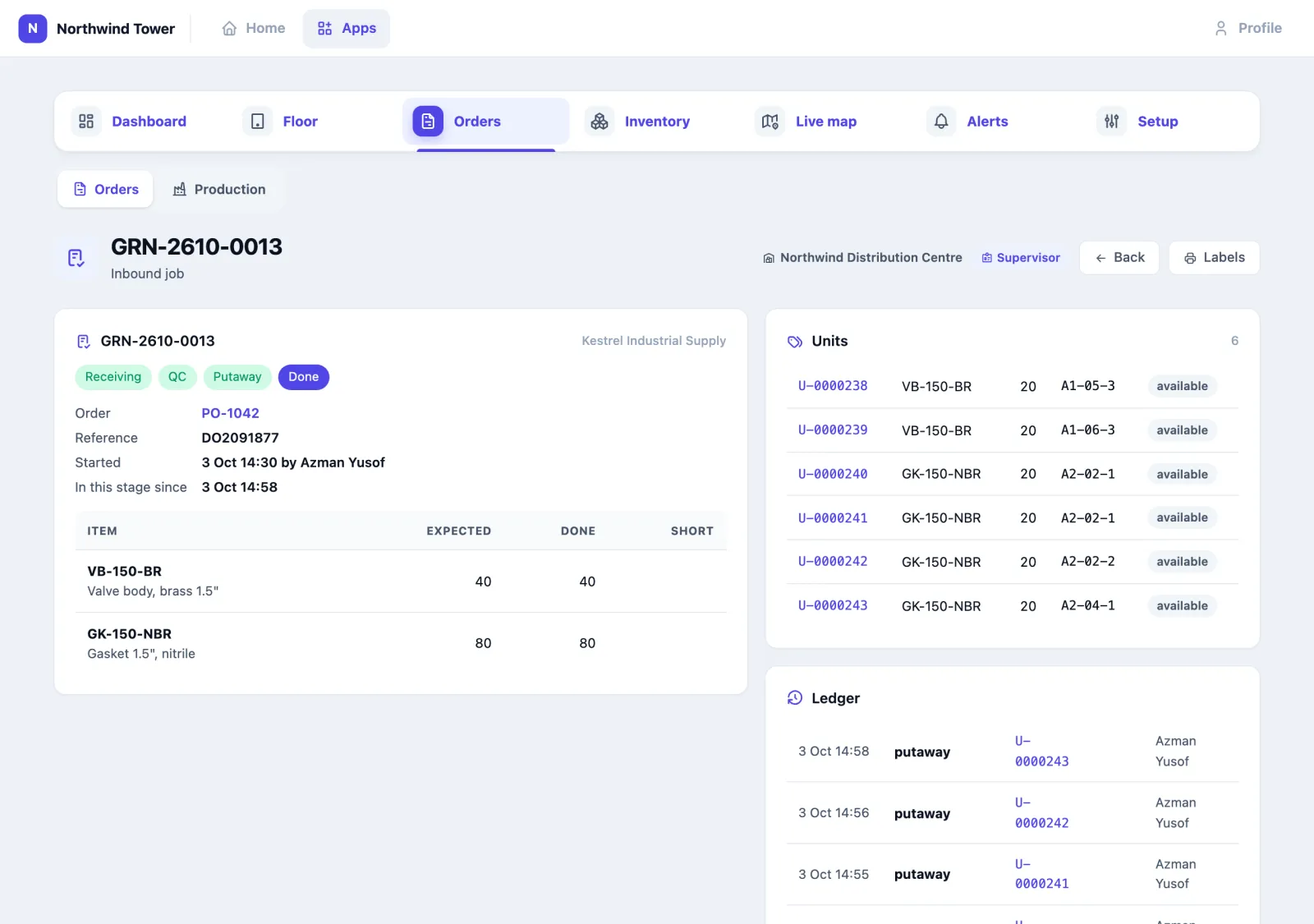
Open an order to see each line, what has been done and the jobs working it; open a job (a GRN receipt or PL pick list) to see its stages, its boxes and its ledger lines.
A site without an ERP link can type orders with Enter an order on the same page: one line per row, SKU quantity [batch].
How to read inventory and the ledger
Inventory → Stock has four views:
| View | Shows |
|---|---|
| By item | On hand, available, committed, on hold, how many bins, first expiry |
| By bin | What each bin holds against its capacity |
| Aging & turnover | Stock by age, what expires first, the oldest, and days of cover |
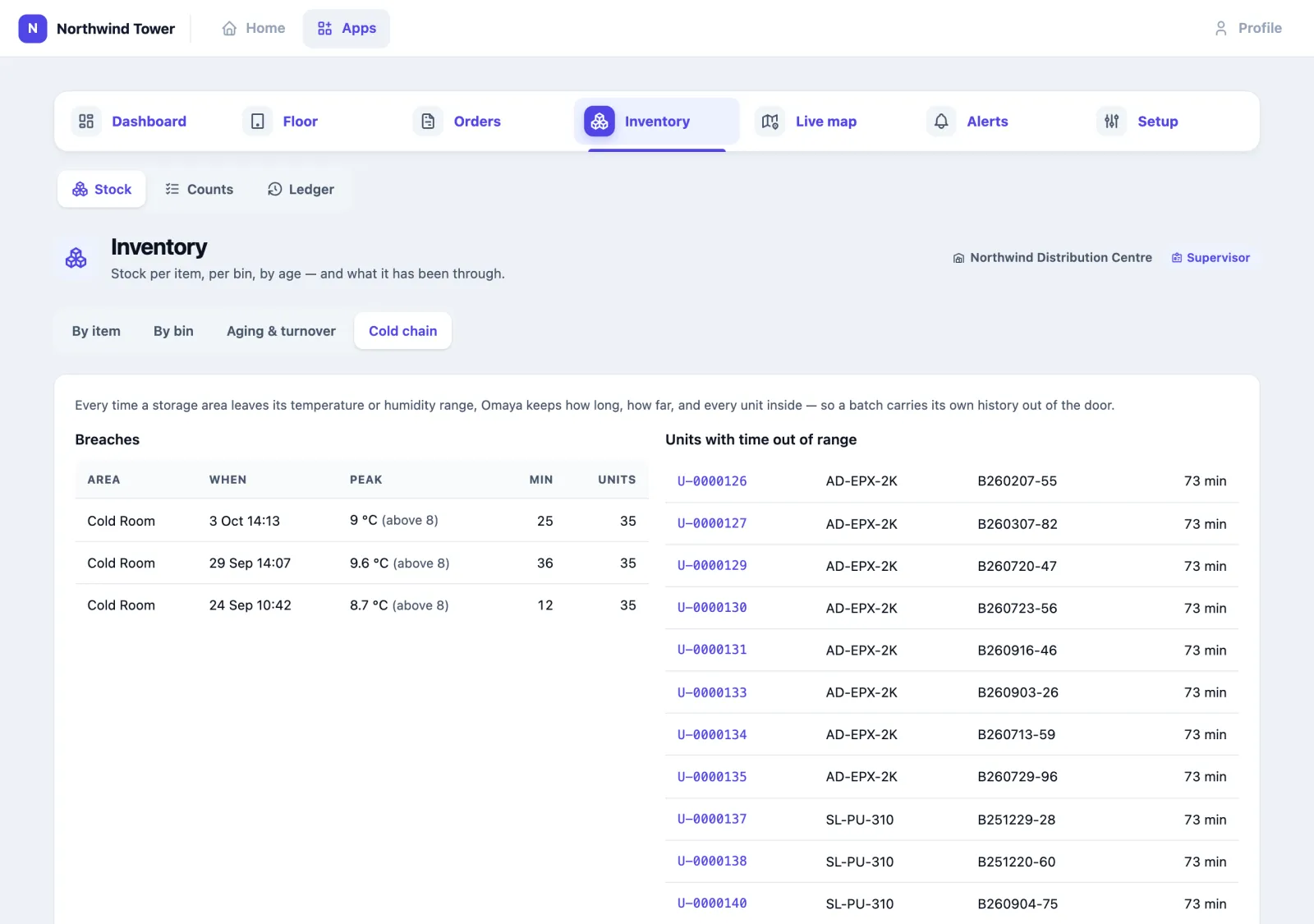
| Cold chain | Every time a storage area left its temperature or humidity range, and every box with time out of range |
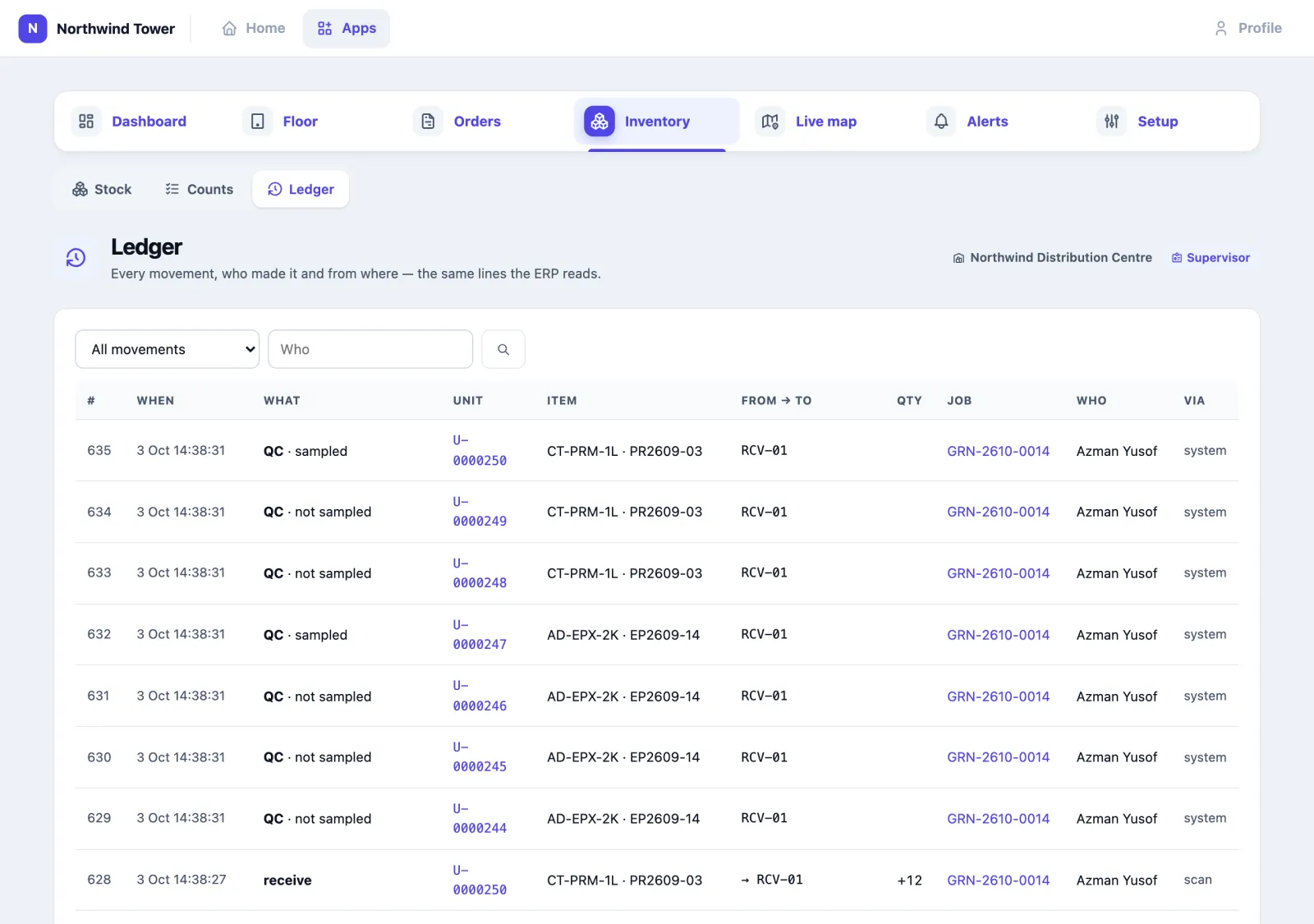
Inventory → Ledger is every movement — received, put away, picked, shipped, adjusted, counted — with when, which box, from and to, the quantity, the job, who and via (scan, typed by hand, the ERP, or the system). Filter by movement type or person. It is the same list the ERP reads.
How to read the reports
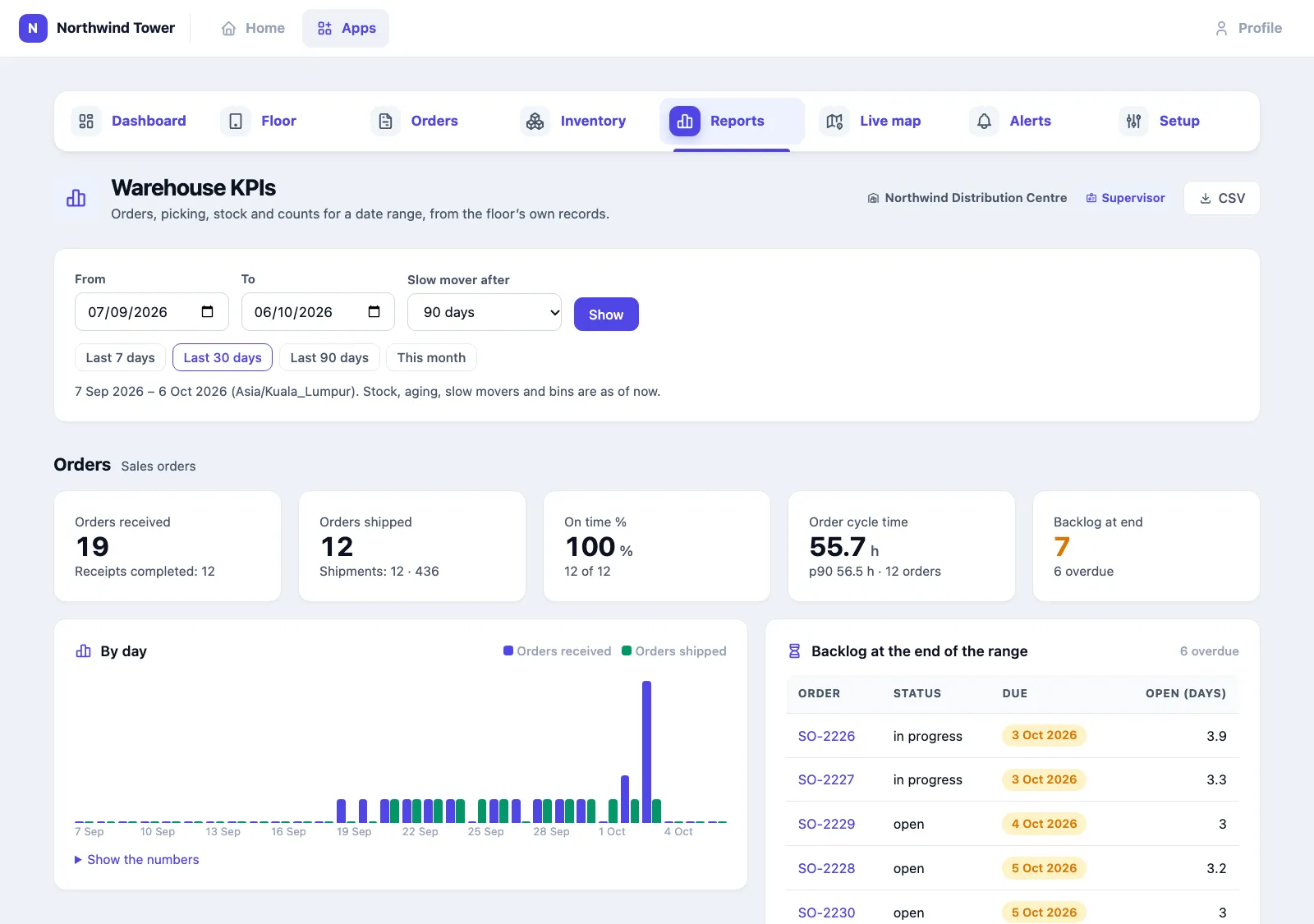
Reports (supervisors, office and managers) sums up a date range: pick From and To, or Last 7 days, Last 30 days, Last 90 days or This month. CSV downloads every figure and table on the page.
| Section | What it tells you |
|---|---|
| Orders | Sales orders received and shipped, the share shipped on or before the due date, hours from order to last shipment (median and p90), and what was still open at the end, with the overdue ones first |
| Picking | Order lines picked, the share of lines picked in full (nothing marked short), substitutions, outbound QC fails, and picks per hour for each picker |
| Inventory | Stock on hand by storage class, stock value (only when items carry a unit cost from the ERP), slow movers, stock aging, items that ran out during the range, and how many bins in each area hold stock |
| Cycle counts | Counts approved, the share of expected boxes counted right, and the stock change the counts posted |
Stock, aging, slow movers and bins are as of now, whatever range you pick. Where the app keeps no record of something the page says not recorded rather than 0 — mispicks, for instance: the scanner refuses a wrong item or batch on the spot and does not log the refusal. What this report is, at the foot of the page, explains each figure. Reports › Scheduled reports emails the same KPIs on a schedule (see Scheduled reports in the apps).
How to see where tagged kit is (Live map)
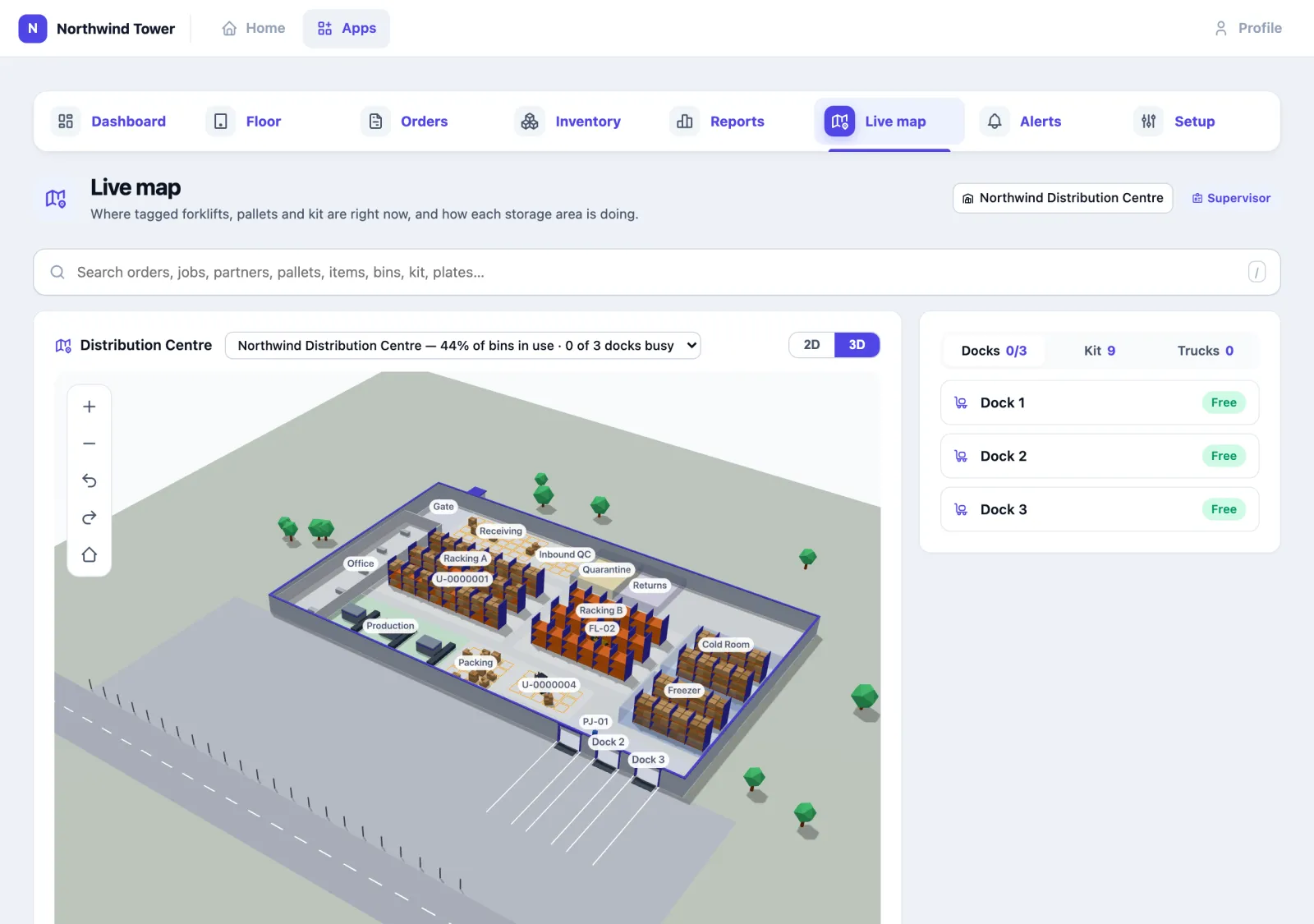
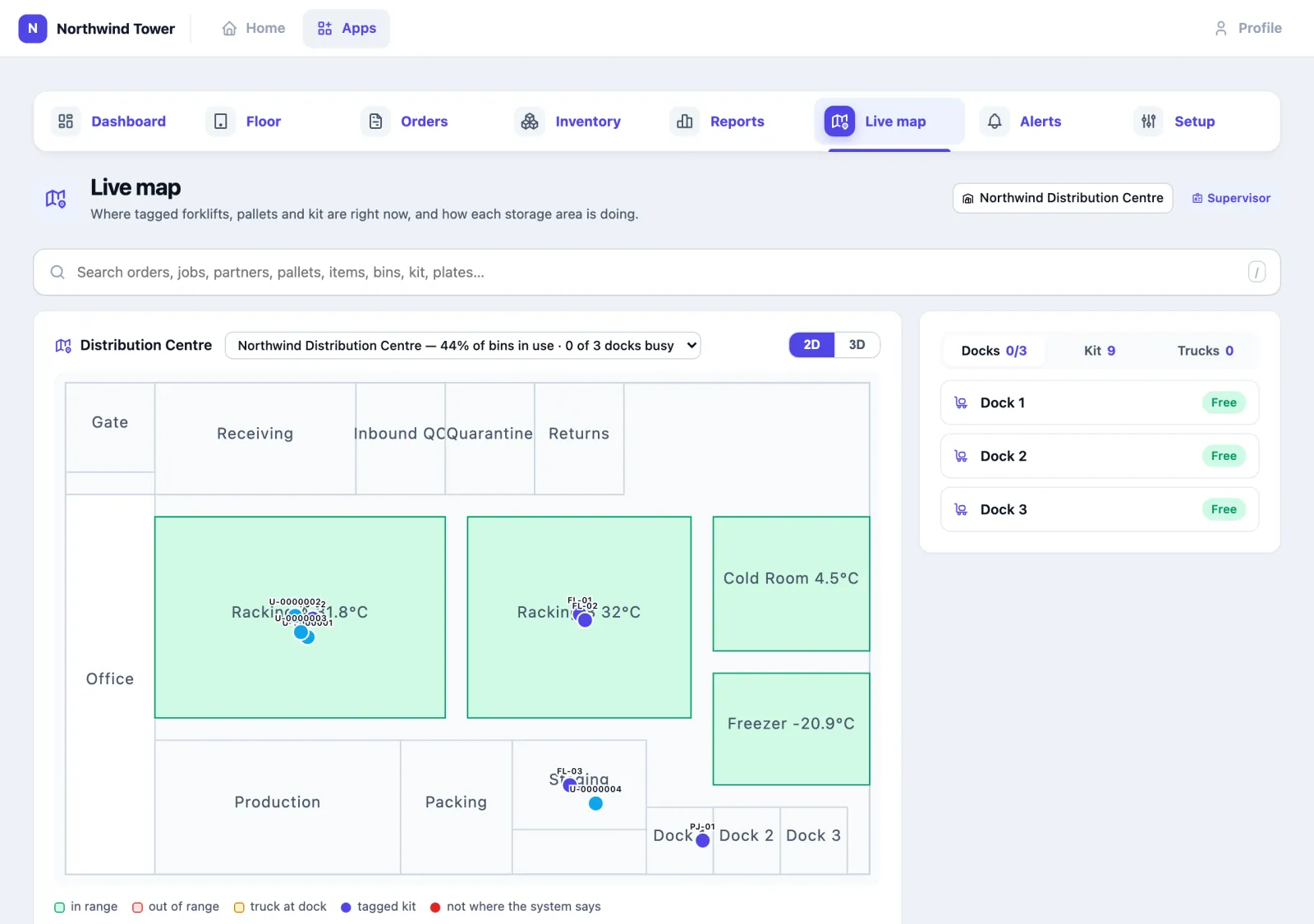
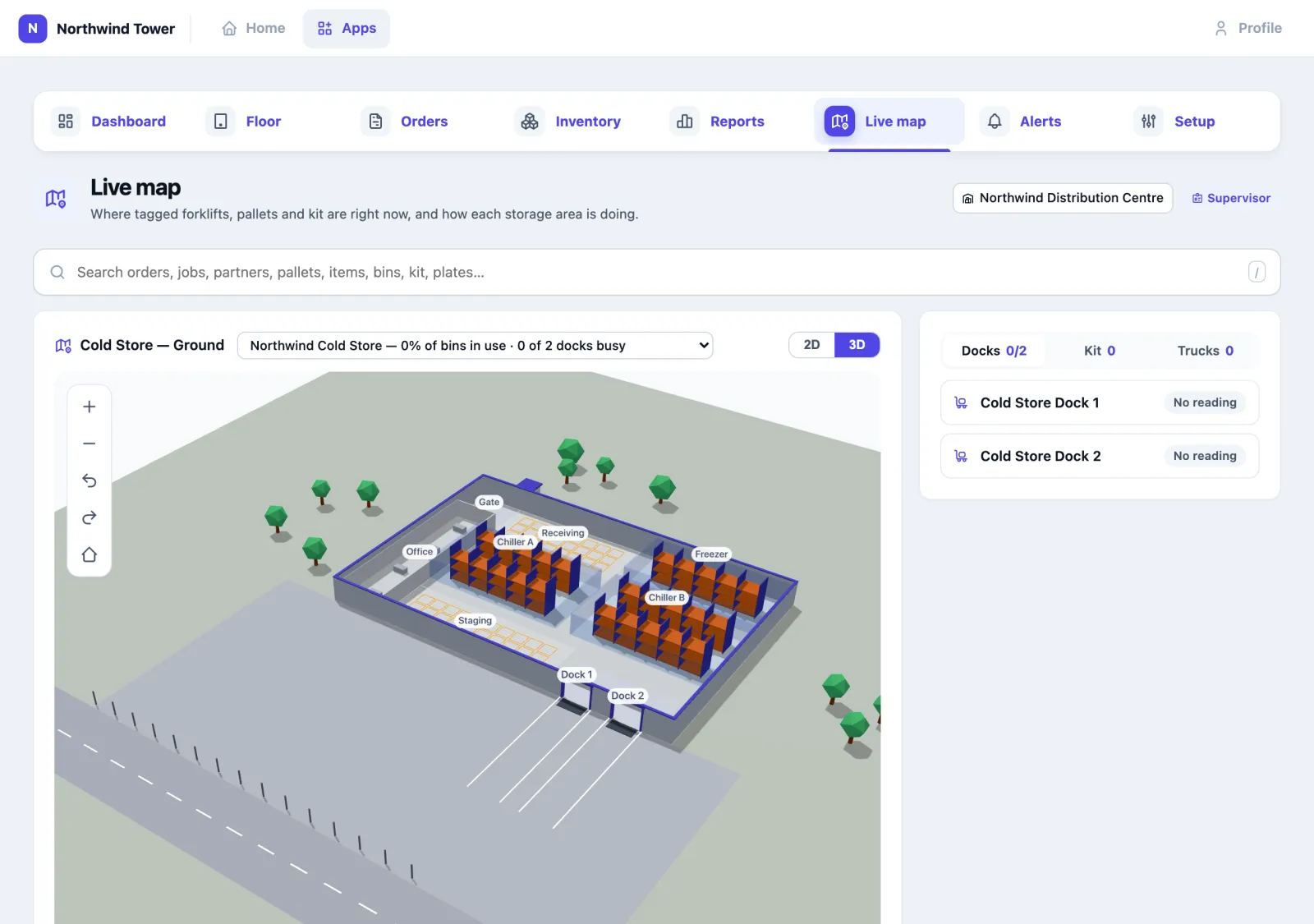
Live map shows the warehouse as it is right now: each storage area and its condition, the docks and whether a truck is at them, and every tagged forklift, pallet jack and pallet where Omaya hears it. Above the map, the line next to the floor's name sums up the site: how many of its bins hold stock and how many docks have a truck.
2D and 3D
The 2D / 3D switch at the top right of the map changes the view; the page remembers your choice. 2D is the floor plan, flat, each area coloured by its condition (in range, out of range). 3D draws the same floor as a building:
- Nothing to draw yourself. The building is made from what is already set up: the floor plan and its zones, and the kind you gave each area in Setup › Areas. Storage areas get racks, filled to the share of their bins that hold stock; staging and receiving get painted pallet squares; cold rooms get glass walls; the gate gets a booth and barrier. A dock area that touches the outside wall gets a dock door, and the yard outside gets a bay for each.
- Things move. Forklifts, pallet jacks and tagged pallets glide to where they are heard next. Omaya knows which zone a tag is in, not the exact path it took, so a glide shows that it moved, not how. While a dock's sensor says a truck is there, a truck stands backed into that door; when it leaves, the truck drives off.
- Click anything — a forklift, a pallet, a dock door, an area — for its card. Drag to turn the view, scroll or pinch to zoom; the buttons on the left zoom, turn and bring the view back home.
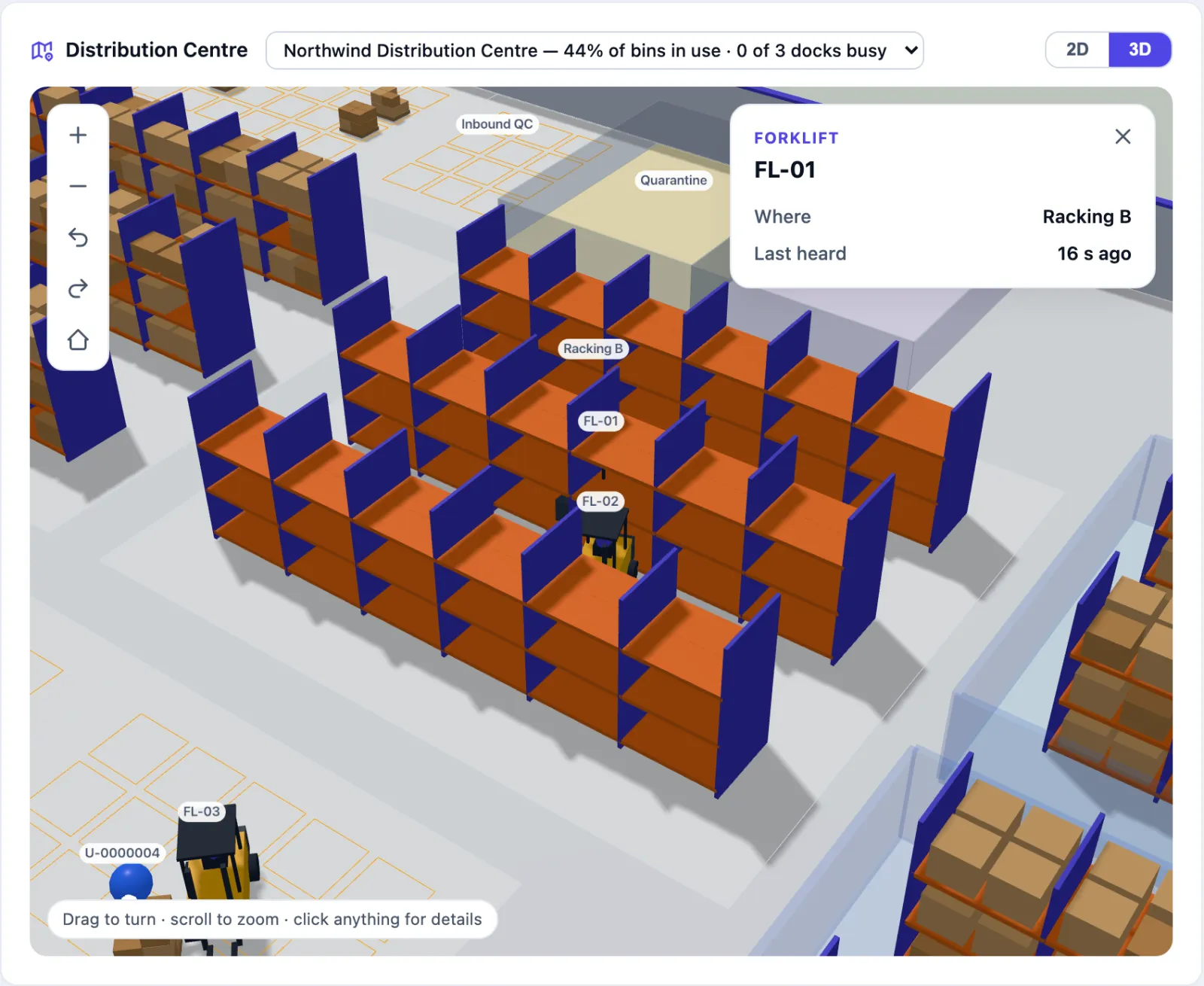
| You click | The card says |
|---|---|
| A forklift, pallet jack or other kit | Where it is and when it was last heard; No recent reading when its tag has gone quiet |
| A tagged pallet | The item, quantity and bin the system has it in, where its tag is heard, and Not where the system says in red when the two differ |
| A dock door or the truck at it | Truck at the dock or free, when the truck arrived and how long it has stood there, and which sensor said so |
| An area | Its storage class, temperature and humidity against its limits, and how many of its bins hold stock |
| A truck on the road | How far away it is, the place it is near, its last GPS fix, and a link to open it in Maps |
Docks, kit and trucks
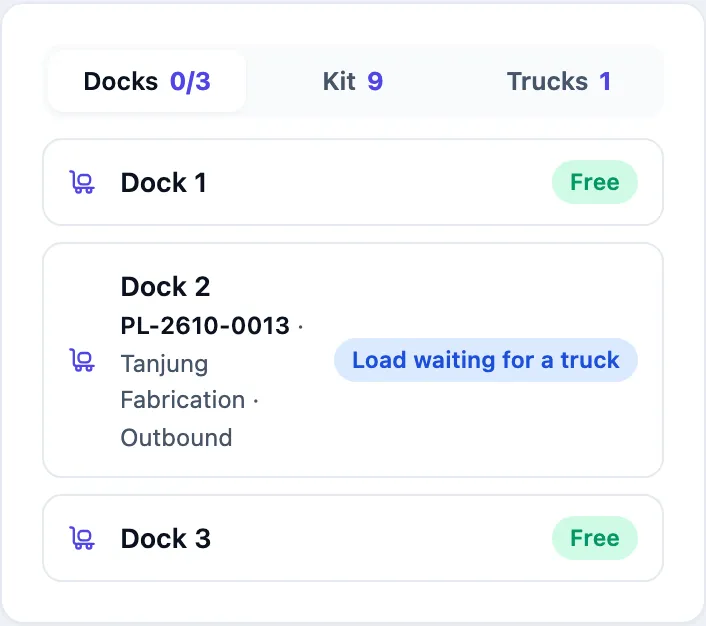
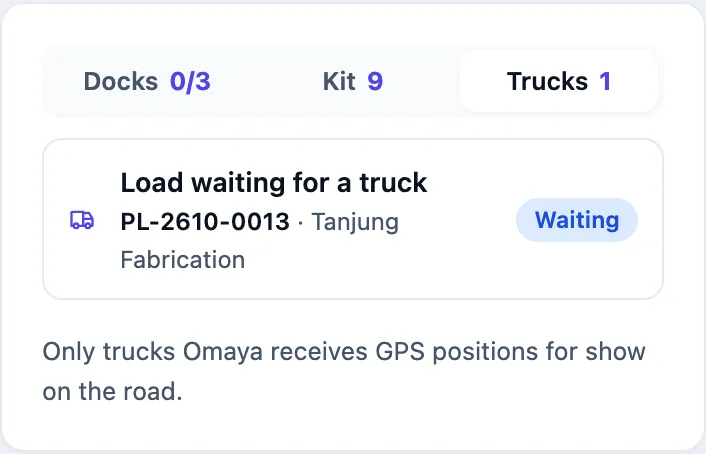
The panel beside the map has three tabs. Click a row to fly the 3D view to it.
- Docks — each dock as Free, Truck at the dock (with the time it arrived and the minutes since) or Load waiting for a truck (a shipment sent to that dock is packed and no truck has come yet), and the job and partner at the dock.
- Kit — every tagged forklift, pallet jack and pallet with its zone and how long ago it was heard. The number on the tab counts them.
- Trucks — today's trucks at the docks, with arrival, departure and minutes at the dock; loads waiting for a truck; and trucks out on the road (below).
Shipments
Under the map, Shipments follows one job at a time through its steps, with the arrows to step between them: every job still open, and those finished today, the ones at a dock first.
| Going out | Coming in |
|---|---|
| Order → Picking → Packing → Loading → Shipped | Arrived → Receiving → QC → Putaway → Stored |
Each step shows the time the floor recorded it — the order being entered, the first box picked, packed, received, inspected or put away, the truck at the dock, the job closed. Nothing is estimated: a step not reached yet has no time, and a step the job went past without its own record (a shipment that was never packed separately, say) is ticked with no time. The bar underneath is the units done against the units expected.

Search
The search box above the map finds things by name or number — press / to jump to it, the arrow keys to move through the results and Enter to open one:
- Orders and jobs — by job number, order number, partner name or code, the carrier's reference or a vehicle plate. A job opens in Shipments, even an old one; if it is at a dock, the 3D view flies there too. An order nobody has started a job on is listed with its partner and due date.
- Pallets and cartons — by code, batch or serial. The 3D view flies to the pallet when its tag is heard on this floor, otherwise to the area of its bin, which flashes.
- Items — by SKU, name or barcode, with how much is on hand and in which areas; the view flies to the area holding most of it.
- Bins, kit, areas and gate passes — by code, label, name, gate pass number, plate or driver.

Trucks on the road
A truck appears on the road outside the yard only if Omaya receives its GPS position — from a tracker that reports to Omaya, or from any other source that sends positions in: a fleet-tracking platform, another make of tracker, a driver's phone app (see GPS positions from another platform). Register its tracker as a device, then add the truck under Setup › Tagged kit as a vehicle with that device. While it is outside, the truck is drawn on the road: on the near lane coming in, the far lane going out, further along the further it is from the site; within a few hundred metres it waits in the yard by the gate. Whether it is coming or going is read from its distance growing or shrinking. A truck Omaya has no position for — most visiting hauliers — shows only when it stands at a dock.
More than one site
When your warehouse areas sit on floors at more than one site — more than one location in Omaya — the line beside the floor's name becomes a list of sites, each with its bins in use and docks busy; pick one to go to its floor. A site with more than one floor lists its floors beside it.

A tagged box heard for a while away from its bin's area is flagged as misplaced. Out of working hours, kit outside its home area is flagged too.
How to handle alerts
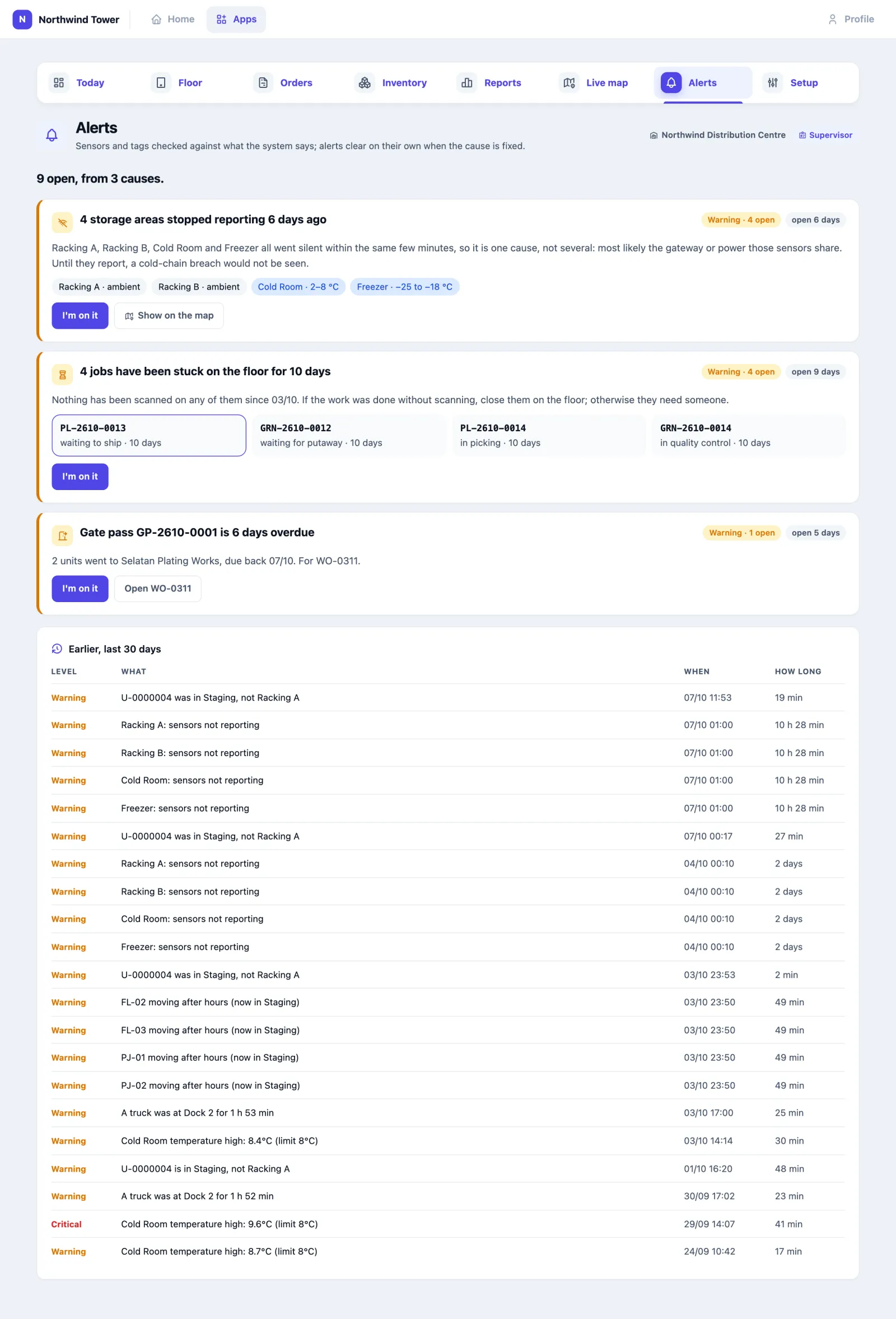
Alerts groups what is open by its cause, so nine alerts with three causes read as three things to fix:
- Sensors that went silent together are one card: the areas as chips (cold areas in blue), when they stopped, and what that usually means — the gateway or power they share.
- Jobs stuck on the floor are one card listing each job, its stage and how long it has waited, each opening the job.
- Anything else is one card each, in a plain sentence, such as an overdue gate pass with what went out and when it was due back.
I'm on it tells everyone you have it, for every alert on the card. Alerts open, escalate and clear on their own. Times read in hours and days (open 9 days, 10 h 28 min). Earlier, last 30 days lists what cleared and how long it lasted.
| Alert | When |
|---|---|
| Storage condition | An area out of its temperature or humidity range. Critical at 2 °C (or 10 % humidity) past the limit, or after 30 minutes out |
| Sensors silent | An area with limits whose sensors stopped reporting |
| Misplaced | A tagged box or piece of kit heard away from its area longer than Setup allows |
| Dock dwell | A truck at a dock longer than Setup allows (critical at twice that) |
| Gate pass overdue | Goods still out on a gate pass once their back-by day is over at the site; critical after 7 days |
| After hours | Stock moved, or kit moving, outside working hours. Kit has to hold its new zone for two sweeps, and kit heard again after 15 minutes of silence starts from where it is, so a sensor feed coming back is not read as movement |
| Stuck | A job left in one stage longer than Setup allows |
Supervisors and managers get a push on their phone; Setup chooses who is emailed.
Using it in your organisation
Distribution centre for a trading company
Setting. A single warehouse holding stock for sales offices; orders come from the ERP; trucks load at three docks. Who does what. Two or three operators on tablets run receiving and picking; one supervisor does QC and approves counts; the sales office reads Orders. Settings that matter. Inbound sample (%) around 5–10 for trusted suppliers; Picking order FIFO for non-perishables; a distance sensor at each dock with Truck at a dock too long after (min) set to your loading time plus a margin. Tip. Print bin labels before go-live and stick them at eye height: putaway and counts depend on scanning the bin, not on the operator's memory.
Pharmaceutical or food cold store
Setting. Chilled and frozen rooms, batches with expiry dates, auditors who ask for temperature history. Who does what. Operators receive and pick; QA is the supervisor who inspects samples and decides on held stock; the QA manager reviews Cold chain before releasing a batch. Settings that matter. Each cold area with its Lowest °C / Highest °C and two condition sensors; Picking order FEFO; Warn of expiry within (days); email on Critical alerts only to QA. Tip. Give each chilled item the right storage class: Putaway then never suggests an ambient bin for it, and a box's minutes out of range follow it to the customer.
Factory stores with subcontracting
Setting. A plant store that issues materials to production and sends parts out for plating or heat treatment. Who does what. Storekeepers issue materials against work orders; production reports finished goods; the gate guard checks gate passes in and out. Settings that matter. A production area and a gate area under Areas & bins; working hours that match your shifts, so movement at night is flagged to Security Watch. Tip. Set Expected back honestly on every gate pass. The overdue alert is the only reminder that a subcontractor still has your parts.
Setting it up for your organisation
This part is for whoever configures the app (Warehouse with configure rights).
What must exist first
- People with the Warehouse app, given under Apps → app users by an administrator. Each then gets a role here.
- Items, partners and orders, from your ERP (see below) or a CSV import.
- A label printer that prints from the tablet's browser. Labels come in three sizes and each carries a QR code.
- For the Omaya extras (enterprise plan): zones on the floor plan for each area; temperature and humidity sensors in cold areas; a distance sensor or radar at each dock; BLE tags on forklifts and on pallets worth following.
Checklist
- Setup → Site & rules: site name, picking order, QC percentages, when to raise a flag, working hours, and who hears about alerts.
- Setup → Areas & bins: add each area (receiving, storage, cold room, quarantine, staging, production, docks, gate) with its storage class, its Omaya zone, condition limits and sensors; then generate bins (prefix, digits, levels per position, capacity) and Print bin labels.
- Setup → Items and Partners: check what the ERP sent, or add them here.
- Setup → Tagged kit: add forklifts and pallet jacks with their tag and home area (register the tag under Devices first).
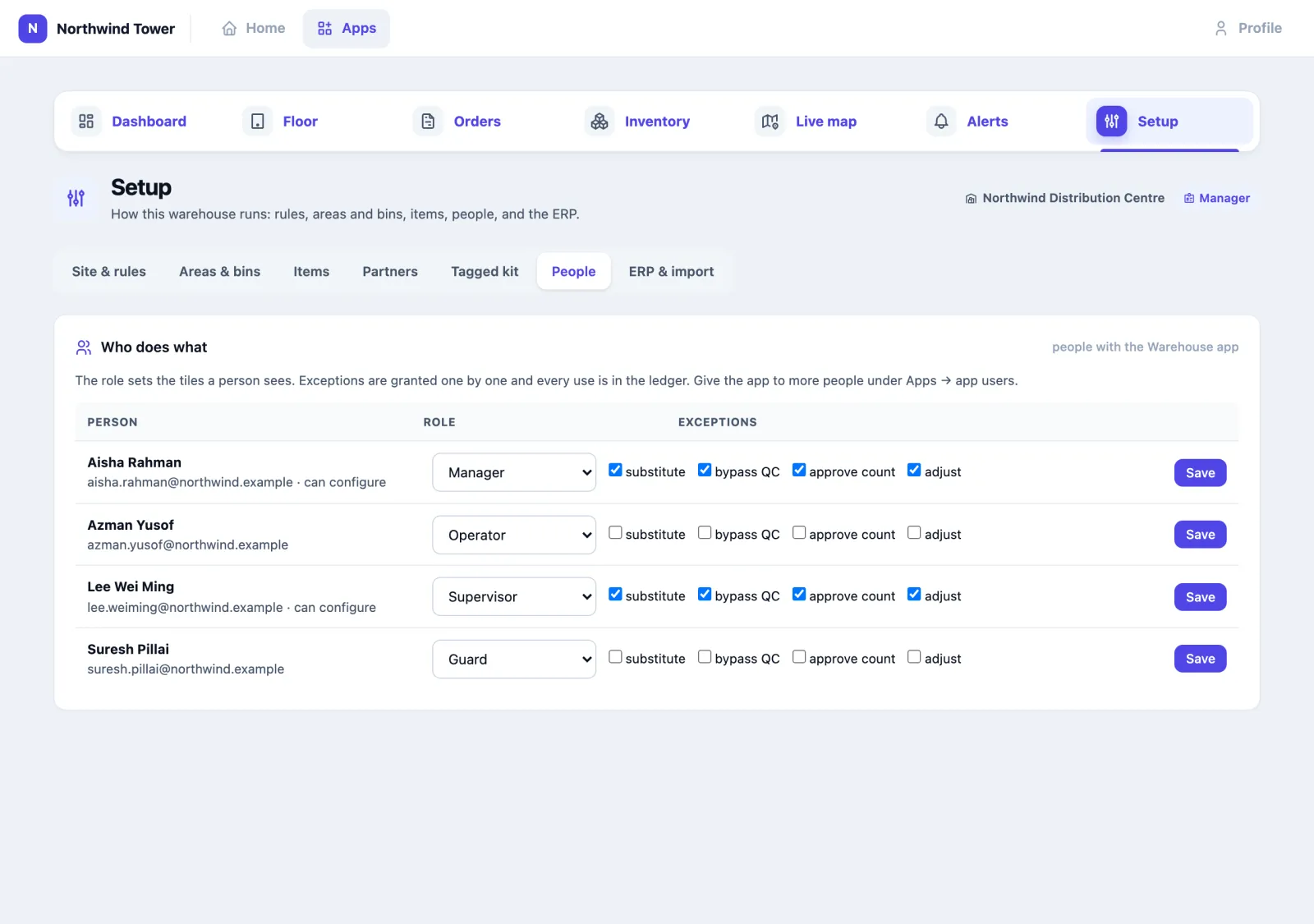
- Setup → People: give each person a role and the exceptions they need.
- Setup → ERP & import: connect the ERP, or import CSVs for a first load.
- Receive one real delivery end to end before go-live.
Settings
| Setting | Where | What it changes |
|---|---|---|
| Picking order | Site & rules | Earliest expiry first (FEFO) or Oldest receipt first (FIFO) when stock is reserved |
| Inbound sample (%) / Outbound sample (%) | Site & rules | Share of each item's boxes inspected; 0 = no QC |
| At least, per item | Site & rules | Minimum boxes sampled per item |
| Stock counts as aged after (days) | Site & rules | When stock shows as aged |
| Warn of expiry within (days) | Site & rules | When stock shows as expiring |
| A job is stuck after (hours in one stage) | Site & rules | The stuck alert |
| Truck at a dock too long after (min) | Site & rules | The dock dwell alert |
| Tagged stock in the wrong place after (min) | Site & rules | The misplaced alert |
| Working hours | Site & rules | Movement outside them is flagged and reaches Security Watch |
| Who hears about alerts | Site & rules | Push to supervisors and managers; Email to chosen people, Critical alerts only or Every alert |
| Storage class, limits, sensors, dock sensor | Areas & bins | What may be stored where, and when an area is out of range |
| Role | People | Operator, Supervisor, Office, Guard or Manager: the tiles a person sees |
| Exceptions | People | substitute, bypass QC, approve count, adjust — granted one by one |
Default roles: an operator gets receiving, putaway, returns, picking, packing, shipping, QR scan, counting, transfer, combine, breakdown and work orders, and no exceptions. Supervisors and managers get every task and every exception. Office gets QR scan; guards get the gate and QR scan. Someone with configure rights and no role set acts as a manager.
Connecting your ERP
The ERP is the source of truth for items, partners and orders; the warehouse is the source of truth for what physically happened. Setup → ERP & import shows the connection and the last runs, and takes CSV files.
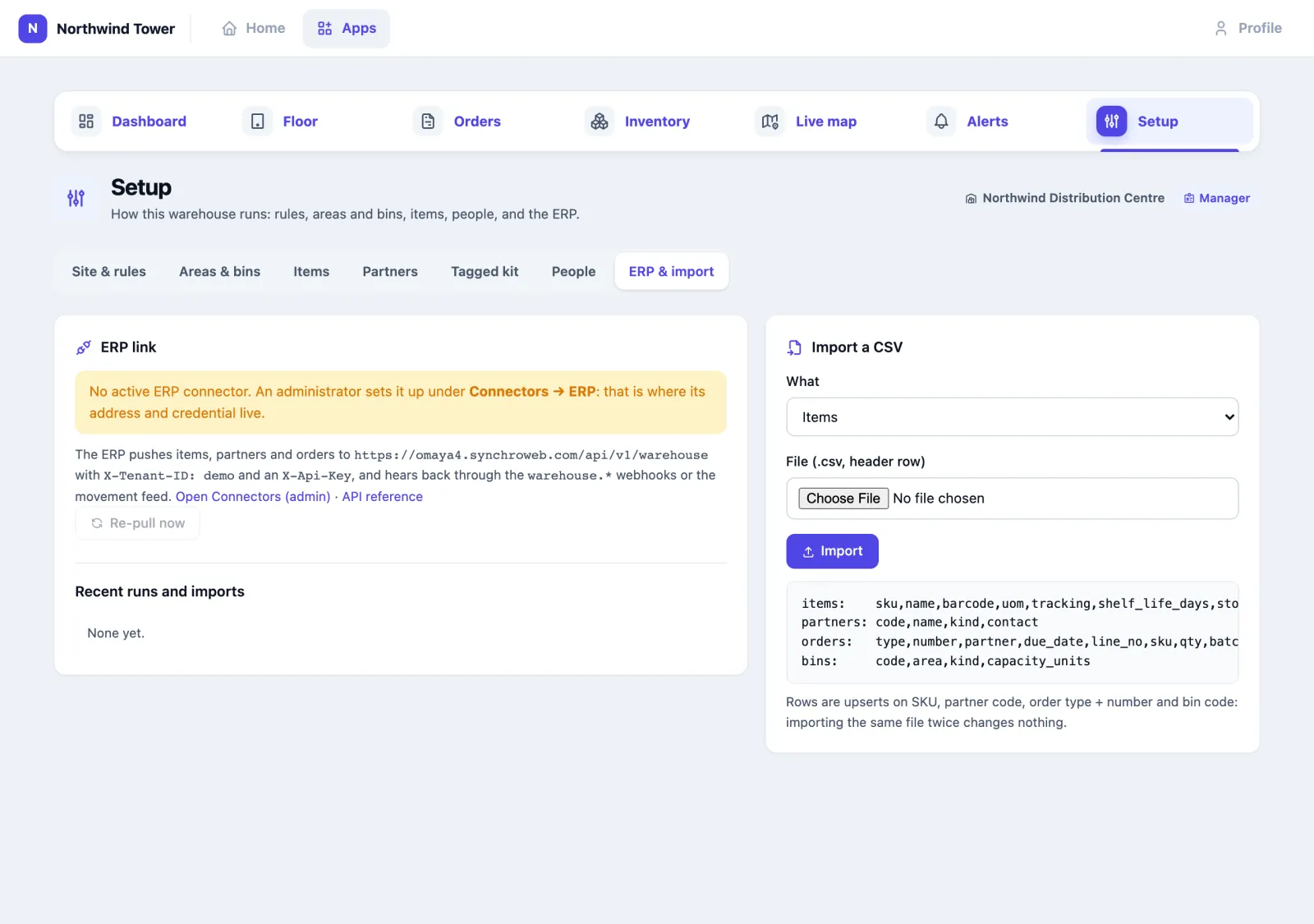
There are three ways to keep the two in step; use any of them.
1. The ERP pushes to Omaya's API: https://<your Omaya host>/api/v1/warehouse/… with the headers X-Tenant-ID (your organisation id) and X-Api-Key (created by an administrator under My Profile → API keys). Everything is keyed on the ERP's own codes, and sending the same message twice changes nothing.
| Method and path | Does |
|---|---|
PUT items/{sku} · POST items | Create or update an item, or a list |
PUT partners/{code} · POST partners | Suppliers, customers, subcontractors |
PUT orders/{type}/{number} · POST orders | An order with its lines; type po, so, wo, ro |
POST orders/{type}/{number}/cancel | Cancel (refused while the floor is working it — put it on_hold instead) |
GET orders/{type}/{number} | The order with each line's done and reserved quantity |
GET stock?sku=&bin=&batch= | On hand per item, bin, batch and status |
GET movements?after={id}&limit={n} | The ledger in order, from a cursor |
GET items · GET bins | The master data as the warehouse holds it |
An item looks like this:
json
{ "name": "Valve body, brass 1.5\"", "barcode": "9551234567890", "uom": "EA",
  "tracking": "batch", "shelf_life_days": 720, "storage_class": "ambient",
  "qc_required": true, "abc": "A", "reorder_qty": 40, "erp_ref": "IT-00412" }
tracking is none, batch or serial; storage_class is ambient, chilled, frozen or hazmat. An order (PUT orders/po/PO-1042):
json
{ "partner": "KST", "due_date": "2026-10-03", "erp_ref": "PO-7781",
  "lines": [
    { "line_no": 1, "sku": "VB-150-BR", "qty": 40 },
    { "line_no": 2, "sku": "GK-150-NBR", "qty": 80 }
  ] }
partner is a code already sent, or an object ({"code": …, "name": …}) to create it on the way. A work order's lines carry "kind": "material" or "kind": "output". Lines are matched on line_no; a quantity can go up or down but never below what the floor has already done (on a sales order, that includes what is picked and not yet shipped). Lowering a line that is being picked shrinks the pick list too, and releases the stock it no longer needs. An item with a tracking or storage_class outside the lists above is refused, not defaulted.
2. Omaya tells the ERP: subscribe it under Connectors → Outbound Webhooks to warehouse.receipt, .shipment, .adjustment, .count_approved, .materials_issued, .materials_returned, .production_reported, .return_received, .supplier_return, .qc_rejected and .condition_breach (see Webhook events) — or read the movement feed: GET movements?after=<last id> returns every ledger line after that id with next_after to send next time, so nothing is lost or read twice.
3. The nightly re-pull: under Connectors → ERP, an administrator gives the URLs where the ERP lists its items, partners and open orders, and the header and secret to send. At 02:30 site time Omaya re-pulls them, and each run shows under Recent runs and imports. Re-pull now runs it at once. The addresses must be reachable over the internet; an ERP inside your network pushes to the API instead.
CSV import (Setup → ERP & import) takes a file with a header row:
items:    sku,name,barcode,uom,tracking,shelf_life_days,storage_class,qc_required
partners: code,name,kind,contact
orders:   type,number,partner,due_date,line_no,sku,qty,batch,kind
bins:     code,area,kind,capacity_units
Importing the same file twice changes nothing.
Questions and problems
A tile I need is not on my Floor screen. Your role does not include that task. A manager changes it under Setup → People.
"More than the order expects needs a supervisor." You tried to receive more than the PO line. Receive what the order expects and ask a supervisor to receive the extra, or ask the office to correct the PO in the ERP.
I scanned a box and the screen refused it during picking. It is not the box reserved for this order. Scan the box the screen shows; picking a different box of the same item needs the substitute exception.
Picking says a box "expired on …: it cannot be picked". Its expiry date has passed. Expired stock is never reserved or picked; put the box on hold or scrap it under Quarantine.
A return says "… was not shipped on …" or "Only … more … can come back on …". The return names a sales order that did not ship this item, or not this many (less what has already come back on it). Check the order number, or ask a supervisor to accept it.
"… is already being received on …". A PO has one receipt open at a time. Carry on with that receipt (under Being received), or close it first.
Putaway suggests no bin. Every bin the item may go in is full or blocked, or no storage area allows its storage class. Ask a manager to add bins or check the item's class.
The box is in the system in one bin but the tag says another. Trust the tag, fetch the box and transfer it — or put it back. The misplaced alert clears on its own once the tag is heard in the right area.
Today says an area's sensors are silent. The sensor or its gateway has stopped reporting. Until it is back the area is not judged in or out of range.
A count shows variance I don't believe. Tap Send back for recount instead of approving. Nothing is posted until someone approves.
On the phone
Operators can do the same tasks on the Omaya Mobile app, scanning with the phone's camera. See Warehouse on the phone.