Appearance
Visitor Management
Visitor Management is the front desk of your building: who is coming today, who is waiting for approval, who is inside right now and who has left. Reception and guards use it to check people in and out; each company in the building approves its own visitors; and a badge handed over at check-in lets the rest of Omaya see where a visitor is until they hand it back.
Who uses it
Mei LingReceptionistHafizSecurity Guard (day)KumarSecurity SupervisorAishaFacilities ManagerFarahHR & Safety OfficerJasonAccount ManagerRaviOperations LeadPriyaVisitor, Northwind CapitalHannahVisitor, Brightline DesignMarcusContractor, CoolAir Services
| Role | What they do with Visitor Management | At Northwind Tower |
|---|---|---|
| Receptionist | Checks visitors in and out, registers walk-ins, hands out badges, answers "is my visitor here?" | Mei Ling Tan |
| Guard | The same desk out of hours; sees who is waiting for approval but does not decide | Hafiz Ismail (day), Kumar Selvam (supervisor) |
| Approver | Approves or denies visits to their company | Aisha Rahman, Farah Aziz (Northwind Holdings) |
| Host | Pre-registers the people they expect; is told when they arrive | Jason Wong, Ravi Kumar |
| Company admin | Runs their own company's members, registration form, terms and auto-approval | Aisha (Northwind Holdings), Nadia Kamal (Tasik Biru Legal LLP) |
| Building admin | Companies, zones, the blacklist and the building's visit settings | Aisha Rahman |
| Visitors | Register themselves on their phone or a lobby tablet, and carry a QR pass | Priya, Hannah, Marcus and everyone else who comes |
Northwind Tower has two host companies: Northwind Holdings (Levels 2–3, approves every visit by hand) and Tasik Biru Legal LLP, a small law firm in Suite 2-05 that approves its visitors automatically.
A day at Northwind Tower
| Time | What happens | How |
|---|---|---|
| 06:02 | Arvind Pillai of Mesra IT Solutions arrives for an early network job Ravi pre-registered yesterday. Hafiz scans his pass and hands him Visitor Badge 07. When Security Watch hears an unknown tag in the Server Room at 06:10, Hafiz can see it is the contractor he just let in. | Check a visitor in |
| 08:31 | Zainal Abidin (Angkasa Lift Services) arrives for lift maintenance, booked until 14:15. | Check a visitor in |
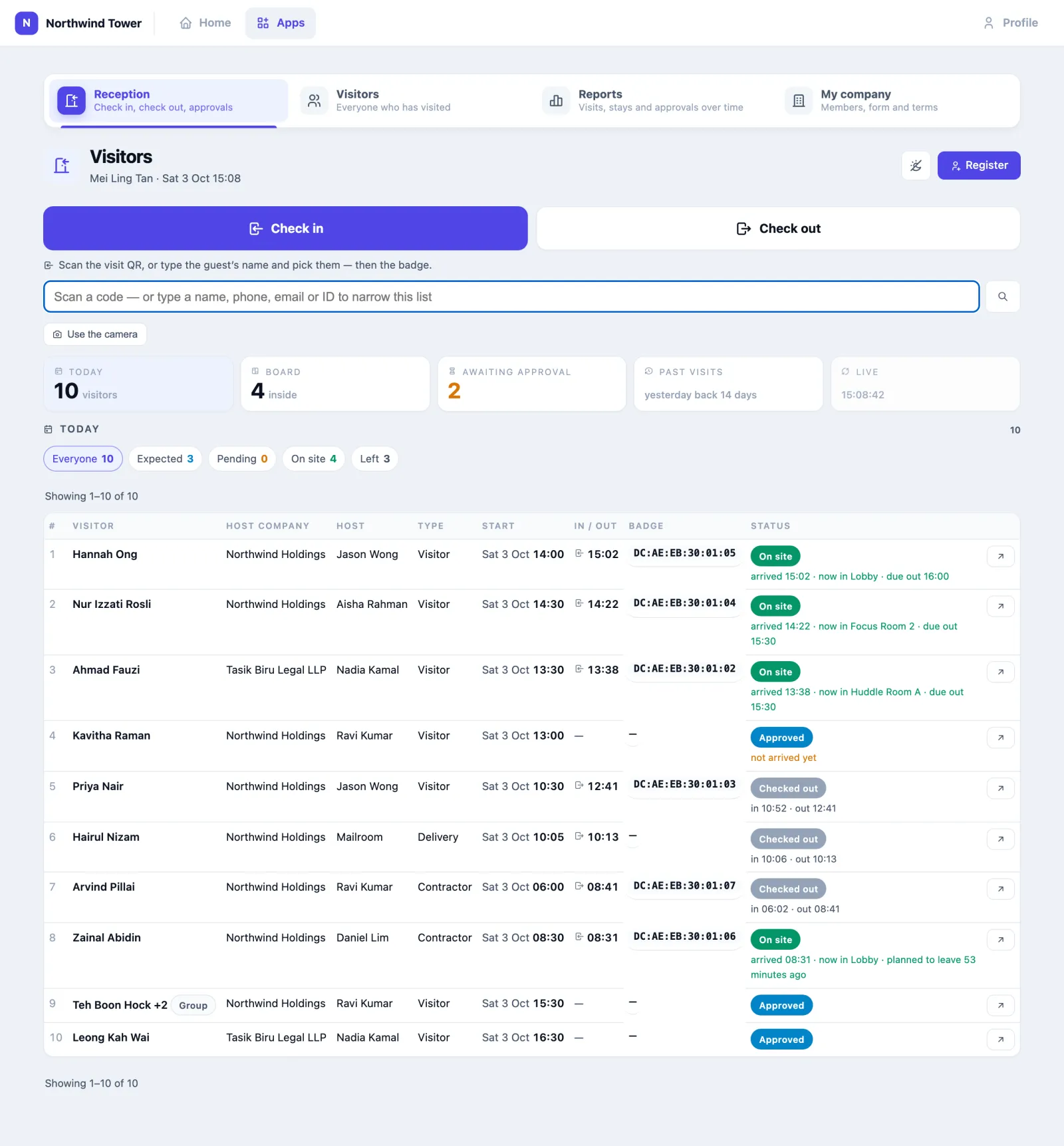
| 08:45 | Mei Ling opens Reception to see today: Priya Nair (Northwind Capital) at 11:00, approved; Hannah Ong (Brightline Design) at 14:00, Awaiting approval; a group of three auditors at 15:30. | Read the desk |
| 09:34 | After Daniel reports the leaking aircon in Facility Management, Aisha pre-registers Marcus Tan of CoolAir Services for tomorrow at 09:00. Because she registers from a Northwind address, the visit is approved at once and Marcus gets his pass by email. | Pre-register a visitor |
| 10:05 | A courier, Hairul Nizam, walks in with a parcel. Mei Ling registers him in under a minute and checks him out at 10:13. | Register a walk-in |
| 10:52 | Priya arrives for Jason's 11:00 Boardroom meeting. Nobody typed her visit in: Jason invited her when he booked the room in Meeting Room. Mei Ling scans her QR and gives her Visitor Badge 03. Priya leaves at 12:41; the visit page shows she spent 1 h 6 min in the Boardroom and 25 min in the Pantry. | Check in, See where a visitor went |
| 13:00 | Kavitha Raman is half an hour late; the board shows her as Late. | Read the desk |
| 14:00 | Hannah Ong is at the desk, but her visit still needs Northwind's approval. Aisha approves it from the queue, and Mei Ling checks Hannah in with Visitor Badge 05. | Approve visits, Check in |
| 15:08 | Zainal is still inside, 53 minutes past his booked time — Overstay on the board. When he leaves, Mei Ling scans his badge in Check out mode. | Check a visitor out |
| All day | The lobby TV Dashboard shows how many visitors are on site and expected. Every visitor carrying a badge is counted by name in Roll Call at the 11:00 fire drill. |
How to read the desk
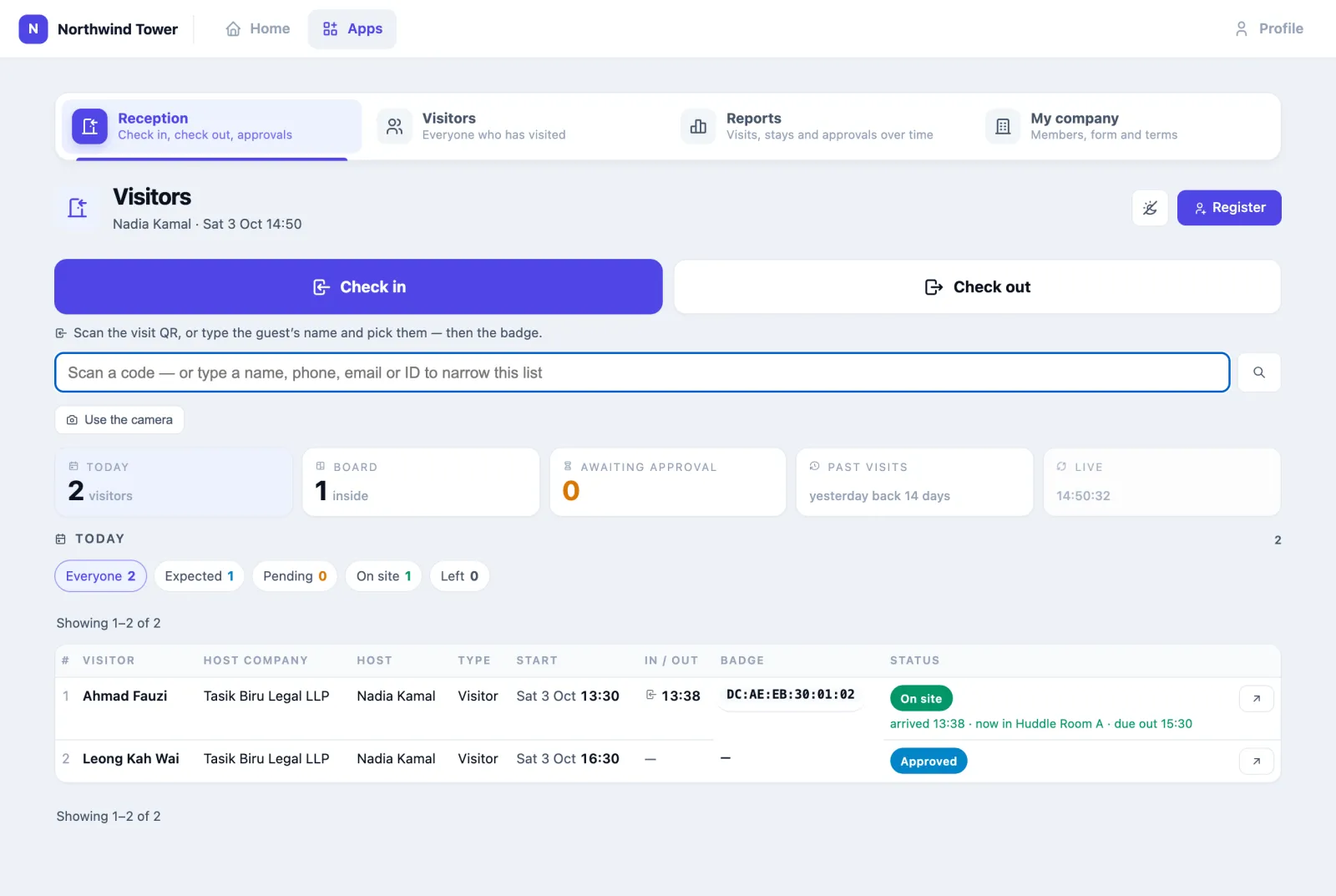
Open Visitor Management. The Reception tab is one screen whoever stands at it. At the top: two large buttons, Check in and Check out, which set what the box under them does; the box itself; and Use the camera for reading QR codes with the device's camera.
Below the box, five tiles choose what the rest of the screen shows:
- Today — the default: everyone whose visit touches today, as one list. The chips filter it — Everyone, Expected, Pending (waiting for approval, for today or overdue), On site and Left — each with its count. What has already happened is at the top, latest first; then who is still to come, next arrival first. Under each status the list says what actually happened: arrived 14:22 · now in Focus Room 2 · due out 15:30, in 10:06 · out 10:13, not arrived yet, or planned to leave 53 minutes ago.
- Board — an arrivals board, dark whatever the theme, for reading across a lobby. Left, Arrivals: who is due today and not here yet — Expected, Late (half an hour past the booked start) or Awaiting host. Right, Inside: who is in the building, soonest due out first — On site or Overstay. Each side shows the next fourteen.
- Awaiting approval — the queue (see Approve visits).
- Past visits — yesterday back fourteen days, with filters for status, host company, how the visit was registered, and dates.
- Live — when the screen last refreshed itself.
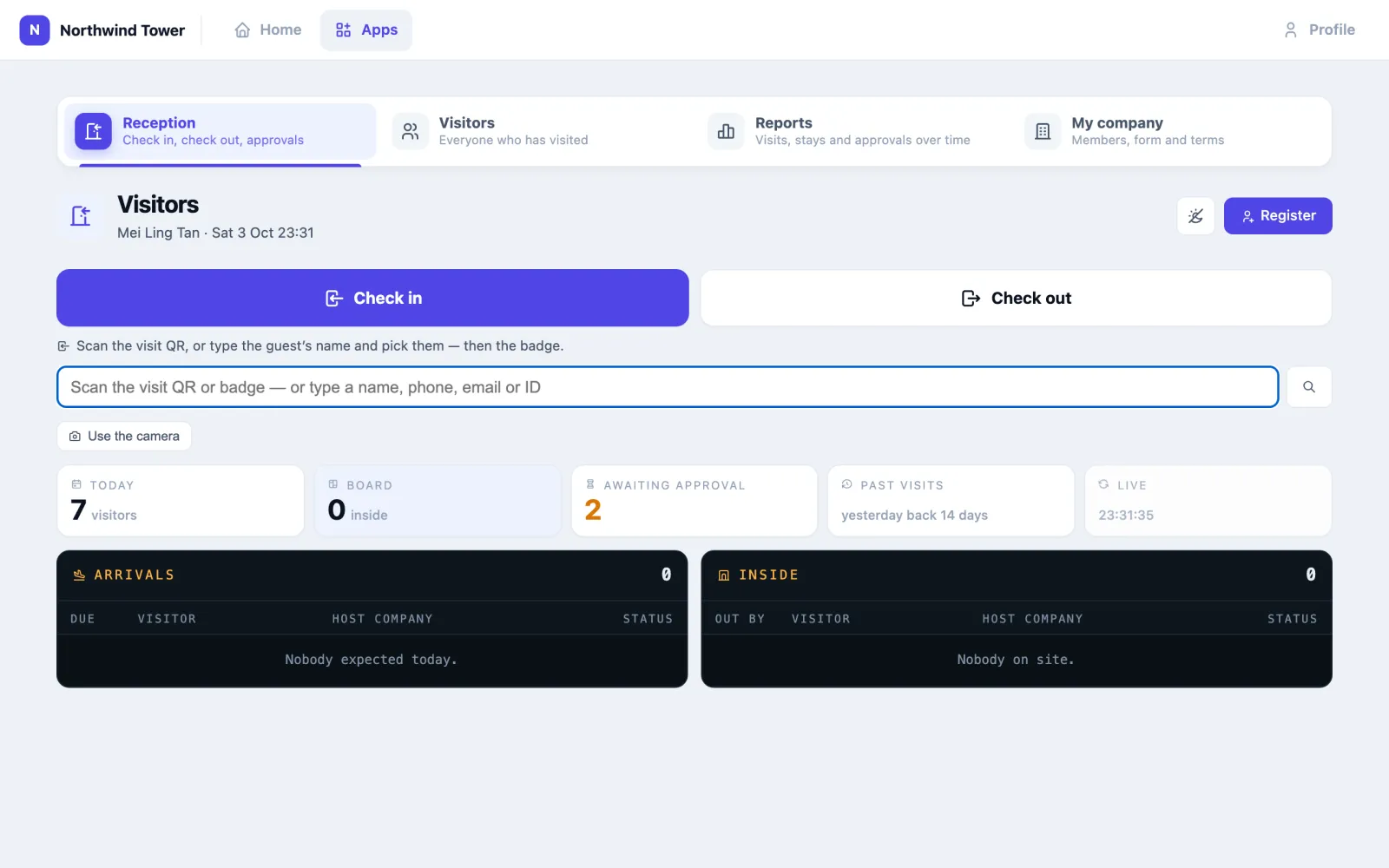
The screen keeps itself current. Every half minute — while the tab is visible and nobody is typing, ticking rows or looking at a visit — the desk fetches itself again, so a check-in at the door or an approval from a phone appears without reloading.
A visit's status is one of:
| Status | Means |
|---|---|
| Awaiting approval | At least one host company has not decided |
| Approved | Every company said yes; the visitor may check in |
| Denied | A company said no — the visit is over |
| On site | Checked in |
| Checked out | Left after the end time, or was checked out when time ran out |
| Expired | The end time passed and nobody arrived |
| Cancelled | Cancelled by reception, the host, or because the meeting was cancelled |
A visitor who leaves before the end time goes back to Approved, not Checked out: someone who steps out for lunch is checked back in on the same approval, and each entry is kept as its own stay. When the end time passes the visit closes on its own.
How to check a visitor in
- Make sure Check in is selected.
- Scan the visitor's QR pass into the box — from their phone or a print-out — with a hand scanner, or press Use the camera. You can also type their name, phone, email, ID number or their host's name: the matching visits are listed, each with a Check in button.
- The visitor's card opens: name, masked ID, their company, the host company, host, type of visit, the time window, purpose, and the photo if one was taken.
- Hand over a badge: scan its QR or type its name or MAC into Scan the badge. If the badge is also an access card, type the number in Access card no. — it is remembered for that badge next time.
- Press Check in. The box clears for the next visitor, and the host is told their visitor has arrived.
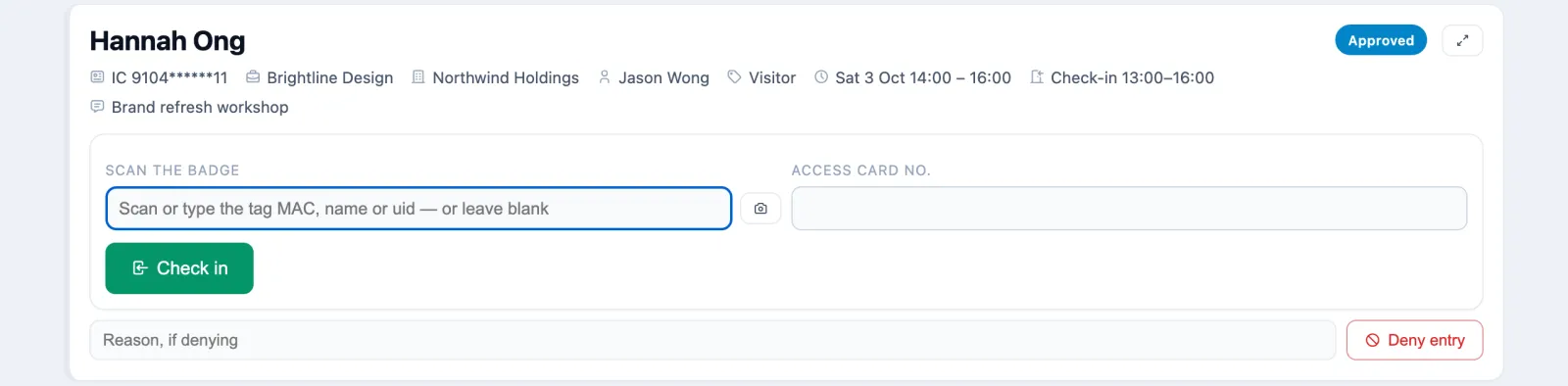
Scanning alone never checks anyone in — only the Check in button does — so a stray scan or a reload changes nothing.
The card tells you plainly when a visit cannot be checked in yet:
- Not approved yet — someone who may decide sees Approve and Deny right there; everyone else sees which company it is waiting for.
- Too early or too late — check-in opens an hour before the visit's start and closes at its end. Reschedule the visit from its page to let them in.
- Blacklisted — the check-in is refused and the company's approvers are told.
- Registered without an ID — a guest invited to a meeting has not given an ID yet: type it in the field the card shows.
Deny entry, with a reason, turns the visitor away and cancels the visit.

A badge is any spare Omaya tag. Checking in binds it to the visitor for the length of the stay, which is what puts them on the floor plan, in Roll Call by name and in Security Watch as an expected visitor in their host company's areas. A visit without a badge works too; the visitor is just not locatable.
How to check a visitor out
- Press Check out (it turns orange).
- Scan their badge (or their QR pass). They are checked out at once — no confirmation — and the banner says who left and that the badge is free.
- Or type their name: their card opens with a Check out button to press.
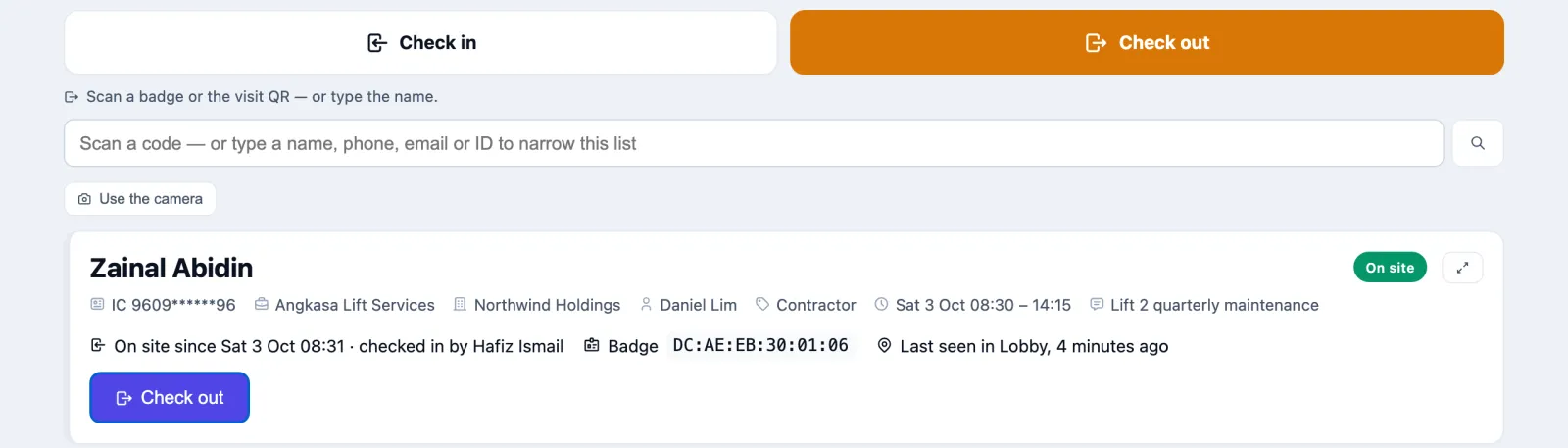
Visitors are also checked out without anyone at the desk:
- Time ran out — a visitor still on site two hours (by default) after their end time is checked out and their badge freed.
- Badge went quiet — if your building switches it on, a badge no gateway has heard for a set number of minutes counts as gone.
- Badge return box — a box by the door with a gateway inside: a badge dropped in it checks its visitor out within a minute.
- The gate — where the access-control system reports an exit swipe.
- The visitor — from their pass or the visitor app, where self check-in is on.
How to register a walk-in
- Press Register (top right of the desk).
- Fill in Name, IC / passport number and ID type; add Phone, Email and Their company if you have them. A visitor who has been before is recognised from the ID number and their details fill in.
- More than one person? Press Add another person. They share one visit and one badge — or tick Register each person as a separate visit so each has their own approval, badge and status.
- Optionally Take a selfie of the visitor at the desk.
- Under Visiting, tick the host company or companies. A ⚡ after a name means that company approves automatically.
- Choose the Type of visit (Visitor, Contractor, Delivery or Other), type the Purpose, and pick the Host (app user) — or type a Host name if the host is not an app user.
- Leave Starts empty for now, and Ends empty for the default (twelve hours unless your building changed it) — or set them for a visit later on.
- Tick The visitor has read and accepted the terms and press Register.
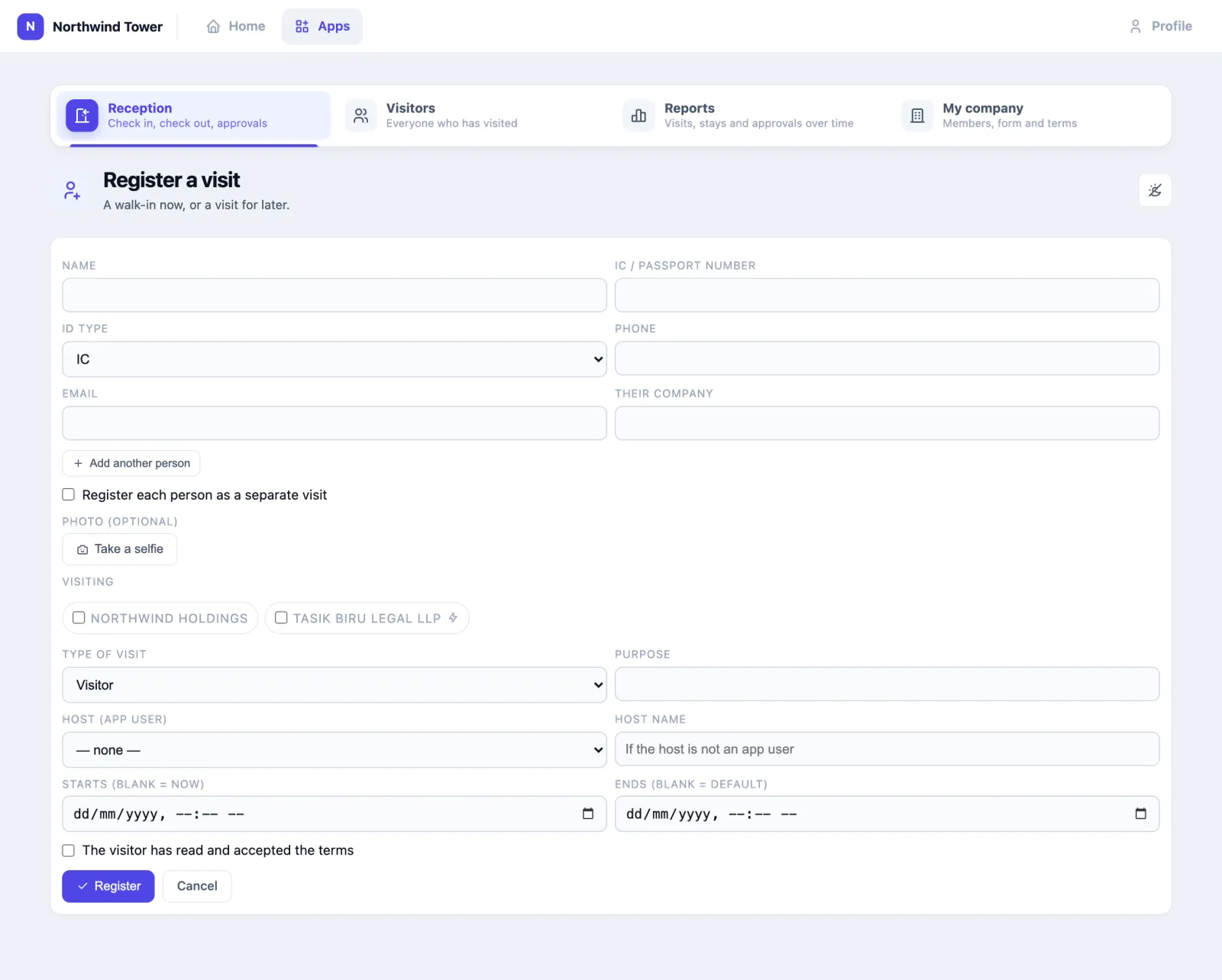
The visit opens on its own page. If the company approves automatically — or you may approve for it — it is ready to check in straight away.
How to approve or deny a visit
Approvers find their queue in the Awaiting approval tile on the desk.
- Each visit waiting for your company shows its visitor, host, start, purpose and how long it has been waiting.
- Press Approve, or type a reason in Reason, if denying and press Deny.
- To approve several at once, tick them — or Select all on this page — and press Approve selected.
Under the queue, Recently decided lists the last decisions: who decided (host: … when a host pre-registered from the company's own email domain), and when.
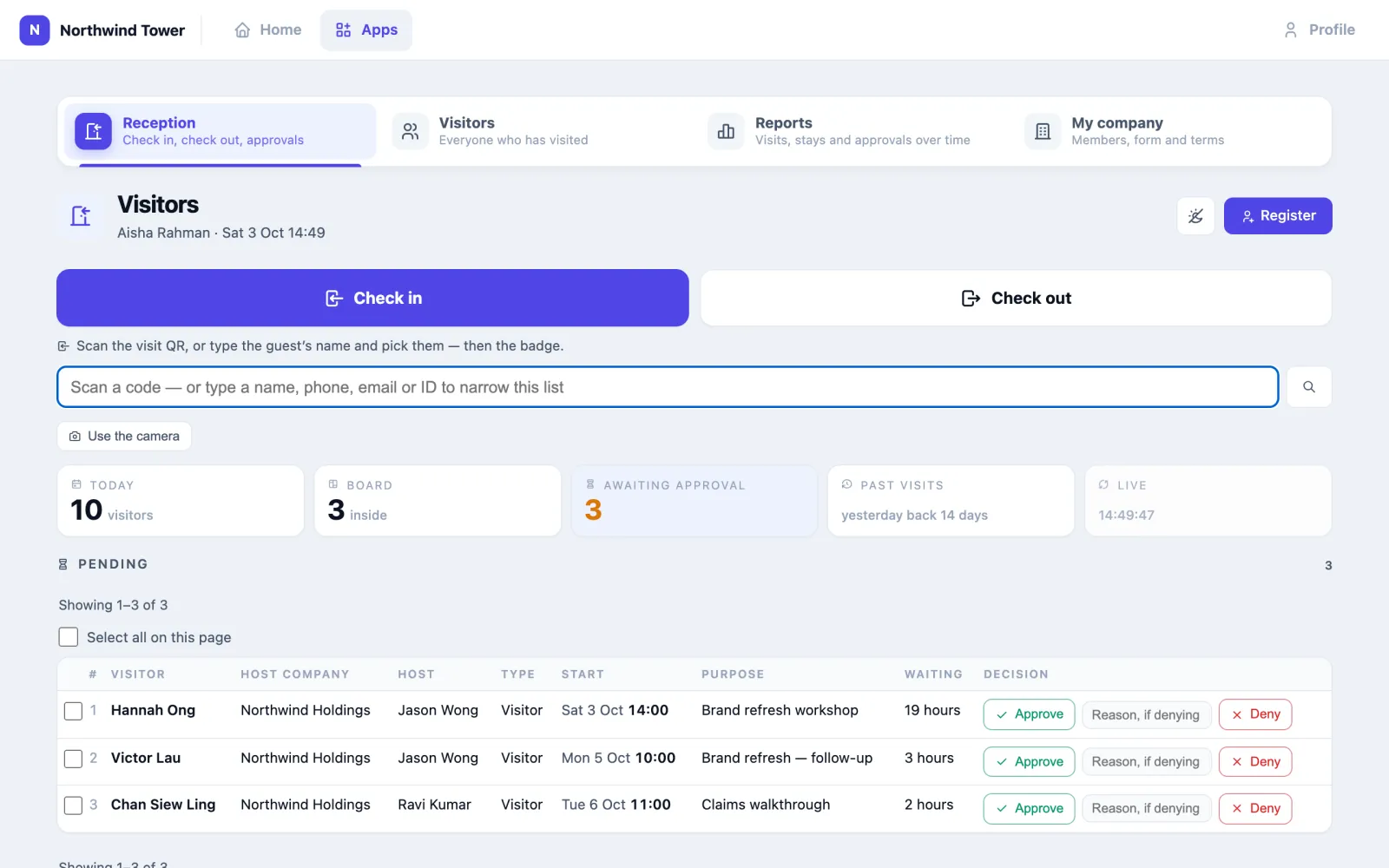
What happens next: the visitor is emailed their QR pass (or told the visit was not approved), by WhatsApp too where the building has it, and the host is told.
Each company decides for itself. A visit to two companies needs both to approve, and neither sees the other's answer. A company that withdraws its approval while the visitor is inside ends the visit there and then.
Approvers can also decide without opening the app: from a Telegram group the building has connected, or from the approve/deny link in a WhatsApp, SMS or email message, where the building has set those up.
People who may not decide — a guard, a receptionist — see the same tile as a plain list of who is waiting, with no buttons. At Northwind, Hafiz sees Hannah waiting and tells her the host company has not approved yet.
How to pre-register the people you expect
Hosts do not need to come to the desk. Any of these makes a visit before the visitor arrives:
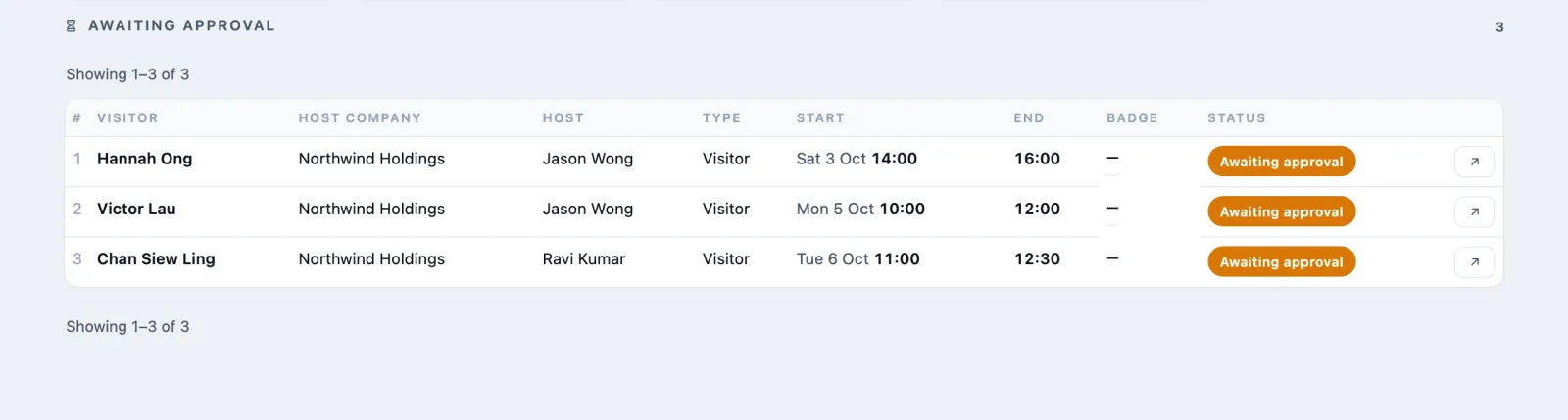
- The pre-registration page. Open your building's Register a visitor page (its link and QR are on the Visitor settings page, and often on a poster). Type your work email and press Send me a code, type the six-digit code, then the people you expect. If your email address belongs to one of the company's pre-registration email domains, that counts as the host vouching: the visit is approved at once. You get a confirmation listing each visit with its own status link; each visitor with an email gets their pass when the visit is approved.
- A meeting. Invite them as an External guest on a Meeting Room booking. They get a visit from half an hour before until half an hour after, hosted by you, already approved, with the pass by email. Cancelling the booking cancels the visit.
- The desk. Ask reception to Register them with a start time later on.
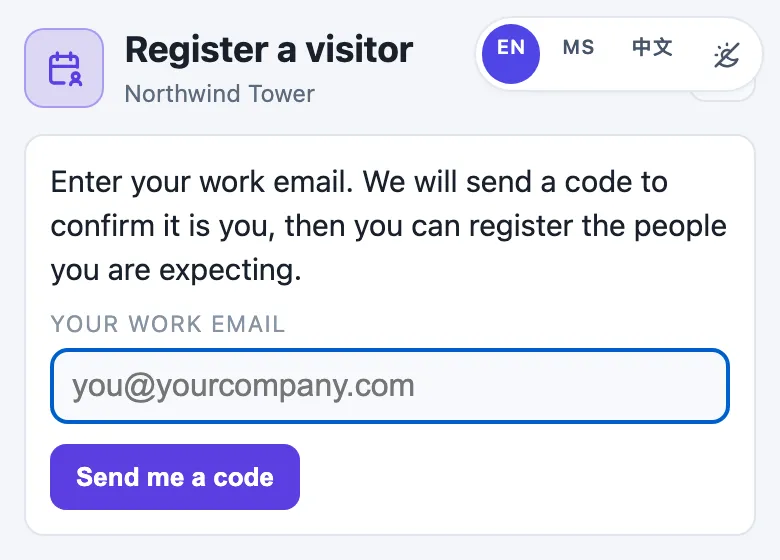
The code is sent through your building's email connector; without one, the page says pre-registration is not available.
How visitors register themselves
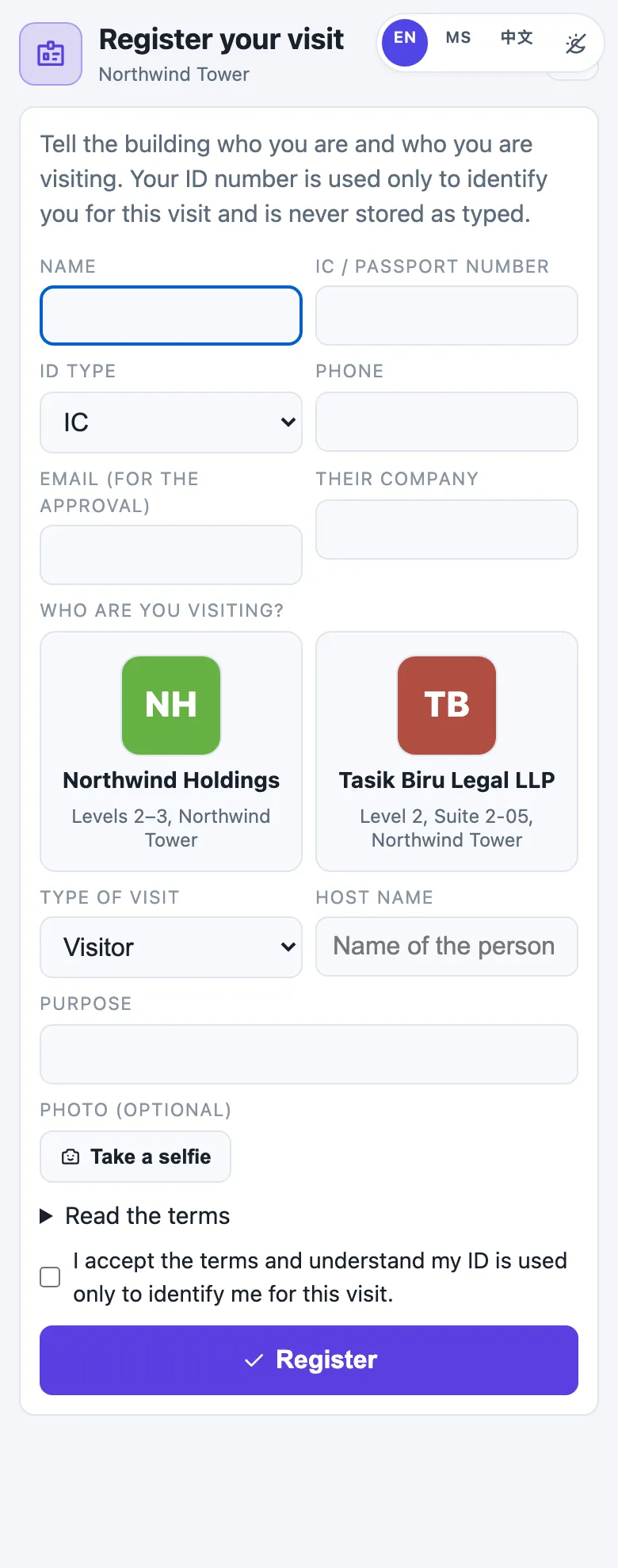
Visitors can register on their own phone, or on a tablet at reception, at your building's Register your visit page — no app and no account. They fill in who they are, pick Who are you visiting? from the companies' logos, answer the company's own questions, accept the terms, and optionally take a selfie. A returning visitor's details come back once they type their ID number.
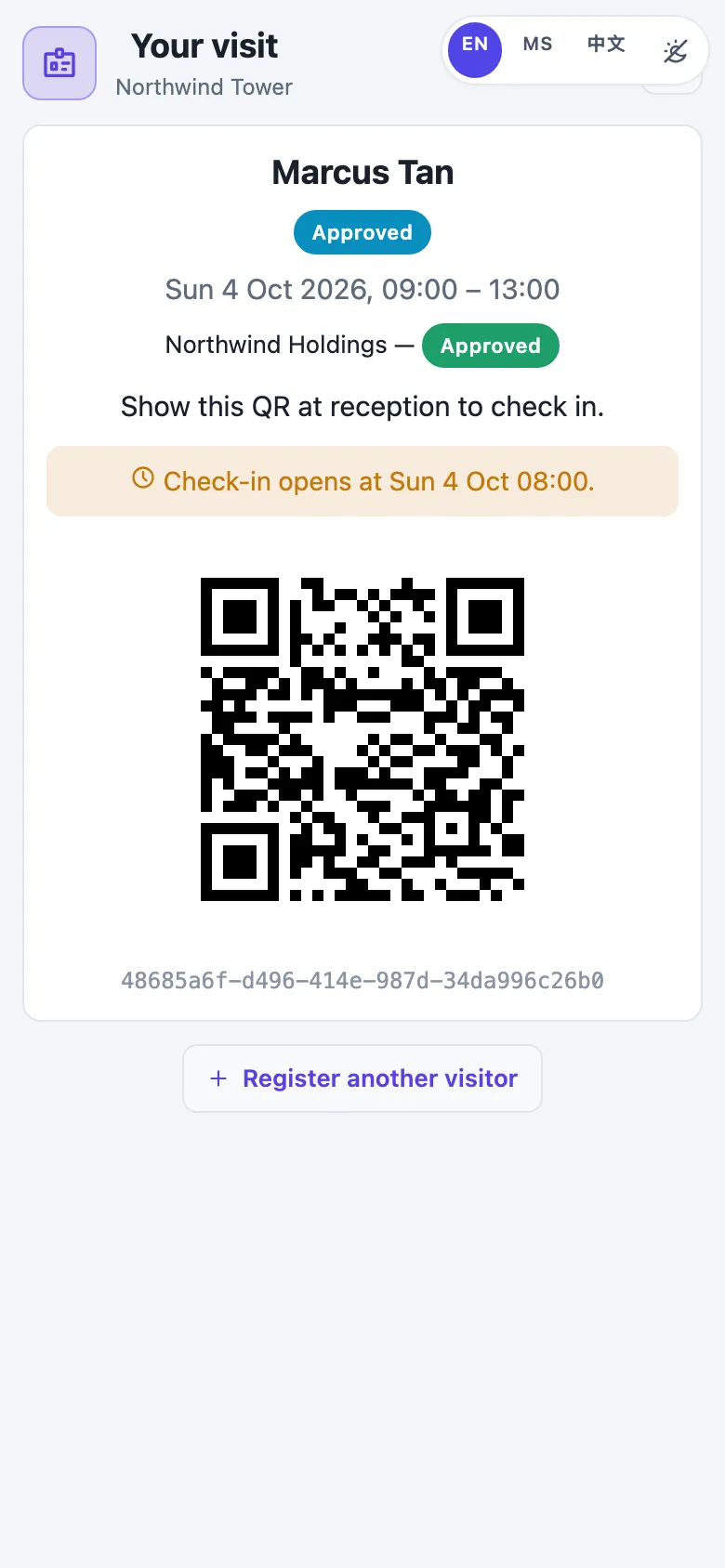
They then land on their Your visit page, which shows the status and updates itself as the host company decides. Once approved it shows the QR to present at the desk, and when check-in opens.
The page can be set to ask for the ID number on its own screen first (the "ID first" flow, useful for a lobby tablet or a sign-in with an identity provider), and a reception tablet can be set to clear itself after each visitor. Visitors with the visitor app can register from there too.
How to see a visit and where the visitor went
Click a visitor's name anywhere on the desk (or the small arrow at the end of a row) to open the visit.
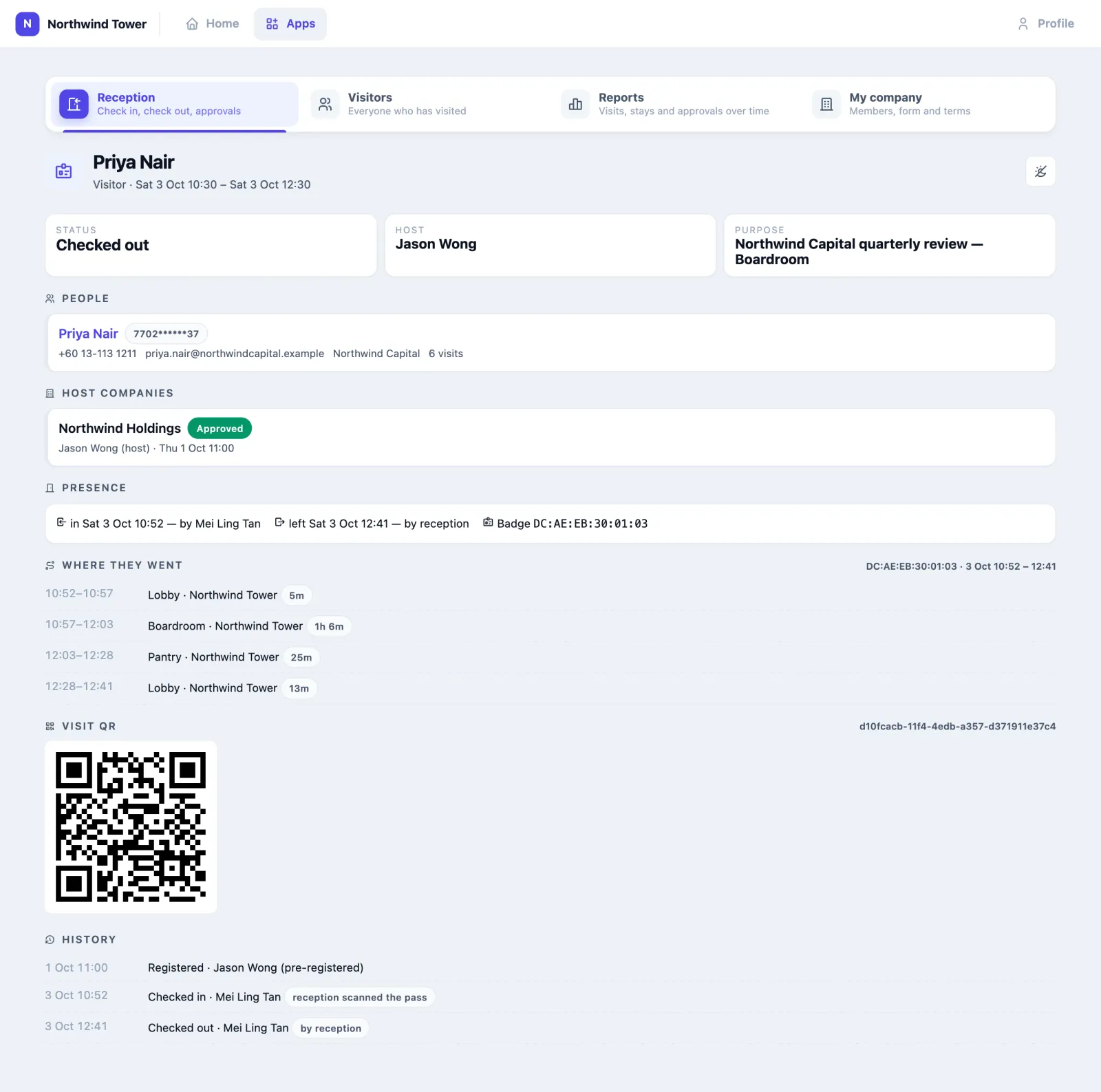
- Status, Host and Purpose at the top; People on the visit, with their masked ID and how many visits they have made; Host companies with each company's decision, who made it and when.
- Presence — when they came in and who checked them in, when they left and how, and the badge they carried. While they are inside, where the badge was last seen.
- Where they went — the rooms the badge was heard in during the stay, with times and how long in each. A badge passes through many hands; each visitor sees only their own slice.
- Visit QR, with Send the pass By e-mail or By WhatsApp when the building has those connectors.
- History — every step: registered, approved, checked in (and how), checked out, and who or what did it: a person's name, a host who pre-registered the visit (Jason Wong (pre-registered)), the visitor's own registration, or System for an automatic check-out.
On a visit that is still open you can Reschedule it, Change badge (swap a flat or forgotten one), or Cancel visit.
How to find a visitor or block one
Open Visitors. Directory lists everyone who has visited, most recent first, with their masked ID, company, phone and how many visits. Search by name, phone, email, company or ID number. Click a name for their record: details you can correct (Edit details), every visit, and where they went on each.
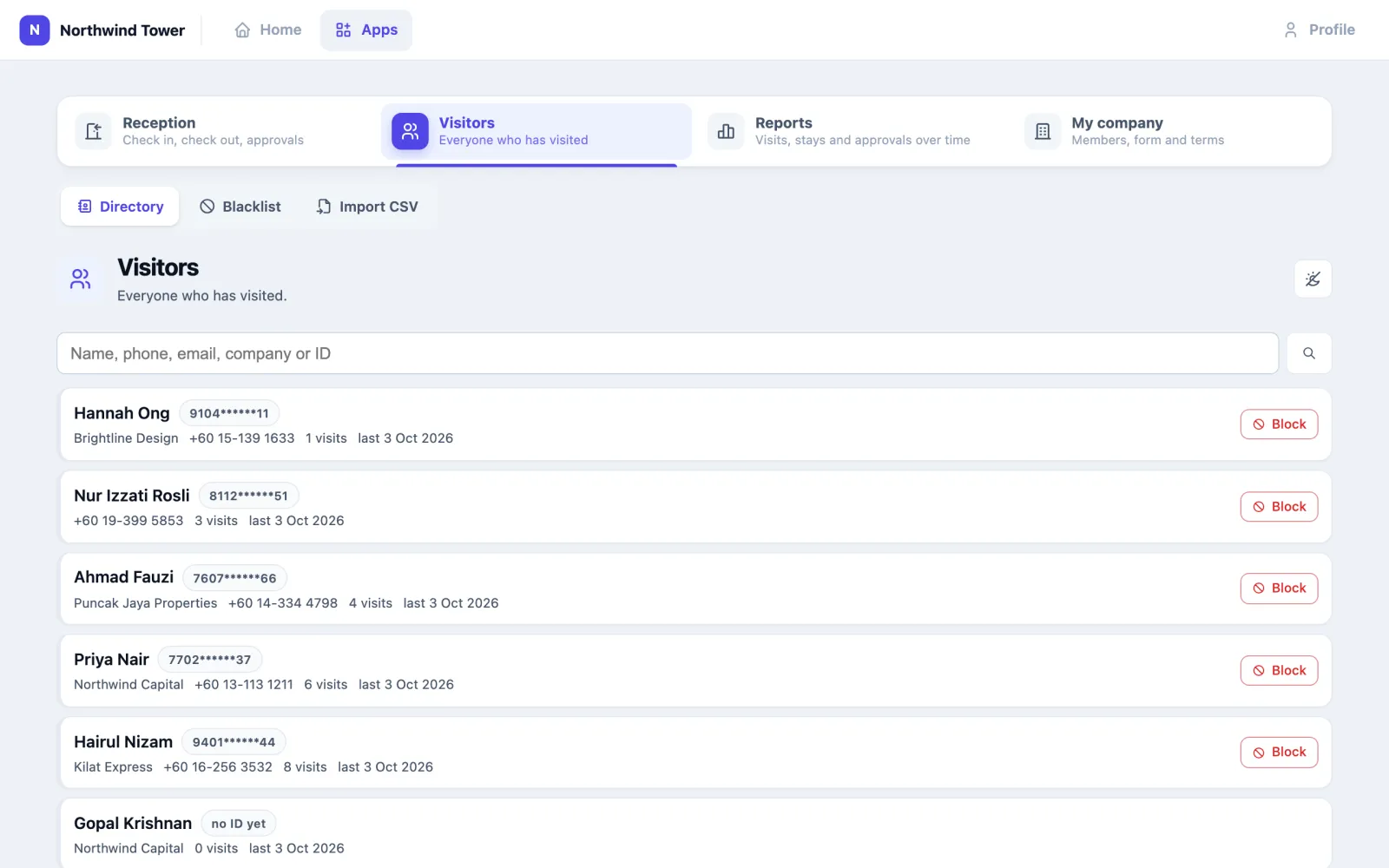
To block someone, press Block on their row: their record opens with the block form ready. Or open Blacklist, type the IC / passport number, choose who it Applies to — The whole building or one company — give a Reason and press Block. A blocked ID cannot register at all, and the company's approvers are told when someone tries. Any open visit of theirs is cancelled; if they are inside right now, the approvers are alerted rather than the visitor being checked out by the software. Unblock lifts it.
Blocking for the whole building is the building admin's call; a company admin can block for their own company.
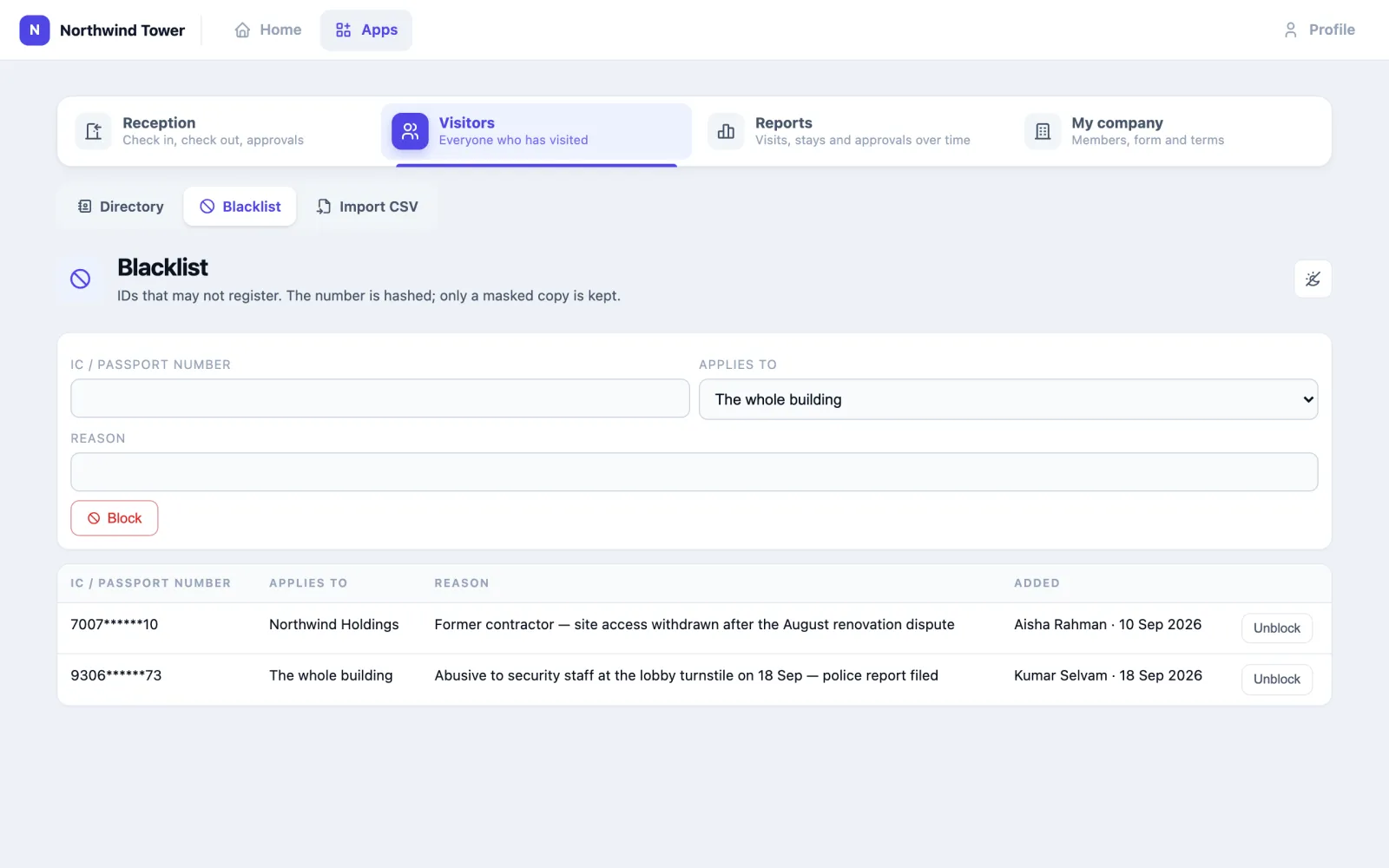
The ID number itself is never stored. It is turned into a code with a key that belongs to your organisation, so a returning visitor is recognised and a block matches, but nobody can read the number back; reception sees a masked copy such as 9306******73.
Import CSV (company and building admins) adds or updates visitors in bulk from a spreadsheet: name, ID, ID type, phone, email, company. Download template gives the header row.
How to read the reports
Open Reports and pick the dates (top right; CSV downloads every visit in the period). A company admin sees only their own company's visits.
- Visits, Arrivals, Average stay, People, Returning and Never checked out, then By day (registered against arrived).
- By host company, with how long approval takes and how many were automatic.
- Breakdown — status, type of visit, how registered, how checked out.
- Arrivals by hour of day, Returning visitors — time since their last visit, Average stay by visit type, Approval time by approver.
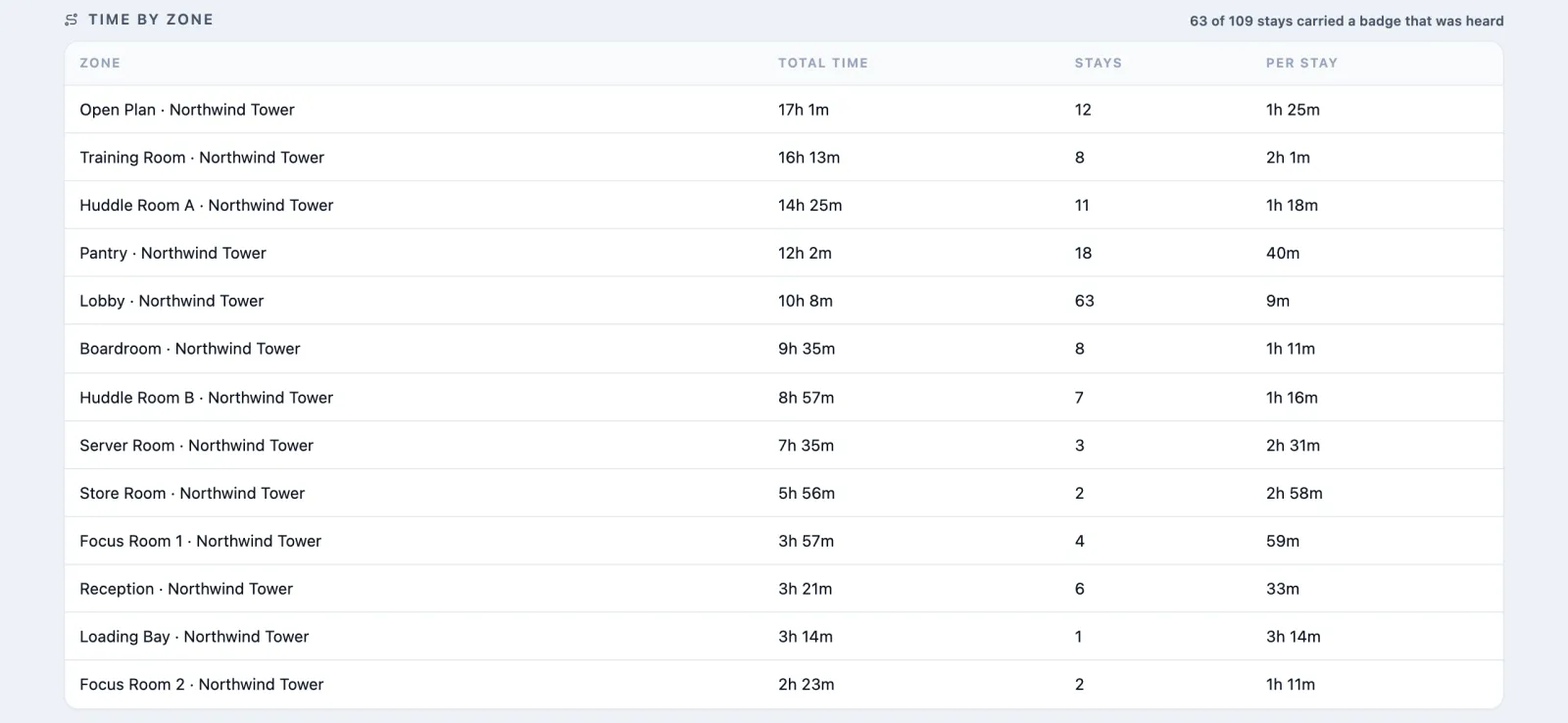
- Time by zone — where badged visitors spent their time, and Movement — each stay that carried a badge, with its path.
- Most frequent visitors.
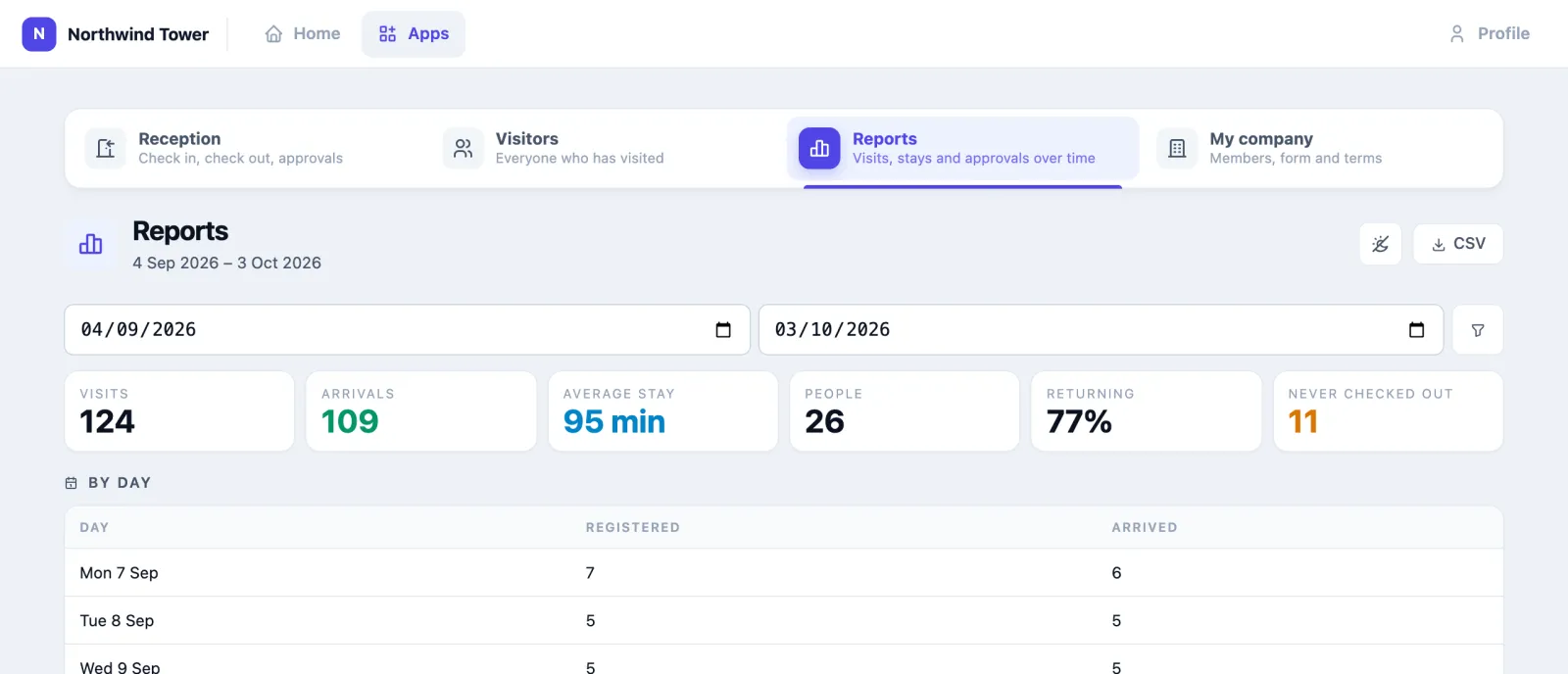

In How registered, Self-registered counts visitors who registered themselves, on the public registration page or in the visitor app.
Emailed on a schedule
Whoever can change this app's settings can have the visits list emailed daily, weekly or monthly, from Reports › Scheduled reports in the app, to the app's users or any address. See Scheduled reports in the apps.
How to run your company's visitors (company admins)
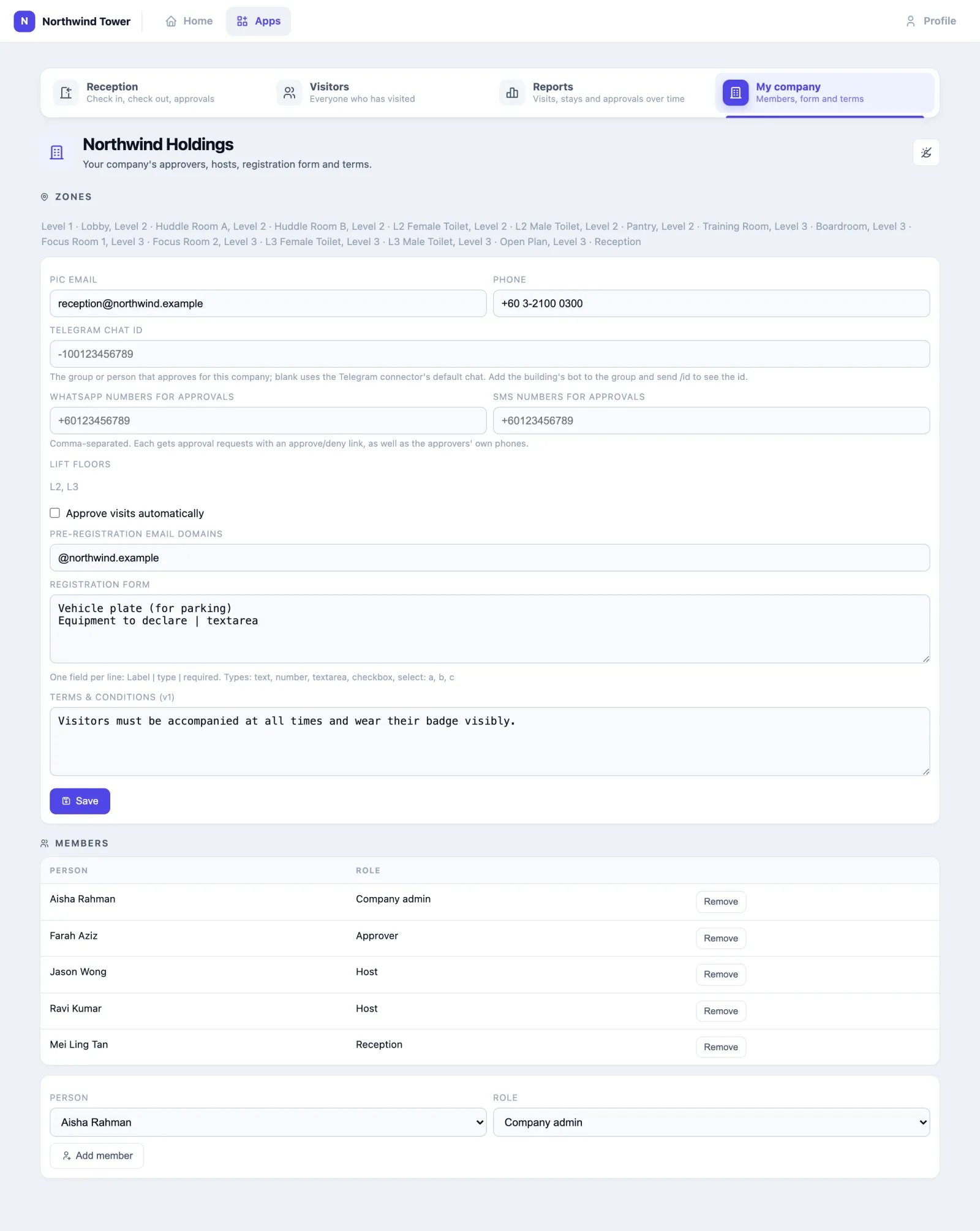
Company admins and the building admin see a My company tab. Pick the company to open it.
- Zones — the areas its visitors are expected in, set by the building admin. A visitor on site is not raised as an after-hours incident in these zones by Security Watch; restricted zones stay restricted.
- PIC email, Phone.
- Telegram chat id, WhatsApp numbers for approvals and SMS numbers for approvals — where approval requests go besides the approvers' own app.
- Lift floors (set by the building admin) — sent to gate and lift connectors at check-in.
- Approve visits automatically.
- Pre-registration email domains — a host registering from one of these addresses vouches for the visit, and it is approved at once.
- Registration form — your own questions, one per line:
Label | type | required, types text, number, textarea, checkbox or select: a, b, c. - Terms & conditions — your own terms, shown with the building's.
- Members — who approves, hosts or serves the desk for your company. Pick a Person and a Role and press Add member; Remove takes them off.
| Role | Does |
|---|---|
| Company admin | Runs this page; approves and denies; blocks IDs for the company |
| Approver | Approves and denies the company's visits |
| Host | Is told when a visitor for the company arrives (when no particular host was named) |
| Reception | Serves the desk for the company |
People only see the companies they belong to if their access is limited to assigned records. At Northwind, Nadia Kamal of Tasik Biru sees only Tasik Biru's two visitors today, while Mei Ling at the building's reception sees everyone.
Using it in your organisation
Multi-tenant office tower
The setting. Twenty floors, thirty occupiers, one lobby with turnstiles and a guard desk run by the building manager.
Who does what. The building's reception and guards have access to all companies and no membership. Each occupier has one or two approvers and a company admin with assigned access. Hosts pre-register their guests.
Settings that matter. One host company per occupier, with its own zones and Lift floors. Pre-registration email domains for every occupier that wants hosts to vouch. A badge is required to check in if the turnstiles use the badge as an access card, with the gate connector set up.
Tip. Put the Board on a screen behind the desk. Guards see late arrivals and overstays at a glance, without scrolling a list of three hundred people.
Factory or plant
The setting. Contractors and drivers every day, a safety induction for anyone going onto the floor, and fire drills that must count every visitor.
Who does what. The security post registers drivers as walk-ins; the maintenance planner pre-registers contractors; the EHS officer approves.
Settings that matter. A Registration form with the safety questions (Induction completed | checkbox | required, Vehicle plate | text). Badges for everyone past the gate, so they are counted in Roll Call. Auto-checkout grace short enough that a contractor who left by the back gate is not still "on site" at the next drill.
Tip. Register a delivery crew with Register each person as a separate visit: each driver gets their own badge and their own check-out.
Hospital
The setting. Contractors, sales representatives and suppliers, mostly by appointment; patients' families are not handled here.
Who does what. Each department is a host company with its own approver; facilities reception runs the desk.
Settings that matter. Approve visits automatically off for every department, so sales visits always need a yes. The blacklist for representatives banned by procurement, applied to the whole building.
Tip. Use the Approval time by approver report: a department whose approvals take hours leaves visitors waiting at the desk.
Setting it up for your organisation
This part is for the building admin. The settings live on the admin side under Your Apps → Visitor.
What must exist first
- App users for everyone at the desk and every approver and host, with the Visitor app granted. The building's reception gets access to all records and no company; occupiers' staff get assigned access and a membership.
- Zones on the floor plan, to give each host company its areas.
- Spare tags at reception, if visitors are to be locatable, and gateways where they will go. A badge return box needs its own zone with a gateway inside the box.
- An email connector (Integrate) for passes, codes and notifications; a WhatsApp, SMS or Telegram connector if you want those; an Access Control (Gate) connector for turnstiles; an Identity Provider connector for verified IDs.
Checklist
- Add the host companies: in the Host companies table at the top of the page, Create opens a side panel for the name, PIC email, auto-approval, the zones its visitors may enter, its registration form and terms. To change one, select its row and press Edit, or double-click the row.
- Add members to each company with a role, under Members in the same panel once the company is saved (or let each company admin do it from My company).
- Decide the visit settings below rather than inheriting the defaults.
- Print the links: the visitor registration page QR for the lobby door, the pre-registration link for hosts, and — if self check-in is on — the entrance check-in poster.
- Try a whole visit yourself: register, approve, check in with a badge, check out.
Coming from the legacy VMS: Synchroweb runs the importer on site. Companies, visitors, visits, stays, blacklist, forms and terms come across, with each visitor's ID re-coded under your organisation's own key. Logins do not: your VMS users become app users with a company membership, your guards app users with all access and no company.
Settings
| Setting | Default | What it changes |
|---|---|---|
| Walk-in default length | 12 hours | A visit registered with no end time ends this long after it starts |
| Auto-checkout grace | 2 hours | A visitor still on site this long past the end time is checked out (time ran out) and the badge freed |
| Check out a badge no gateway has heard for N minutes | 0 (off) | A silent badge counts as gone. Only where gateway coverage is continuous — a dead spot checks a visitor out while still inside |
| A badge is required to check in | off | The desk cannot check anyone in without a badge |
| Show terms and require acceptance | on | Terms shown and accepted on every registration path. Off means no terms anywhere, including the companies' own |
| Registration page flow | one page | One page, or ID first (ID → terms → details) |
| ID verification | none | Whether the ID-first flow offers the identity provider (Singpass, MyDigital ID, another OpenID Connect provider, or the simulator) |
| Visitors may register on the public registration page | on | The visitor registration page is open |
| Keep a visitor's personal data for (months) | 9 | After this long with no visit, a visitor's personal details are erased every night; the visits stay as an anonymous record. The blacklist is kept |
| Building terms | the default privacy notice | Shown before registering, in the visitor's language. Your own text replaces it; start from the default copies the notice to edit |
| Badge return boxes | none | Zones whose gateway sits in a return box; a badge heard there checks its visitor out |
| Visitor self check-in | off | Visitors may check themselves in from their pass or the visitor app, with the entrance check-in code; checking out never needs the code |
| Entrance check-in code | made when self check-in is on | The poster and the short code under it. Regenerate code stops every printed poster working |
| Meeting Room guests become visits | on | External guests on a Meeting Room booking are pre-registered (the booker must belong to a host company, or the building has only one) |
| Telegram approvals | not connected | Registrations go to each company's Telegram chat with Approve / Deny; press Connect Telegram once |
| Access control (gate) | no connector | A visitor's access card is granted at check-in and revoked at check-out; check out visitors when the gate records their exit asks the gate every five minutes |
| Integrations | gate on, channels on, rules on | Gate on check-in / check-out and the access-right ids; which notification goes by push, email, Telegram, WhatsApp or SMS; whether visits trigger rules |
| Pre-registration link / Visitor registration page link | on this page | The links and QR codes to print; add ?kiosk=1 to the registration link on a reception tablet |
Notifications. Registration → each pending company's approvers (push and email, and the company's PIC) and the visitor, if they gave an email. Approved or denied → the visitor (the approval carries the QR) and the host. Arrived → the named host, or the company's hosts. Blocked ID tried → the approvers.
Webhooks and rules. Every change — visitor.registered, visitor.approved, visitor.denied, visitor.checked_in, visitor.checked_out, visitor.cancelled — is an outbound webhook (see webhook events). With Visits trigger rules on, each is also a rule trigger (Visitor event = checked_in and so on), so a check-in can switch on the meeting room lights or open a door the platform has no connector for.
In rule messages you can use {{visitor_name}}, {{host_company}}, {{host_name}}, {{badge_mac}}, {{card_no}}, {{visit_type}} and {{purpose}}.
Erasure on request. A visitor who asks to be forgotten before the retention period is found under Privacy (DSAR) by name, phone or email, exported if they ask, and erased: name and contact replaced, ID code discarded, form answers and badge numbers cleared, their trail erased. The visits keep their statuses.
Questions and problems
The Register screen shows no companies. None are set up, or your access is limited to companies you are not a member of.
I cannot approve — there are no buttons. Only a company's Approver or Company admin (or the building admin) decides. Hosts and reception see who is waiting, not the buttons.
The badge is refused at check-in. The tag is already bound to someone — a member of staff, an asset, or another visitor still inside. Check that visitor out, or use another badge. That is the visitor's pass, not a badge means the QR pass was scanned into the badge field.
"Too early: check-in opens at …" Check-in opens an hour before the visit starts. Reschedule the visit from its page if they should come in now.
The visitor never appears on the floor plan or in Roll Call. No badge was given at check-in, or the tag is not being heard.
A visitor is still "on site" after leaving. They left without checking out and without a return box. Check them out by name; or the sweep will, two hours after their end time.
Nobody was emailed. No email connector is enabled; push notifications to the approvers still went out.
Nothing arrives in Telegram. The company has no chat id, the bot is not in the group, no Telegram connector is enabled, or Connect Telegram was never pressed.
Pre-registration says "No host company accepts registrations from that email address." The host's email domain is not in any company's Pre-registration email domains. Add it on My company, or register at the desk.
On the phone
The phone app shows today's visitors, approves and denies, checks visitors in by scanning their pass, and invites a visitor. Visitors themselves use the visitor app to register and carry their pass.