Appearance
Compliance Reports
Compliance Reports checks the readings your sensors have already recorded against a recognised standard — indoor air quality, cold-chain storage, workplace noise, energy disclosure — and freezes the result as an assessment you can hand to an auditor. It is for whoever has to answer "were we within the limits last month, and can you prove it?": an operations lead, a safety officer, a quality or sustainability manager.
Who uses it
RaviOperations LeadAishaFacilities ManagerFarahHR & Safety Officer
| Role | What they do with it | At Northwind Tower |
|---|---|---|
| Operations lead | Runs the monthly assessments, reads the findings, exports the evidence | Ravi Kumar |
| Facilities manager | Acts on findings (aircon, ventilation), keeps calibration records up to date | Aisha Rahman |
| Safety officer, auditor, sustainability team | Receive the exported assessment | Farah Aziz receives the noise report; the building owner receives the air-quality report |
Compliance Reports measures nothing itself. It reads what the platform's sensors have already recorded, so it is only as good as the sensors in the rooms you assess.
A day at Northwind Tower
| Time | What happens | How |
|---|---|---|
| 1 October, 16:05 | Ravi runs the month's assessments: indoor air quality for the Open Plan, Reception and Lobby, ambient storage for the Store Room, and noise for the Loading Bay. Reception passes; the others each have something to look at. | Run an assessment |
| 1 October | The noise result shows one day, 25 September, above the 82 dB(A) action level: the day of the double delivery. Ravi exports it for Farah. | Export the evidence |
| 10:12 | The Server Room passes 27 °C and Aisha is alerted (Energy, Data Centre). That is a live alert; Compliance Reports looks back, not now. | |
| 16:00 | Ravi reviews this month's energy in Energy, then re-runs the Open Plan air-quality assessment for the last 30 days. It fails on CO₂: four afternoons above 1,000 ppm, all on fortnightly all-hands Tuesdays. | Read an assessment |
| 16:20 | Ravi asks Aisha to raise the Open Plan's fresh-air setting on all-hands days, and checks Calibrations: the Loading Bay noise meter is overdue. | Keep calibration records |
The rest of the day at Northwind Tower is in A day at Northwind Tower.
How the app is organised
The main tabs:
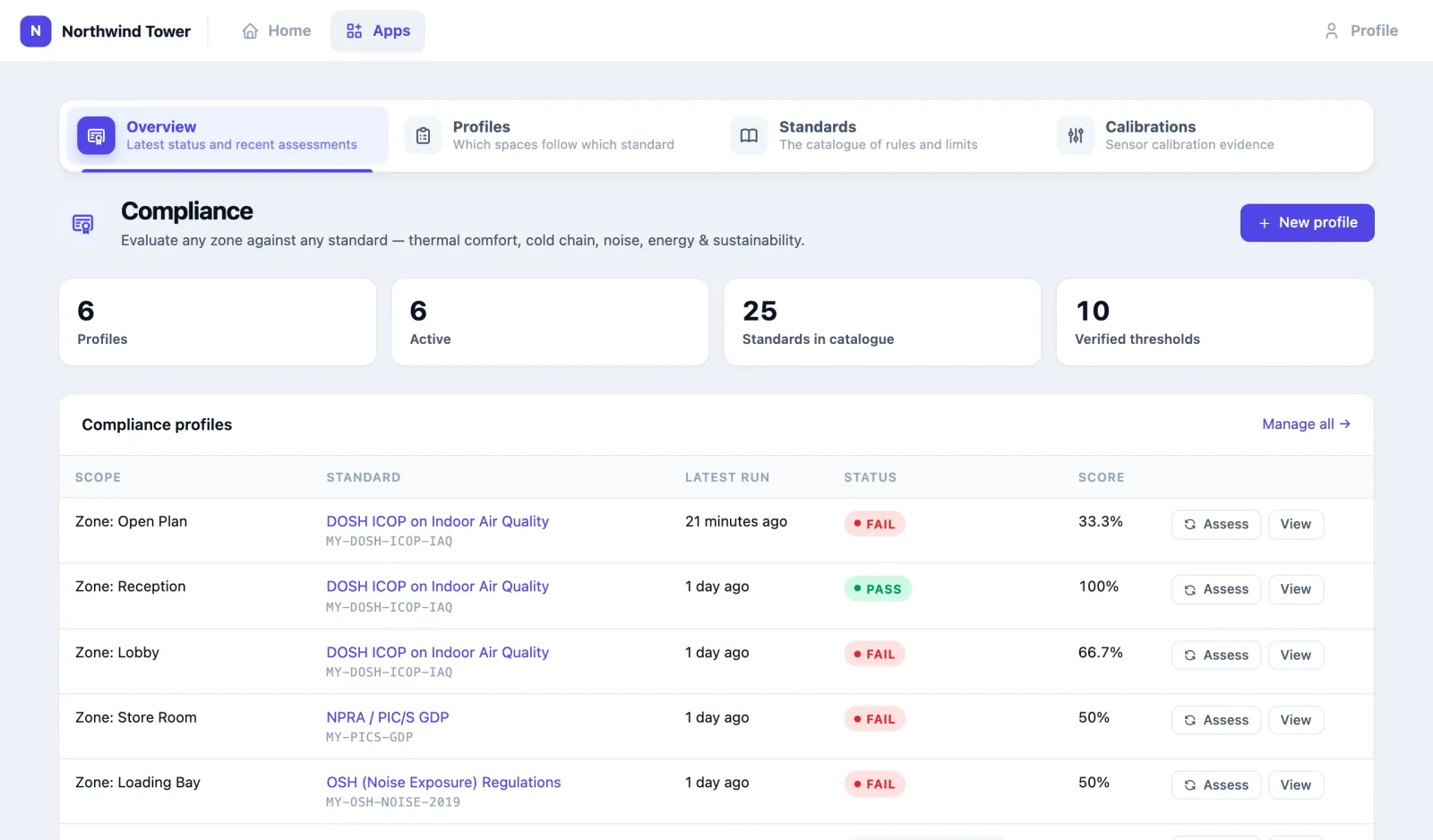
- Overview: every profile with its latest run, and the most recent assessments.
- Profiles: which spaces follow which standard.
- Standards: the catalogue of standards and their rules.
- Calibrations: when each sensor was last calibrated, and when it is due.
- Obligations: the certificates, licences and inspections your buildings must keep in date, and when each one needs renewing.
Four words you will see:
- A standard is a set of rules, for example "temperature between 23 and 26 °C, hourly average, occupied hours only".
- A profile says "this space must follow this standard": a zone, a whole venue (floor), a whole location (building), or everywhere.
- An assessment is one run of a profile over a period. It is frozen: it never changes after it is made.
- Findings are the individual hours or days that broke a limit.
How to choose a standard
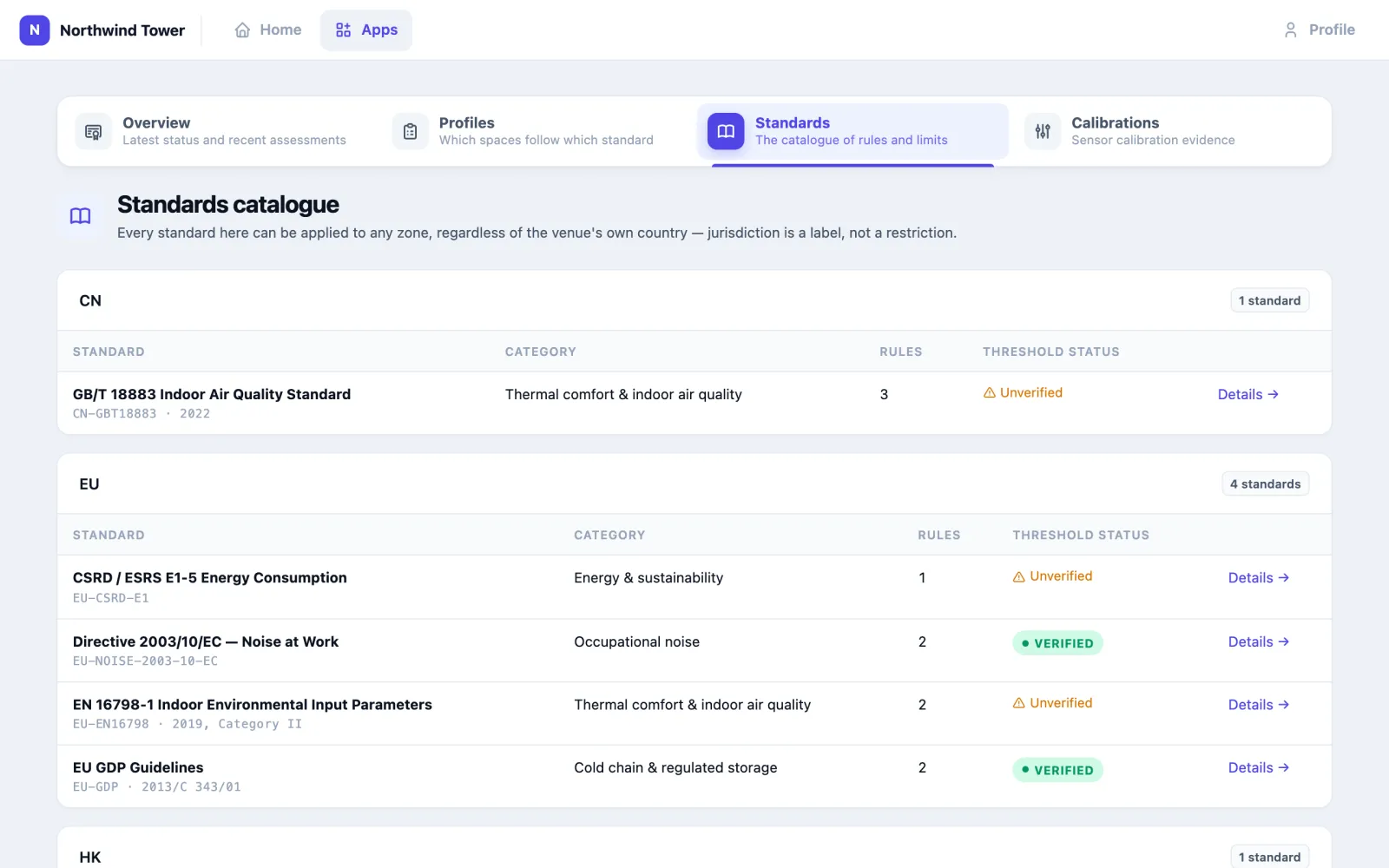
Open Standards. The catalogue is grouped by country or region (CN, EU, HK, INT, JP, MY, SG, US). Each standard shows its category, number of rules and Threshold status: Verified means the limits were checked against the published standard; Unverified means check them yourself before citing them to a regulator. A jurisdiction is only a label — you can apply any standard to any space.
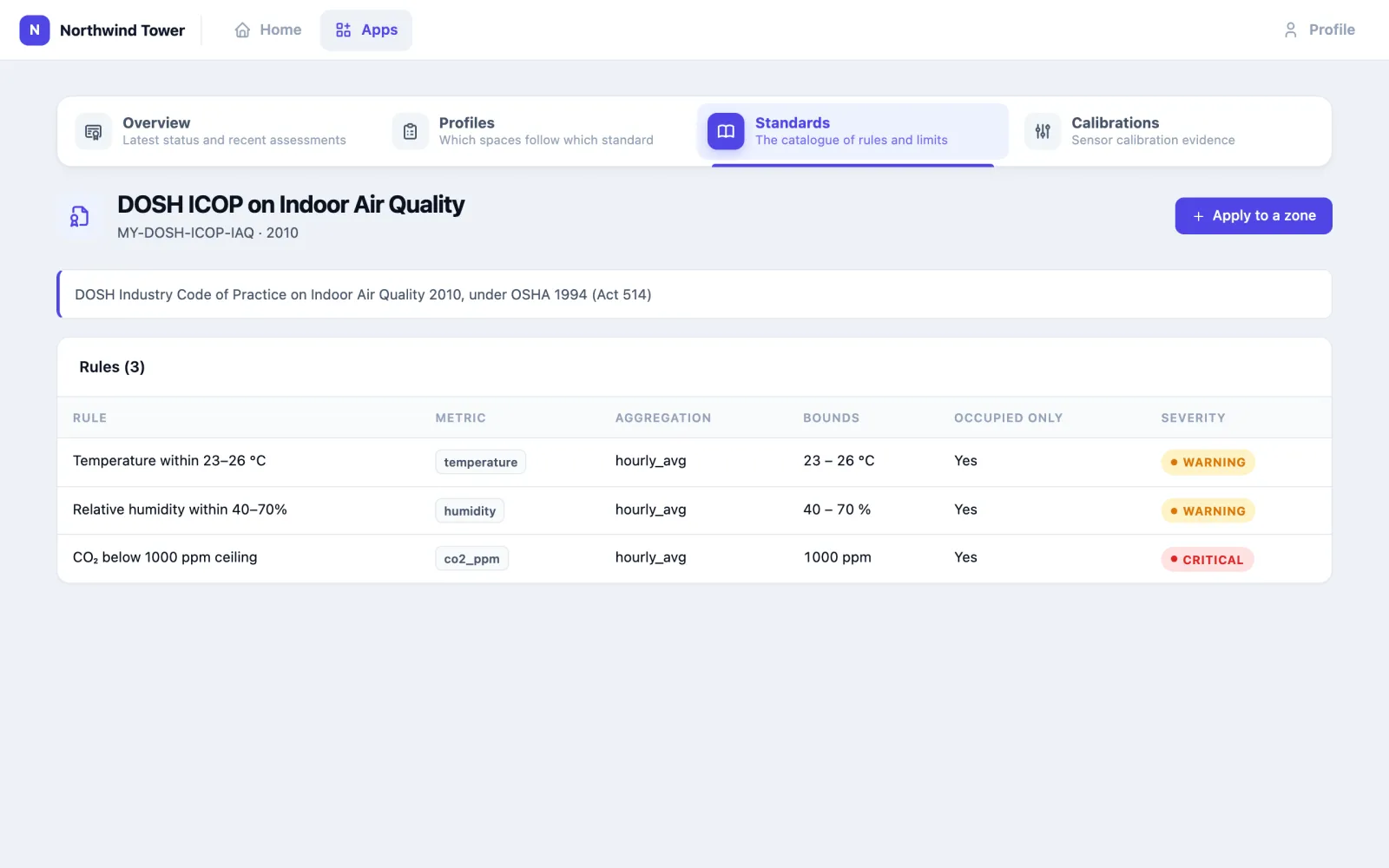
Click Details → to see a standard's rules: the metric, how it is averaged (Aggregation), the limits (Bounds), whether it counts Occupied only hours, and the Severity of a breach.
The catalogue covers four kinds of standard:
| Category | What it checks | Examples in the catalogue |
|---|---|---|
| Thermal comfort & indoor air quality | Temperature, humidity, CO₂ in occupied hours | DOSH ICOP on Indoor Air Quality and MS 1525 (Malaysia), EN 16798-1, ASHRAE 55 and 62.1, SS 554, Hong Kong IAQ, GB/T 18883, Japan's Building Sanitation Law |
| Cold chain & regulated storage | Temperature around the clock: daily averages and mean kinetic temperature | NPRA / PIC/S GDP, EU GDP, USP 1079, MS 2400, CDC VFC, FDA Food Code |
| Occupational noise | The 8-hour noise dose | OSH (Noise Exposure) Regulations 2019, Directive 2003/10/EC, OSHA 1910.95 |
| Energy & sustainability | Total kWh for a disclosure (no limit) | Bursa NSRF / IFRS S2, GRI 302, GHG Protocol Scope 2, ISO 50001, CSRD E1 |
A standard's rules can also measure doors and leaks, from the door contacts and leak sensors in the space:
- Door left open (minutes): the minutes of each hour a door stood open, and the longest stretch, so a rule with a limit of 5 flags a door left open for more than five minutes.
- Leak duration (minutes): the minutes of each hour a leak sensor read wet.
- Leak incidents: leaks that began in the hour; summed over the period it is the number of leaks.
The space's sensors are taken together: a cold room with two doors is open while either is. A door that stayed shut all day counts as a day of readings, not missing data.
How to apply a standard to a space
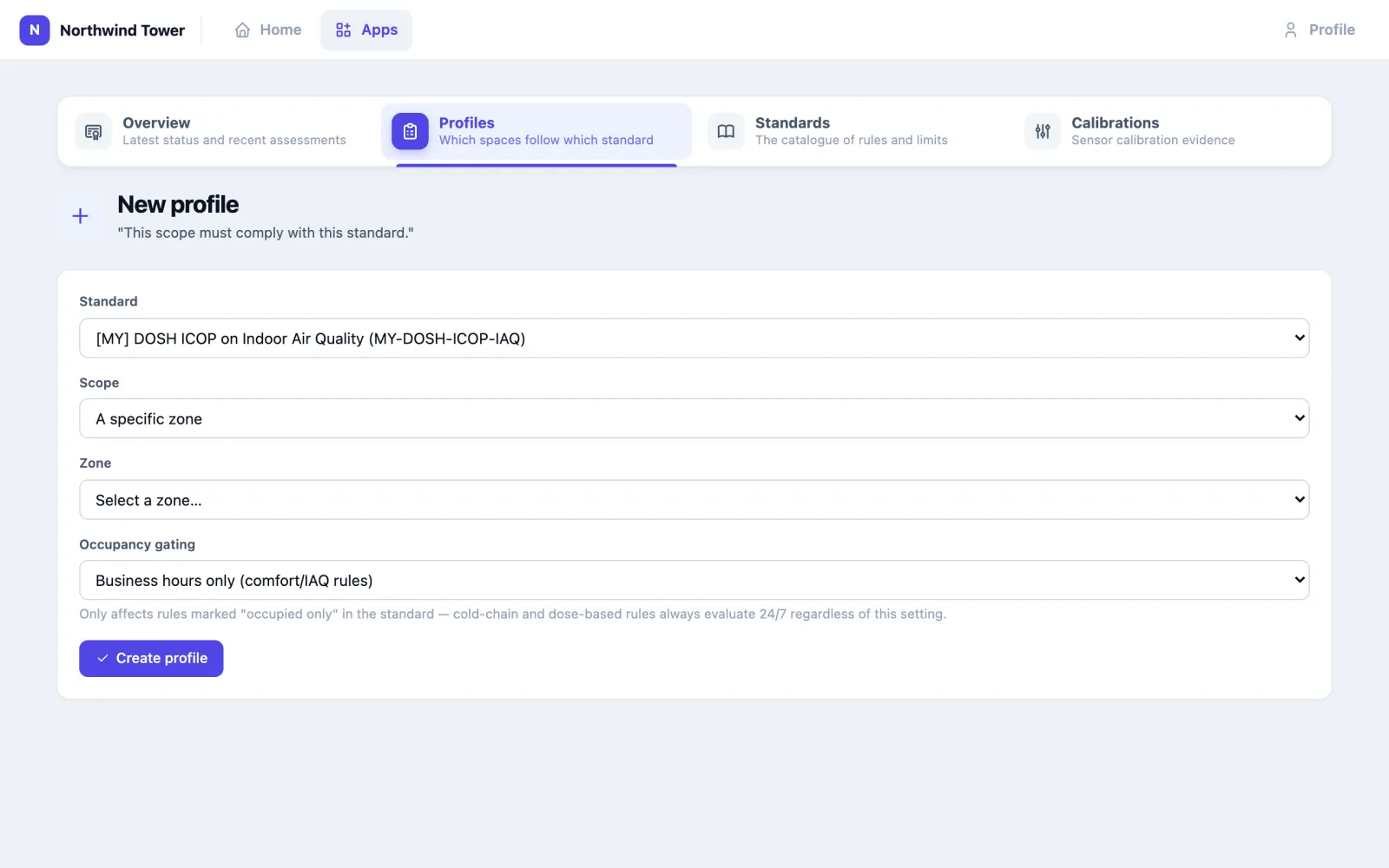
- Click New profile (on Overview or Profiles), or Apply to a zone on a standard's page.
- Standard: pick one.
- Scope: A specific zone, An entire venue, An entire location or Everywhere (tenant-wide), then pick the space.
- Occupancy gating: Business hours only (comfort/IAQ rules) or Always (24/7). This only affects rules marked occupied-only; cold-chain and noise-dose rules are always judged around the clock.
- Click Create profile.
A space can follow a standard only once. Profiles cannot be edited: to change the scope, create a new profile and delete or disable the old one on Profiles. Deleting a profile keeps its past assessments.
Choose the scope with care. A whole floor or building includes every zone in it, and a zone with no sensor for a rule counts as Awaiting data. Northwind applies the air quality code room by room, only to the rooms that have an air-quality monitor.
How to run an assessment
On Overview, click Assess next to a profile. It assesses the last 30 days, ending today, and opens the result.
To assess another period, open any assessment of that profile, choose Past week, Past month, Past quarter or Past year, and click Re-run. Each run is a new assessment; the earlier ones stay. There is no way to choose exact dates such as a calendar month: run it on the first of the month for the 30 days just gone, as Ravi does.
How to read an assessment
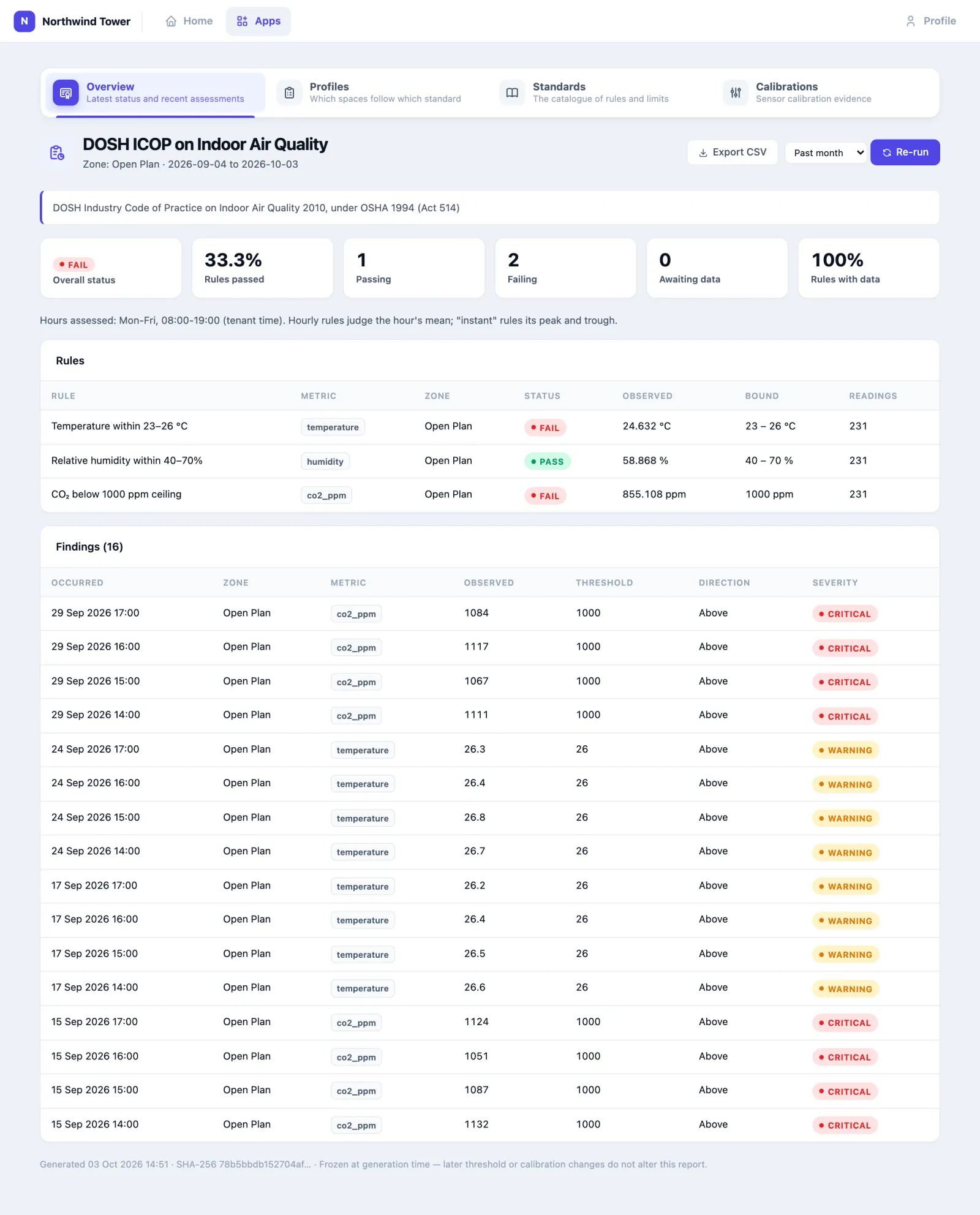
- Overall status:
- Pass: every rule had readings and stayed within its limits. A rule with no limit only needs readings.
- Fail: at least one rule broke its limit in at least one space.
- Partial: nothing failed, but some rules had no readings in some spaces.
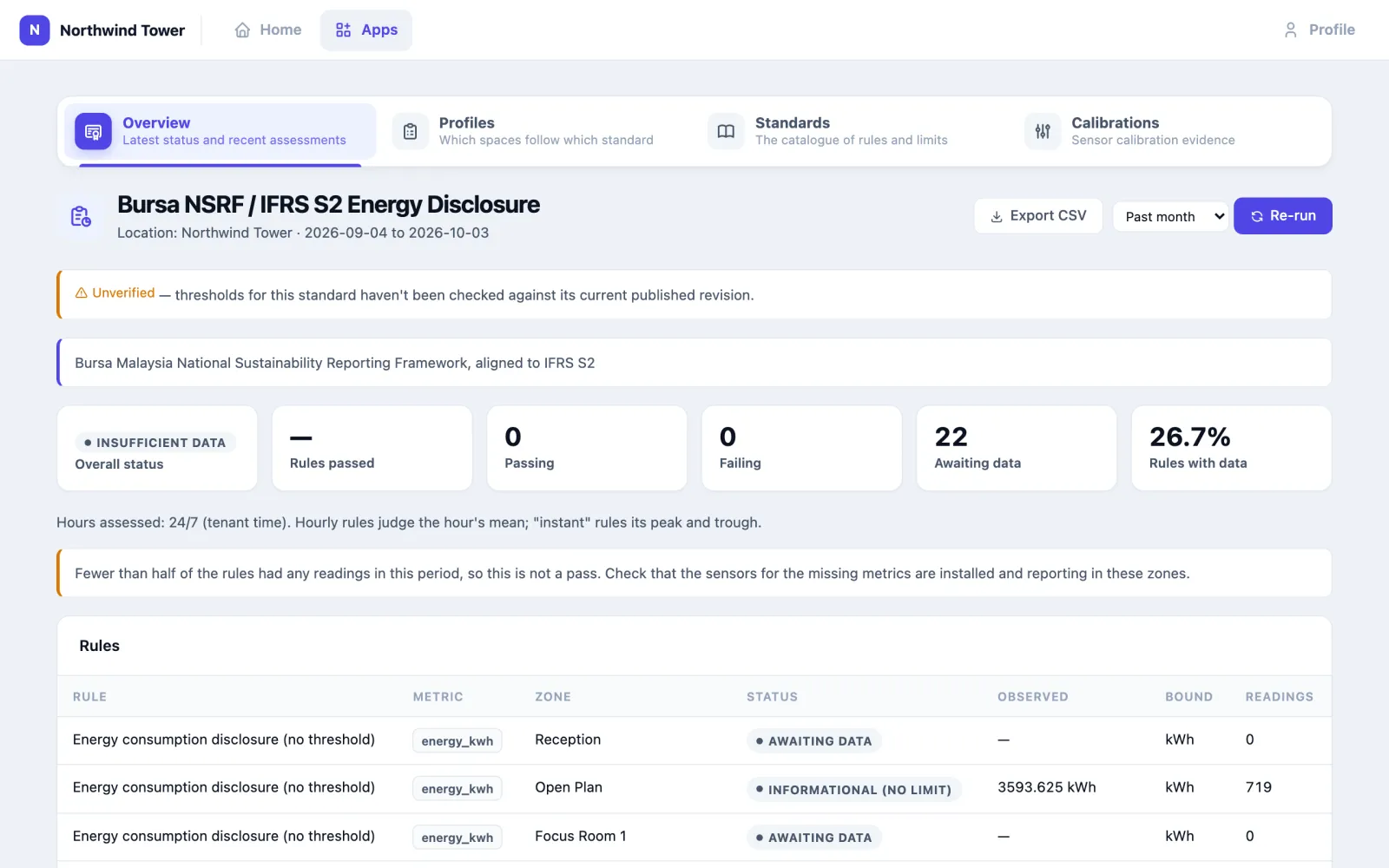
- Insufficient data: fewer than half of the rules had any readings, so it is not a pass. Check the sensors are installed and reporting.
- Rules passed is the share of rules (with readings) that passed. Passing, Failing and Awaiting data count rules per space; Rules with data is how much of the profile had readings.
- Hours assessed says which hours were judged, for example "Mon-Fri, 08:00-19:00" for business hours.
- The Rules table shows each rule, the space, its result, the Observed value for the period, the limit (Bound) and how many hourly readings it used.
- Findings lists each hour (or day, for daily and noise-dose rules) that broke a limit, with the value, the limit, whether it was above or below, and its severity.
Hourly rules judge the hour's average. Rules marked occupied-only skip hours when the room had nobody in it, if the room has a people counter.
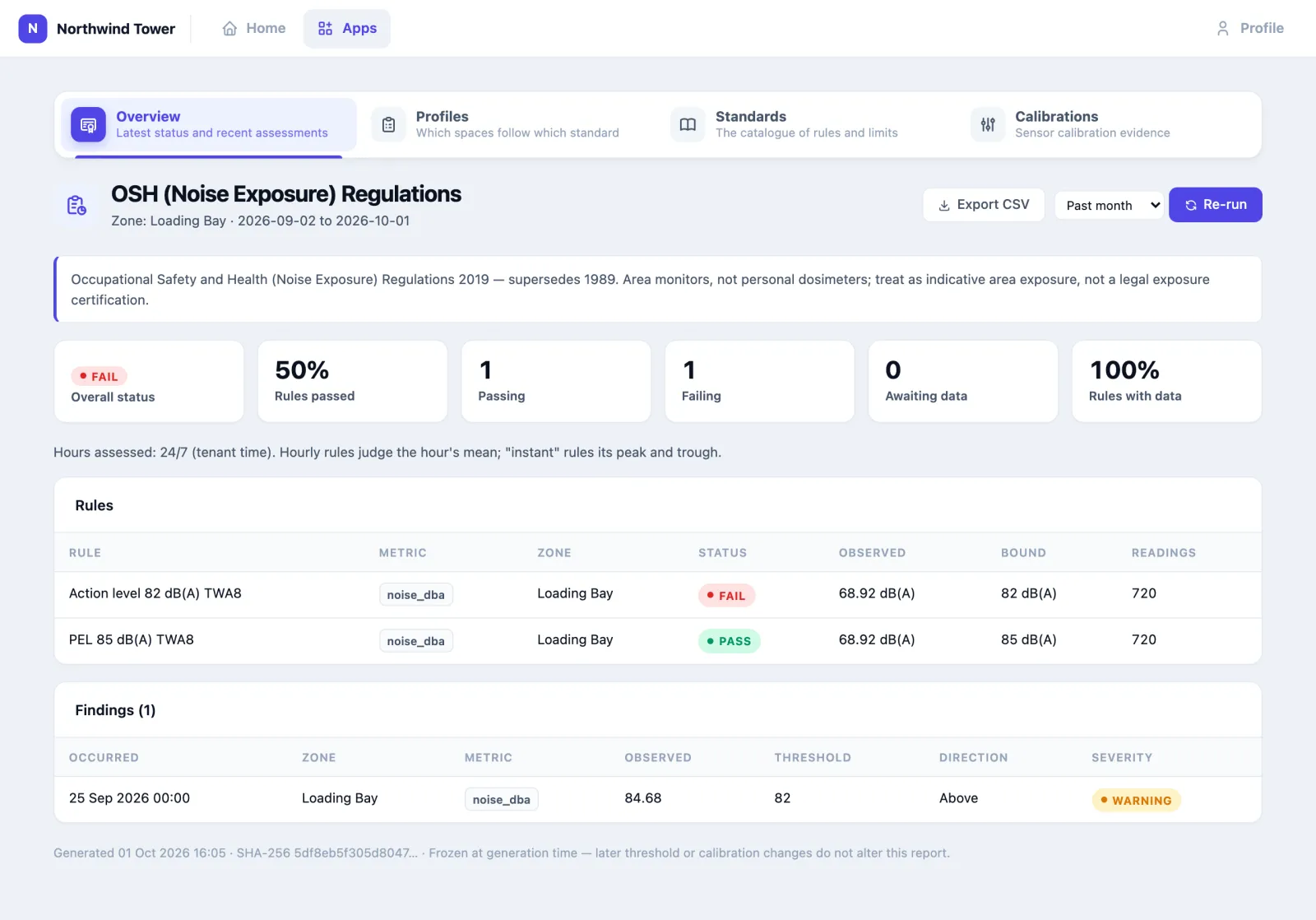
The noise rules work out an 8-hour dose for each day, using the standard's own rule for how quickly the dose doubles (3 dB for Malaysia and the EU, 5 dB for OSHA). The same recording can therefore pass one standard and fail another. The noise standard itself notes that a room sensor is not a personal dosimeter: treat it as an indication of the area's exposure.
Energy disclosures report each space's kilowatt-hours with no limit, marked Informational (no limit). Such a rule counts as having data when its space reported, but it has no pass or fail, so Rules passed shows no percentage. The overall status reads Pass when every space in the scope reported, and Insufficient data when fewer than half did, which is what happens when the scope includes spaces with no meter (as in Northwind's example below). Apply a disclosure to the metered spaces, and read the kWh in the Rules table. Emissions (tCO₂e) are not calculated yet.
How to export the evidence
On an assessment, click Export CSV. The file carries the standard and its citation, whether its limits are verified, the scope, the period, the overall status and score, the hours assessed, a SHA-256 fingerprint of the result, every rule per space, and every finding.
An assessment never changes after it is made, even if a limit or a sensor's calibration is corrected later. Correcting something and re-running gives a new assessment beside the old one. Cite a specific assessment by its date and fingerprint, shown at the foot of the page.
How to keep calibration records
An auditor's next question after "what did it read?" is "how do you know the sensor was right?". Calibrations keeps that answer.
- Under Add a record, pick the Device, enter the Certificate reference, Calibrated on, Next due, Performed by and any Notes.
- Click Save record.
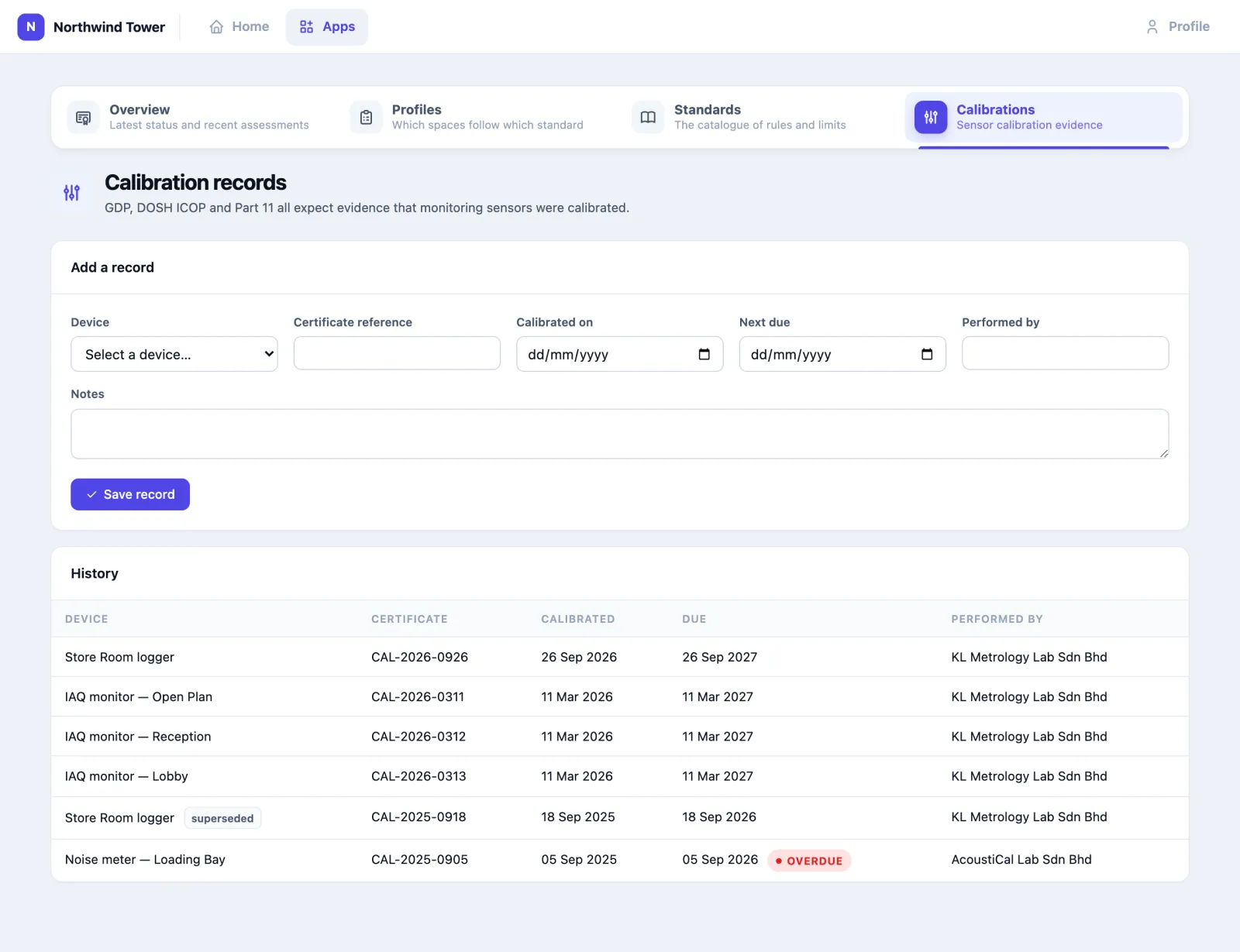
The newest record for each sensor is its current one; older ones are marked superseded. A current record past its due date shows Overdue. Calibration records are evidence only: they do not change readings or assessments.
How to keep the obligations register
A building must keep certificates, licences and inspections in date: the fire certificate, each lift's certificate of fitness, the electrical installation inspection, the premises licence. Obligations lists them with their expiry dates, keeps each certificate as a file, and tells you when the renewal window opens.
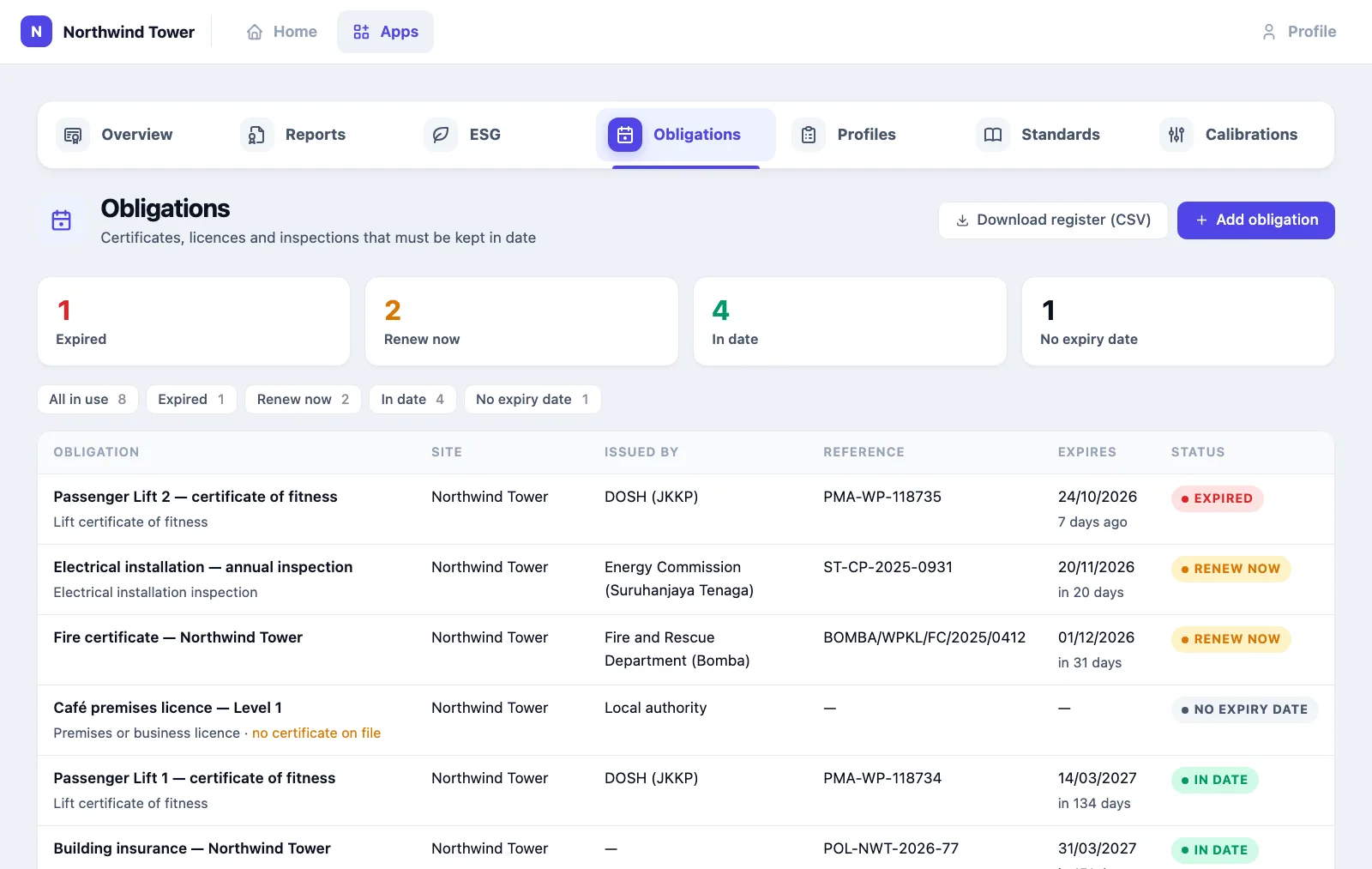
Add an obligation
- Open Obligations and click Add obligation.
- Pick the Kind, for example Fire certificate or Lift certificate of fitness. It fills in Name and Issued by with the usual values; change either one if yours differs. Choose Other for anything not listed.
- Enter the Certificate or licence number.
- If it belongs to one building, pick the Site. If it covers one machine, pick the Asset (the lift, boiler or generator from the Facility app).
- In Renewed by, name the contractor or person who arranges the renewal.
- Enter Issued on and Expires on exactly as printed on the certificate.
- In Start renewal, enter how many days before expiry the renewal should begin. It is 60 unless you change it.
- Under Certificate (PDF or photo), attach a scan or photo of the current certificate.
- Click Save.
Check it worked: the obligation's own page opens, and the history at the bottom says Added.
If Expires on is earlier than Issued on, the form is not saved and says "The expiry date is before the issue date."
What the statuses mean
| Status | Meaning |
|---|---|
| In date | Valid, and the renewal window has not opened yet. |
| Renew now | The renewal window is open: the expiry date is fewer than Start renewal days away. |
| Expired | The expiry date has passed. |
| No expiry date | No expiry date was entered, so nothing can be checked. |
| Archived | No longer applies. It is not checked, and its history is kept. |
Dates are calendar days in your organisation's time zone. A certificate is still in date on its expiry day and shows Expired from the next day. The Overview tab shows a line at the top whenever anything has expired or needs renewing.
Renewal jobs in the Facility app
Every morning Omaya checks the register. When an obligation reaches Renew now or Expired, and your organisation uses the Facility app, Omaya raises a job there named Renew: followed by the obligation's name:
- Its due date is the expiry date, or today if the certificate has already expired.
- Its priority is Medium. It is High with 14 days or fewer left, and Urgent once expired.
- It is linked to the obligation's asset, if there is one.
The obligation's page links to the open job with Renewal job in Facility. There is only one job for each expiry date, so the job is not raised again every morning.
Without the Facility app the register still shows Renew now and Expired; no job is raised.
Email reminders
Reminders are off until someone switches them on.
- Open Obligations and expand Email reminders below the table.
- Tick Email a reminder when something needs renewing.
- Check who will receive them. Omaya uses your organisation's notification list (Organisation › Notifications), or every active administrator if that list is empty.
- To tell others as well, for example a building manager without an Omaya account, enter their addresses in Also send to, one per line.
- Click Save.
Check it worked: the card's heading shows On.
Each morning Omaya sends one email that lists what newly needs action, with a link to each obligation:
- an obligation is listed once when its renewal window opens, and once more if it expires;
- recording a renewal starts the next cycle, so the following window is reminded again;
- switching reminders on also covers anything that is already Renew now or Expired.
An address that is not an email address is not saved, and the card says which one. If reminders are on but nobody would receive them, the card says so.
Record a renewal
- Open the obligation.
- Under Record a renewal, enter the New expiry date and Issued on.
- If the number changed, enter it in New number (if it changed).
- Attach the new certificate under Certificate (PDF or photo).
- Click Save renewal.
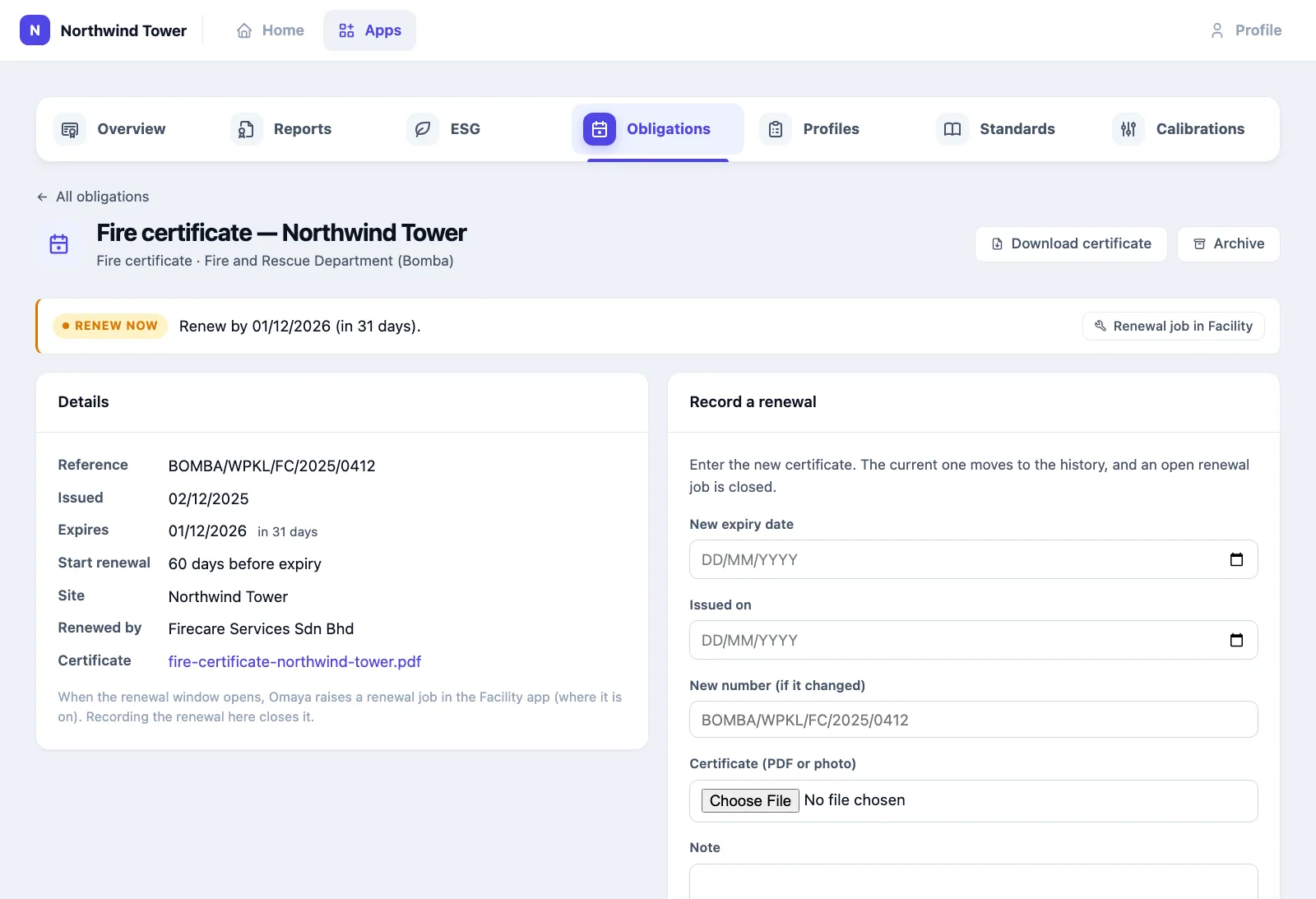
Check it worked: the status changes to In date, and the history shows Renewed with the old and new expiry dates and the new file. The renewal job in Facility is closed with the note "Renewed: the new certificate is valid to" followed by the new date.
The new expiry date must be later than the current one. If it is not, the renewal is not saved and the form says "The new expiry date must be later than the current one."
Every past certificate stays in the history, each with its own file, so you can show an auditor the certificate that was valid on any date.
Give an auditor the certificates
A compliance report can carry the register for the same sites, so an auditor gets the readings and the certificates in one document.
- Open Reports and click New report.
- Choose the standard, the spaces and the period as usual.
- Under Contents and sign-off, leave Include certificates and licences (Obligations register) ticked. It is ticked for every new report.
- Generate the report.
Check it worked: the report has a section Certificates and licences before Sign-off.
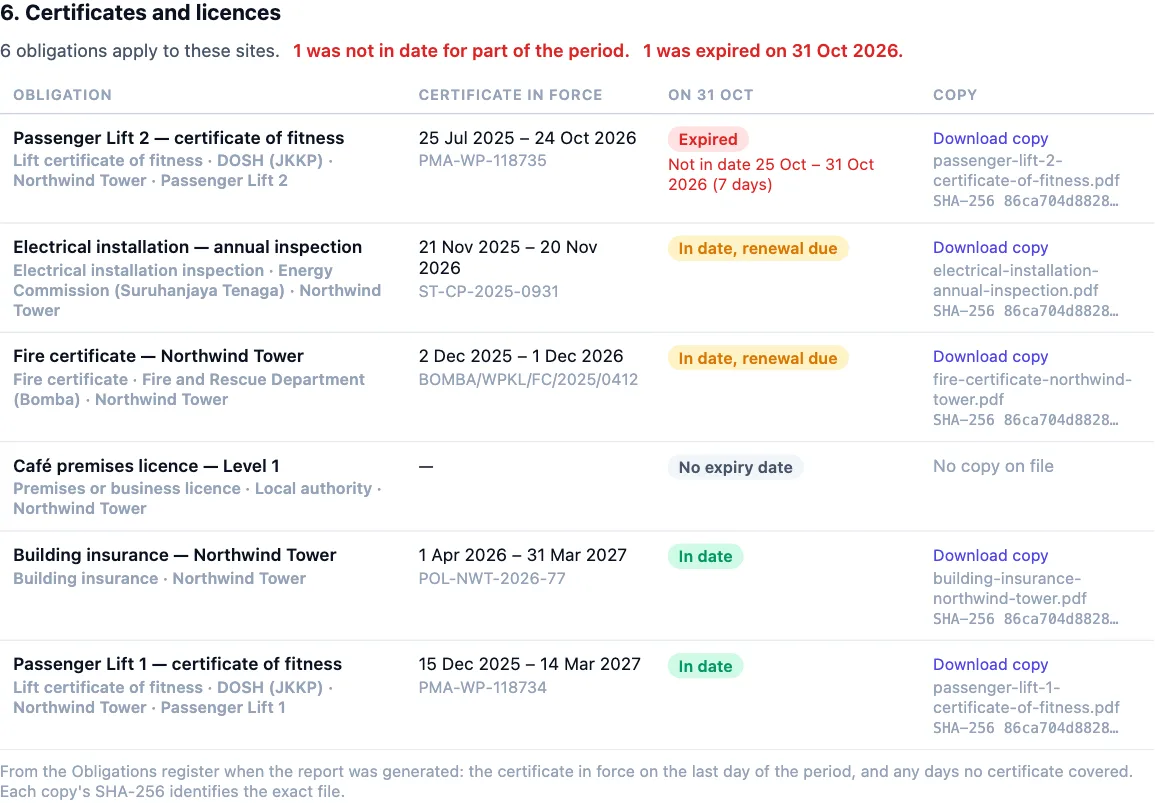
The section lists the obligations for the sites of the report's spaces, plus those with no site (they apply to the whole organisation). Obligations archived before the period began are left out. For each one it shows:
- Certificate in force: the certificate valid on the last day of the period, with its dates and number. For an earlier period this is the certificate that was valid then, taken from the renewal history, not today's.
- On the last day: In date, In date, renewal due, Expired, Not yet issued or No expiry date.
- Not in date: any days of the period no certificate covered, for example a lift certificate that expired on the 24th and was renewed later.
- Copy: the file on record, with its SHA-256 fingerprint, taken when the report was generated.
Like the rest of the report, the section is frozen when the report is generated: renewing a certificate afterwards does not change it. Generate a new report to include the renewal.
Share with auditor gives a link the auditor opens without signing in. Next to each certificate there is Download copy. The link only reaches the files the report lists. The PDF prints the file names and fingerprints, and Evidence CSV adds a row per obligation. Untick the option for a report that should not include the register.
Change, archive or export
- Edit details changes the name, dates or links. A file attached there replaces the current certificate's copy, for example a clearer scan. It is not counted as a renewal.
- Archive stops checking an obligation that no longer applies. Restore brings it back.
- Download register (CSV) exports every obligation in use: its kind, issuer, number, site, asset, dates, status, days left, and whether a certificate is on file.
Using it in your organisation
Office building (indoor air quality)
The setting: open-plan offices and meeting rooms, an obligation to show the indoor air quality code is met, and a landlord who asks for it.
Who does what: the operations lead runs the air-quality profiles on the first of each month and sends the CSV to the building owner; the facilities manager follows up the findings with the aircon contractor.
Settings that matter: one profile per monitored room, Business hours only, and a people counter in the rooms where you can, so empty hours are not judged.
Tip: look at when the findings happen. Four failing afternoons on the same weekday point to a meeting pattern and a ventilation setting, not a broken sensor.
Pharmacy, clinic store or vaccine fridge (cold chain)
The setting: medicines or vaccines that must stay within a temperature range around the clock.
Who does what: the pharmacist or quality lead owns the profiles and the calibration records; the facilities team fixes the cooling.
Settings that matter: one zone per fridge or store room, with a sensor that reports day and night; the matching standard (GDP for ambient storage, CDC VFC for a 2–8 °C fridge); Always (24/7).
Tip: keep the logger's calibration certificate current. A perfect temperature record from a sensor with an expired certificate is the first thing an inspector questions.
Factory or warehouse (noise)
The setting: loading docks, plant rooms and production lines with noisy machinery.
Who does what: the safety officer runs the noise profiles monthly and uses the findings to decide where personal dosimetry or hearing protection is needed.
Settings that matter: the national noise standard (OSH 2019 in Malaysia, OSHA in the US); a noise sensor in each area where people work.
Tip: a breach of the action level is a prompt to measure people, not a verdict on them. Use the findings' dates to pick the shifts to measure.
Setting it up for your organisation
What must exist first:
- Zones for the spaces you will assess.
- Fixed sensors in those zones that report what the standard measures: temperature and humidity, CO₂, noise, energy meters, door contacts or leak sensors. Readings from badges and other tags are not used. Rooms with people counters let comfort rules skip empty hours.
- App users with access to Compliance Reports for whoever runs and reads the assessments.
Checklist:
- Switch on the app and give access to the people who need it.
- Open Standards. The catalogue is loaded for your organisation the first time anyone opens the app.
- Check that each sensor is placed in the right zone and reporting (the Environment and Energy reports show its readings).
- Create one profile per space and standard, then click Assess to see the first result.
- Enter a calibration record for every sensor whose readings you will cite.
| Setting | What it changes |
|---|---|
| Scope (zone, venue, location, everywhere) | Which zones are assessed. Every zone in a larger scope is judged, including zones with no sensors. |
| Occupancy gating | Business hours only judges occupied-only rules in your opening days and hours (the floor's own hours if it has them, otherwise the organisation's). Always (24/7) judges every hour. |
| Profile Enable / Disable (on Profiles) | Labels the profile Disabled and lists it after the active ones. It does not stop anyone pressing Assess, and its past assessments remain. |
| Standard thresholds | Fixed in the catalogue. Unverified ones should be checked against the published standard before you cite them. |
Where it meets the rest of the platform. The Environment report also has a compliance section, and it works the opposite way: it re-reads the history against your current limits, so its counts change when you change a limit. Use the Environment report to tune a limit and Compliance Reports to cite one. A rule tells you now that a limit was crossed; an assessment tells you later whether it was.
Questions and problems
A rule says Awaiting data. No sensor in that zone reported that metric during the period. Check the zone has the right sensor and that it is reporting.
The whole assessment says Insufficient data. Fewer than half of the rules had readings, usually because the scope includes rooms with no sensors. Apply the standard to the monitored rooms instead; for energy disclosures, to the spaces with a meter. See How to read an assessment.
The result changed after I fixed a limit. It did not. Re-running made a new assessment; the old one is still listed under Recent assessments and still reads the same.
I need last month exactly, 1st to 31st. Assessments always cover the last 7, 30, 90 or 365 days ending on the day you run them. Run it on the first of the month.
A temperature or CO₂ rule passes but people still complain. Rules judge the hour's average in occupied hours. A short peak can sit inside a passing hour; look at the Environment report for the minute-by-minute picture.
A standard I need is not in the catalogue. Standards cannot be added from the app today. Ask Omaya support.
On the phone
Compliance Reports is not in the mobile app. Use a browser.