Appearance
The visitor app
The visitor app is a web page for people who are in your building but do not work there: visitors, contractors, couriers, anyone handed a QR code at the door. On their own phone, with nothing to install and no account, they can see the floor, get directions to a room, register their visit and report a problem. Mobile App Management is where your administrator sets it up.
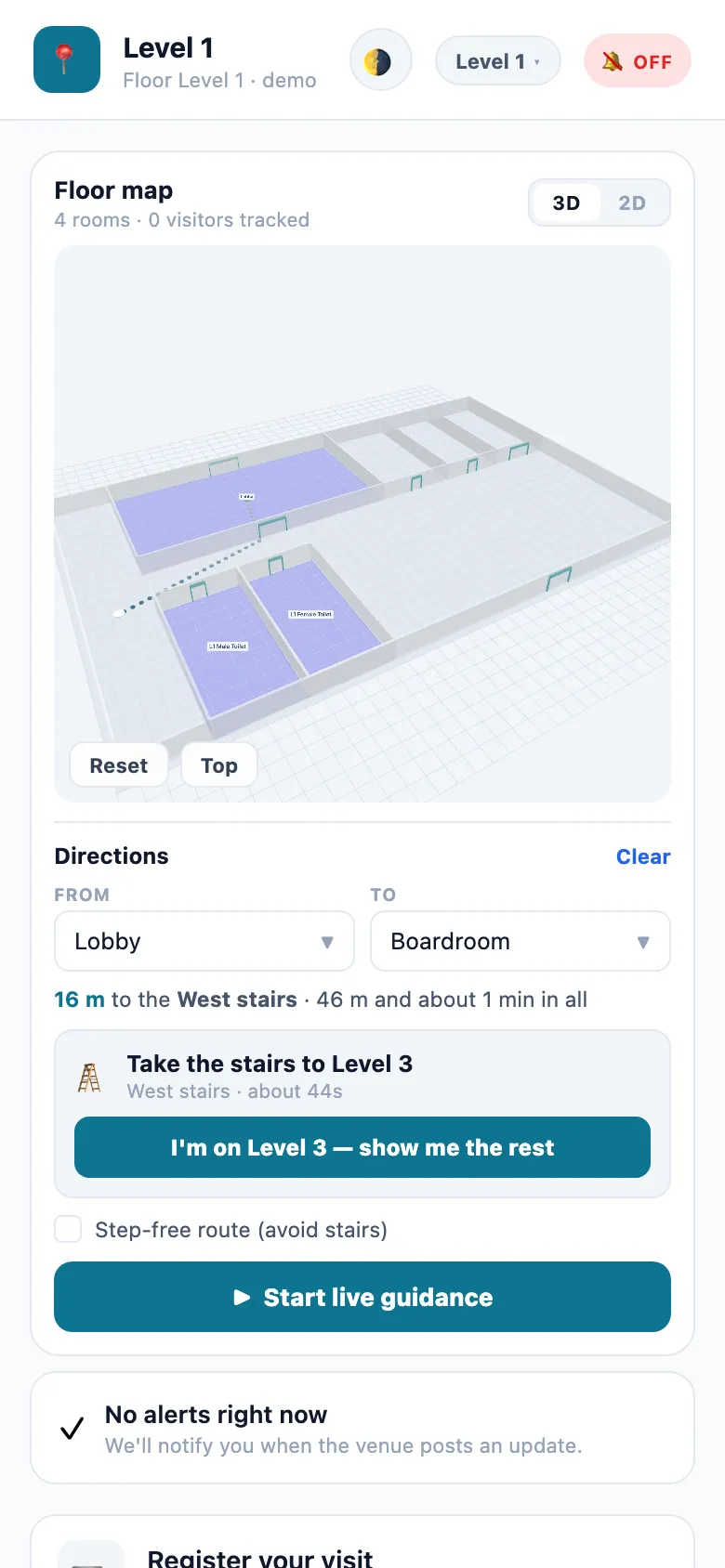
It is served from your own Omaya address at /v/. A QR code by the door opens it straight into your building; the version a visitor gets is always the one your Omaya is running.
Who uses it
HannahVisitor, Brightline DesignPriyaVisitor, Northwind CapitalMarcusContractor, CoolAir ServicesMei LingReceptionistAishaFacilities Manager
| Role | What they do | At Northwind |
|---|---|---|
| Visitor | Scans the QR in the lobby, registers the visit, finds the room, reports a spill | Hannah Ong (Brightline Design), Priya Nair (Northwind Capital) |
| Contractor | The same, and checks which floor a job is on | Marcus Tan (CoolAir Services) |
| Receptionist | Points visitors to the QR, and sees their registrations arrive in Visitor Management | Mei Ling Tan |
| Administrator | Prints the QR codes, chooses which rooms visitors may see, sets the welcome message and colour | Aisha Rahman |
A day at Northwind Tower
| Time | What happens | How |
|---|---|---|
| 08:45 | Mei Ling props the Level 1 QR card on the reception counter, as every morning. | Get in |
| 13:52 | Hannah Ong arrives early for her 14:00 meeting with Jason Wong. She scans the QR on the counter and reads the welcome message. Her visit is already in Visitor Management, waiting for Aisha's approval; a visitor without one would tap Register your visit here. | Get in, Register |
| 14:00 | Aisha approves; Mei Ling checks Hannah in. | Visitor Management |
| 14:02 | Hannah picks From: Lobby, To: Focus Room 2, where Jason is waiting. The app walks her to the west stairs, says Take the stairs to Level 3, and on Level 3 shows the rest of the way. | Directions |
| 15:20 | On her way out Hannah sees water on the floor by the L1 toilets and taps Something not right? The report lands in Facility Management. | Report |
| 15:25 | She taps End visit; the phone forgets the building. |
How a visitor gets in
Each floor (venue) has its own QR code. Scanning it opens the app on that floor — no app store, no sign-in. The first time, a welcome card shows your message; the visitor taps Got it.
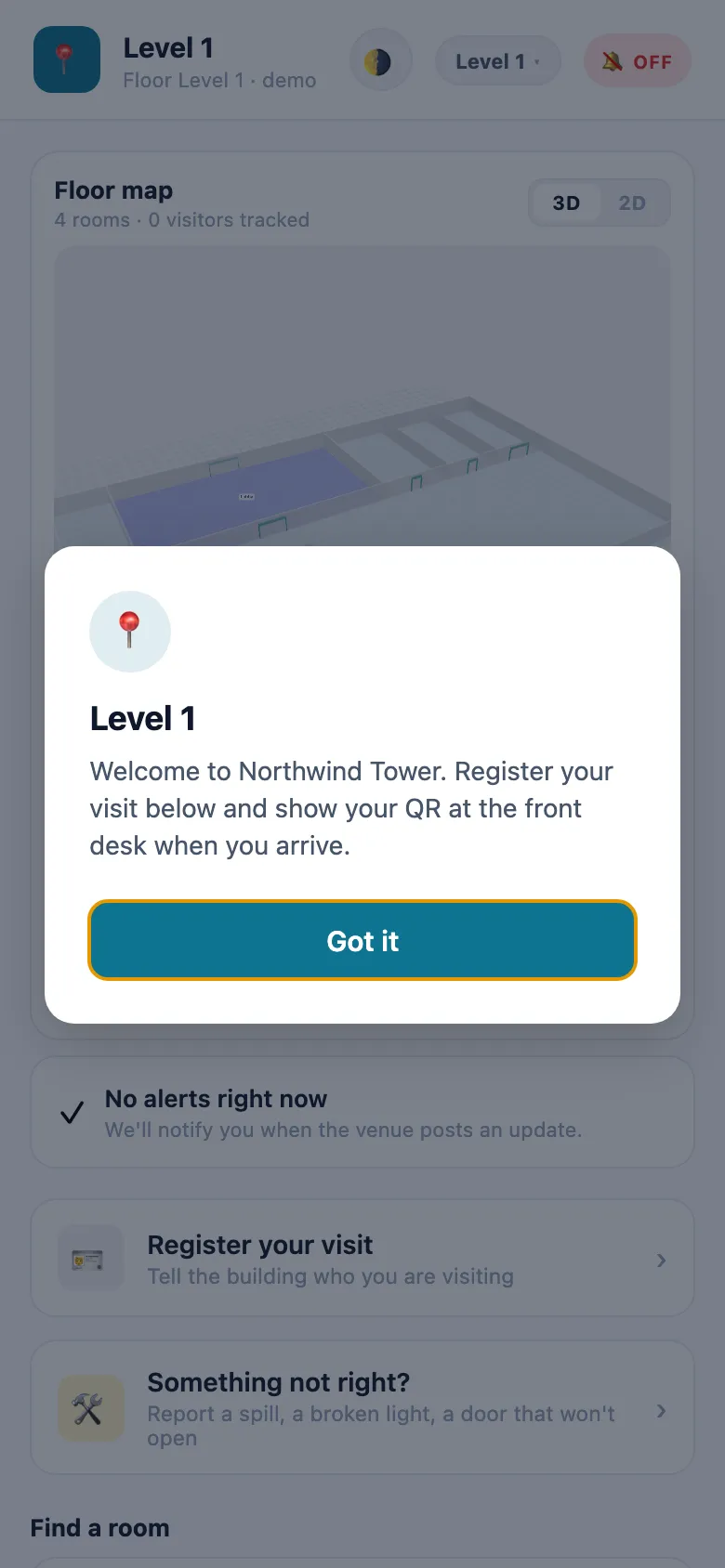
Someone who opens /v/ without scanning is asked for the Venue code and taps Open this venue. The code is the part of the QR link after t=.
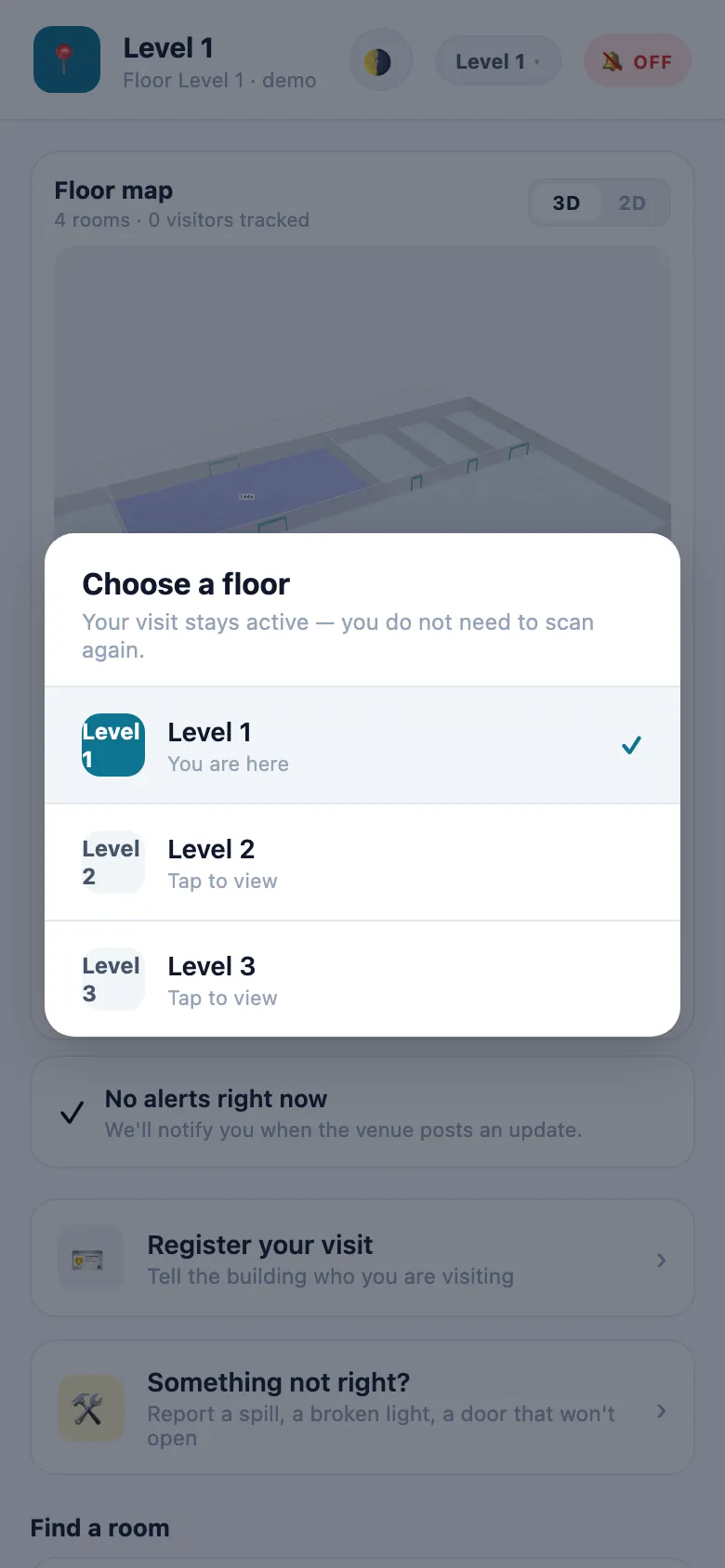
The visitor is now joined to your building on that phone. They can move between your floors without scanning again: the floor button at the top opens Choose a floor, where every floor with a plan — uploaded, or drawn in the Designer — can be picked.
How to read the floor
The Floor map card draws the floor from the plan your administrator drew — walls, doors and rooms — with the rooms visitors may see named on it. 3D and 2D switch views; drag to turn the 3-D view, Reset and Top put it back.
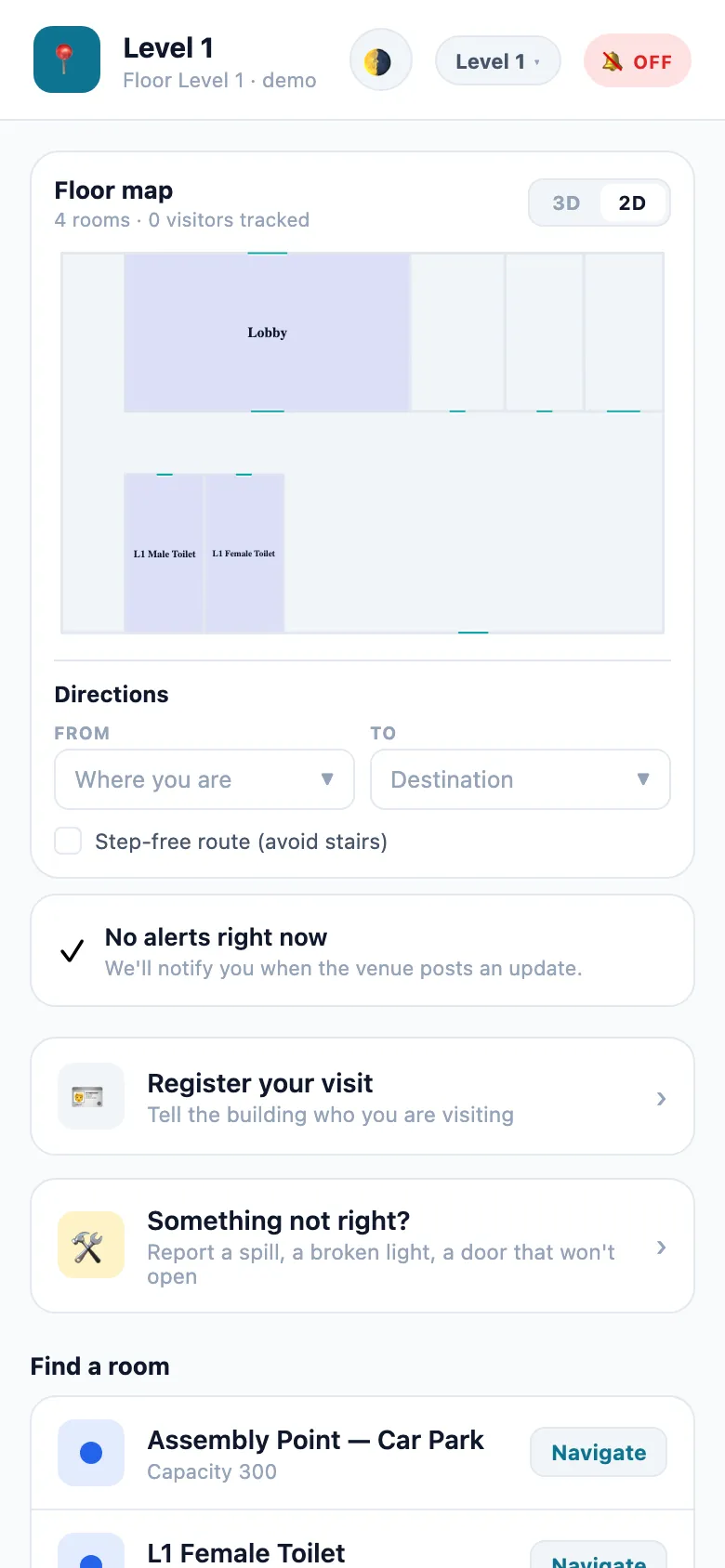
Below the map, Find a room lists the rooms visitors may see on this floor, each with Navigate.
The app does not know where the phone is
A web page cannot listen for Omaya's beacons, so the visitor says where they are by picking a room. Nothing about the visitor's position is sent to Omaya.
How to get directions
- Under Directions, open From (Where you are) and pick the room you are in.
- Open To (Destination) and pick where you are going. Rooms on other floors are listed under their floor. (Navigate on a room in the list sets it as the destination too.)
- The route is drawn on the map with its length and an estimate of the time.
- If the destination is on another floor, the app walks you to the lift or stairs and says, for example, Take the stairs to Level 3. When you get there, tap I'm on Level 3 — show me the rest.
- Tick Step-free route (avoid stairs) to be sent by lift.
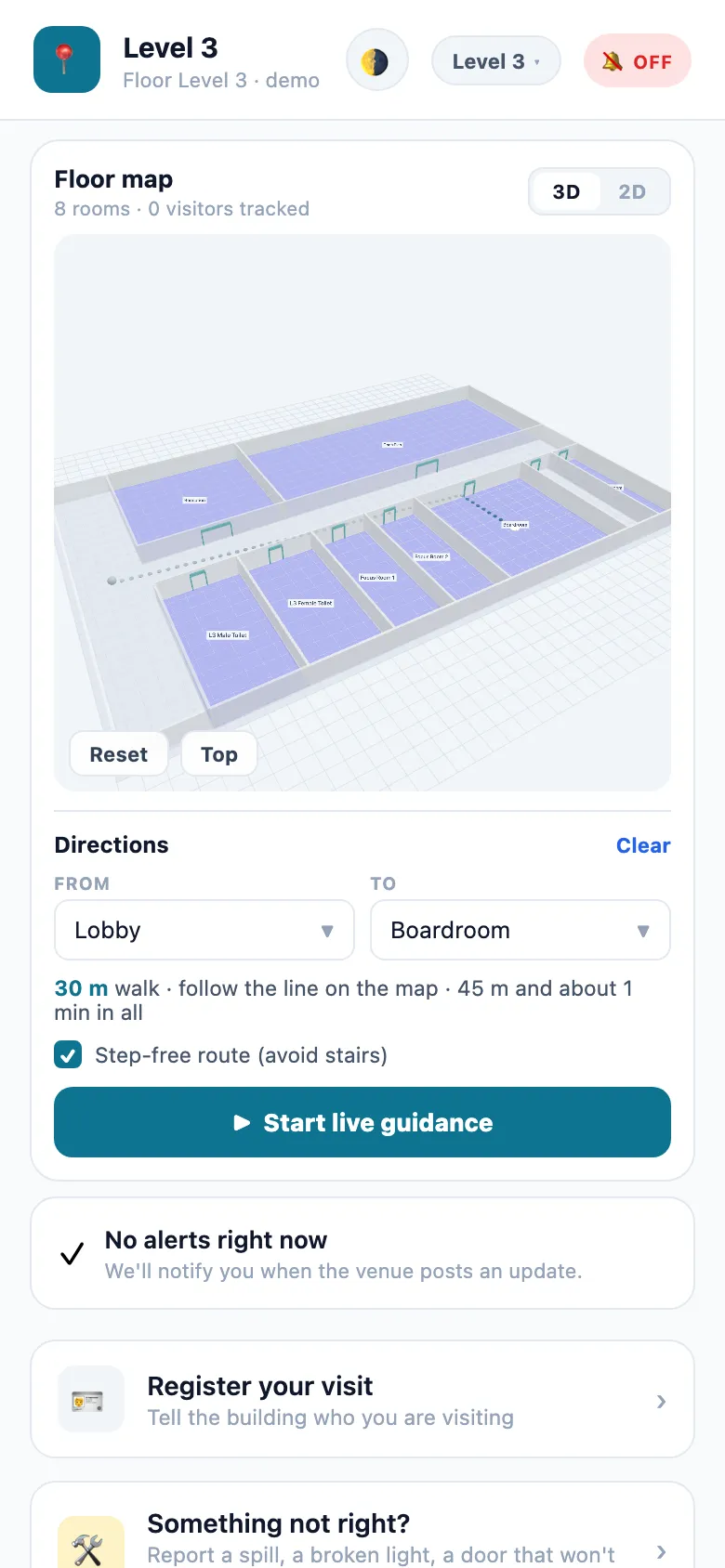
Start live guidance follows the walk with the phone's motion sensors and compass and gives turn-by-turn cues. It is an estimate from your steps, not a position from the building; if it drifts, tap the room you are in.
Clear starts again.
How to register a visit
Where the building uses Visitor Management, the visitor taps Register your visit.
- Fill in Your name, the ID number (IC, Passport or Other ID), Phone, Email (for the approval) and Your company. A photo is optional (Take a photo).
- Under Visiting, choose the company or companies; choose the Type of visit; say Who are you meeting? and the Purpose. Answer any questions the company asks.
- Accept the building's terms and send.
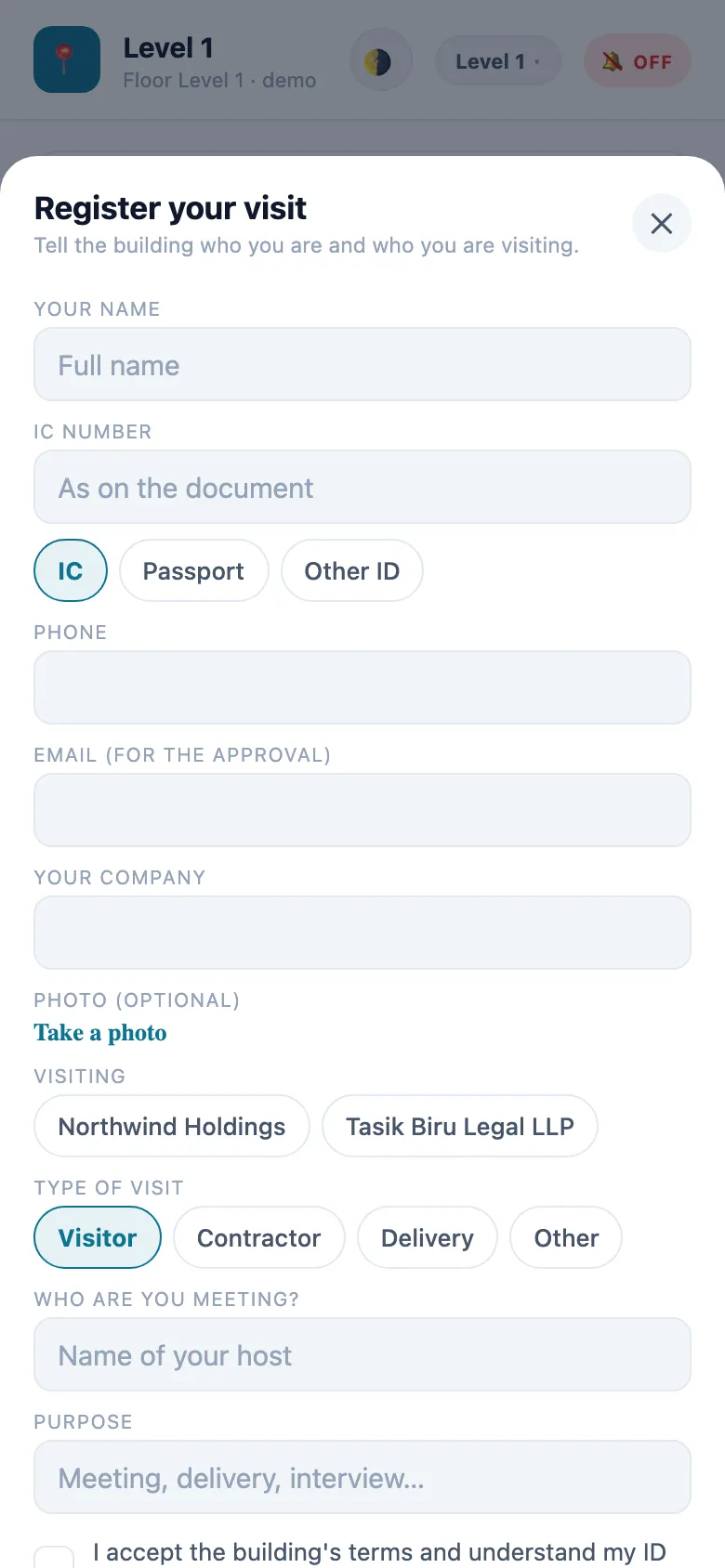
The card on the app's main screen then shows the visit's status. When the company approves, the visit's QR appears there; the visitor shows it at the front desk. How the desk and the companies handle it is in How visitors register themselves.
How to report a problem
- Tap Something not right?
- Choose What's the problem? — Cleaning, Lighting, Too hot/cold, Water leak, Door/access, Lift, WiFi or Something else.
- Under Where is it?, tap the room (or Not sure), and describe it in Tell us what you saw.
- Tick This needs attention soon (safety, spill, blocked exit) if it does. Add an email or phone number only if you want a reply.
- Tap Send report.
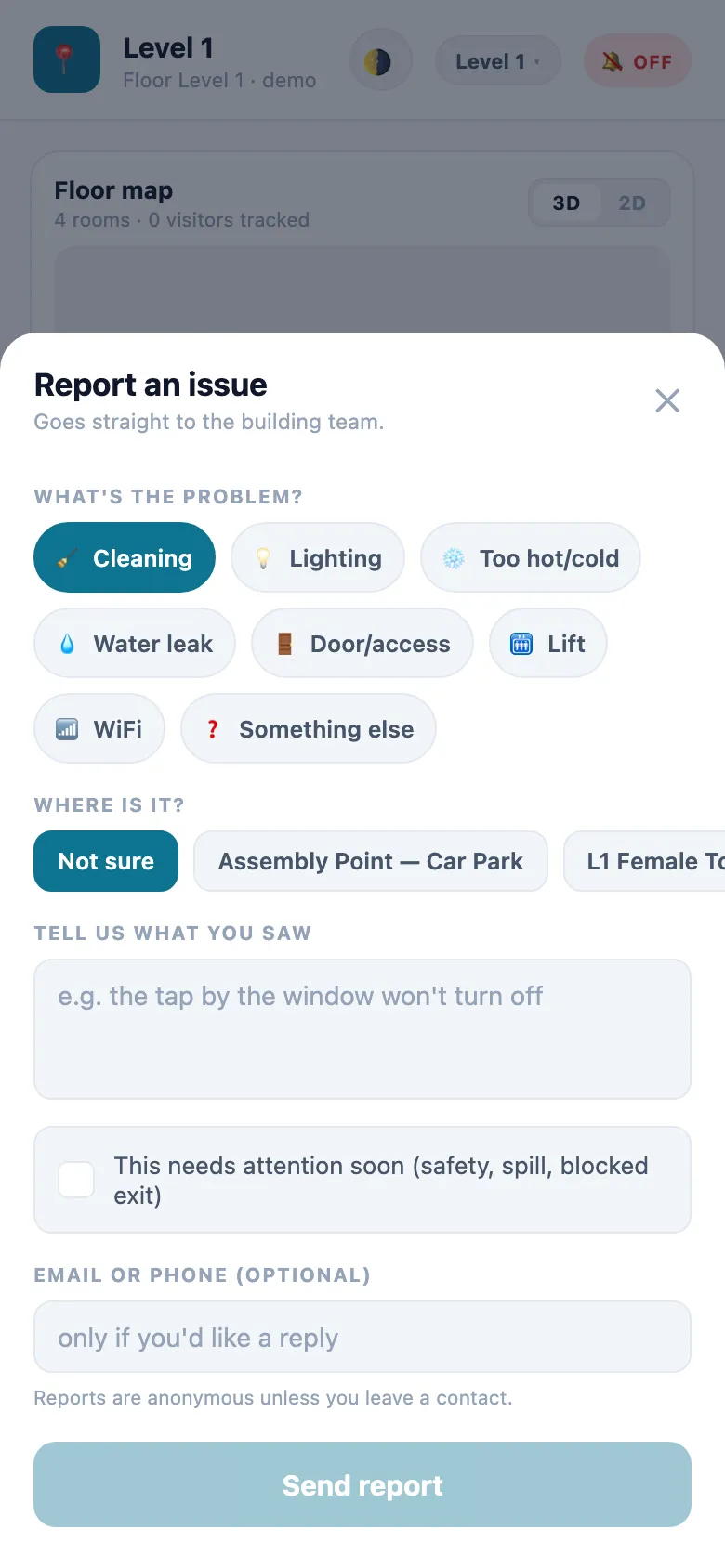
The report goes into the Facility Management inbox as a request, with the room as its location. Reports are anonymous unless the visitor leaves a contact. A visitor cannot make a report urgent: that stays the building team's decision.
Notices and leaving
The bell button at the top (OFF until turned on) lets the phone show notices: updates to the visitor's own reports as the team works on them, and meeting-room activity on the floor the visitor is on, in rooms they may see: bookings happening today that were made in the last day (starting soon, in use until a time, cancelled, or a no-show). Times are the building's own: a booking within the hour says starts in about 20 min, a later one starts at 3:00pm (in about 2 hours). Bookings on other days are not shown. Other people's reports and other floors are not shown. With no notices, the main screen says No alerts right now.
End visit, at the bottom, forgets the building on that phone.
The staff side
Looking for the Omaya phone app?
This page is about the visitor web app at /v/. Staff and admins use the installed Omaya Mobile app — tasks, requests, alerts and the mini-apps on their phone. Its guide is under Mobile.
Opened without a venue code, /v/ asks for one: it is a page for visitors. Staff sign in to the Omaya Mobile app, or to the mini-apps in their browser.
Using it in your organisation
Multi-tenant office tower
Setting. Several companies, one lobby, visitors who do not know the building. Who does what. Reception keeps a QR card on the counter and a sticker by the lifts on each floor; each company approves its own visitors in Visitor Management; facilities reads the reports. Settings that matter. Visible zones: meeting rooms, toilets, pantry and reception only; Floor connections for every lift and staircase, so a visitor can be routed from the lobby to any floor. Tip. Name rooms the way the signs on the doors do. A visitor looking for "Boardroom" will not recognise "L3-MR-01".
Hospital
Setting. Patients' relatives looking for wards, clinics and the pharmacy. Who does what. The information desk hands out the QR; the porters' office handles reports. Settings that matter. Step-free routes depend on lifts being set up as floor connections; leave clinical areas, stores and plant rooms off the visible list. Tip. Put a QR at every entrance, not just the main one: each scan opens the floor where the visitor is standing.
University campus building
Setting. Students and guests looking for lecture theatres and labs. Who does what. Faculty office staff keep the plan current at the start of each term; estates handles reports. Settings that matter. Welcome message with the building's opening hours; brand colour in the university's colour. Tip. When a room changes use, rename it in Omaya before term starts — the app reads the names live.
Setting it up for your organisation
Mobile App Management is in the admin console, under Apps → Your apps → Mobile App Management: one page per organisation. It is not in the mini-app portal.
What must exist first
- A drawn floor plan for each floor: walls, doors and rooms, with the floor's size set — see Floor plans and positioning. Without it the map says Floor plan not yet drawn and there are no directions.
- Doors between rooms and corridors. Routes only pass through doors; a room with no door drawn cannot be reached.
- Floor connections if visitors move between floors.
- Visitor Management if visitors should register, and Facility Management if they should report problems.
Checklist
- Draw each floor (walls, doors, rooms) and set its size.
- Add the lifts and stairs as floor connections, placed on every floor they serve.
- Choose the visible zones.
- Write the welcome message and set the brand colour.
- Print each floor's QR code and put it where visitors arrive.
- Scan it with an ordinary phone and walk one route yourself.
Settings
| Setting | What it changes |
|---|---|
| Welcome message | Shown on the welcome card when a visitor first opens a floor |
| Brand colour | The app's accent colour, so it looks like your building |
| Visible zones | Which rooms the app names and lists. Empty means every active room — make a decision rather than leave it: a visitor has no reason to see the server room or the security office |
| Venue QR codes | One printable code per floor, with its link to copy, and rotate (issue a new code) and revoke (stop new scans) |
| Floor connections | The lifts, stairs, escalators, ramps and walkways the directions may use between floors. Stairs are never offered on a step-free route |
| North offset | Per floor: which way is north on the plan, so live guidance can use the compass |
Rotating or revoking a floor's code also ends every visitor session joined through it, so a code that has gone somewhere it should not can be shut off at once. Treat the codes like the TV Dashboard's links: they decide who can join your building. Only administrators with Edit · Spaces can rotate or revoke a code, set a floor's north offset or replace the visitor floor plan; app users cannot.
Hidden rooms keep their walls on the map, and a route may pass through them; they are simply not named or offered.
Questions and problems
The map is empty and says Floor plan not yet drawn. The floor has no rooms drawn, or its size is not set, or none of its rooms is on the visible list.
A floor in the list says No floor plan yet and cannot be picked. The floor has no uploaded plan image and nothing drawn in the Designer (a floor size plus rooms or walls). Draw it, or upload its plan.
No route is found. There is no door between those rooms on the plan. Draw it.
It will not route to another floor. No floor connection joins the two floors, or the only one is stairs and Step-free route is ticked.
The code is refused. It has been rotated or revoked. Print the new one.
My new welcome message or colour does not show. The app keeps what it loaded. Reload it on the phone.
"Reporting an issue is not available." The Facility app is not switched on for your organisation.
On the phone
The visitor app is the phone experience for visitors. For staff on their phones, see the Omaya Mobile guide.