Appearance
Meeting Room
Meeting Room is where people in your building see which rooms are free and book one. It also knows something a booking calendar cannot: whether anybody actually turned up. A booking nobody uses is handed back for someone else, and meetings nobody booked still show as rooms in use. It works with Google Workspace and Microsoft 365: rooms booked in Google Calendar or Outlook show here, and rooms booked here show there.
Who uses it
JasonAccount ManagerFarahHR & Safety OfficerDanielTechnicianMei LingReceptionistAishaFacilities Manager
| Role | What they do with Meeting Room | At Northwind Tower |
|---|---|---|
| Anyone who needs a room | Finds a free room, books it, invites people, checks in, extends or ends early | Jason Wong (Account Manager), Farah Aziz (HR & Safety), Daniel Lim (Technician), Mei Ling Tan (Receptionist) |
| Whoever runs the rooms | Decides which spaces are bookable, sets up the door tablets, reads Insights, cancels other people's bookings when needed | Aisha Rahman (Facilities Manager) |
| The IT / Omaya administrator | Links the rooms to Google Workspace or Microsoft 365 | Northwind's IT |
| People walking past a room | Read the door display: free or in use, until when, today's list. With the room's display link they can book it there | Anyone in the corridor |
Everyone with the app can book, and can check in, extend, end or cancel their own bookings; people invited to a booking can check it in, extend and end it too. Only someone with configure rights on Meeting Room sees the Rooms & displays tab and can cancel anybody's booking. Calendar sync is in the admin console.
A day at Northwind Tower
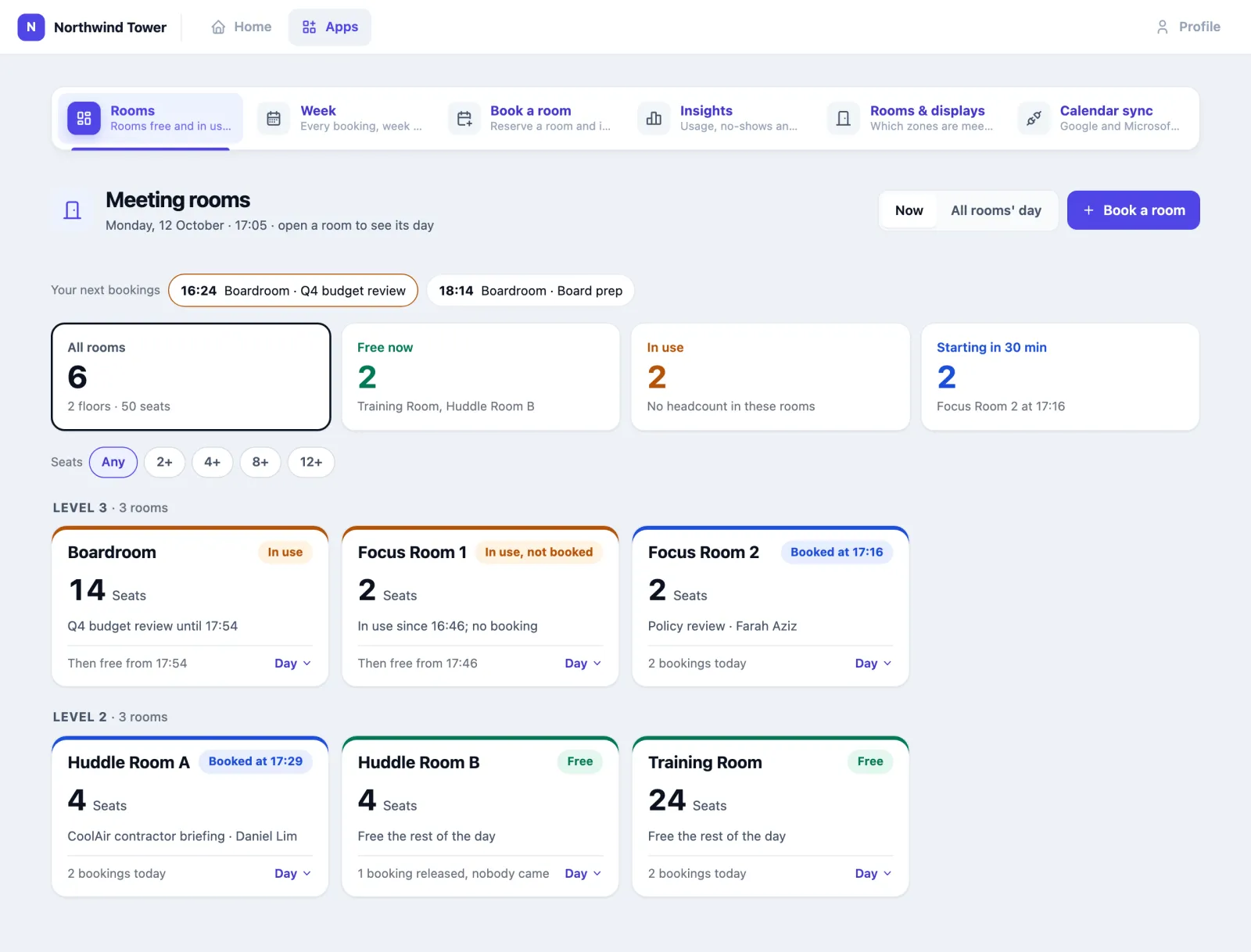
Northwind has six bookable rooms: the Boardroom (14 seats), Focus Room 1 and Focus Room 2 (2 each) on Level 3, and the Training Room (24), Huddle Room A and Huddle Room B (4 each) on Level 2.
| Time | What happens | How |
|---|---|---|
| 09:00 | Jason needs somewhere quiet for a client call. On Rooms he presses Free now, opens Huddle Room B and presses 30 min. | Book in two taps |
| 09:30 | Aisha's weekly stand-up in the Boardroom. Most of the team booked it in Google Calendar; it is on the Boardroom's day here as well. | Calendar sync |
| 11:00 | Jason's client review in the Boardroom, with an external guest. Because the building runs Visitor Management, the guest's pass reached her by email when Jason saved the booking. | Invite people |
| 14:00 | Farah books the Training Room for twelve people for a fire-warden briefing. The form points out that Huddle Room B is free and seats four — she needs the big room, so she keeps it. | The smaller-room hint |
| 16:00 | Nobody turns up to Hafiz's vendor call in Huddle Room B. After ten minutes of an empty room it is released, and the room declines the meeting in his Outlook. | No-shows |
| 16:43 | Two people walk into Focus Room 1 without a booking. Its tile turns In use, not booked. | |
| 17:20 | Aisha's budget review runs over. She presses +15 min on the door display. The projector has been flickering, so she presses Report a problem → Screen or display too; it lands in Facility as a job on the Boardroom. | Door display, Report a problem |
| Month end | Aisha opens Insights: 62 % of booked time actually used, 36 bookings nobody came to. | Insights |
How to read the Rooms page
Open Meeting Room. Rooms is the first screen.
The four counts across the top are also filters — press one to show only those rooms, and All rooms to show them all again:
- All rooms — how many, on how many floors, and the seats in total.
- Free now — nothing is booked now and nobody is in the room.
- In use — a meeting is on, a booking has started but nobody has checked in yet, or people are in a room nobody booked.
- Starting in 30 min — free now, but booked within half an hour.
Seats narrows the rooms to those that seat at least 2, 4, 8 or 12.
Each tile is one room, grouped by floor. The colour along its top edge and the label say what it is doing:
| Label | Meaning |
|---|---|
| Free (green) | Nothing on. The line says until when: Free until 17:54, or Free the rest of the day |
| Booked at 17:13 (blue) | Free now, booked soon |
| In use (amber) | Someone has checked in. Q4 budget review until 17:51 |
| Booked, not checked in (amber) | The booking has started; nobody has checked in yet. If the room stays empty it will be released |
| In use, not booked (amber) | The room's sensor sees people, but nobody booked it |
The big number is the room's seats, or — while a meeting is on and the room has a people counter — how many people are in it, of 14 seats. CO₂ and temperature show next to it where the room has those sensors; Stuffy appears when CO₂ goes over 1000 ppm, Over capacity when more people are in than there are seats. The bottom line says what comes next: Then free from 17:51, Next booking 17:54, 1 booking released, nobody came.
Your next bookings, above the counts, are your own next three bookings; press one to open it.
A room's day
Press a tile. It opens across the page and shows the room's whole day:
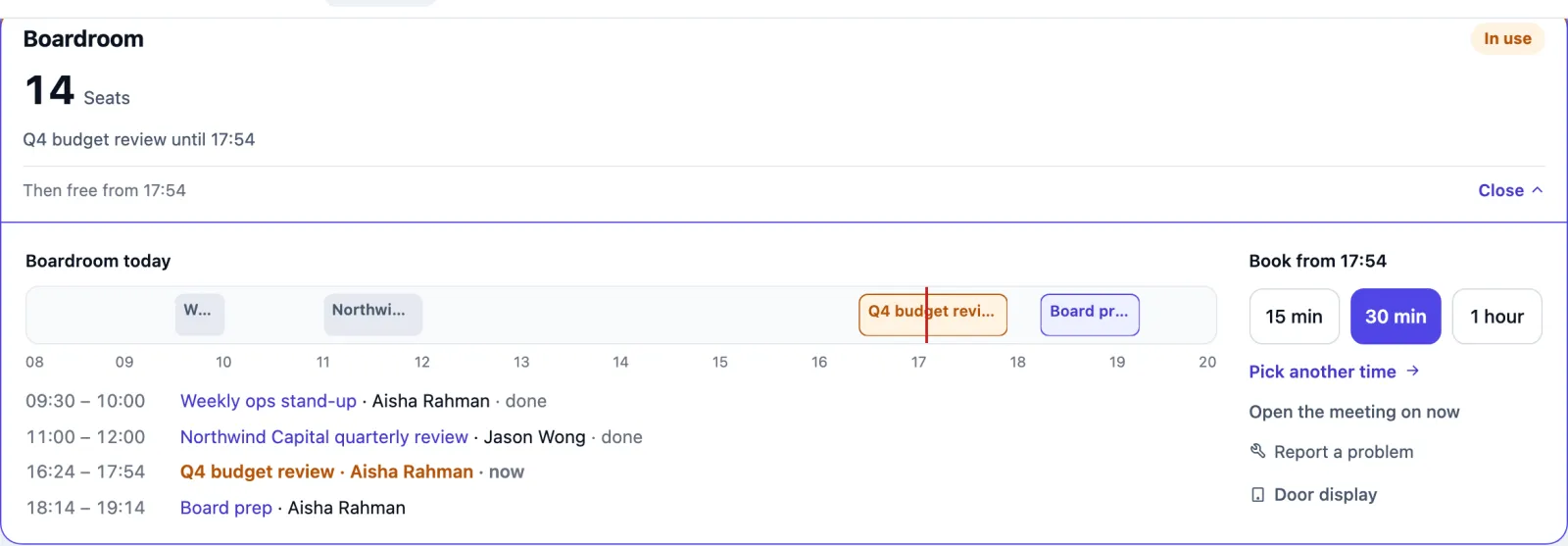
- The bar runs across the building's opening hours. Grey is done, amber is on now, blue is booked, striped is a booking released because nobody came. The red line is now.
- The list under it names each meeting and who booked it; press a name to open the booking. From calendar marks a meeting booked in Google Calendar or Outlook.
- Book it now (or Book from 17:51 when the room is taken) with 15 min, 30 min or 1 hour. A length that would run into the next booking is greyed out.
- Pick another time opens the booking form for this room.
- Report a problem sends a job to Facility.
Press the tile again, or Esc, to close it.
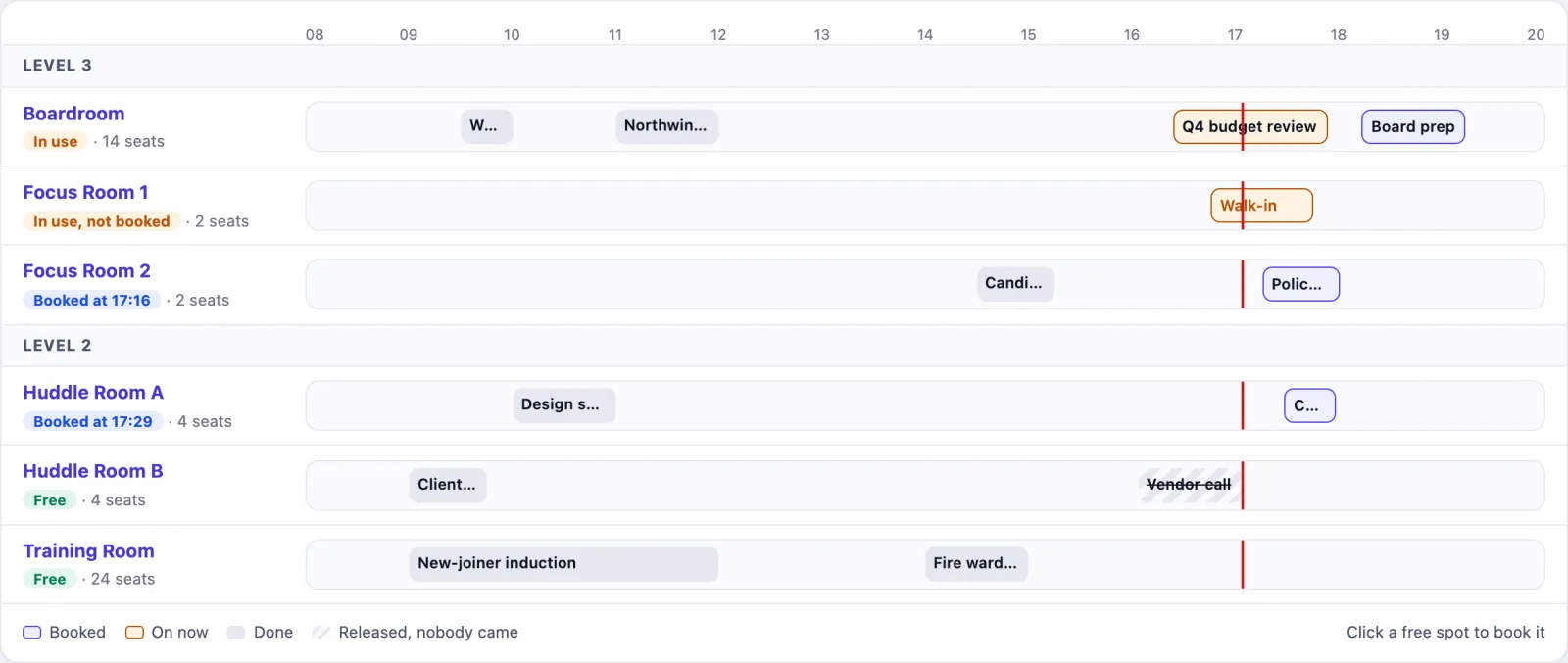
All rooms' day
All rooms' day, next to Now at the top, shows every room's day on one time line — the quickest way to find a slot that suits. Press an empty part of a room's line to book it at that time.
How to book a room
In two taps — on Rooms, open the room and press 15 min, 30 min or 1 hour. It starts now (or when the room is next free) and is booked in your name. You stay on the Rooms page with Booked Huddle Room B, 16:46–17:16.
With a title, a time and people — press Book a room (or Pick another time in a room's day):
- Pick the Room. Each one shows its seats.
- Type a Meeting title (optional, but it is what people see on the tiles, the door display and the calendar).
- Set Start and End, in your organisation's time zone.
- Set Expected attendees, including you.
- Add people under Invite attendees if you want.
- Add Additional notes if useful.
- Press Confirm booking.
If someone already holds the room for any part of that time you get This time slot conflicts with an existing booking. — pick another time or room.
The smaller-room hint
When the room you picked seats far more people than are coming — at least twice as many, and four or more spare seats — the form shows the smaller rooms that are free at that time. One press switches to one of them. It also warns when more people are coming than the room seats.
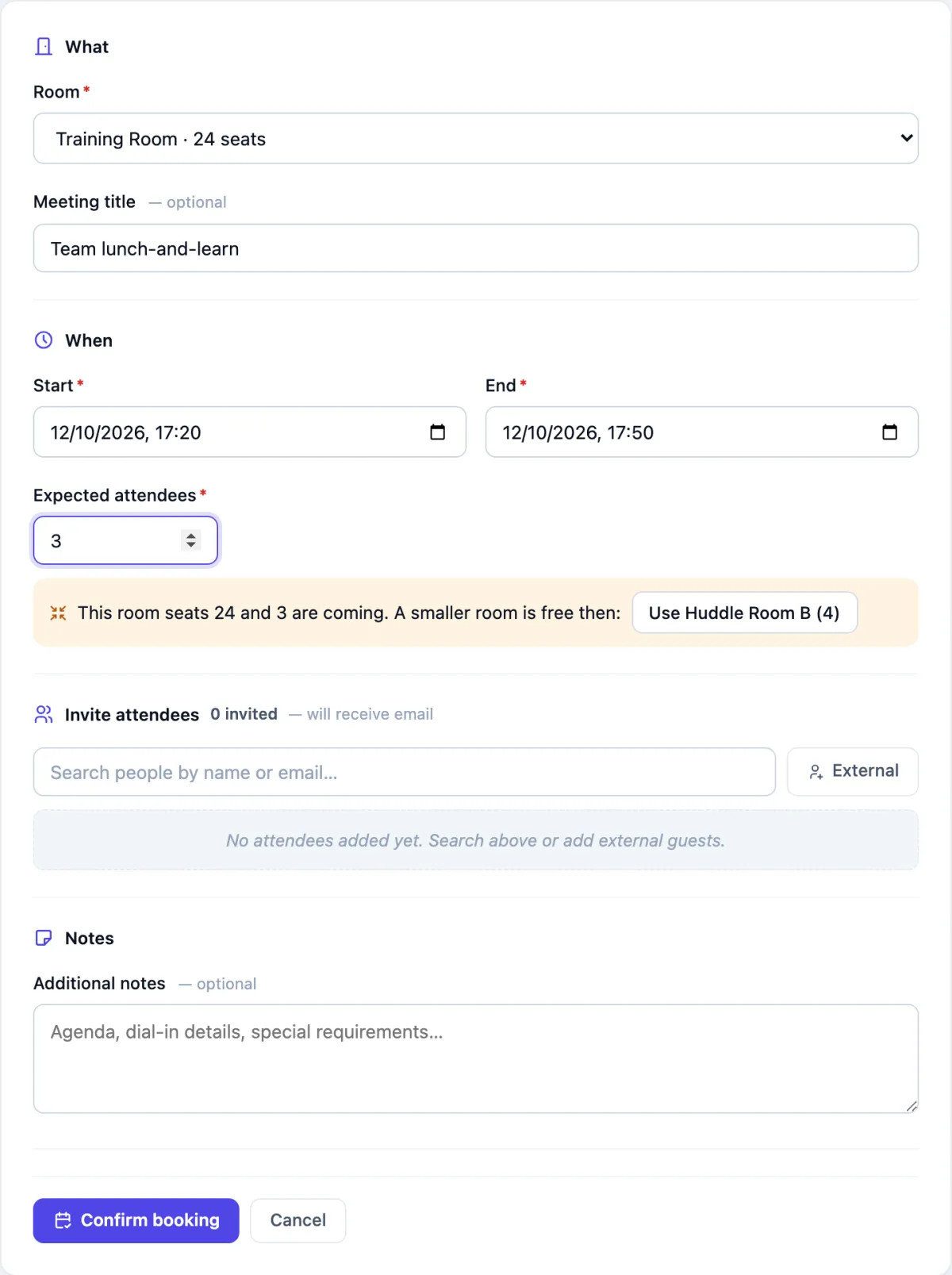
Nothing stops you keeping the big room. The hint is there so the rooms people fight over are not used by two people.
How to invite people and guests
Under Invite attendees:
- Colleagues — type part of a name or email and press Add. It lists your building's app users (Staff) and admins (Admin).
- Guests from outside — press External and give their name, and optionally email and company.
If attendee emails are on, the label says — will receive email: you and everyone invited with an email get a confirmation. When the room is linked to Google or Microsoft 365, they get the meeting as a calendar invitation from the room as well.
When your building also uses Visitor Management, each external guest becomes an expected visitor: a visit from half an hour before your meeting to half an hour after, hosted by you, already approved, with their QR pass by email. Cancelling the booking cancels the visit.
A booking's page
Open a booking from a room's day, Your next bookings, Week, or the link in your confirmation.
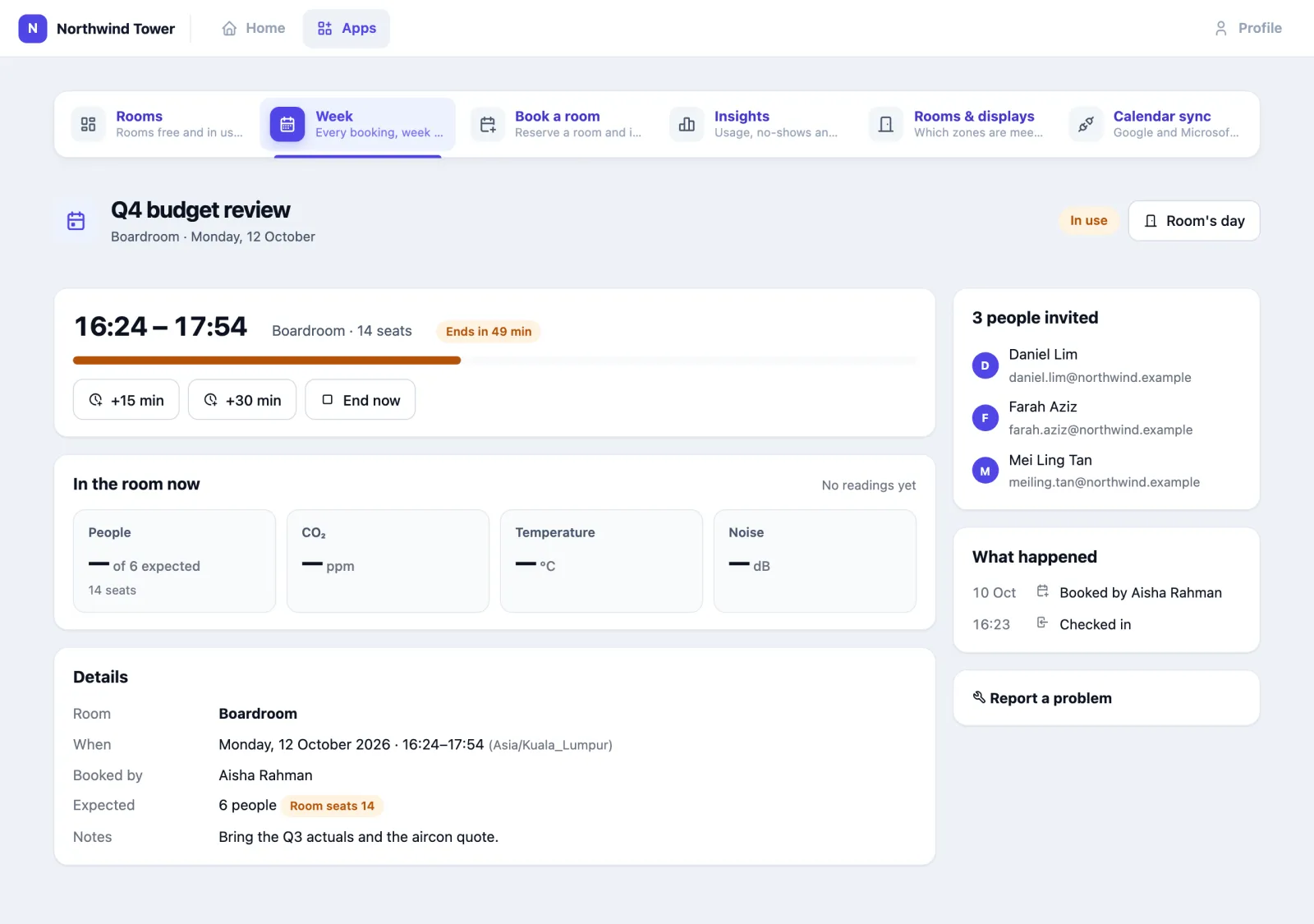
- Check in — from ten minutes before the start until the end. The room turns In use.
- +15 min / +30 min — extend the meeting, if the room is free then. If it is not: Cannot extend: the room is booked from 18:00 by Aisha Rahman.
- End now — finishes the meeting and frees the room from this minute, here and on the room's Google or Outlook calendar. Before the meeting has started, it cancels it instead.
- Cancel — frees the room. It works until the booking has started and been checked in; after that, use End now.
- In the room now — the room's latest people count, CO₂, temperature and noise, refreshed every 30 seconds while the meeting is on. A box shows a dash when the room has no sensor of that kind. CO₂ over 1000 ppm says Stuffy: open the door or take a break.
- What happened — booked, checked in, ended early (and until when it was booked), released because nobody came, cancelled.
The booker, invited colleagues and the room administrators see the buttons. Everyone else can read the booking but not change it.
How the room checks you in and out
You often do not need the buttons at all.
Checking in. A booking checks itself in when the room's sensors see people during it, or when the badge of an invited colleague is heard in the room. It is checked every minute.
Checking out. A booking in use ends on its own when the room has been empty for five minutes (by default), or a few minutes after its end time.
Releasing a no-show (ghost release). If a booking has been running for ten minutes (by default) and nobody has checked in, the app looks at the room. If it can tell the room is empty, it releases the booking and the room becomes free. When the room is linked to Google or Microsoft 365, the room also declines the meeting there, and the organiser is told Released: nobody arrived within 10 minutes. "Empty" is judged on the best evidence the room has: a radar, a presence sensor, a people counter that reported in the last ten minutes, or staff badges seen in the last five.
A room the app cannot see is never released. If the room has no sensor and no badge has been heard in it in the last week, the booking stands. A booking that reaches its end without any check-in is still recorded as nobody-came then, so Insights counts it.
Meetings nobody booked. In a room with a people counter or radar and walk-ins noticed, people using the room without a booking turn its tile In use, not booked. That ends when the room empties, and never runs into the next real booking. Where the room's calendar is linked, the walk-in also appears on it as In use (ad-hoc), so someone looking for a free room in Outlook or Google Calendar sees this one is taken. It grows half an hour at a time while people stay and is cut to the minute the room empties.
Booking from Google Calendar or Outlook
Once your administrator has linked the room calendars, people book as they always have:
- Google Calendar — Create → Rooms tab → pick a room.
- Outlook — New meeting → Room finder (or Add a room) → pick a room.
- Teams — Schedule meeting → Add location → the room.
A few minutes later the meeting is on the room's day in Omaya, marked From calendar. From then on it behaves like any other booking: the room's sensors check it in or release it, and +15 min or End now in Omaya moves it in the calendar too. A meeting moved or cancelled in Google or Outlook moves or disappears here.
How to use the door display
The door display is a tablet on the wall outside a room. It shows the room's name and the time; a large band — Free until 17:54, In use until 17:51, Booked · waiting for check-in or Someone is using it — with the meeting and who booked it; and Today, with finished meetings marked done and released ones struck through. It refreshes every 30 seconds.
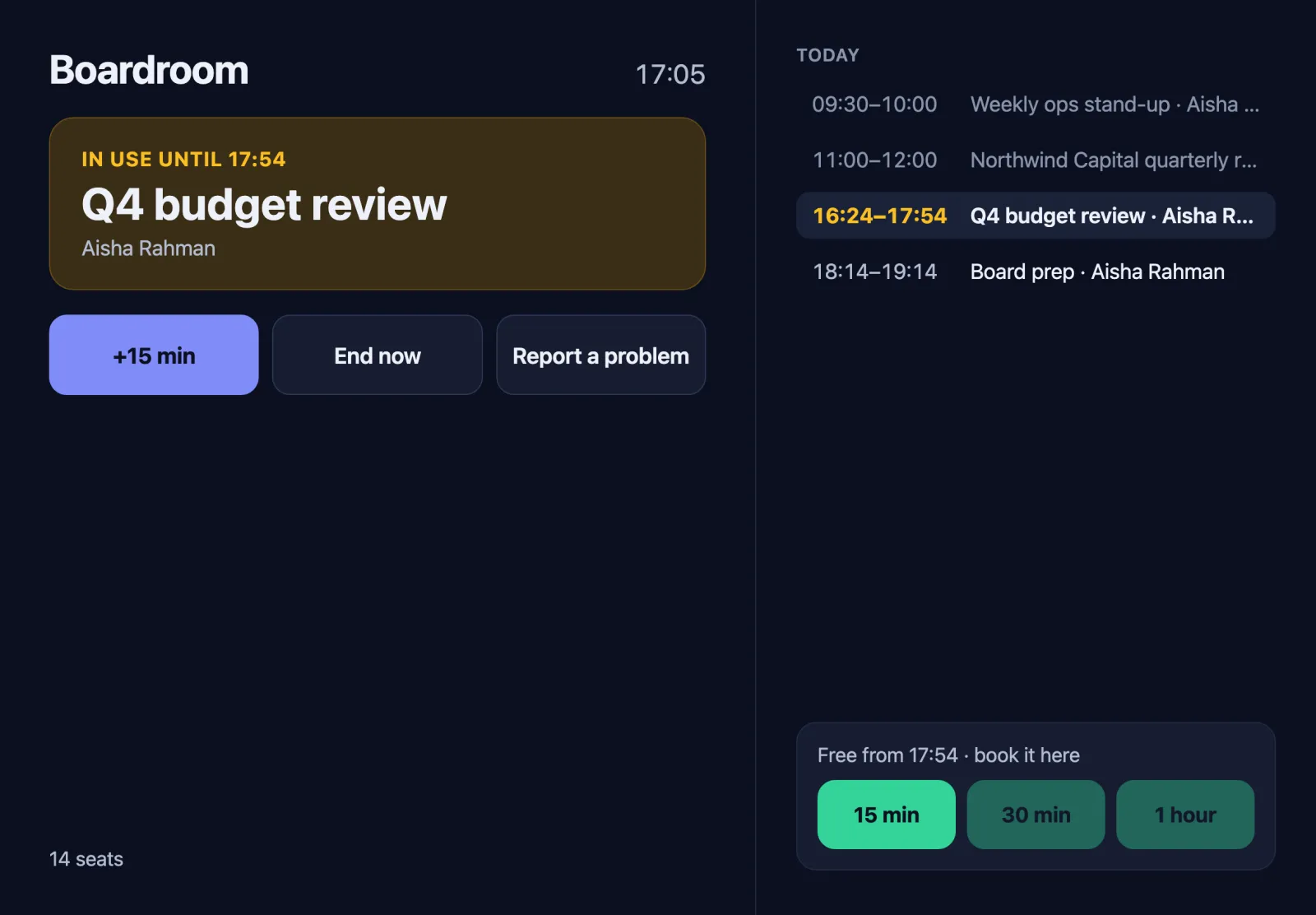
With the room's display link (set up on Rooms & displays), people at the door can also:
- Check in a booking that has started.
- +15 min — extend the meeting on now.
- End now — finish it and free the room.
- 15 min / 30 min / 1 hour — book the room from now (or from when it is next free). A booking made at the door is checked in straight away and shows Booked at the door.
- Report a problem — pick what is wrong; it goes to Facility.
Without the link — someone who only knows the room's address — the display shows the room and nothing can be pressed. This display shows the room only.
How to report a problem in a room
In a room's day, on a booking's page, or on the door display, press Report a problem and pick what is wrong: Screen or display, Video call kit, Too hot or cold, Lights, Needs cleaning, Chairs or table or Something else, with a note if you like. It becomes a job in Facility Management on that room, with the priority and due time Facility uses for that kind of job.
The same problem in the same room is not raised twice while its job is open: the second report says Already reported and being looked at and adds your note to the job. This needs the Facility app; without it the button is not shown.
How to see the week
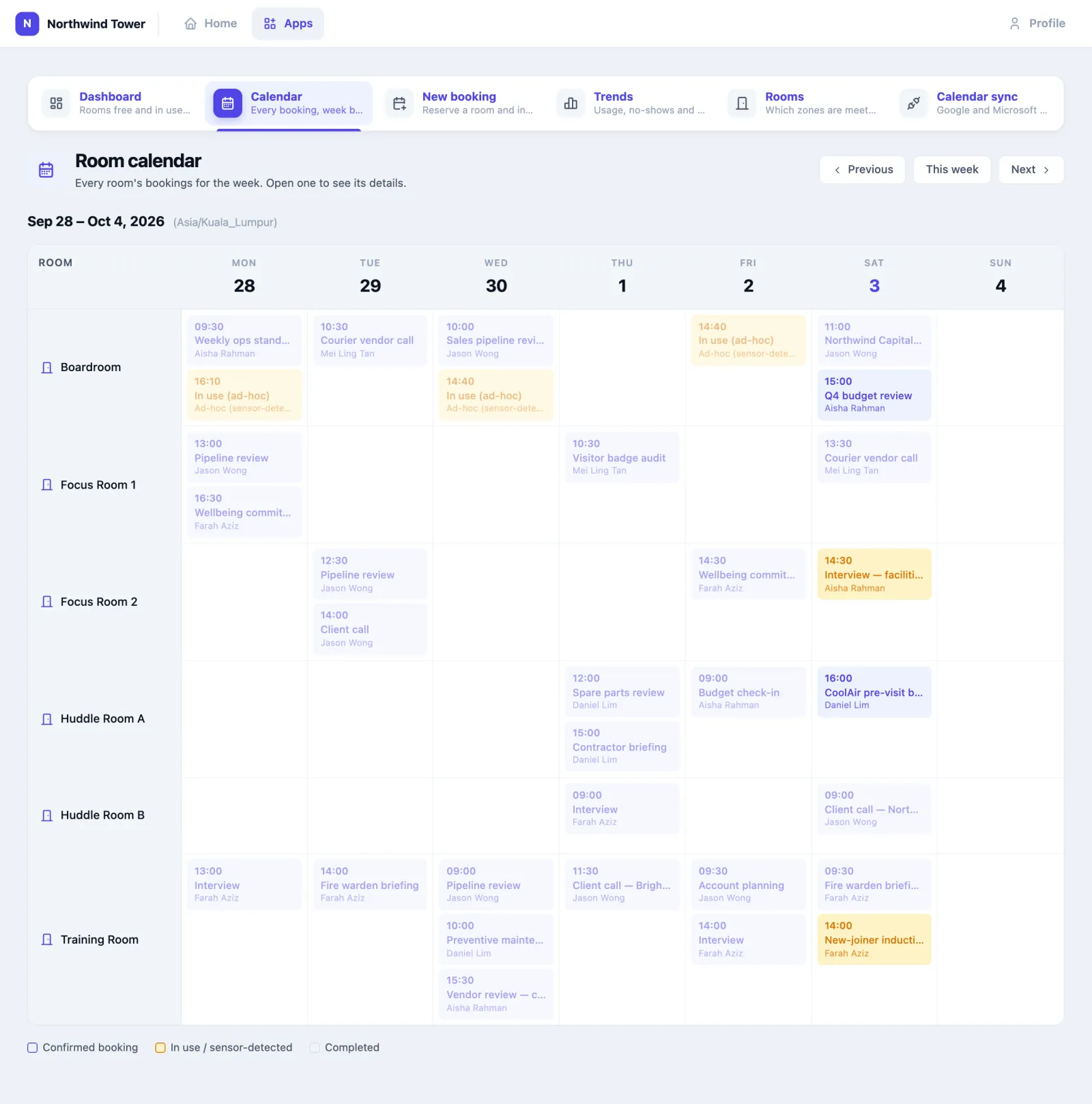
Week shows each room as a row and each day of the week as a column, with every booking as a block. Previous, This week and Next move between weeks. Click a block to open the booking.
How to see how rooms are really used (Insights)
Open Insights and pick 7, 30 or 90 days.
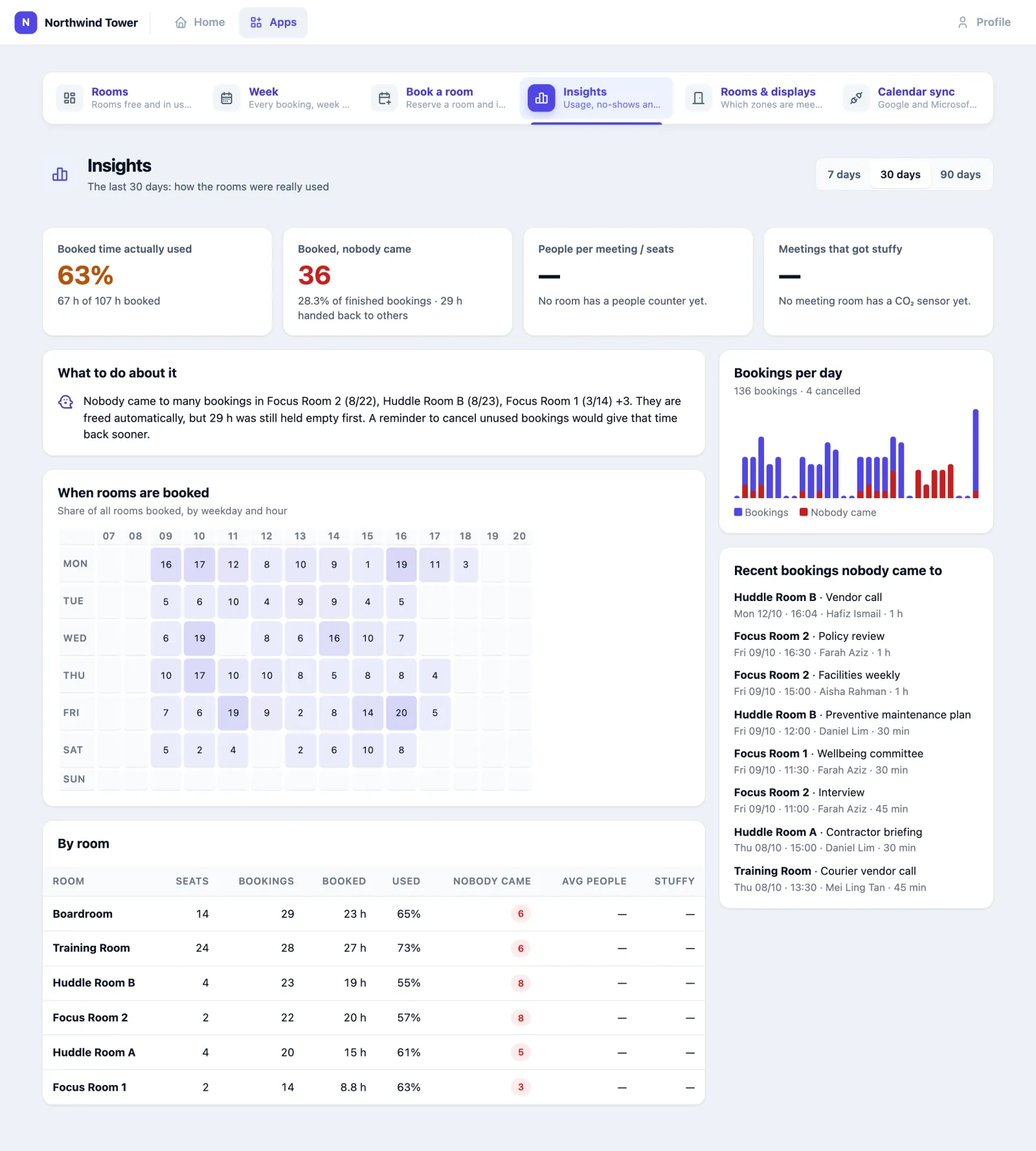
- Booked time actually used — of the booked hours that have ended, how many the meeting really ran (check-in to check-out).
- Booked, nobody came — bookings released or ended with nobody checked in, and the hours that handed back to others.
- People per meeting / seats — in rooms with a people counter, how many people meetings really had against the seats of the room they were in, and how many meetings were in a room three times too big.
- Meetings that got stuffy — meetings where CO₂ went over 1000 ppm, in rooms with a CO₂ sensor.
- What to do about it — plain suggestions from those numbers: which rooms collect no-shows, which big room mostly hosts small meetings, which room's air needs looking at, and the busiest hour of the week.
- When rooms are booked — share of all rooms booked, by weekday and hour.
- By room — the same figures room by room.
- Bookings per day, Rooms with someone in them (where rooms count people) and Recent bookings nobody came to.
Open this before anyone asks for more meeting rooms. Usually the answer is that the rooms are fine: a few recurring bookings nobody attends, and big rooms used by two people.
The same numbers are in Reports → Meeting Room on the admin side.
Using it in your organisation
Corporate office with hot desks
The setting. Two floors, twelve rooms, most people in three days a week. Rooms are always "fully booked" and often empty.
Who does what. Everyone books in Outlook or Google, as before. The office manager reads Insights monthly.
Settings that matter. Calendar sync with Free the room in the calendar too on, so a released room is free in Outlook as well. Ghost release at 10 minutes. A people counter or radar in the big rooms, walk-ins noticed there. Door displays on the rooms people fight over.
Tip. The smaller-room hint and the room three times too big figure on Insights are the cheapest way to "find" another meeting room.
Hospital or clinic
The setting. Seminar rooms and family rooms shared between departments.
Settings that matter. Ghost release longer — 20 to 30 minutes — because clinicians are often late for reasons nobody can argue with. Do not notice walk-ins in family rooms: an unbooked meeting there is not something to record.
Tip. Too short a release is the worse mistake: it hands a room away while the doctor is walking down the corridor. Start generous and shorten it once Insights shows how late people really are.
University or training centre
The setting. Training rooms booked by external trainers and student groups, with Google or Microsoft 365 already in use.
Settings that matter. Calendar sync, with the rooms created as Google room resources or Microsoft room mailboxes named exactly as in Omaya. Door displays with the display link, so a free room can be taken at the door.
Tip. Invite external trainers as External guests and switch on Visitor Management: they arrive to a pass already approved.
Setting it up for your organisation
This part is for the people who set up the app.
What must exist first
- A zone for each room. The app books zones, so a meeting room that is not drawn on a floor plan cannot be booked.
- A capacity on that zone. There is one capacity per room, the zone's own (Spaces → Zones). Rooms & displays edits that same number.
- Something that counts people, if you want the room to check bookings in, release no-shows and notice walk-ins. A radar or people counter counts everyone; staff badges count only people carrying one. See which number is which.
- For badge check-in: each person's app account linked to their person record, and that person wearing a badge — see people and assets.
Checklist
- Give people the app (with configure for the room owners).
- In the app, open Rooms & displays. Tick each zone that is a meeting room, give it the Name people see, check its Seats, list what is In the room (Screen, video, whiteboard), and tick Walk-ins: Notice them only where a people counter or radar covers the room. Press Save.
- For each room with a tablet, press Set up under Door display, then Open the link on the tablet (or Copy link and send it).
- On the admin side, under Your Apps → Meeting Room, decide each setting in the table below rather than inheriting it.
- If people book in Google or Microsoft 365, set up Calendar sync — see Linking room calendars.
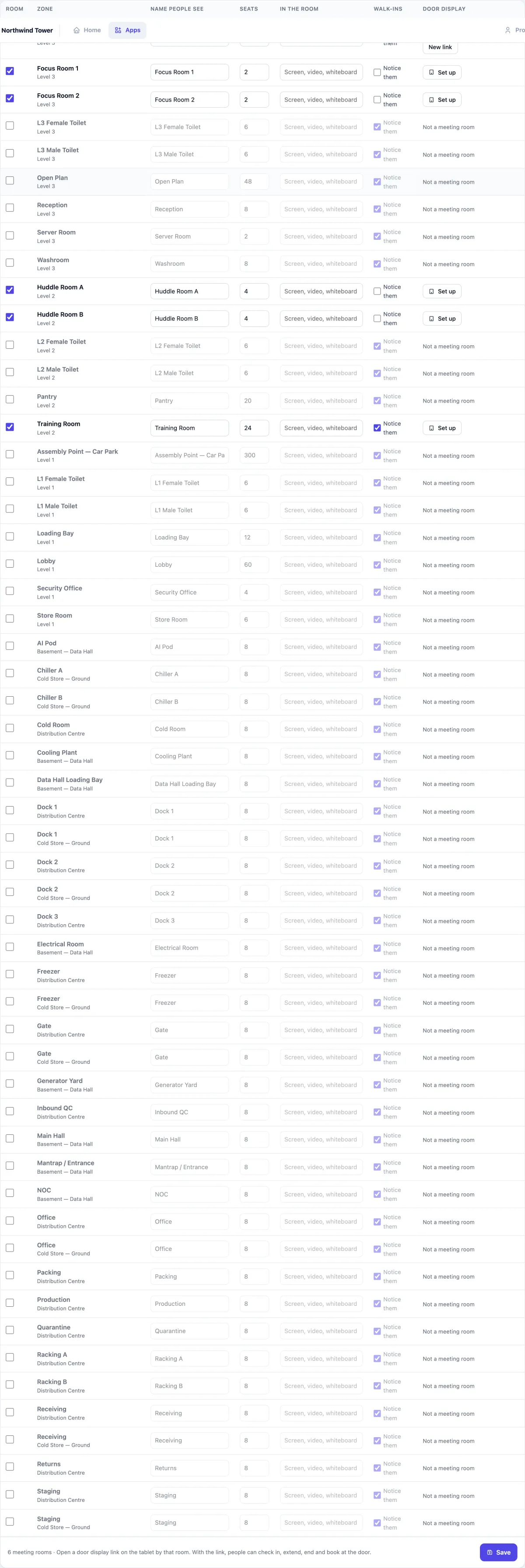
About the door display link. The link contains the room's key; anyone who has it can book and end meetings in that room, so treat it like a key to the room's diary. New link makes a new one — the tablet with the old link can then only show the room, until you open the new link on it.
Settings
Admin console → Your Apps → Meeting Room. Everything is on by default; switch off what you do not want.
| Setting | What it changes |
|---|---|
| Ghost release | Frees a booking nobody showed up for, after a number of minutes you set (ten by default) |
| Auto-release on no-show | A booking that reaches its end with nobody ever checked in is marked nobody-came, so Insights counts it even in a room with no sensor |
| Kiosk | The door displays. Off, every door display says it is switched off |
| Attendee emails | Sends a confirmation to the booker and invited people |
| Default attendee capacity | What Expected attendees is pre-filled with |
| Environmental data on bookings | The In the room now card on a booking's page |
| Trends & analytics | The Insights tab |
Checking in and out by staff badge is always on where badges are linked to people; there is no switch for it. How Google and Outlook bookings are handled is set on the Calendar sync page.
At the top of that page, Open Calendar sync leads to the Google Workspace / Microsoft 365 link — see Linking room calendars.
Confirmation emails go through your organisation's email connector. Sending is best-effort: a broken connector never stops a booking being made.
Where the app shows up elsewhere
- Reports → Meeting Room — the usage report in the normal reporting screens.
- Rules — room occupancy is an ordinary rule metric.
- Space Utilisation — meeting rooms are zones, so they appear with every other space.
- Visitor Management — external guests become expected visitors.
- Facility Management — problems reported in a room become jobs on that room; a room's people counter that has been silent for four hours raises a job once.
- TV Dashboard — free rooms on the lobby screen.
Questions and problems
A room shows no people count. Nothing counts people in it. A room without a radar or counter only counts staff badges.
A booking was released while we were in the room. The room's sensor did not see you — a radar can miss a corner — or the release time is shorter than your lateness. Lengthen Ghost release, and check the sensor covers the table.
My meeting never checks itself in. Your app account is not linked to a person with a badge, or the room has no sensor. Press Check in.
I cannot extend. The room is booked straight after you — the message says from when and by whom.
The door display only shows the room. It was opened without the room's link, or someone pressed New link since. Open the current link from Rooms & displays on the tablet.
I cannot find Rooms & displays. It needs configure rights on Meeting Room. Calendar sync is not in the app at all: it is in the admin console, under Your Apps → Meeting Room.
A meeting booked in Outlook or Google is not here. The room is not linked, or the room declined the meeting because it clashed. See Linking room calendars.
Report a problem is missing. The Facility app is not switched on for your organisation.
On the phone
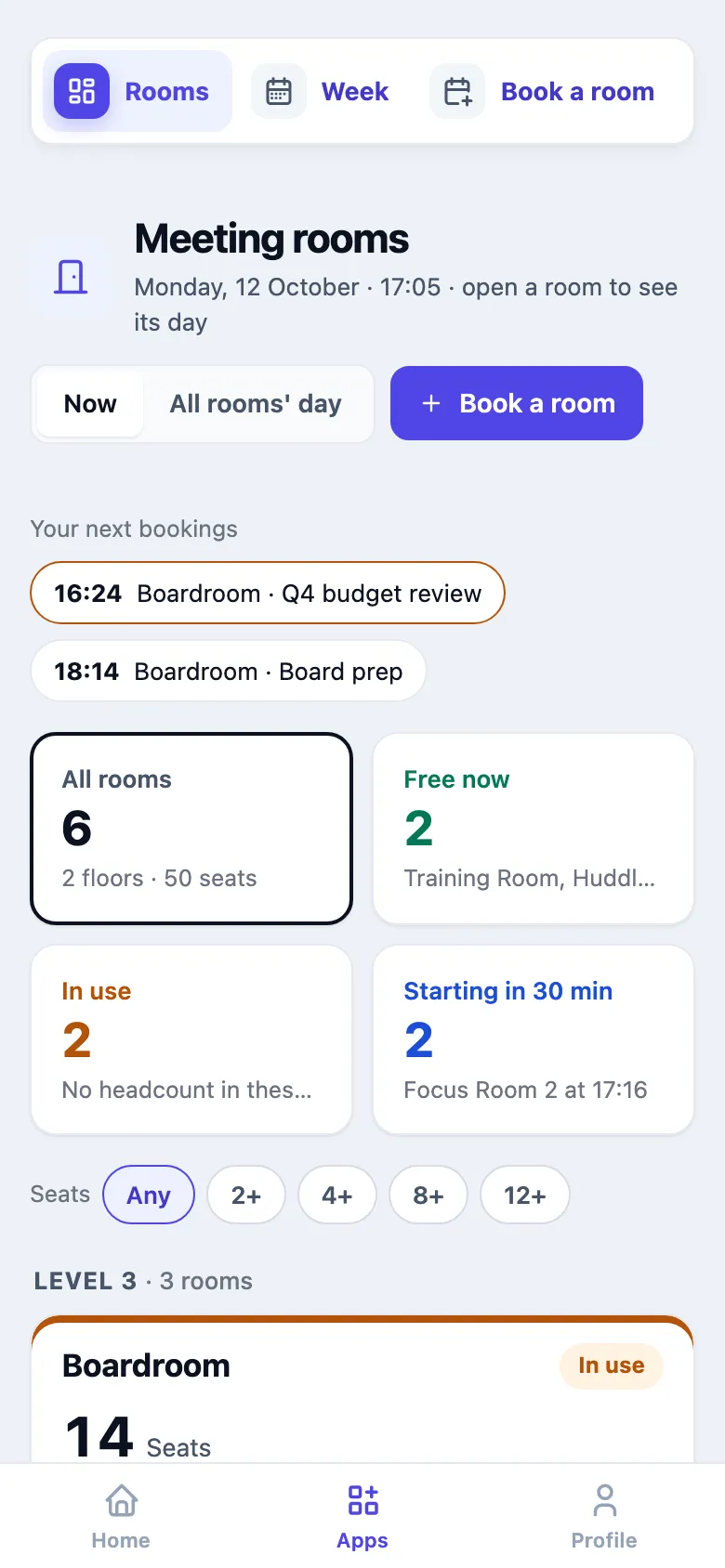
The Rooms page works on a phone: the counts become two per row and the rooms one per row. The phone app also shows free rooms, books one for now or later, and lists My bookings with check-in and cancel.