Appearance
Data Centre
The Data Centre app watches a data hall or server room the way the person who runs it would. It opens on one sentence — what needs someone now, or Everything is normal and what was checked — then how efficiently the site uses power (PUE), how warm the air going into every rack is, whether the UPS units, cooling and generator are doing their job, and what it is all costing. Alerts open, escalate and clear on their own, and repeats are grouped into the cause behind them. A wall screen puts it all on the control-room TV, in 2D or 3D. It is for the people who answer for uptime: the operations lead, the facilities manager and the on-site engineers.
Who uses it
RaviOperations LeadAishaFacilities Manager
| Role | What they do with the app | At Northwind Tower |
|---|---|---|
| Operations lead | Watches Now, takes alerts with I'm on it, reads Energy and the practice review, decides what to fix first | Ravi Kumar |
| Facilities manager | Owns the site's limits, tariff and targets in Setup, and who is told about alerts | Aisha Rahman |
| On-site engineer or technician | Uses the Floor to find the rack or unit an alert names, puts a unit into maintenance before working on it | A cooling or UPS contractor, given the app for the visit |
| Control room | Keeps the wall screen up on a TV | The NOC, the security office |
| Whoever answers for uptime and cost | Reads Energy, the Power page and the operating-practice review | Ravi reports them to management |
Everyone with the app sees every page except Setup. Setup, and moving racks on the Floor, need configure rights on the app. At Northwind both Ravi and Aisha have them.
A day at Northwind Tower
Northwind Tower's data hall is in the basement: a Main Hall of 32 racks (rows A–D) and an AI Pod of 10 high-density racks (rows G and H), fed by four UPS units, cooled by four CRAC units, two in-row coolers and an 8-metre fan wall, with a standby generator in the yard. An edge gateway reads all of it and sends the readings to Omaya every minute.
| Time | What happens | How |
|---|---|---|
| 08:30 | Ravi opens Now: Everything is normal, PUE 1.39, about 200 kW of IT load. | Read Now |
| 09:27 | Rack A08 in the Main Hall passes the hall's 27 °C limit. One warning opens, Main Hall: A08 inlet 27.1 °C, and is pushed to everyone with the app. Now turns amber: Opened 1 min ago. Nobody has taken it yet. It has happened 28 times in the last 7 days. Ravi taps I'm on it. | Deal with an alert |
| 09:42 | A08 has been back below the limit for ten minutes: the alert clears itself. | Deal with an alert |
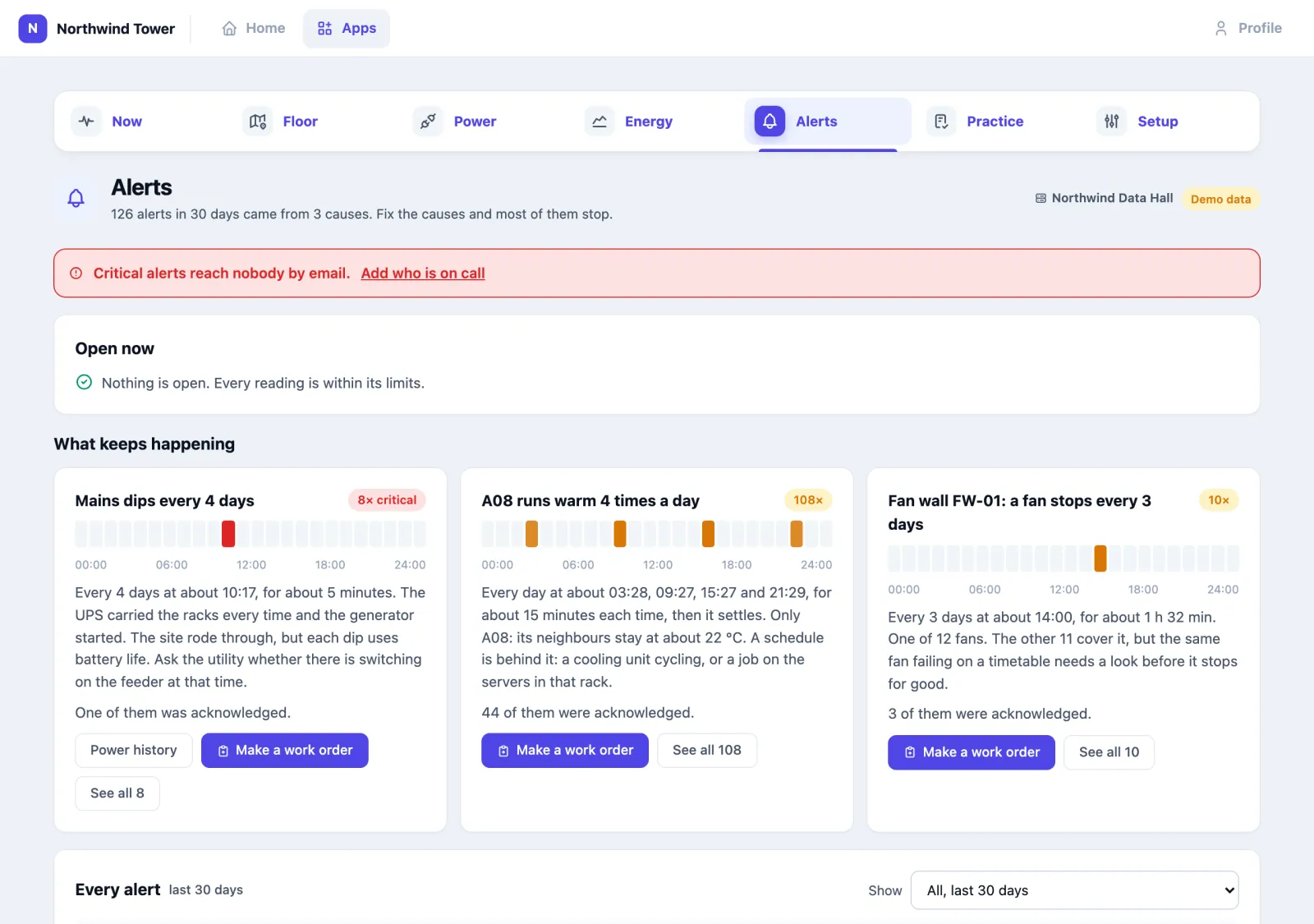
| 09:45 | On Alerts, What keeps happening shows A08 runs warm 4 times a day — at about 03:30, 09:30, 15:30 and 21:30, while its neighbours stay at 22 °C. A schedule is behind it, not the room. Ravi taps Make a work order for the cooling contractor. | What keeps happening |
| 10:17 | The mains dips for three minutes. All four UPS carry the racks on battery; the generator starts and takes the load. Power lists it under Every time it went on battery and notes the dips come every 4 days at about 10:17. | Read the Power page |
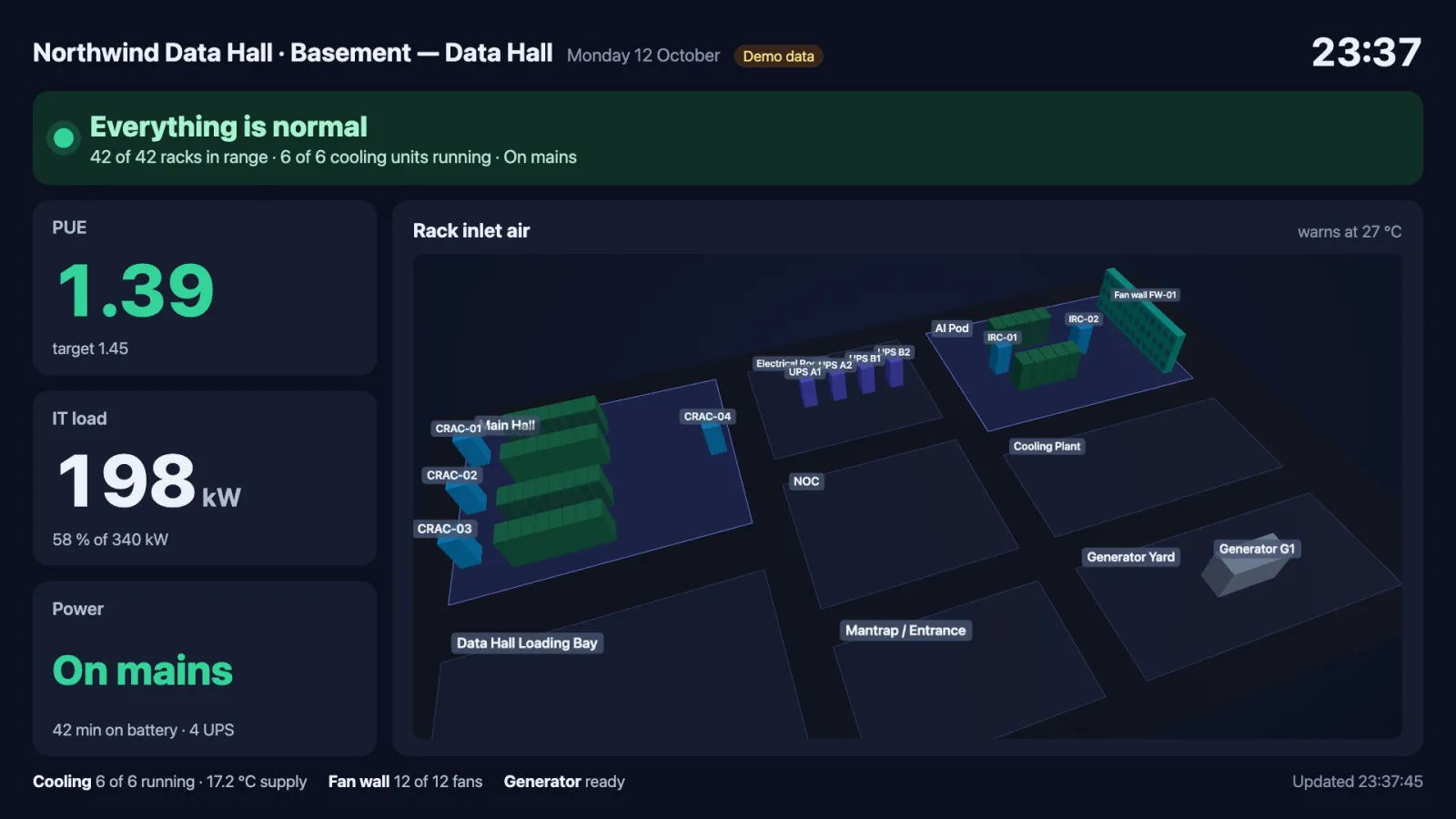
| All day | In the security office, the wall screen shows the same sentence, the key numbers and every rack, turning slowly in 3D. | The wall screen |
| 14:00 | Ravi opens Practice: 11 of 17 practices met. He presses Ask OAIA for a review. | Review operating practice |
| 16:00 | For the monthly review Ravi opens Energy: PUE down from the 1.68 baseline, and the saving in ringgit. | Read energy and cost |
How to read Now
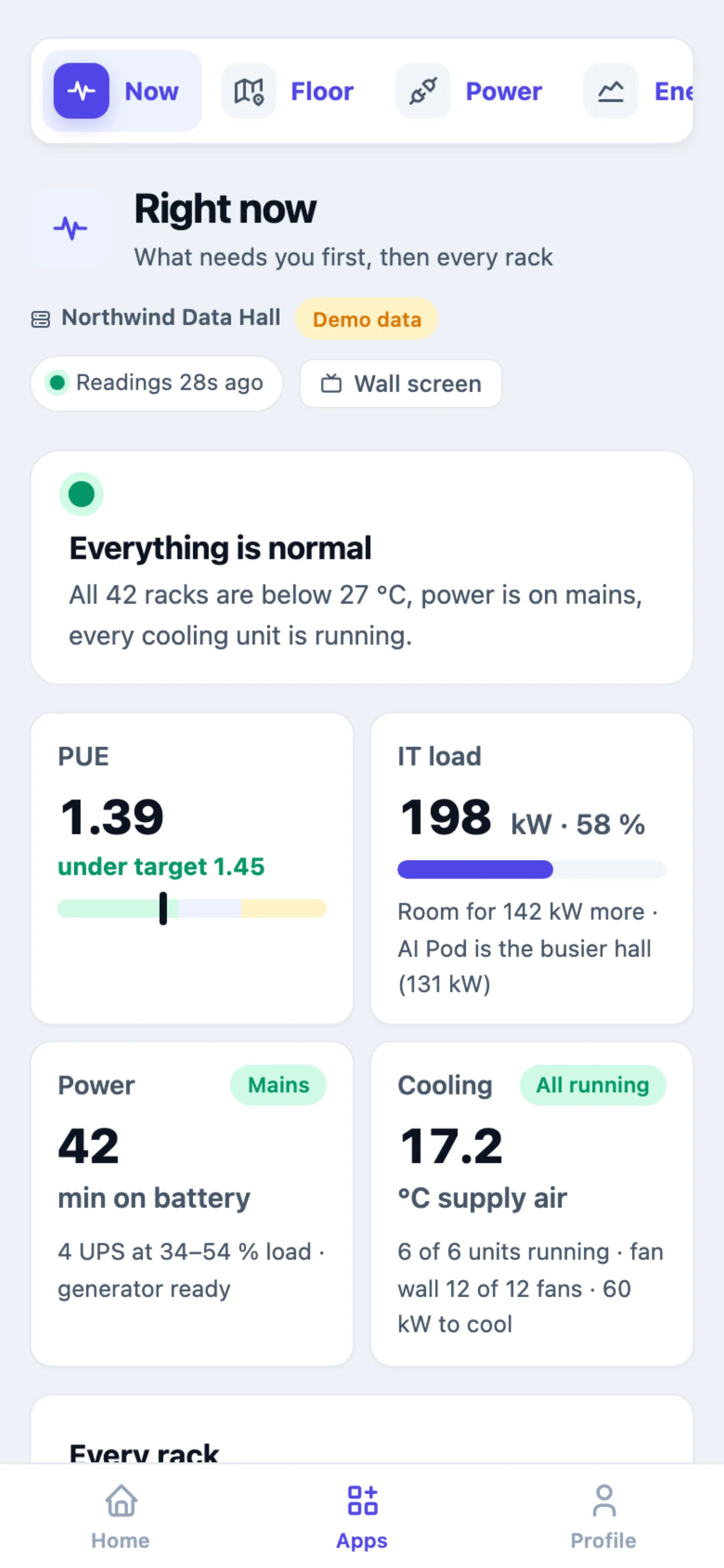
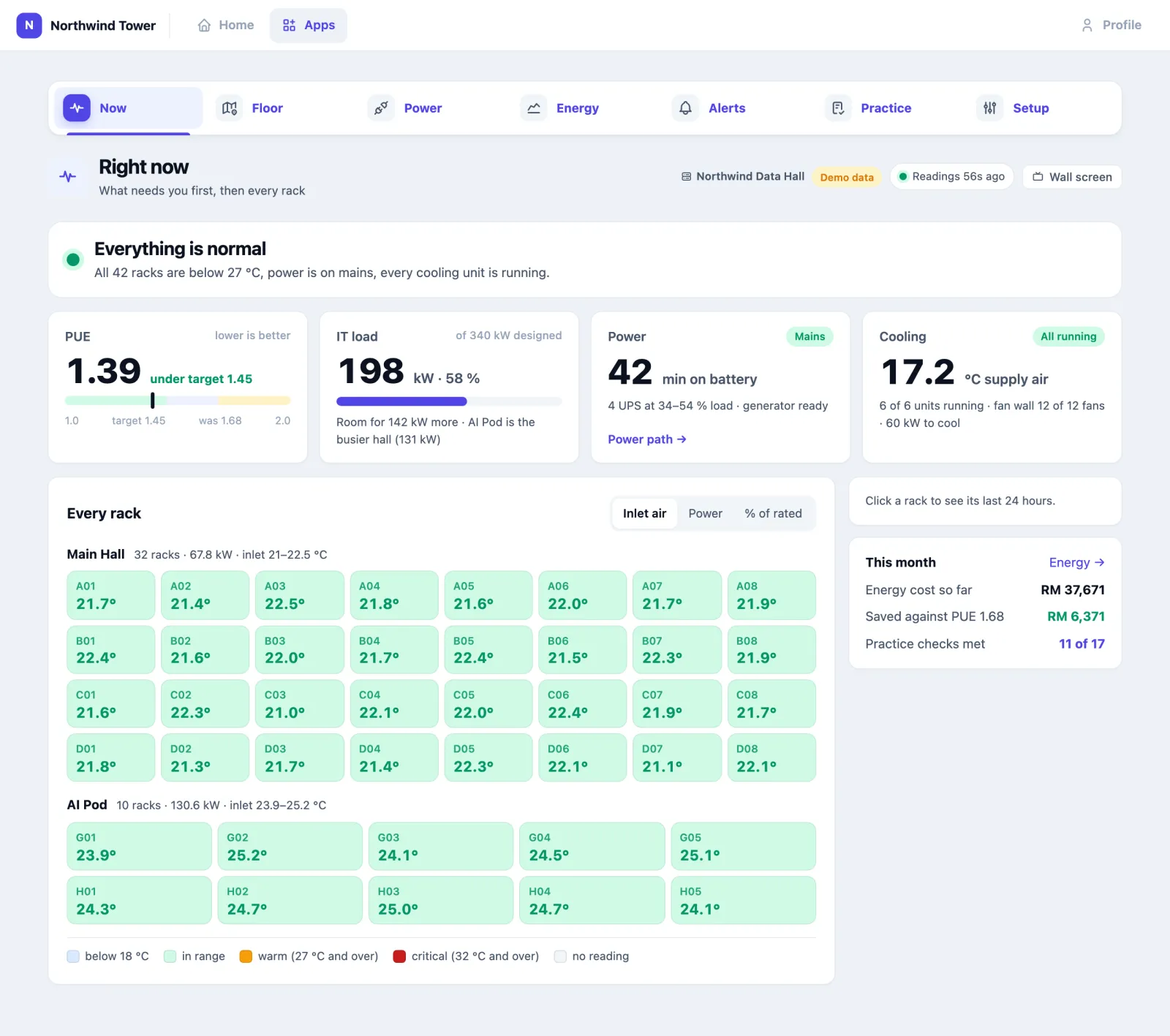
Open Data Centre; it opens on Now (What needs you, every rack). The page refreshes itself every 30 seconds; the chip at the top right says how old the readings are (Readings 32s ago).
The sentence at the top says what needs someone first:
| It says | When |
|---|---|
| (UPS) on battery: … minutes left (red) | A UPS is running on battery, with whether the generator is running |
| The alert's title (red or amber) | An alert is open: how long ago, who is on it or Nobody has taken it yet, how often it happened in the last 7 days, and how many more are open. Show A08 picks the rack below; I'm on it takes the alert |
| (Unit) has stopped reporting (amber) | A UPS, cooling unit or fan wall has gone quiet, so nothing on the page can vouch for it |
| Everything is normal (green) | And what was checked: how many racks are below the warning limit, power on mains, every cooling unit running |
The four key numbers:
| Card | What it tells you |
|---|---|
| PUE | Total facility power ÷ IT power, lower is better. The bar runs from 1.0 to 2.0 with your target and where you started (was) marked, and the verdict beside the number: under target, above target, or worse than before. A note appears if facility power is estimated or not every meter is reporting |
| IT load | IT power now against the halls' design load, how much room is left, and the busier hall |
| Power | Mains or On battery: minutes the batteries would last (or have left), the UPS load range, and whether the generator is ready. Power path → opens the Power page |
| Cooling | Average supply air, how many units are running (and which have stopped), the fan wall's fans, and the power used to cool |
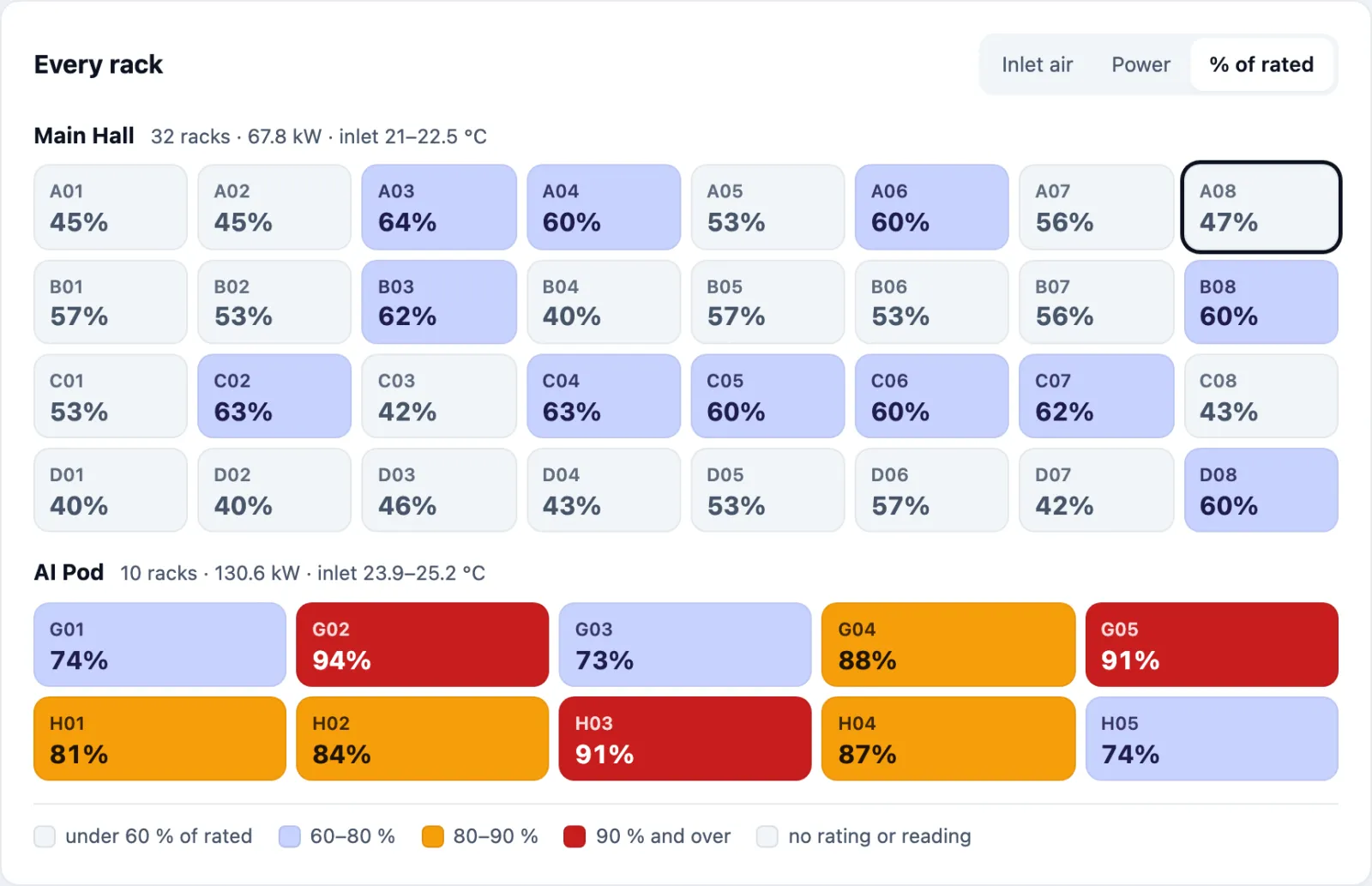
Every rack is one tile per rack, laid out row by row as the racks stand. Choose what the colour shows:
- Inlet air — the temperature of the air going into the rack. Green is in range, amber is warm (past the hall's warning limit), red is critical, blue is colder than needed (wasted cooling), grey is a sensor that has stopped reporting.
- Power — what each rack draws, against the busiest rack.
- % of rated — each rack's power against its rating: amber from 80 %, red from 90 %. Racks with no rating show grey.
Your choice is remembered. Click a rack to see, on the right, its inlet air and power now, its last 24 hours of inlet air against the warning line, and what to do about it — warmer than the racks beside it, so the cause is local, the whole row is warm, close to its rated power, or inside every limit. Show on the floor opens it on the Floor.
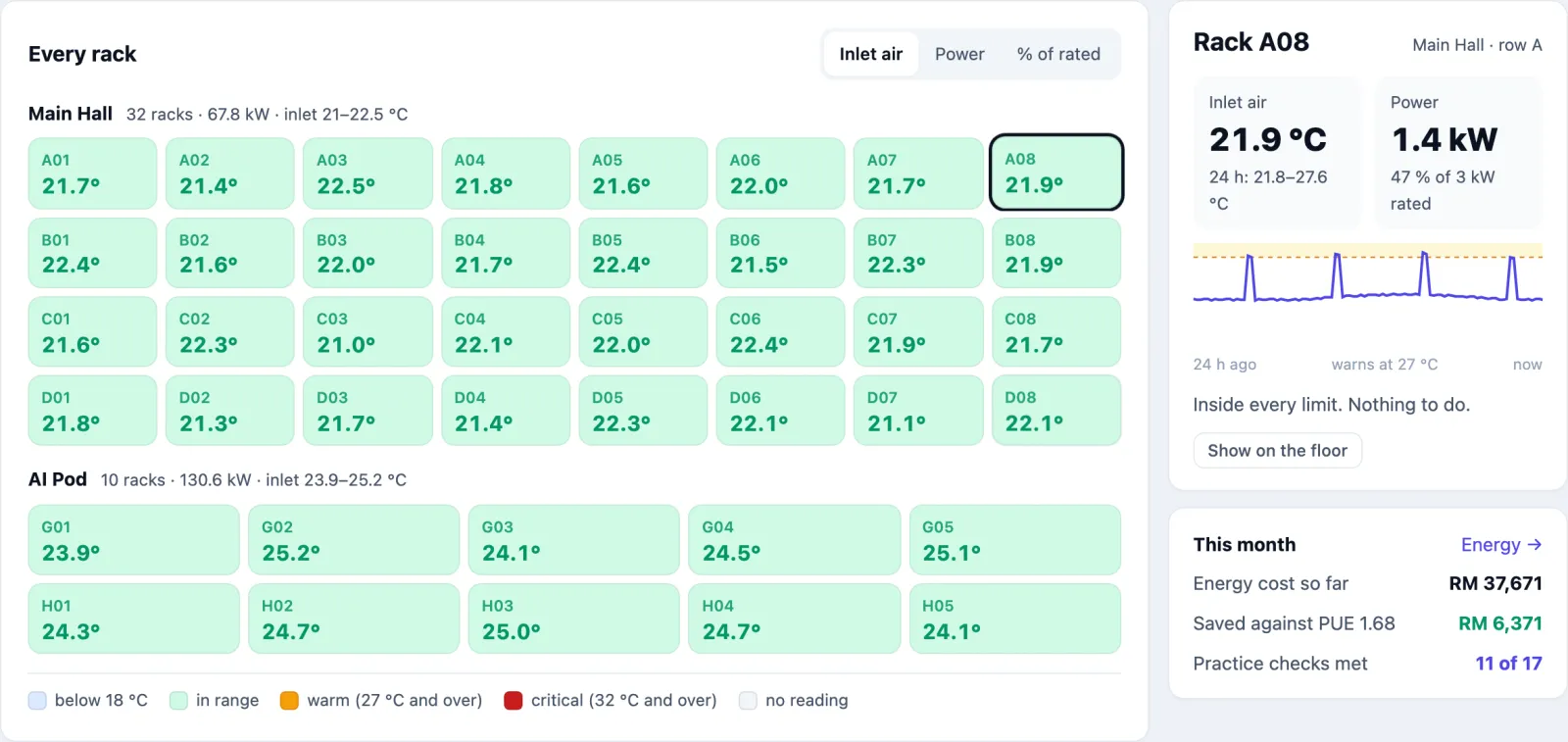
This month gives the energy cost so far, the saving against your starting PUE and how many practice checks are met.
How to deal with an alert
You hear about an alert three ways: a push notification to everyone who has the app, an email if your Setup sends one, and the Alerts tab, whose hint always says how many are open (1 open now). The top of Now and the wall screen show it too.
- Open Alerts. Under Open now, each alert has its level, hall, when it opened and who is on it.
- Tap I'm on it to tell the team you have it. Your name appears on the alert, on Now and on the wall screen. It does not close the alert.
- Show rack (or Show unit) opens the Floor with it picked, so you know where to walk to.
- Fix the cause. The alert clears on its own once the reading has stayed back in range for the settle time (10 minutes at Northwind); the line under it says when it will close and when it would escalate.
If critical alerts would reach nobody by email, a red line at the top of the page says so, with Add who is on call for people who can change Setup.
What keeps happening
Most alerts in a data hall are the same thing again. Alerts groups every alert of the last 30 days by what it was about — the same rack running warm, the same mains dip, the same fan wall — and shows each group that happened three times or more as one card:
- how often (every day at about 03:30, 09:30, 15:30 and 21:30, every 4 days at about 10:17, or irregular), for how long, and a strip of the hours of the day it happens;
- for a warm rack, whether its neighbours stayed cool — a rack alone means a local cause (blanking panels, a floor tile, a job on its servers);
- whether anyone acknowledged any of them;
- Make a work order (when your organisation has the Facility app) opens a job with the facts in it, at high priority for a critical pattern. If one is already open for that pattern, the button opens it instead;
- See all shows just that pattern's alerts in the list below.
Every alert lists the last 30 days: what, level, when, how long it lasted and who took it. Show narrows it to Critical only, Not acknowledged, or one pattern; a repeat says repeat. Show more pages through the rest.
How alerts behave, so you can trust them:
- One alert per subject. A warm hall is one alert named after its warmest rack, not one per rack. The name follows the warmest rack if it changes.
- They escalate on their own. A warning becomes critical when the rack passes the critical limit, or when it is still climbing (by 1.5 °C in 10 minutes at Northwind) ten minutes after it opened.
- They never step down while open, and a value hovering on the line is not a recovery: it has to settle half a degree below the limit.
- Silence is not recovery. If a unit stops reporting, its open alerts stay open and it gets a not reporting alert of its own.
- People are not flooded. Each alert is sent once per level. A critical alert nobody has acknowledged after 15 minutes is sent once more. A critical alert that clears sends an all-clear.
| Alert | Raised when |
|---|---|
| Hall: rack inlet … °C | The warmest rack's inlet air is past the hall's warning (or critical) limit |
| Hall: no inlet readings | None of a hall's rack sensors is reporting |
| UPS on battery | A UPS is running on battery (always critical) |
| UPS battery at … % on mains | Back on mains but the battery is below the warning level: the next outage has less runtime |
| UPS load … % | A UPS is loaded past its warning level |
| Unit stopped | A cooling unit or fan wall on duty has stopped (critical if its hall is already warm) |
| Unit supplying … °C | A cooling unit or fan wall is blowing air warmer than the supply-air limit |
| Fan wall: … of … fans failed | One failed fan is a warning; a quarter of the wall (at least 2), or any while the hall is warm, is critical |
| Unit: not reporting | A UPS, cooling unit, fan wall or generator has gone quiet |
| On battery … min — no generator running | A UPS has been on battery for 90 seconds and no generator is running |
How to find a rack or unit on the Floor
- Open Floor. It shows the floor with each hall's racks and every UPS (U), cooling unit (C), fan wall (F) and generator (G) where it actually stands, on a dark plan so the colours read well.
- Choose Whole floor or one hall to zoom in, and what the colour shows: Inlet air, Power or % of rated — the same choices as on Now. The number on each rack follows your choice.
- Type a name in Find a rack or unit (A08, UPS B1) to jump to it, or click one. The panel on the right shows its readings in words and what to do; for a rack, Open its history shows its last 24 hours on Now.
- Press 3D for a model of the floor you can turn (drag), zoom (scroll) and move (right-drag). The colour choice and clicking work in 3D too.
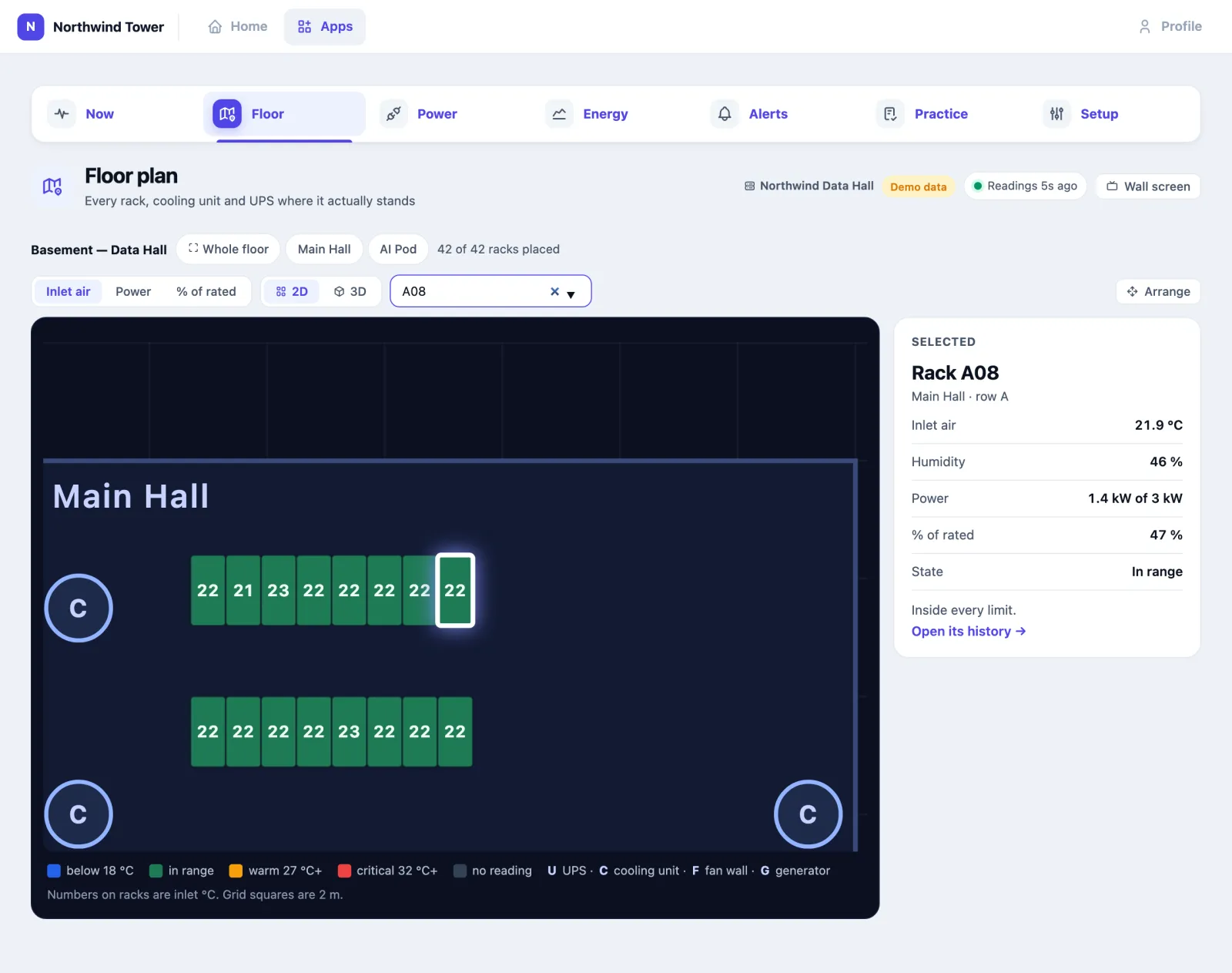
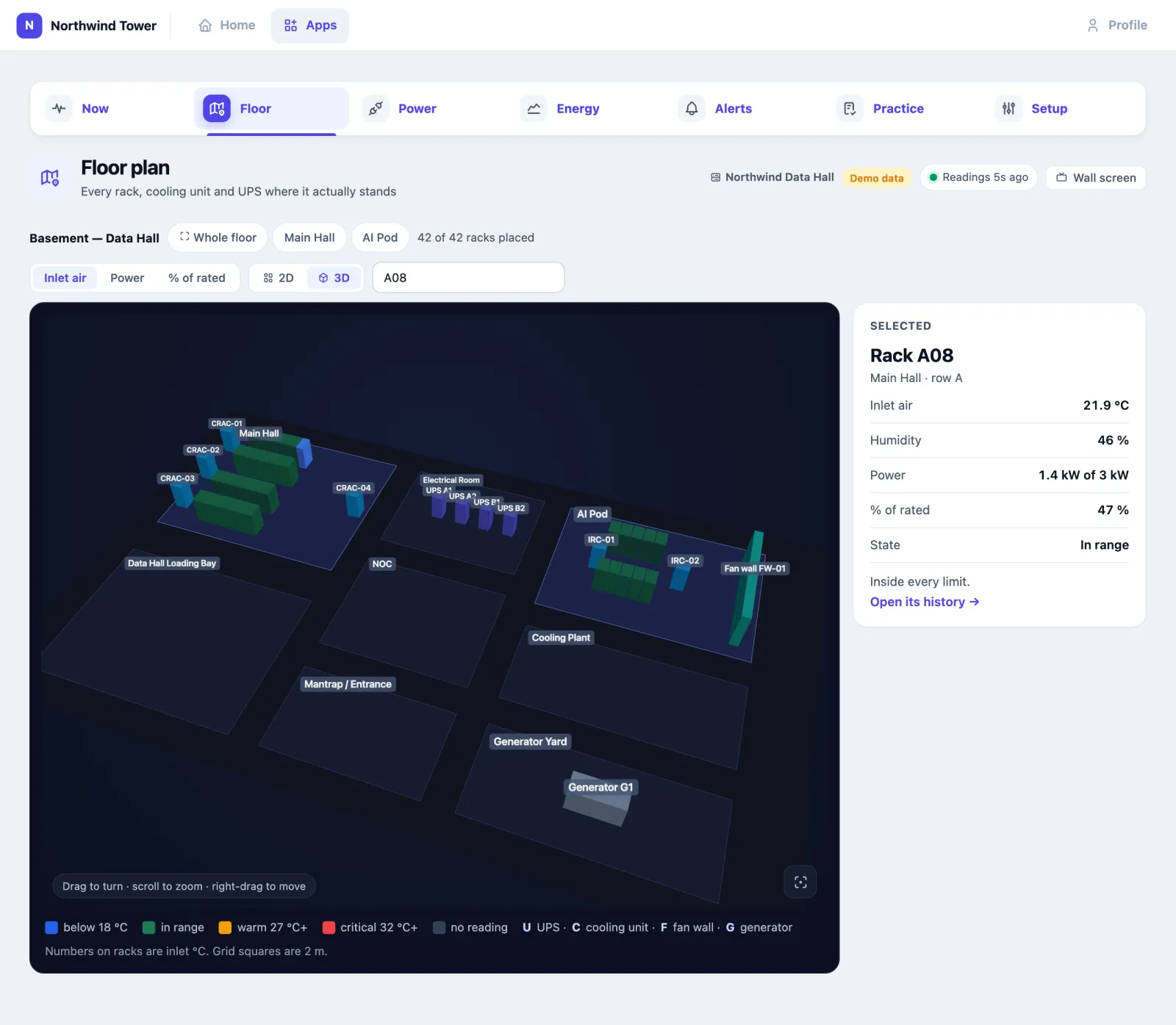
A unit with an open alert takes on the alert's colour, and the rack a hall alert names turns red, so the Floor shows you where to walk to.
Moving racks (configure rights only): press Arrange, drag a rack or unit to where it really stands, and double-click a rack or fan wall to turn it. Racks not yet on the floor wait in a tray at the edge (Not placed yet). Press Done when finished.
The wall screen
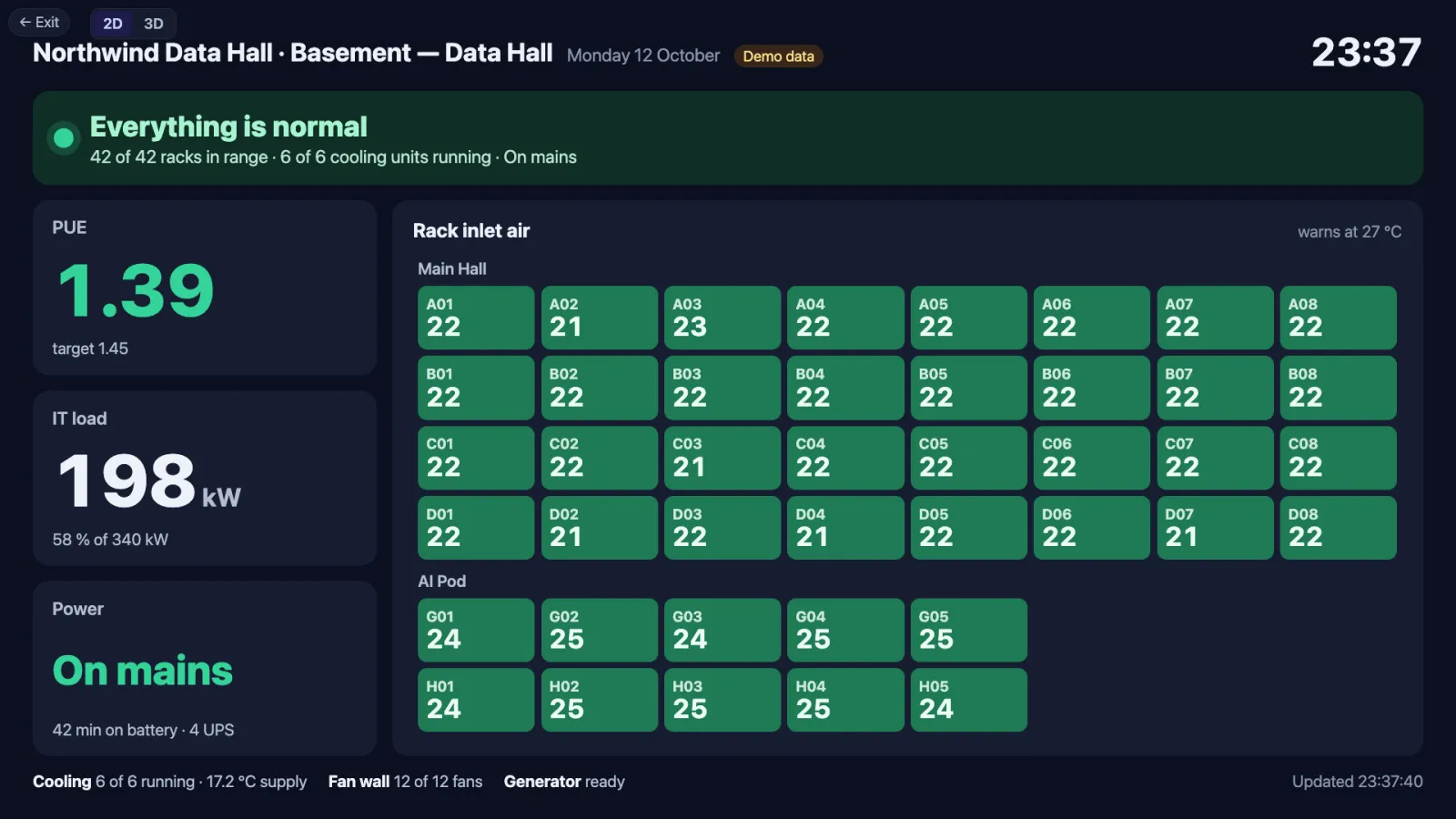
Wall screen (at the top of Now and Floor) opens a full-screen page for the control-room TV: always dark, sized for a 16:9 screen from 1280 × 720 to 4K, and readable from the back of the room. It shows:
- the site and floor, the date and a large clock in your organisation's time zone;
- the same sentence as Now — the worst open alert, how long it has been open and whether anyone took it, coloured by level — or Everything is normal;
- PUE against its target, IT load against capacity, and Power: On mains with the battery minutes, or On battery: … min left in red;
- every rack's inlet air, hall by hall, row by row, warm racks ringed;
- along the bottom: cooling units running and supply air, the fan wall, the generator, and when it last updated.
Choose 2D or 3D at the top left (the controls and the mouse pointer hide after a few seconds still). In 3D the room turns slowly by itself and pauses while someone drags it. Add to the address:
| Add | Effect |
|---|---|
?view=3d | Open in 3D |
?cycle=60 | Switch between 2D and 3D every 60 seconds (20 at the least) |
?floor=… | Another floor, for a site on several floors |
The screen updates every 30 seconds and keeps the TV awake. If it cannot reach Omaya it says Not updated for … min in amber; if the person it was opened as is signed out, it says so — sign in again on that screen. It needs someone with the app signed in; for a lobby screen with no sign-in, use the Data hall widget in TV Dashboard.
How to read the Power page
Open Power (Mains to rack, batteries). One sentence says where you stand: On mains. If mains fails now, the batteries hold the racks for 42 minutes; the generator should take over — or, in red, which UPS is on battery and for how long.
The power path runs left to right: Mains (the site's power now, Steady or lost) and the Generator (Ready or Running, when it last ran, and a warning when it has had no 30-minute test run in the last month) → the Transfer switch (on mains or on the generator) → each UPS, grouped by side A and B, with its load against its rating, battery, minutes on battery and a 24-hour load line → the Racks' IT load, per hall. On a narrow screen the path scrolls sideways.
If one side fails works out, for each side, what the other side would have to carry: today's IT load against that side's total UPS rating, with an 80 % guide line. It says plainly whether the site stays up, how much margin is left, and how much load you could add before one side alone would pass 80 %. The UPS sides are set in Setup → Devices; until they are, the card says how.
Every time it went on battery lists the last 30 days, one row per mains dip however many UPS went on battery: when, how long, the lowest battery, whether the generator started and after how long, and Handled, Batteries ran low or Still on battery. When the dips keep coming at the same time of day, a line says so — at Northwind every 4 days at about 10:17: ask the utility whether there is switching on the feeder at that time.
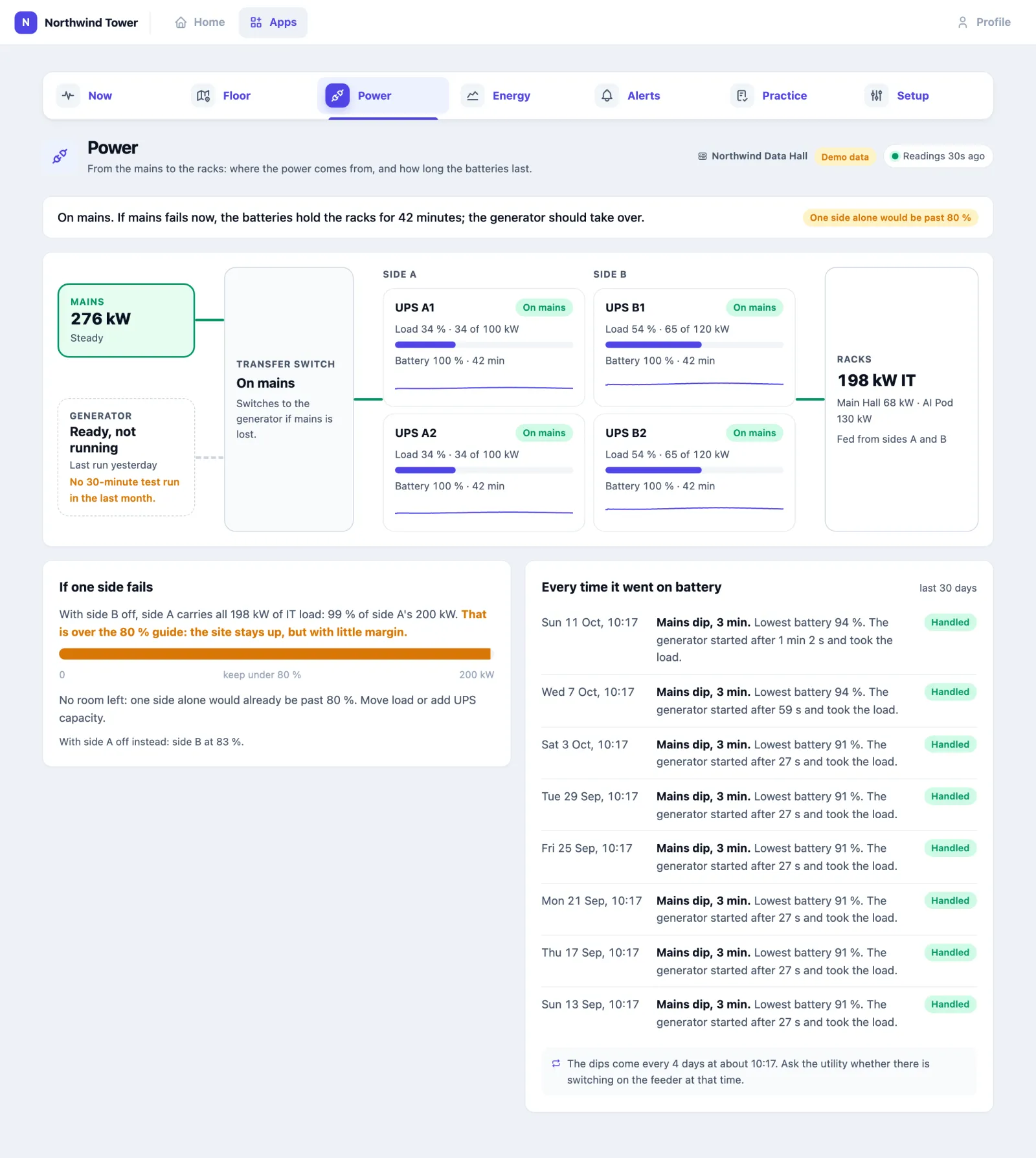
Read it the way an auditor will: every dip should show the generator starting if it was long enough to matter. If a UPS was on battery for more than 90 seconds and no generator ran, that was a critical alert at the time.
How to read energy and cost
- Open Energy (PUE, energy, cost, reports); it opens on Energy and PUE.
- Choose 7 days, 30 days or 90 days.
- The cards give the period's PUE, Facility energy (with IT energy and peak IT load), Energy cost at your tariff, and Saved vs baseline.
- Power usage effectiveness, daily plots each day's PUE against your baseline and target.
- Daily energy splits each day's kWh into IT, cooling and other. Point at a bar for its numbers.
- Open Day by day for the table: Facility kWh, IT kWh, Cooling kWh, Other kWh, Peak IT kW and Cost per day. Today is marked (today, so far) and updates every five minutes.
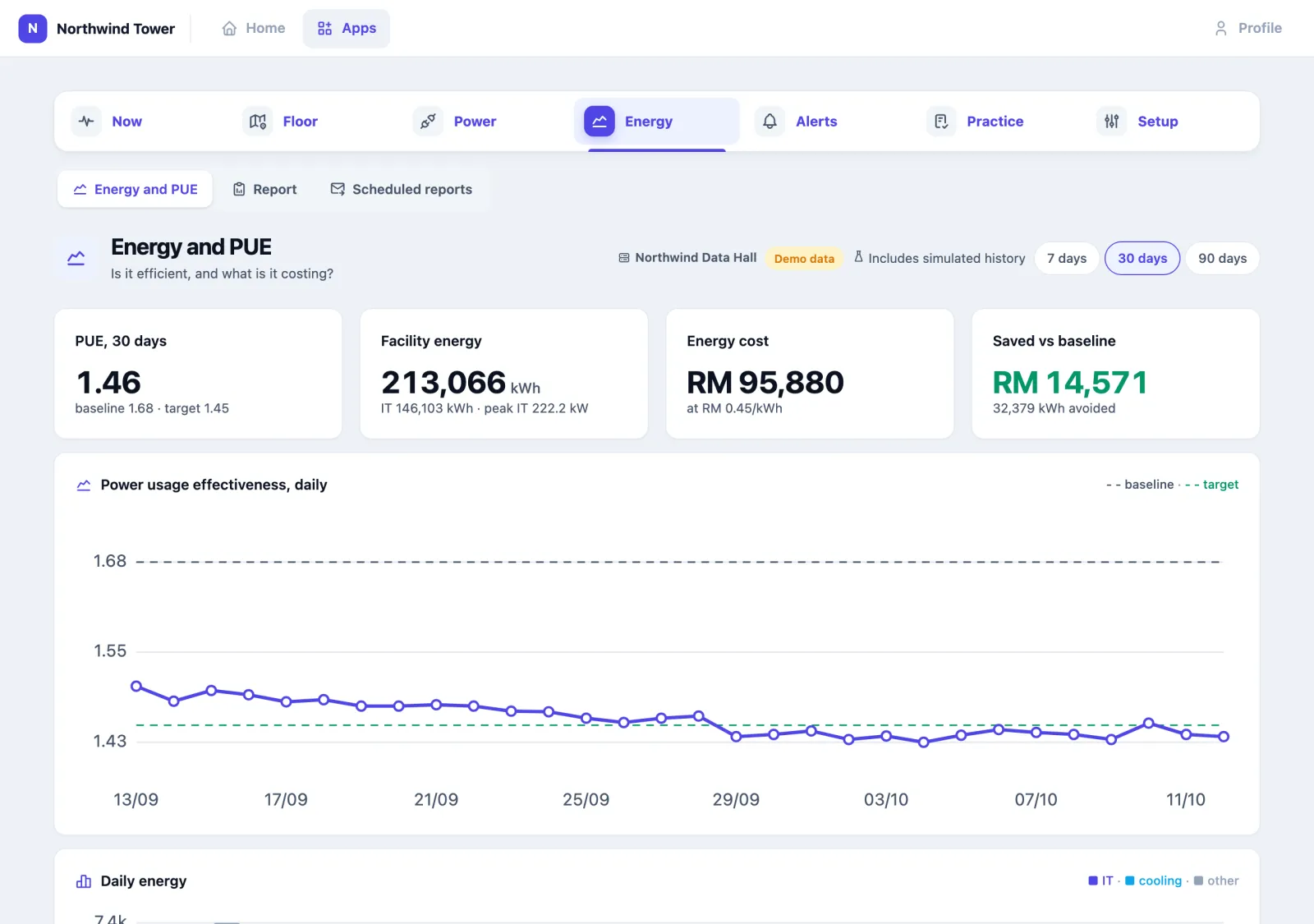
Saved vs baseline is what the same IT load would have cost at your baseline PUE, minus what it did cost. It is the number to take to a management meeting: it does not change when the IT load grows, only when the facility gets more or less efficient.
Energy for a day uses each meter's own counter when it sends one. Otherwise the app adds up its power readings over the day. A meter that stops reporting leaves a gap in the total, and the app does not fill it in.
How to review operating practice
Open Practice (Checks against good practice). Where the site stands shows how many of 17 practices are met, to act on, and to watch. The practices come from ASHRAE, The Green Grid, NFPA 110 and redundancy practice, and each one is checked against your site's own readings, in five areas: Thermal, Cooling & airflow, Power & resilience, Energy and Monitoring & response.
Each check reads one of:
| Label | Means |
|---|---|
| Met | The site meets it, and the line under it says by how much |
| Watch | Close to the line, or met with a caveat |
| Act on | Not met. Why it matters and What to do open under it |
| Not measured | The site does not measure what this check needs. The app says so instead of guessing |
| Not applicable | The plant it is about is not registered here (no generator, no fan wall) |

Ask OAIA for a review turns the list into a plan. OAIA, the platform's AI assistant, reads the checks that are not met with your site's numbers and picks the two or three to do first, with why now and a first step for each. It takes under a minute. It only chooses from the checks on the page and does not invent figures. The review is dated (Reviewed … ago for …) and, if the checks have changed since, it says so; press Review again. You can ask once every few minutes.
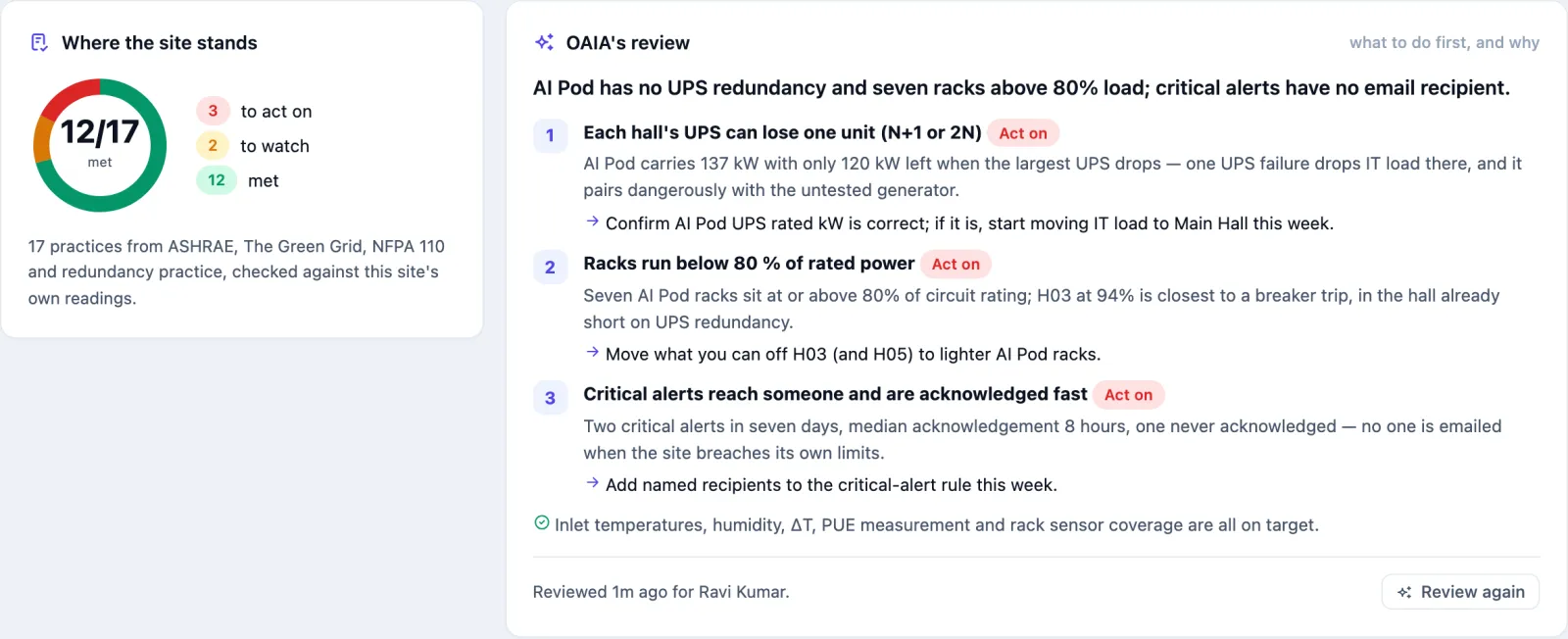
The review uses your organisation's AI allowance. If AI is switched off, or the month's allowance is used up, the page says so and the checks still apply.
The checks are a guide built from published practice, not a certification or an audit.
How to read the report
Energy → Report sums up any period, up to 92 days, for the whole site or one hall. CSV downloads every table, and What this report is, at the foot of the page, explains each figure.
| Section | What it tells you |
|---|---|
| Environment | The share of time each rack's inlet temperature and humidity spent in the recommended band (up to the hall's warning limit), the allowable band (up to its critical limit) and out; the worst racks, hot spots and every excursion with how long it lasted |
| PUE | Facility energy divided by IT energy over the days that have both — never an average of daily ratios — and DCiE. When it cannot be worked out, it says why (nothing measures IT, or no site meter) |
| UPS | Times on battery and for how long, battery-low and other events, peak and average load; generator runs |
| Alerts | Raised, acknowledged and still open, and how long acknowledgement took |
| Capacity | Each hall's and rack's peak power against its rating and design load |
Battery state of health and U-space used read not measured: the app does not take those readings. A period that starts before the rack sensors were fitted says from when it has readings.
With one hall picked, the UPS units and generators that Setup gives no hall, and the alerts raised for the whole site (a generator that did not start, for example), come in their own Site-wide section after Alerts: never added into the hall's figures, never left out. The other halls' units and alerts are not shown. PUE is always the whole site's.
Energy → Scheduled reports emails it for the whole site or, with a Hall picked on the schedule, for one hall with its Site-wide section (see Scheduled reports in the apps). A hall deleted after the schedule was saved sends the whole site, and says so.
Using it in your organisation
Corporate server room or on-site data hall
Setting. One or two rooms in an office building, like Northwind's: a few dozen racks, two or four UPS units, CRAC units, perhaps a generator shared with the building. Who does what. The operations lead watches Now and Alerts; the facilities manager owns limits and tariff; the cooling and UPS contractors get the app for their visits. What matters. A site meter and an IT meter (at the UPS output), so PUE is measured, not estimated. Rated kW on every UPS, so the redundancy check works. Tip. Put the email recipients in Setup on day one. The practice check Critical alerts reach someone and are acknowledged fast fails until someone outside the app is told.
Colocation provider
Setting. Customer racks in several halls, sold by the kilowatt. Who does what. The NOC shift keeps the wall screen up and works from Alerts around the clock; the facility manager reads Energy and Practice weekly; sales use rack load to see which customers are near their contracted power. What matters. One hall per room with its own limits. A PDU per rack, so % of rated and the 80 % check show which customers are close to their circuits. Fan walls and cooling units with their Rated kW entered. Tip. Use Maintenance mode for each unit you work on during a planned shutdown. The unit raises nothing for 8 hours, then goes back to normal on its own, so no alert is silenced for good by mistake.
University or hospital IT
Setting. A central data room plus smaller comms rooms on other floors or buildings, often run by a small team with no night shift. Who does what. The IT infrastructure manager receives critical alerts by email and push; estates handles cooling and power. What matters. Set Who hears about alerts to the on-call address, critical only. Give each comms room its own hall (kind Network room) with its own inlet sensor, even if it has only two racks. Tip. If a room has a cooling unit as a spare, mark it Standby in Setup. Otherwise the app assumes every unit should be running and raises stopped alerts for the spare.
Setting it up for your organisation
For whoever has configure rights on the app, with an administrator for the first step.
What must exist first
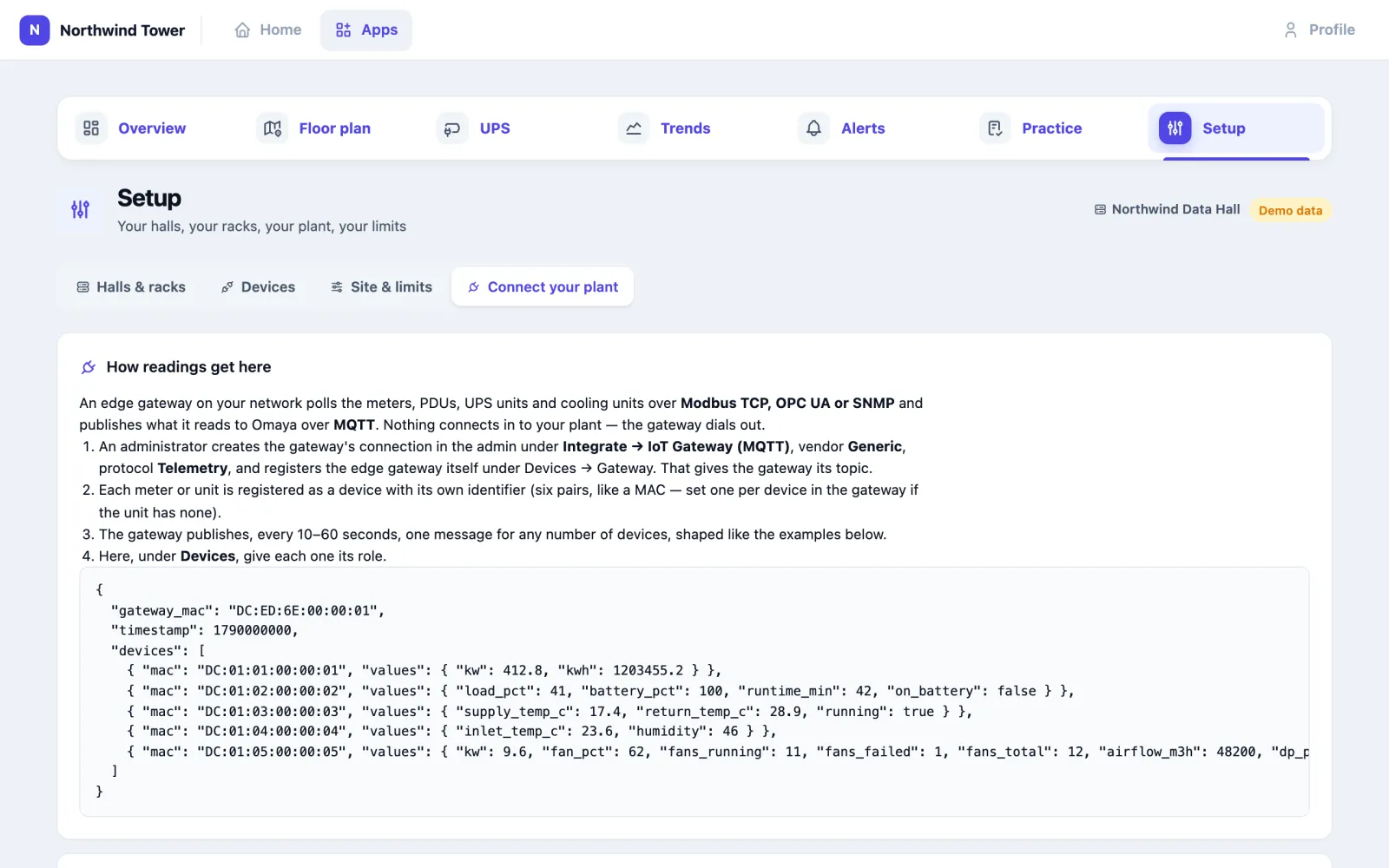
- An edge gateway on your network that reads your meters, PDUs, UPS units and cooling units (over Modbus TCP, OPC UA or SNMP) and publishes the readings to Omaya over MQTT. It dials out; nothing connects in to your plant. An administrator creates its connection under Connectors → IoT Gateway (MQTT), vendor Generic, protocol Telemetry, and registers the gateway under Devices → Gateway. See MQTT gateways.
- Each meter or unit registered as a device, with its own identifier.
- The floor (venue) the halls are on, and ideally each hall's outline drawn as a zone, so the floor plan can draw it.
- The plan that includes Data Centre (enterprise).
Checklist
- Setup → Connect your plant (How readings get here) shows the message shape the gateway must send and the reading names the app understands. Hand it to whoever configures the gateway.
- Setup → Halls & racks: under New hall, give each hall a Name, Kind (Colo hall, AI / high-density, Network room, Other), Floor, Outline (zone), inlet limits and Design IT load (kW), then Save hall.
- Add racks a row at a time: Add a row (the row letter), Racks, Starting at, Rated kW each, then Add row.
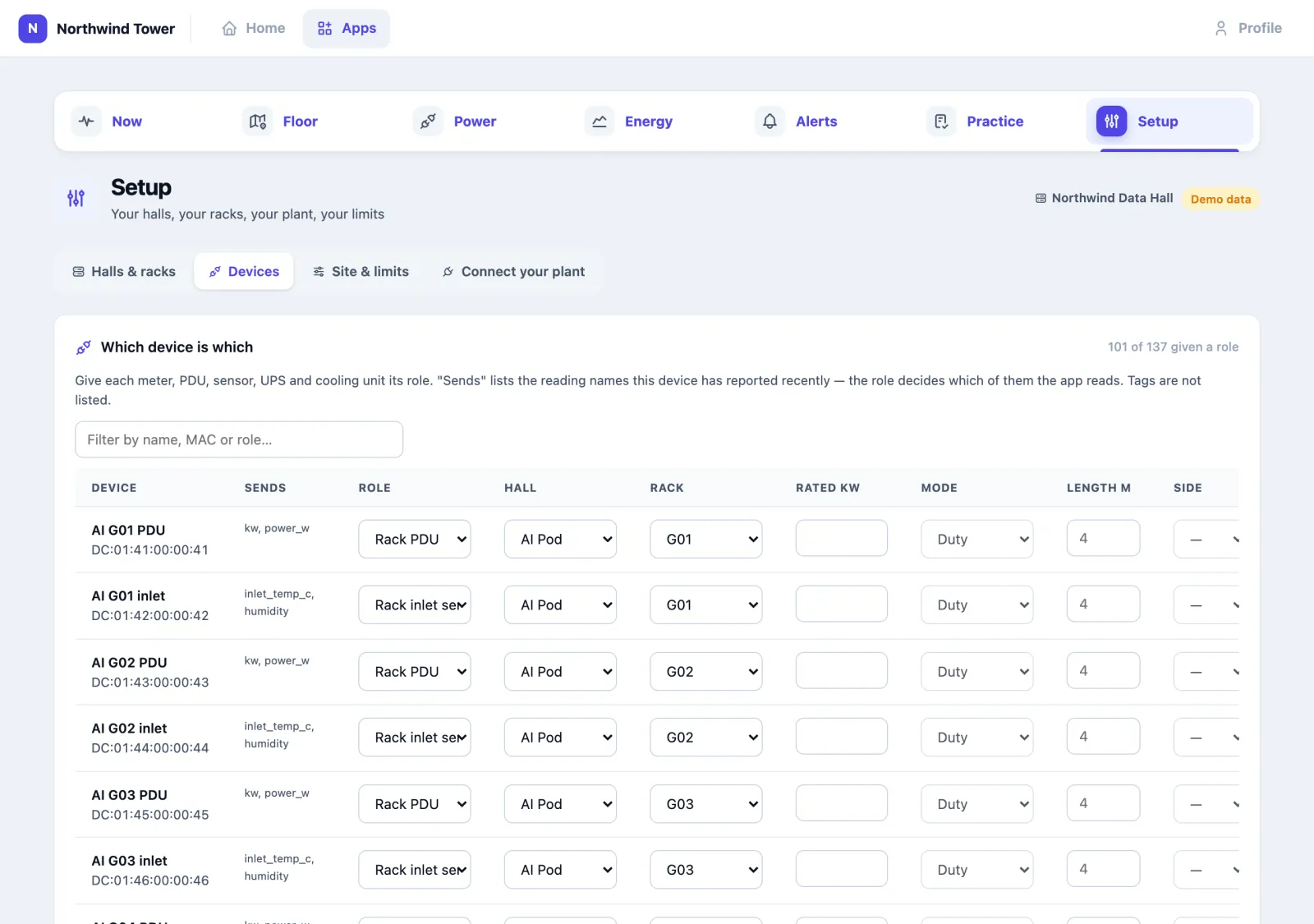
- Setup → Devices (Which device is which): give each device its Role, and its Hall and Rack where it has one. Sends shows the reading names each device has reported recently, so you can tell a meter from a sensor. Enter Rated kW for UPS units and cooling units, and the Side (A or B feed) for each UPS so the Power page can tell you what happens if one side fails. Press Save on each row.
- Setup → Site & limits: site name, currency, tariff, PUE baseline and target, alert limits, and Who hears about alerts.
- Open Floor → Arrange and drag racks and units to where they stand.
- Give the app to the people who need it, with configure rights only for those who should change Setup.
Roles
| Role | What the app reads from it |
|---|---|
| Site meter | Total facility power and energy: the top of the PUE sum |
| IT load meter | IT power, usually at the UPS output: the bottom of the PUE sum. Without it, the rack PDUs are added up |
| Cooling meter | Cooling power. Without it, the cooling units' own power is added up |
| Other load meter | Lighting, offices, NOC |
| Renewable supply | Solar or other on-site generation |
| Rack PDU | One rack's power (needs a rack) |
| Rack inlet sensor | One rack's inlet temperature and humidity (needs a rack) |
| UPS | Load, battery, runtime, on battery or not. Set its Side (A or B) |
| Cooling unit | Supply and return air, running or not, setpoint |
| Fan wall | Fan speed, fans running, failed and installed, airflow, pressure. Set Length m so it draws to size |
| Generator | Running or not |
Mode on a UPS, cooling unit, fan wall or generator: Duty (expected to run), Standby (a spare: stopped is normal) or Maintenance (raises nothing for 8 hours, then returns to duty on its own; point at the box to see until when).
Site & limits
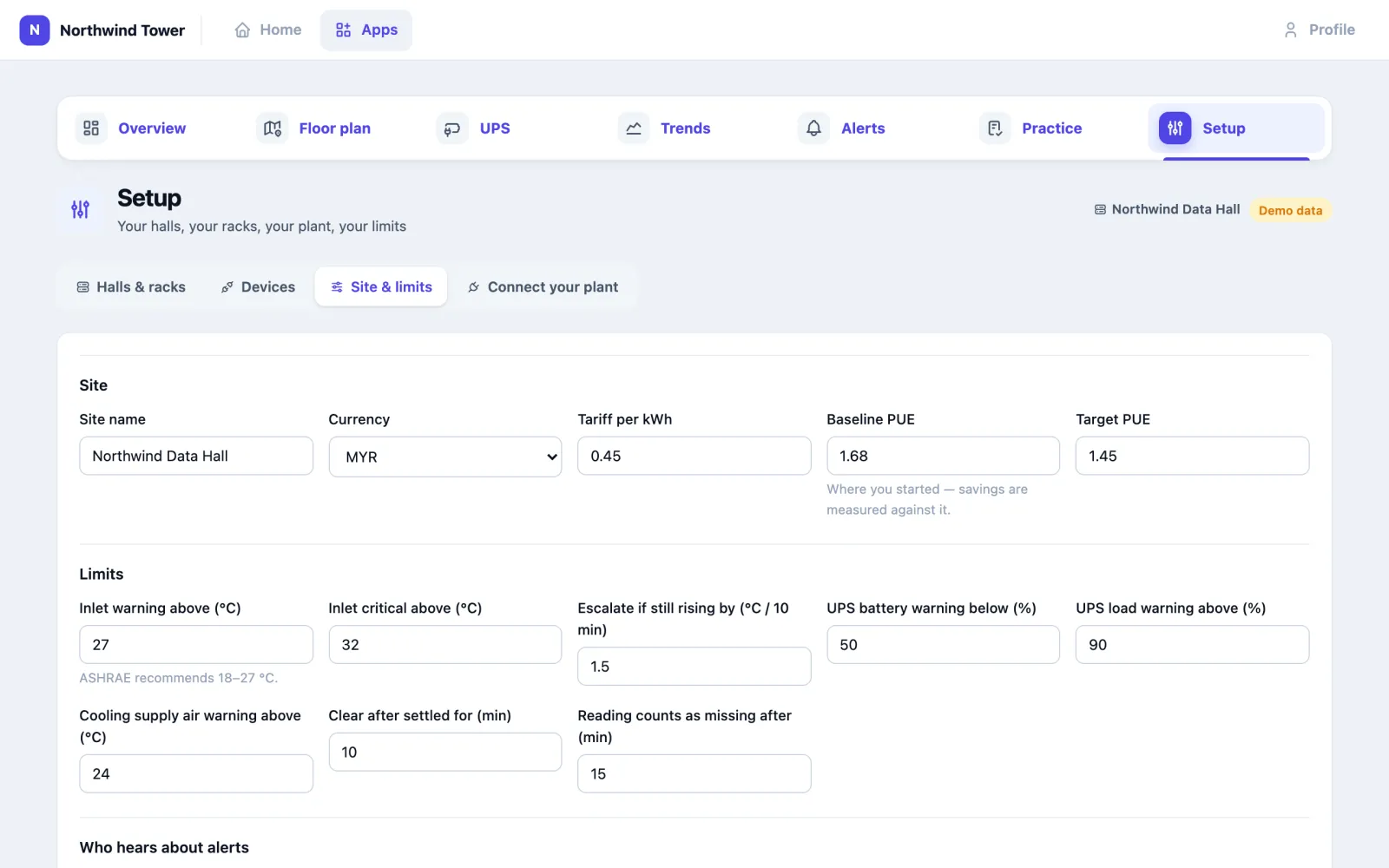
| Setting | What it changes |
|---|---|
| Site name, Currency, Tariff per kWh | The name in every page header; the cost figures on Now and Energy |
| Baseline PUE | Where you started. Saved vs baseline is measured against it |
| Target PUE | The target on Now and the wall screen, the green line on Energy, and the energy practice check |
| Inlet warning above (°C) / Inlet critical above (°C) | The site's rack inlet limits (ASHRAE recommends 18–27 °C). A hall can override them with its own Warn above and Critical above |
| Escalate if still rising by (°C / 10 min) | Turns a warm-hall warning critical when it keeps climbing |
| UPS battery warning below (%) / UPS load warning above (%) | The UPS alerts |
| Cooling supply air warning above (°C) | The "supplying warm air" alert for cooling units and fan walls |
| Clear after settled for (min) | How long a reading must stay back in range before an alert clears |
| Reading counts as missing after (min) | When a silent sensor or unit counts as not reporting |
| Who hears about alerts | Push to everyone with this app; Email to the people you pick; Critical alerts only or Every alert |
Questions and problems
PUE looks wrong, or oddly high. Check the note under PUE on Now. If there is no site meter, facility power is IT + cooling + other, which misses losses a real meter would catch, and the card says it is estimated. If not every meter in a sum is reporting, it says the figure is partial.
An alert will not clear. The unit, or the rack the alert names, has gone quiet instead of settling back into range. Silence keeps an alert open on purpose: check the device is still reporting (the Floor shows it grey, No reading).
A spare cooling unit keeps raising "stopped". Set its Mode to Standby in Setup → Devices.
A redundancy check says capacity is not entered. Enter Rated kW for each UPS and cooling unit in Setup → Devices. The check needs it to work out what is left with the largest unit out.
A device does not appear in Setup → Devices, or "Sends" is empty. Its readings are not reaching Omaya: check the gateway publishes it with the identifier registered for the device. Badges and tags are never listed.
I cannot see Setup, or Arrange on the Floor. You need configure rights on the app. Ask your administrator.
The Ask OAIA for a review button says OAIA is unavailable. AI is switched off for your organisation, or this month's allowance is used. The checks still work.
The data hall's meters also appear in Energy Monitoring. They send power readings, so Energy Monitoring lists them too. Use Data Centre for the hall, and Energy Monitoring for the rest of the building. So that Energy Monitoring's building total counts the hall once, your administrator sets the hall's meters under its site meter in Energy's Meter hierarchy, and ticks Generates power on the renewable supply meter: the solar output is then taken off the total. At Northwind the hall's meters sit under the Data hall incomer and the Rooftop solar is marked as generating.
If one side fails says set the sides. Give each UPS its Side (A or B feed) in Setup → Devices.
Make a work order is missing on a pattern. Your organisation does not have the Facility app switched on.
The wall screen says signed out. It runs as the person who opened it. Sign in again on that screen; choose an account kept for the control room so it does not depend on one person.
A page shows a "Demo data" badge. That site is a demonstration fed by a simulator, like the screenshots on this page. Your own site never shows it.
On the phone
Data Centre is not in the Omaya phone app, but its alerts arrive there as push notifications for everyone who has the app. The pages work in a phone's browser: Now puts the sentence and the four numbers first, every rack fits the width of the phone, and tapping a rack scrolls to its last 24 hours — so the engineer on call can take an alert with I'm on it from the phone.