Appearance
Warehouse
The warehouse floor in your pocket. It is the same app as the tablet on the floor, with the same tasks, rules and record of every movement, so you can receive a delivery at the dock door or check a box in an aisle without walking back to a screen.
For what the warehouse app is and how its flows work end to end, see Warehouse. This page is about doing them on a phone.
The main screen
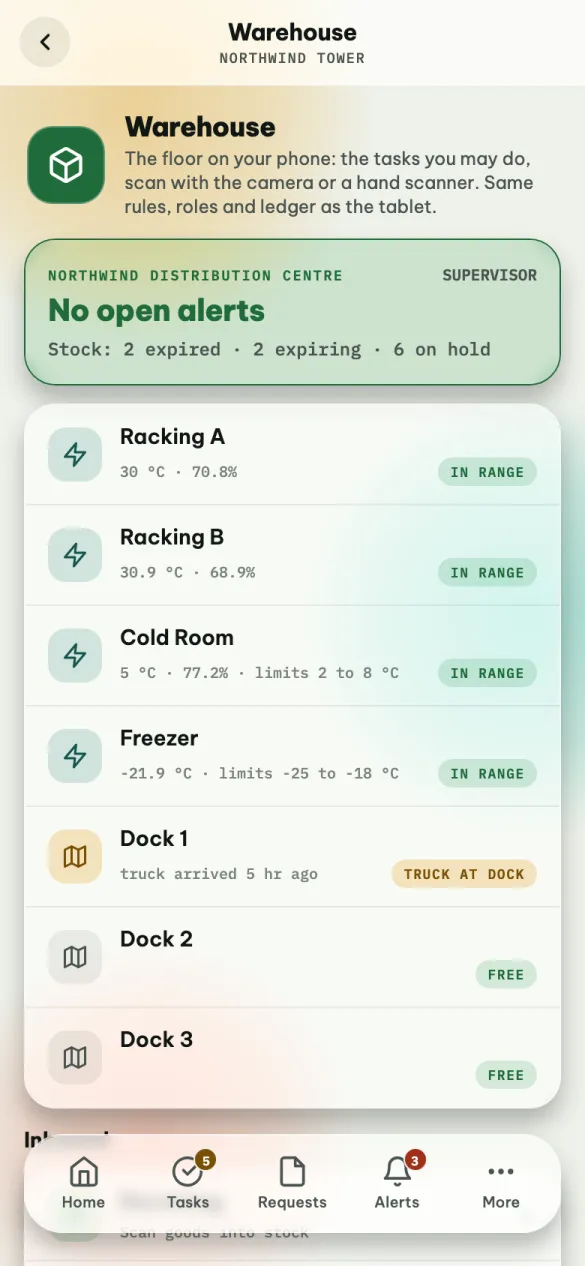
At the top: your site and your role, open alerts (critical ones first), and stock that needs attention — expired, expiring soon, on hold, or kept out of its temperature range.
Below: your cold rooms and storage areas with their temperature and humidity — IN RANGE or OUT OF RANGE — and each dock door, with whether a truck is there.
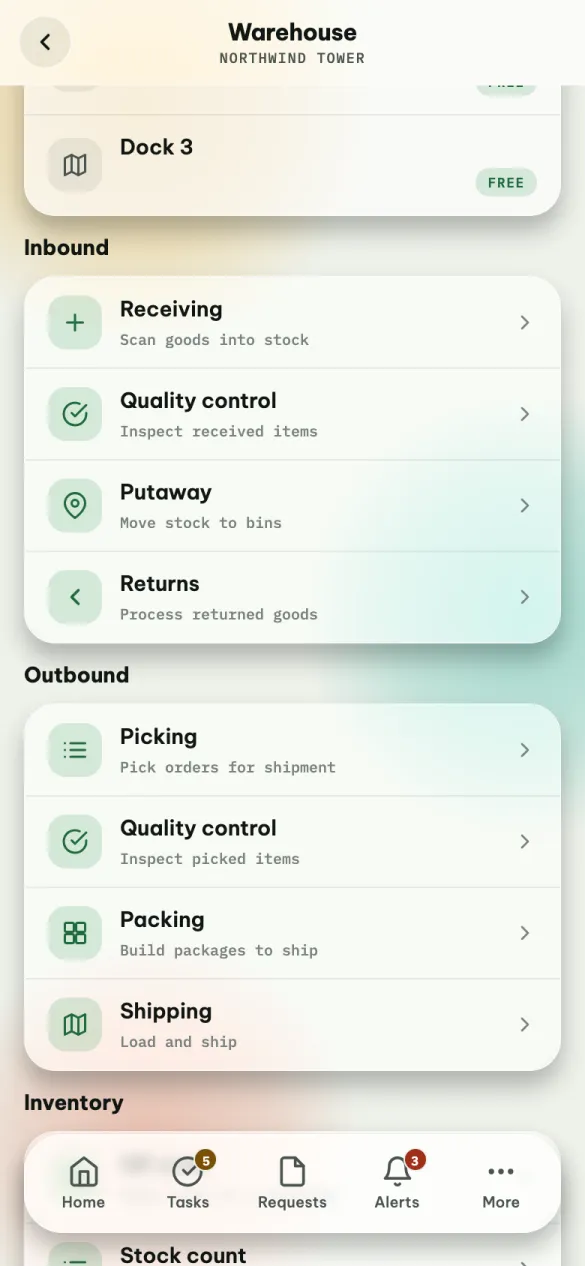
Then your tasks, grouped into Inbound, Outbound, Inventory and Production. A green number on a task is work waiting there.
You see only the tasks your role allows:
| Role | Tasks |
|---|---|
| Operator | Receiving, putaway, returns, picking, packing, shipping, QR scan, stock count, transfer, combine, breakdown, work orders |
| Supervisor, Manager | Everything, including quality control, stock in and out, quarantine and the gate |
| Office | QR scan |
| Guard | The gate, and QR scan |
At Northwind TowerAzmanWarehouse OperatorLeeWarehouse SupervisorSureshWarehouse Gate GuardAishaFacilities Manager
A supervisor can give one person more, or less, under Setup → People in the Warehouse app on the web. Some actions — taking a different box than the one reserved, skipping quality control, approving a count, adjusting stock — need a supervisor, and the app says so if you try one you have not been given.
Scanning
Every task starts with a scan, and there are three ways to give the app a code.
- The camera. Tap the square button next to a scan box and point the phone at the label. The first code it reads goes straight in — in the main box of a form, the action happens at once. It reads QR codes and the common barcodes on cartons.
- A hand scanner paired with the phone. Tap the scan box, then scan: the scanner types the code and presses Enter for you.
- Typing. Type the code and press the keyboard's Enter key.
The first time, the phone asks to use the camera. If you said no, the camera screen says Camera access is off: allow it in the phone's Settings → Apps → Omaya → Permissions, or tap Type it instead.
"This version of the app cannot use the camera to scan"
Camera scanning came in a version of the app that has to be installed fresh. Ask your administrator for the new download link. Until then, typing and hand scanners work as normal.
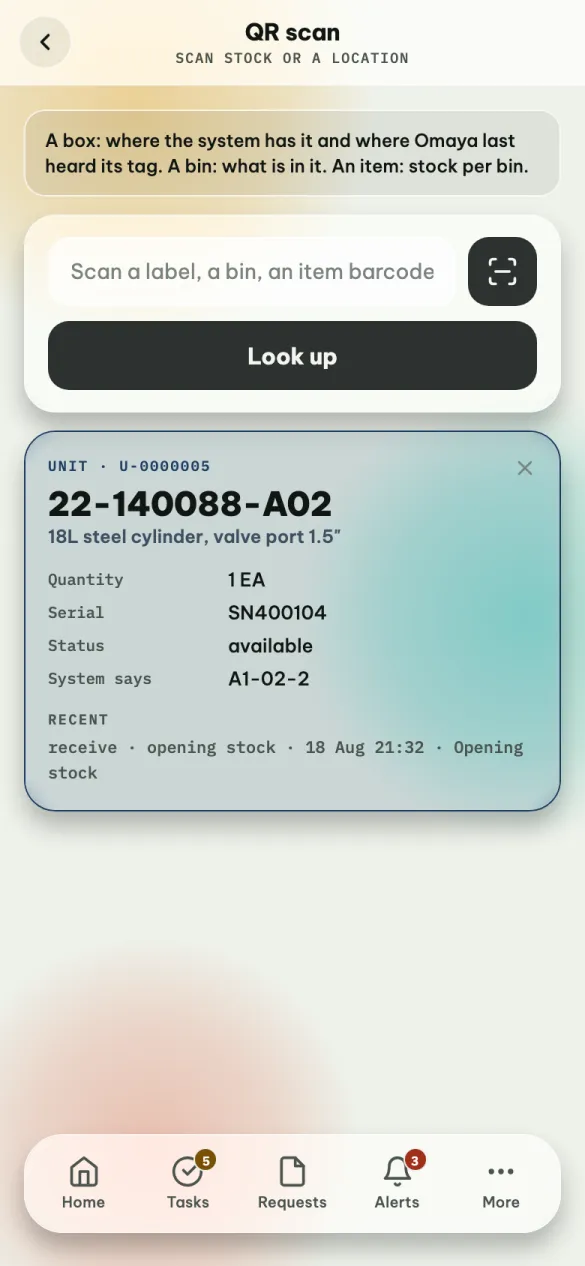
QR scan (under Inventory) is the quickest way to answer "what is this?":
- a box label — what it is, how many, its batch and expiry, its status, which bin the system has it in, where its tag was last heard, and its recent history;
- a bin label — what is in it;
- an item barcode — how much is on hand and in which bins.
Reprint label on a box's card prints its label again.
Printing labels
When something new needs a label — boxes you received, a split, a package, material returned from a work order — the message at the bottom offers Print labels, and a green card says how many labels are ready. Open to print opens them in the phone's browser; print from there to a printer the phone can reach. The link works for 30 minutes.
The phone prints labels only. The paperwork — the goods received note, the delivery order, the gate pass or return-to-supplier note — prints from the Warehouse app on the web, from the job or the Gate screen.
Doing the work
Every task works the same way: a form at the top, lists of what is waiting underneath. Tap something in a list to open it. Back takes you out of a job, then out of the task.
Inbound
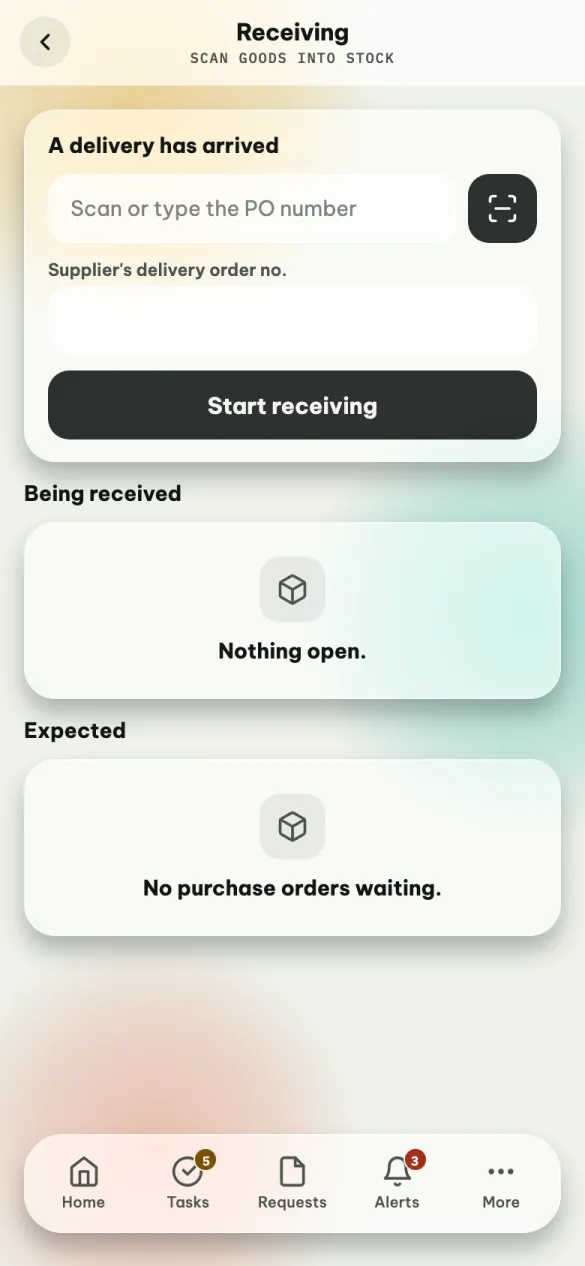
Receiving. Scan the purchase order number (or tap Receive on an expected one) and type the supplier's delivery order number, then Start receiving. For each item: scan its barcode, say how many per box and how many boxes, add batch, expiry and serial numbers if it has them, and tap Receive. Every box gets its own label. When the delivery is in, tap Close receiving. Receiving more than the order expects, or goods already past their expiry date, needs a supervisor. A purchase order has one delivery being received at a time, and one on hold cannot be received.
Quality control. Open a job waiting for inspection. The app has already picked the boxes to check. Scan each one and tap Pass or Fail this unit (write the finding first). Fail the lot puts every box of that item on hold.
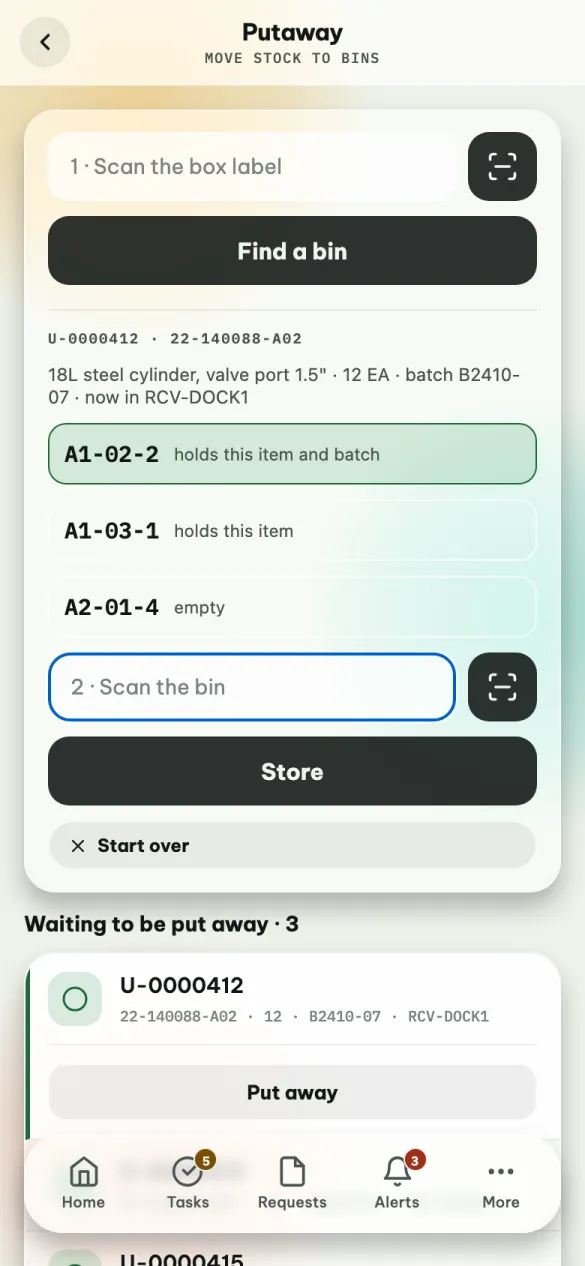
Putaway. Scan the box label and tap Find a bin, or tap a box under Waiting to be put away and tap Put away — no scan needed. The app suggests bins — one already holding the same item and batch first — and you can tap one. Then scan the bin you actually put it in and tap Store.
Returns. Like receiving, without a purchase order. Scan the customer's return or sales order number if there is one (RO / SO number (optional)), pick the Customer, and tap Start return. When the return names a sales order, only items that order shipped can come back, and no more than were shipped less what has already come back on it; more than that needs a supervisor. Every returned box is checked in quality control before it goes back to stock.
Outbound
Picking. Open a pick list. The blue card tells you the next item, which bin, which box and how many. Scan the box you take and tap Pick. If a bin is empty, a supervisor can mark the line Short. Close picking when done. Boxes past their expiry date are never reserved, and the app refuses to pick one — put it on hold or scrap it instead.
Packing. Scan each picked box and choose the package it goes into — a new one, or one you started. A packed box moves with its package, so it no longer shows in its old rack bin. Packing done prints the package labels.
Shipping. Pick the dock, type the vehicle, carrier and consignment number, and tap Load and ship. The dock list shows where a truck is waiting.
Inventory
Stock count. Open a count, or start one for a whole area or a list of bins. Scan the bin you are counting first, then each box in it — or an item barcode with the quantity for loose items. Items with a batch or serial number are counted by their box label, and a serial-numbered box is counted whole. The bin stays selected until you scan another. When the count is done, Finished — send for review: a supervisor approves the difference. The warehouse keeps working during a count; stock moved after it started is not counted as missing.
Stock transfer. Scan the box, tap Next, scan the bin it goes to, and tap Move. Boxes on hold can only go to a quarantine area.
Combine scans two or more boxes of the same item and batch into one; the first keeps its label. Breakdown splits some off a box, and both get labels.
Quarantine puts a box on hold with a reason. Supervisors can release it back to stock, or scrap it. Scrap takes only a box that is available or on hold, not one already reserved or picked for an order.
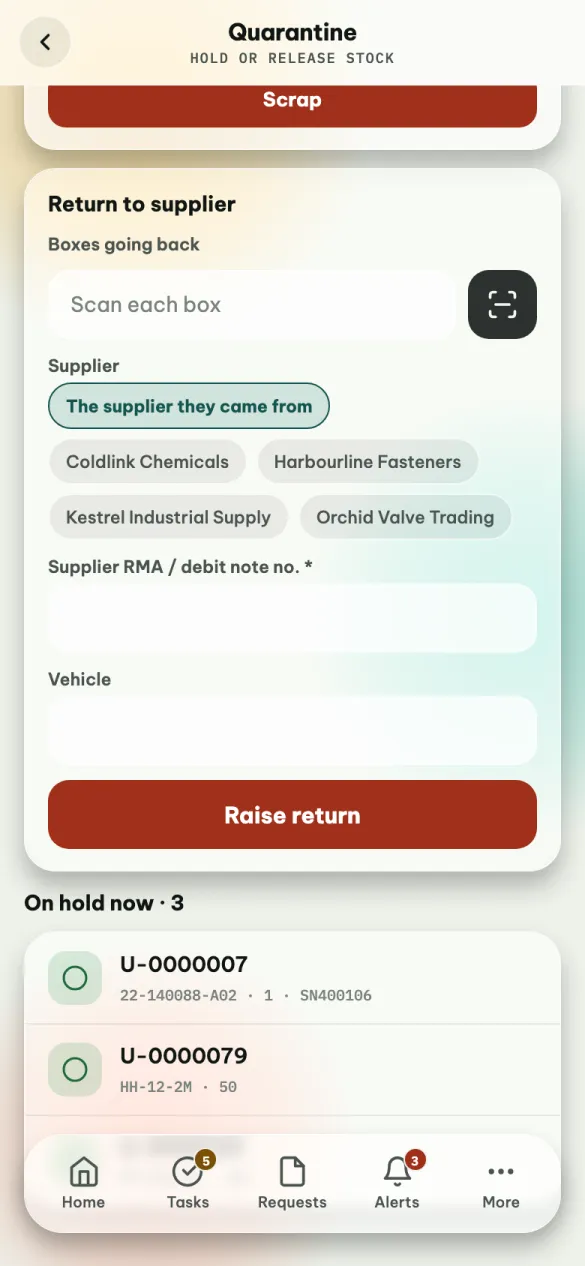
Return to supplier (supervisors) sends boxes back, usually ones that failed quality control. Under Boxes going back, scan each box. Leave Supplier on The supplier they came from, or pick one. Type the supplier's RMA or debit note number (required) and the vehicle, and tap Raise return. The boxes go out on a gate pass: they stay in stock until the guard lets them out at the gate.
Production and the gate
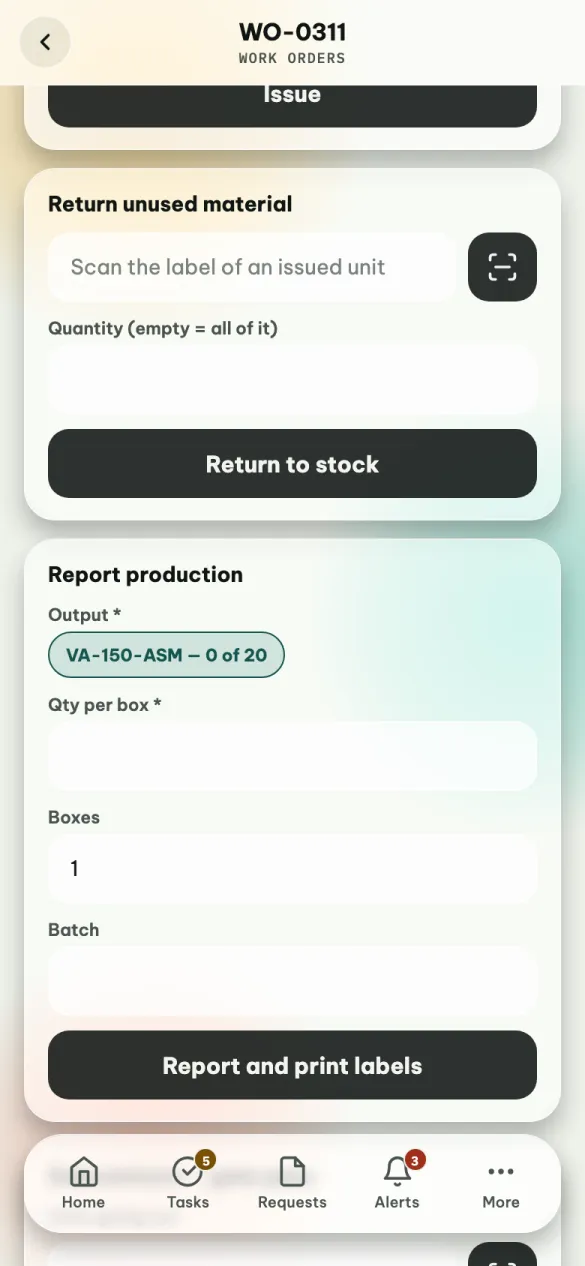
Work orders. Open an order, scan material units under Issue materials and tap Issue, then Report production — what came out, how much per box and how many boxes. The new boxes get labels and wait for putaway. Reporting more than the order asks for needs a supervisor. The order closes when its output is reported and its materials are issued.
Return unused material appears once something has been issued. Scan the label of an issued unit and tap Return to stock. Leave Quantity empty to return all of it; type a smaller number to return part, and the part that comes back gets a new label. Returned material waits in the production area.
Goods going to a subcontractor go out on a gate pass (Subcontract — gate pass). When they come back in on that pass, they count towards the order's output.
Gate (guards). The gate passes waiting to go out (to let out) and the ones out now. A return to the supplier says return to supplier and has no "back by" day. Let out when the goods leave — boxes going back to a supplier leave stock then. Back in when goods on a subcontract pass return: they go to receiving, on hold for quality control. A pass still out once its "back by" day is over (at the site) is marked overdue in red; on the day itself it is still out.
When it says no
The app refuses in a sentence, under the form — for example Bin A1-02 is full (12 of 12), or that a box on hold can only move to a quarantine area until released. Read it — it says what is wrong and usually what to do. This task is not on your list means your role does not include it: ask a supervisor.