Appearance
Rooms, visitors and the queue
Three apps for getting through an office day: grab a meeting room, look after your visitors, and take your place in the toilet queue. Each one appears only if your organisation uses it.
Meeting Room
At Northwind TowerJasonAccount ManagerFarahHR & Safety OfficerDanielTechnicianMei LingReceptionist
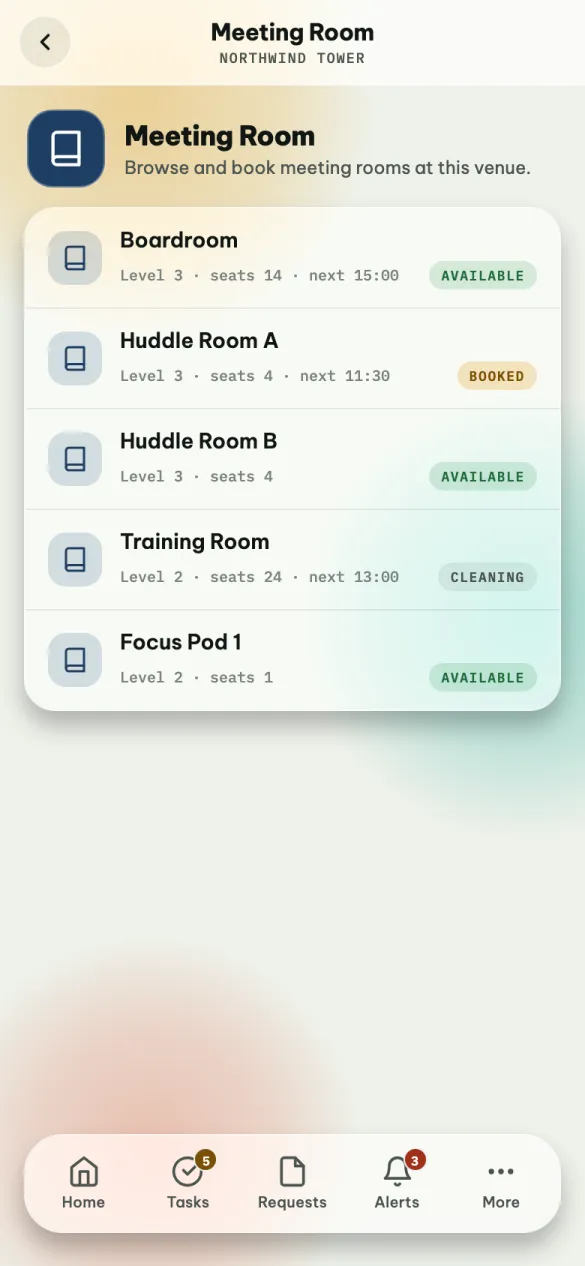
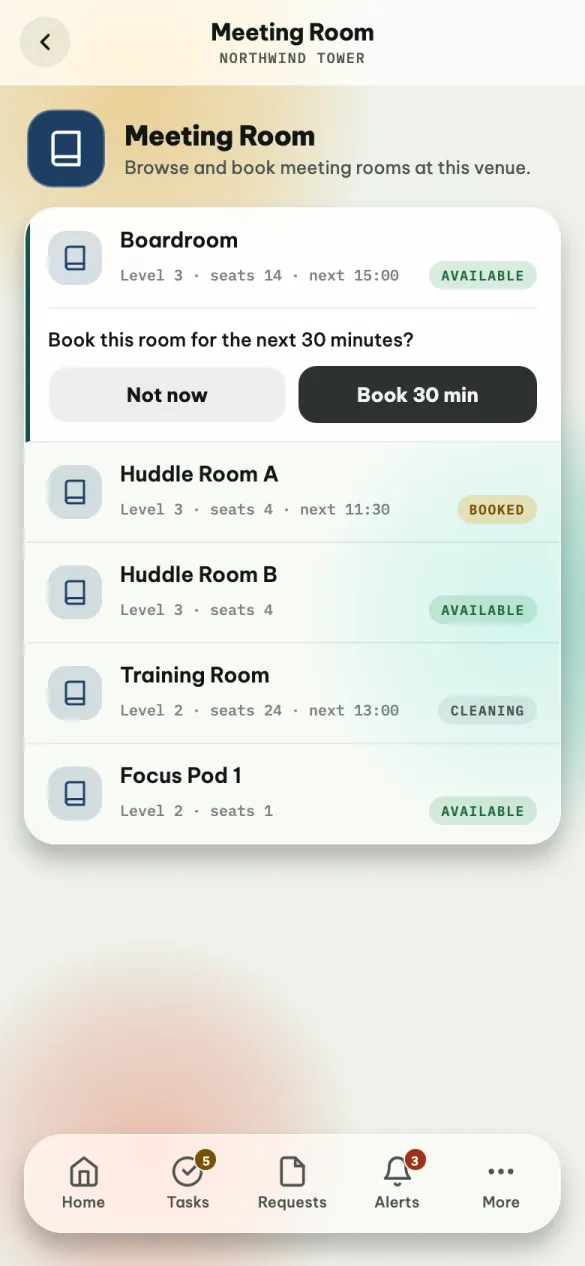
Every room at your venue, with its level, how many seats it has, and its next booking. The badge on the right says whether you can have it now: AVAILABLE, BOOKED or CLEANING.
To book a room now, tap an available room, then Book 30 min. The room is yours from now for 30 minutes and its badge changes to Yours until 15:30.
The phone books now, for 30 minutes — it is for the room you need right away. To book a room for later, for longer, or with other people invited, use the web or your calendar.
My bookings
Your bookings are under My bookings — the button in the message after you book, or the Room tile on Home's Today card.
To cancel one, tap it and tap Cancel booking, then confirm. The room becomes free for someone else. Past and cancelled bookings cannot be changed.
Visitors
At Northwind TowerMei LingReceptionistAishaFacilities ManagerFarahHR & Safety OfficerJasonAccount ManagerHafizSecurity Guard (day)
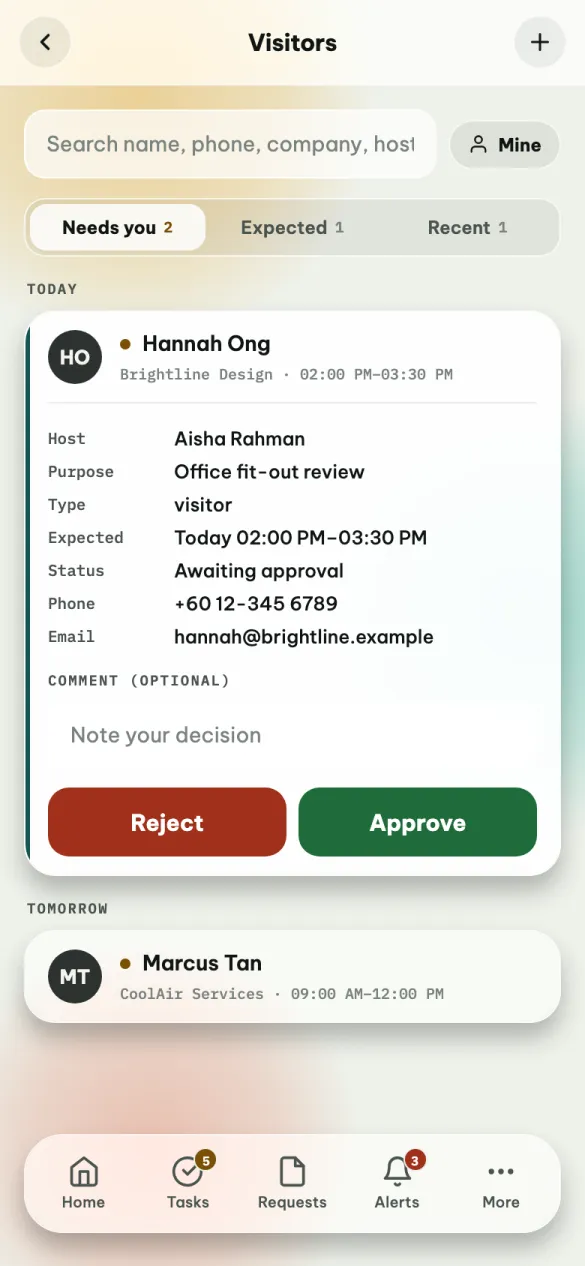
Who is coming in, and the visits waiting for your decision. Open it from Home → Visitors, from a Visitor tile on Home's Today card, or from Tasks.
| Tab | What is on it |
|---|---|
| Needs you | Visits waiting for your decision. Its number turns red when there are any. |
| Expected | Approved visits that have not happened yet |
| Recent | Visits that ended or were turned down in the last 90 days |
Visits are grouped by day: Today, Tomorrow, then the date. Mine shows only visits you are hosting or can decide on.
To find a visit, type at least two letters in the search box: a name, a phone number, a company or a host. It searches the last year.
Approving a visit
Tap the visit to see who is coming, who they are visiting, why, when, and how to reach them. Add a comment if you want to note your reason, and tap Approve or Reject.
Whether you may decide is set by your organisation, usually the host of the visit. If it is somebody else's decision, the visit says Waiting on approval from the host of this visit.
Checking a visitor in
When an approved visitor arrives, open the visit and tap Check in. If the app cannot check them in — the visit is not approved yet, they are already on site, or reception needs their ID first — it tells you why.
Inviting a visitor
Tap + at the top right.
| Field | |
|---|---|
| Visitor name | Required |
| Company | Optional |
| Phone, Email | So the visitor can be reached |
| Expected | Required. Type the date and time as 2026-10-08 09:00 |
| Type | Visitor, Contractor, Delivery or Other |
| Purpose | Optional: a meeting, a delivery, an inspection |
Tap Register. The visit goes through your organisation's usual steps — who has to approve it, who is told — exactly as if it had been registered on the web.
Inviting someone again? Open one of their past visits and tap Invite again: the form opens already filled in.
Toilet Queue
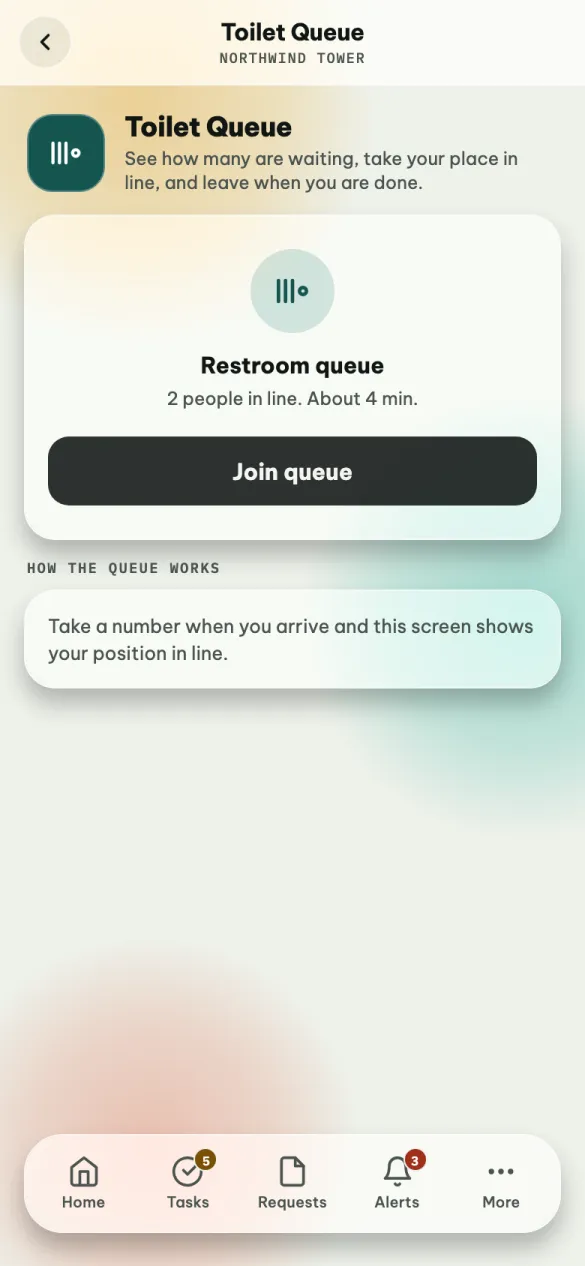
How many people are waiting and roughly how long it will take. Tap Join queue to take a number; the card turns teal and shows your place in line — You are next, or how many people are ahead of you. When you are done, or change your mind, tap Leave queue.
The numbers change when you join or leave. To see the latest while you wait, go back and open the app again.