Appearance
Getting started
Install the app
Omaya Mobile is not in the Google Play Store. Your organisation sends you a download link for the Android app — usually by email or chat.
- Open the link on your Android phone and download the app.
- Open the downloaded file. Android may say that your browser is not allowed to install apps: tap Settings, turn on Allow from this source, and go back.
- Tap Install, then Open.
iPhone
The iPhone version is not available yet. Ask your administrator when it will be.
Sign in
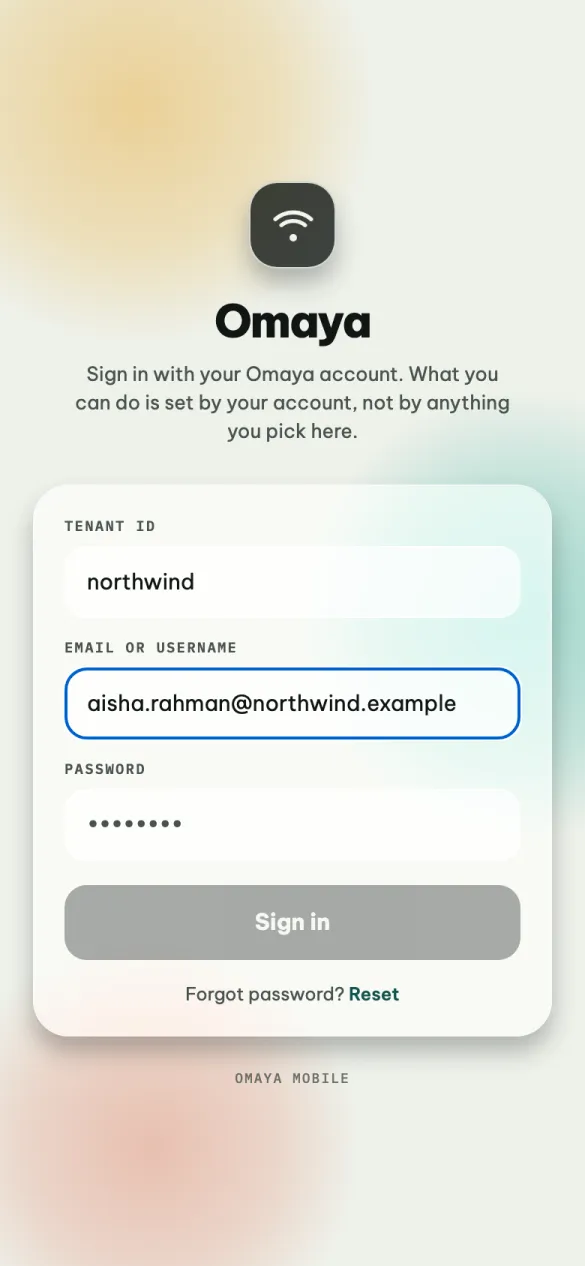
You need three things, all from whoever set up your account:
| Field | What to type |
|---|---|
| Tenant ID | Your organisation's short code, for example northwind. It is one word, usually lower case. It is the same code you use on the web admin, if you use that. |
| Email or username | Your work email address. The part before the @ also works. |
| Password | Your password. |
Sign in becomes available when all three are filled in.
You do not choose between a staff and an admin account. The app asks the server who you are and opens the right view. If you have both kinds of account with the same email, the app signs you in as the admin.
If it does not let you in
| You see | What to do |
|---|---|
| Email or password is incorrect. | Check both, including capital letters in the password. |
| This account is not linked to a tenant. | Your account is not set up yet: tell your administrator. |
| Network Error, or nothing happens for a while | You have no connection. Try again once you do. |
| It refuses even the right password, several times | Wait a minute. After ten tries in a minute the server stops accepting attempts for a short while. |
Forgot your password? The Reset link on the sign-in screen cannot reset it yet. Ask your administrator to set a new one for you.
Allow what the app asks for
The first time you use certain features, the phone asks for permission:
| Permission | Why the app asks | If you say no |
|---|---|---|
| Camera | To take a photo for a job or a report, and to scan warehouse labels | Choose photos from your gallery instead, or type the code. Turn it on later in the phone's Settings → Apps → Omaya → Permissions. |
| Photos and media | To attach a photo you already took | You can still take a new photo with the camera. |
| Notifications | To alert you when something happens | Nothing for now — notifications are not delivered yet (see below). |
The app does not ask for your location. Photos are made smaller before they are sent, and the location stored inside them is removed.
Staying signed in
You stay signed in, even after you close the app or restart the phone. There is no time limit.
When your administrator gives you a new app, or takes one away, you will see the change the next time you fully close and reopen the app. You do not need to sign in again.
Signing out
Go to More and tap Sign out at the bottom. There is no "are you sure?" — you go straight back to the sign-in screen. Do this before you hand the phone to somebody else.
Updates
Most updates arrive by themselves. The app downloads them in the background and uses them the next time you fully close and reopen it. There is no message when this happens.
Some updates need a new install — for example the one that added camera scanning in the Warehouse app. When one is needed, your organisation sends you a new download link. Install it over the existing app; you stay signed in.
The version number under More → App version does not change with the background updates, so it cannot tell you whether you have the latest one.
Notifications
Not delivered yet
The app is ready for notifications and asks for permission, but they are not being sent to phones yet. Until they are:
- the Alerts tab shows a red number for alerts that need attention. It updates about once a minute, but only while the app is open on your screen;
- the Tasks tab shows an amber number for work waiting on you. It updates when you open Home or Tasks.
So open the app at the start of your shift and look at it from time to time.