Appearance
Security Watch and Roll Call
Security Watch
At Northwind TowerHafizSecurity Guard (day)HairulSecurity Guard (night)KumarSecurity SupervisorAishaFacilities Manager
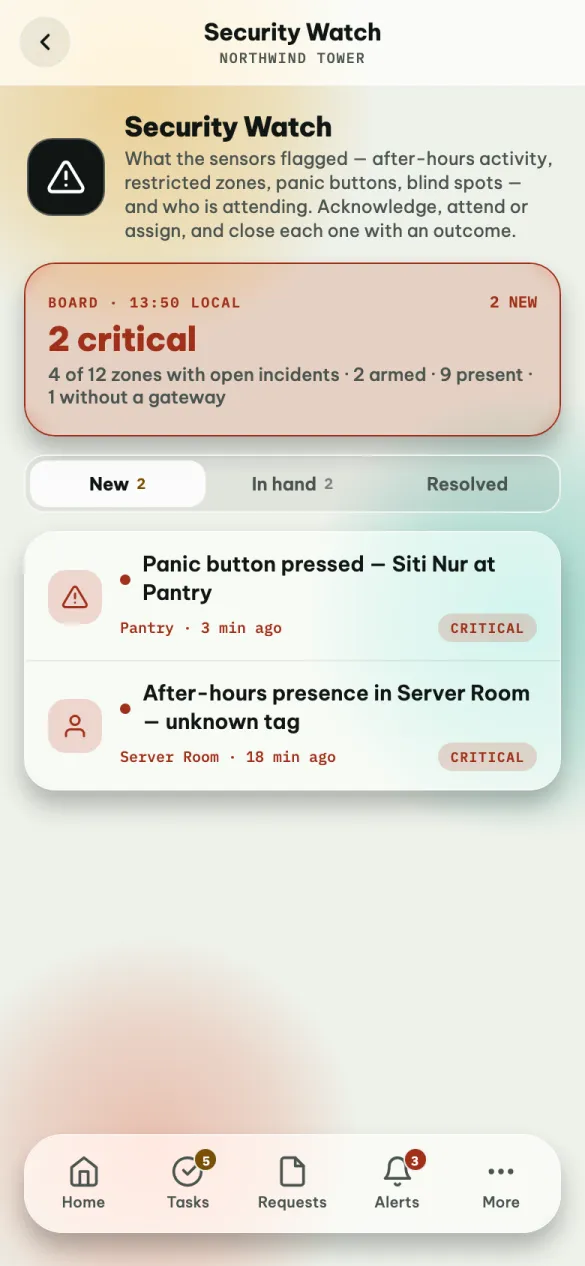
For guards on patrol, and for the people who supervise them. The building's sensors raise incidents — a panic button pressed, someone in a restricted room, activity after hours, an area the sensors can no longer see — and each one is explained in plain words, with a suggestion of what to do.
The board
The card at the top is red when anything is critical, amber for warnings, green when all is clear. It says how many zones have open incidents, how many are armed (watched for after-hours activity right now), how many people are inside, and how many zones have no sensor coverage.
The lists
| Tab | What is on it |
|---|---|
| New | Incidents nobody has looked at yet |
| In hand | Acknowledged or being attended, not yet closed |
| Mine | Incidents you are attending or were sent to (guards) |
| Resolved | Closed incidents and how they ended |
Each incident is marked CRITICAL or WARNING, and the dot on the left shows where it stands: red for new, amber for acknowledged, blue for someone attending.
Handling an incident
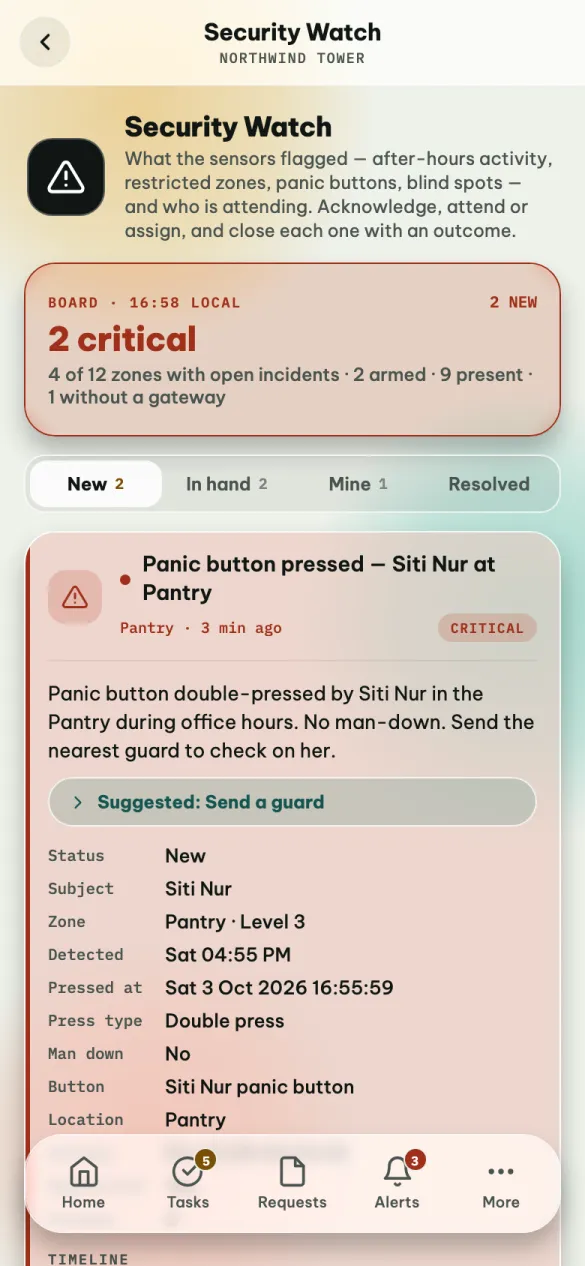
Tap the incident to open it. Read the explanation and the Suggested action — Send a guard, Check the cameras, Check the zone, Call the contact and so on. The suggestion is advice: you decide.
Under the status, subject, zone and the time it was Detected (your local time), the phone lists the details the sensors recorded, as the incident page in Security Watch on the web shows them — for a panic button, Pressed at (in the building's local time), Press type (Single press, Double press), Man down (Yes or No) and so on. Lists are joined: a restricted zone's Allowed tags read IT, Security, and a blind spot's Gateways or the people Present get one line each.
- Acknowledge — "I have seen it". The incident moves to In hand so nobody else wonders whether it was noticed. It is not closed.
- Attend (guards) — "I am going". It moves to your Mine list, and others see that you are on it. Assign… — send a guard instead. The list shows who is closest: in this zone, same floor · 12 m, 2 floors away, and how many incidents each is already attending.
- Note — write what you found and tap Add. Notes go on the incident's timeline.
- Resolve — close it with what it turned out to be: Genuine (it was real), False alarm, or Expected (real, but nothing wrong — a cleaner on the late shift). Add a closing note if you like, and tap Resolve.
Acknowledging is not closing
An acknowledged incident stays in In hand until someone resolves it with an outcome. Pick the outcome carefully: Expected tells the system that this person being in this zone around this time of day is normal, so the same thing does not raise an incident again tomorrow. Use it for the cleaner on the late shift, not for something you could not explain.
An incident that cleared by itself and was left alone for long enough (twelve hours, unless your organisation changed it) is closed automatically as unattended.
Swipes: drag a new incident to the left to acknowledge it; drag it to the right to attend it (guards) or assign it (supervisors). A resolved incident can be brought back with Reopen.
Only a guard can attend. Supervisors and admins who are not guards assign someone instead.
The board refreshes itself every minute while it is open. New incidents are looked for every few minutes.
Roll Call
At Northwind TowerFarahHR & Safety OfficerKumarSecurity SupervisorHafizSecurity Guard (day)
For a fire drill, an evacuation, or a headcount. Starting one takes a snapshot of everyone who carries a tag; as people reach the gathering point their tags are heard there and they are counted as present. You mark the rest by hand.
Starting one
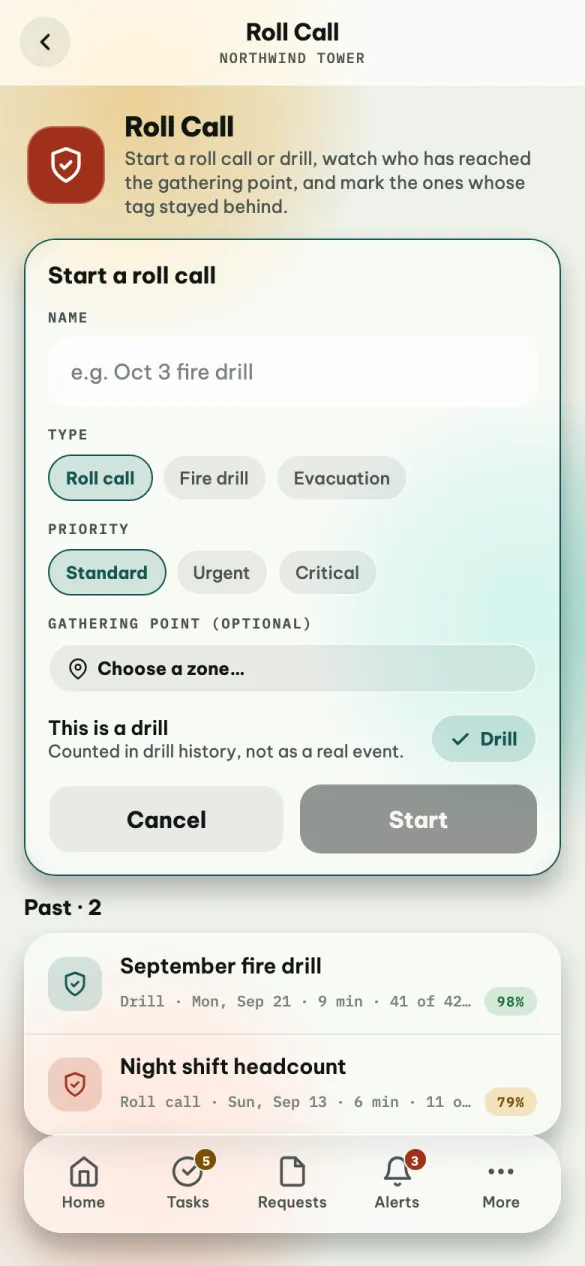
Tap Start a roll call and fill in:
| Field | |
|---|---|
| Name | Required, for example October fire drill |
| Type | Roll call, Fire drill or Evacuation |
| Priority | Standard, Urgent or Critical |
| Gathering point | Optional, but without it nobody is counted automatically. Tap Choose a zone… and pick the assembly area |
| This is a drill | Starts on Drill. Tap it to switch to Real for a real event. Drills are kept in drill history |
Tap Start. Only one roll call can run at a time.
While it runs
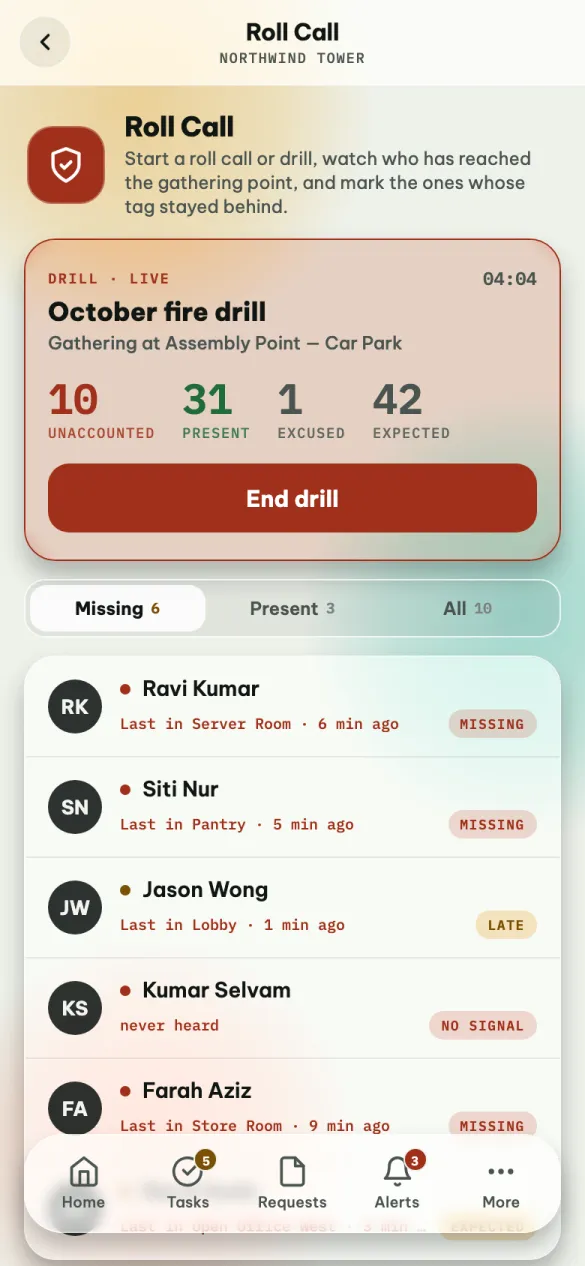
The card at the top shows a running clock and the counts: unaccounted, present, excused and expected. It turns green when everyone is accounted for. The list refreshes by itself every few seconds.
- Missing — people not yet accounted for, each with where their tag was last heard and how long ago. Start here.
- Present — people counted at the gathering point, or marked by you.
- All — everyone.
To mark someone, swipe their row:
- to the left — Present (you can see them, but their tag was not heard — a tag left on a desk, say);
- to the right — Excused (on leave, working from home, already accounted for elsewhere).
Marks can be changed — a present person can be excused, and the other way round.
No signal means the person's tag has not been heard at all since the roll call started.
Ending it
Tap End drill (or End roll call) and confirm. The counts are fixed as they stand and the roll call cannot be reopened, so end it when you are sure. If people are still unaccounted for, the app tells you how many before you confirm.
Past roll calls are listed under Past, with the share of people present — green from 95 %, amber from 70 %, red below.