Appearance
Home, Tasks, Requests, Alerts, More
The bar at the bottom of the screen has five tabs, and it stays there wherever you are in the app. For a staff account the selected tab is amber; for an admin account it is blue.
| Tab | What it is for |
|---|---|
| Home | What is due today, and your apps |
| Tasks | Work assigned to you, and visitors waiting for your approval |
| Requests | Problems reported at the site (only if your organisation uses the Facility app) |
| Alerts | Things that need attention |
| More | Your account, the look of the app, the list of apps, and sign out |
The amber number on Tasks counts your open work plus visitors waiting on you. The red number on Alerts counts the alerts that need attention. Above 99 it shows 99+.
Home
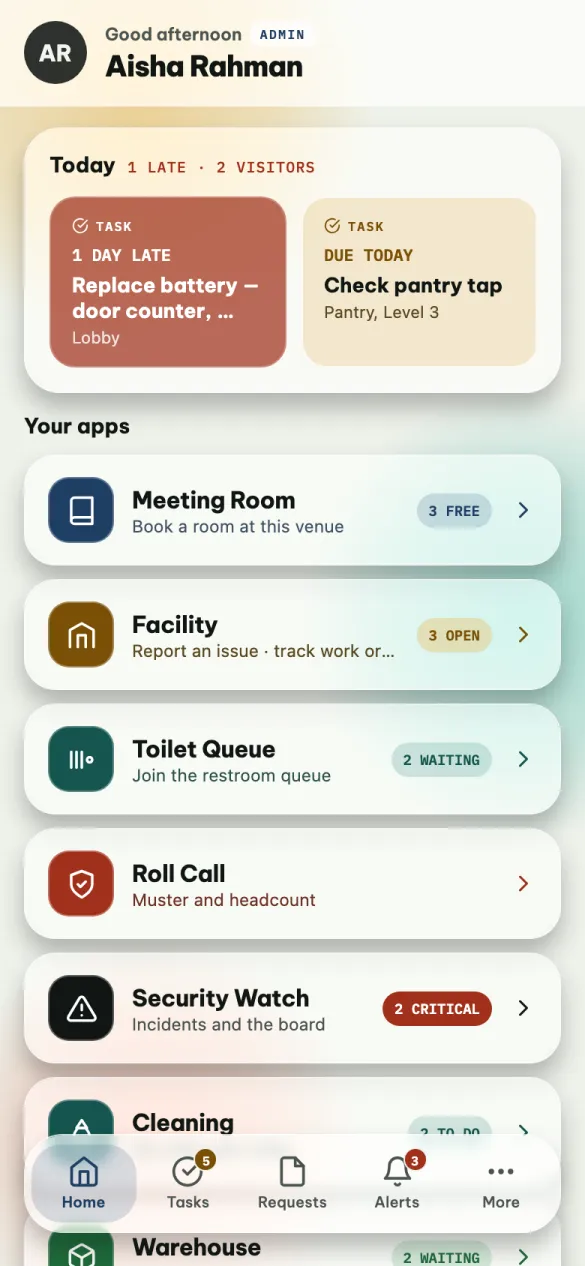
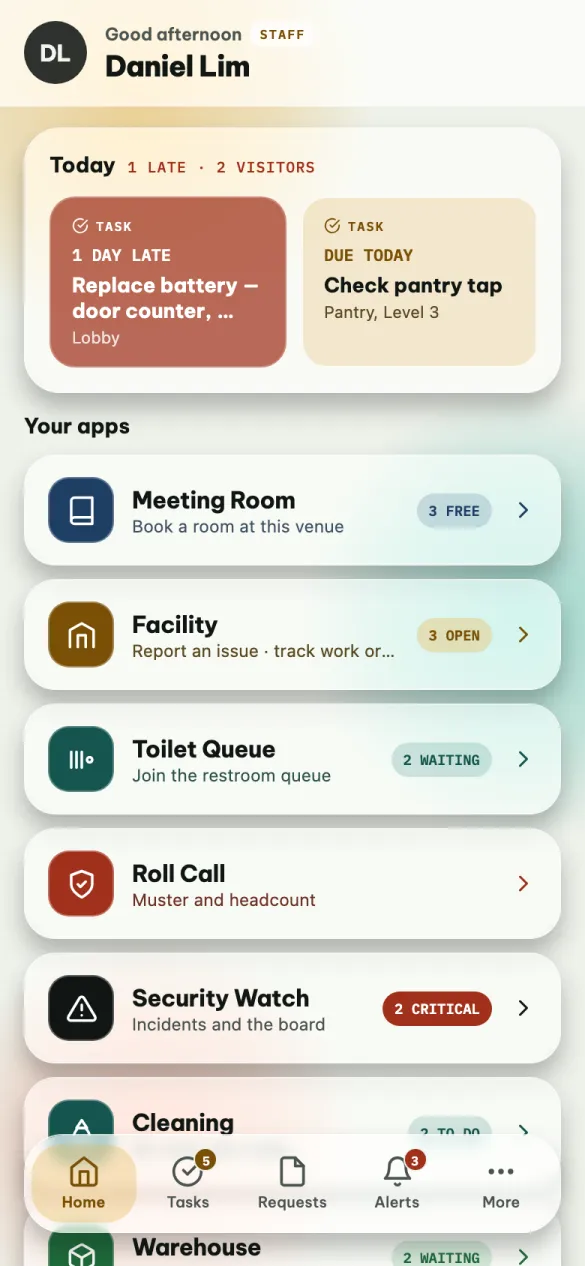
At the top: your initials, a greeting, your name and your role — STAFF or ADMIN. Tap your initials to go to More.
Today appears only when something needs you today. Its first line sums it up (for example 1 late · 2 visitors), and the tiles below scroll sideways:
- Task — a job of yours that is late (the tile is red and says how many days) or due today. Tap it to go to Tasks.
- Visitor — someone expected today. Tap it to open Visitors.
- Room — a meeting room you booked for today. Tap it to open My bookings.
A tile marked NOW is happening at this moment. On a day with nothing due, the card is not shown at all.
Your apps lists the apps you can use, each with a short status on the right:
| App | What the status says |
|---|---|
| Meeting Room | 3 FREE — rooms free right now |
| Facility | 3 OPEN — reported problems not yet decided |
| Toilet Queue | 2 WAITING, or NO WAIT |
| Roll Call | Only while one is running: 4 MISSING, or LIVE · ALL IN |
| Security Watch | 2 CRITICAL, 4 OPEN, or ALL CLEAR |
| Cleaning | 2 TO DO, 1 UNCLAIMED, or ALL DONE |
| Warehouse | 1 CRITICAL, 6 WAITING, or ALL CLEAR |
| Visitors | 2 TO APPROVE |
Pull the screen down to refresh it. It also refreshes every time you come back to it.
Tasks
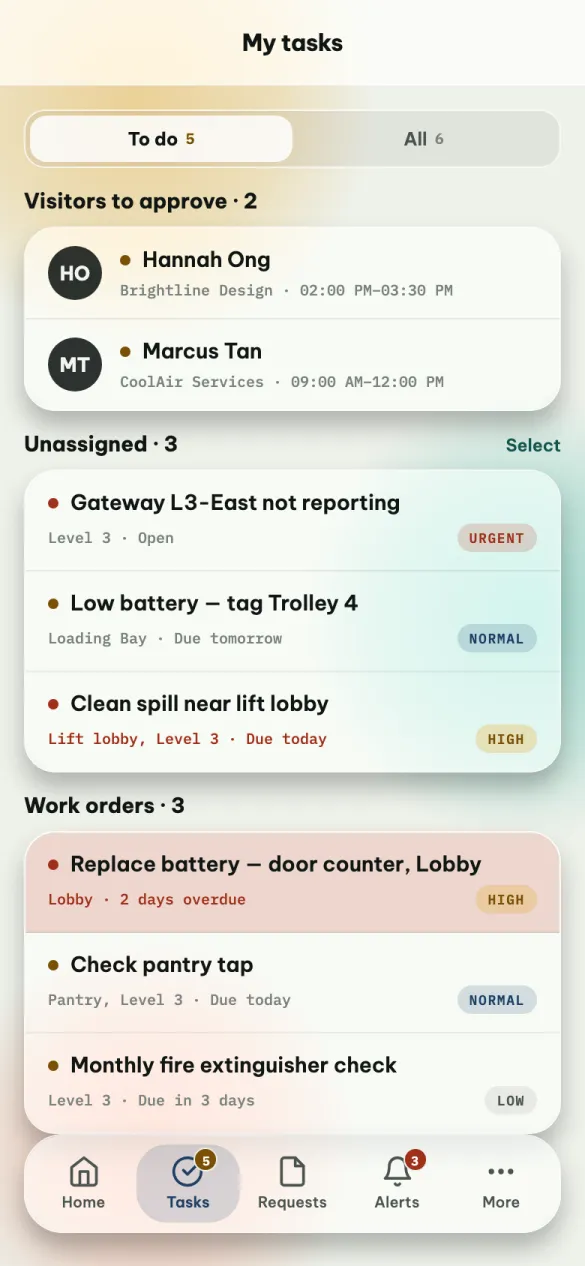
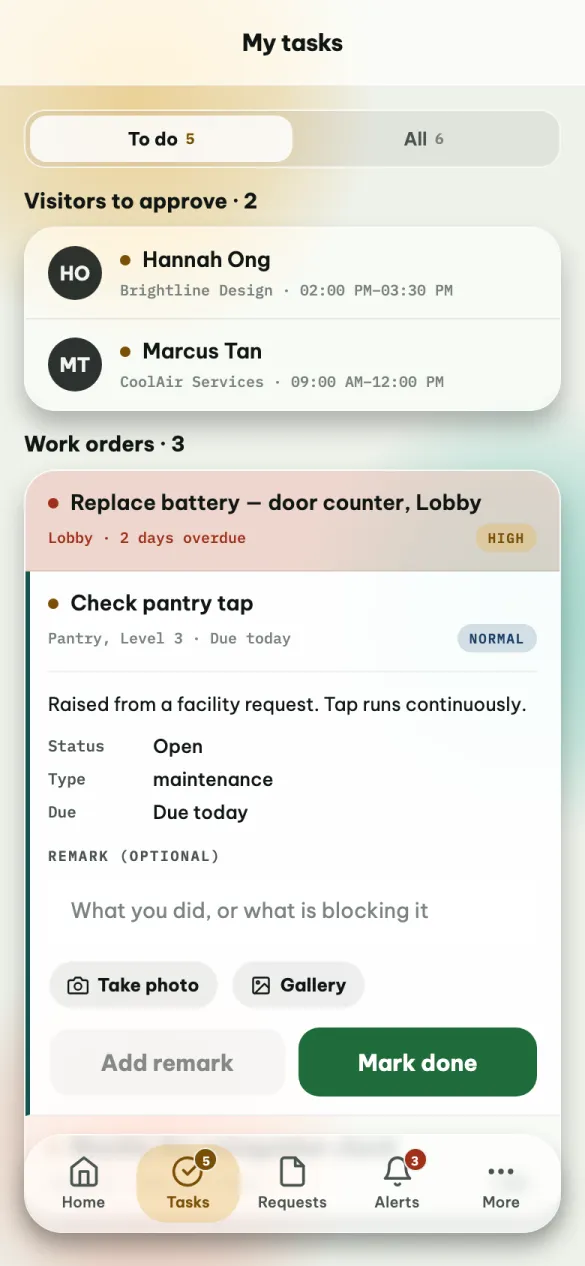
To do shows what is still open; All adds the ones you finished. Once a list has eight rows or more, a search box appears above it.
Visitors to approve
If your organisation uses visitor management, visitors waiting for your decision come first — the five soonest, with All visitors to see the rest. Tap one to see who they are visiting, why and when, then add a comment if you want and tap Approve or Reject. See Visitors.
Work orders
Each job shows where it is and when it is due — Due today, Due tomorrow, 2 days overdue — and its priority: URGENTHIGH NORMALLOW. A late job is tinted red.
Tap a job to open it. You see the full description, its status and type, and any photos already on it. Then:
To finish it: write what you did in Remark (optional), add photos with Take photo or Gallery if you like, and tap Mark done. The job is closed and leaves your To do list.
To leave a note without finishing it — parts ordered, waiting for a second person — write it in Remark and tap Add remark. The job stays open.
A finished job cannot be reopened from the phone
If you marked the wrong one done, ask your supervisor or an admin to reopen it on the web.
You can also swipe: drag a job to the left to mark it done (the app asks you to confirm), or to the right to open it with the remark box ready.
Unassigned (admins only)
Admins also see jobs nobody holds yet — often raised automatically, like a device that stopped reporting. Which of those Omaya raises is set on the web, under Admin → Your Apps → Facility → Work orders opened automatically. Tap one, then:
- Assign to… — pick a person from the list (type to search). The message at the bottom offers Undo.
- Dismiss — cancel the job. It is not deleted; its history stays. Undo is offered here too. Swiping a job to the left does the same.
To handle several at once, tap Select, tick the jobs (or Select all), then Assign N to… or Dismiss N. Dismissing several asks you first.
Requests
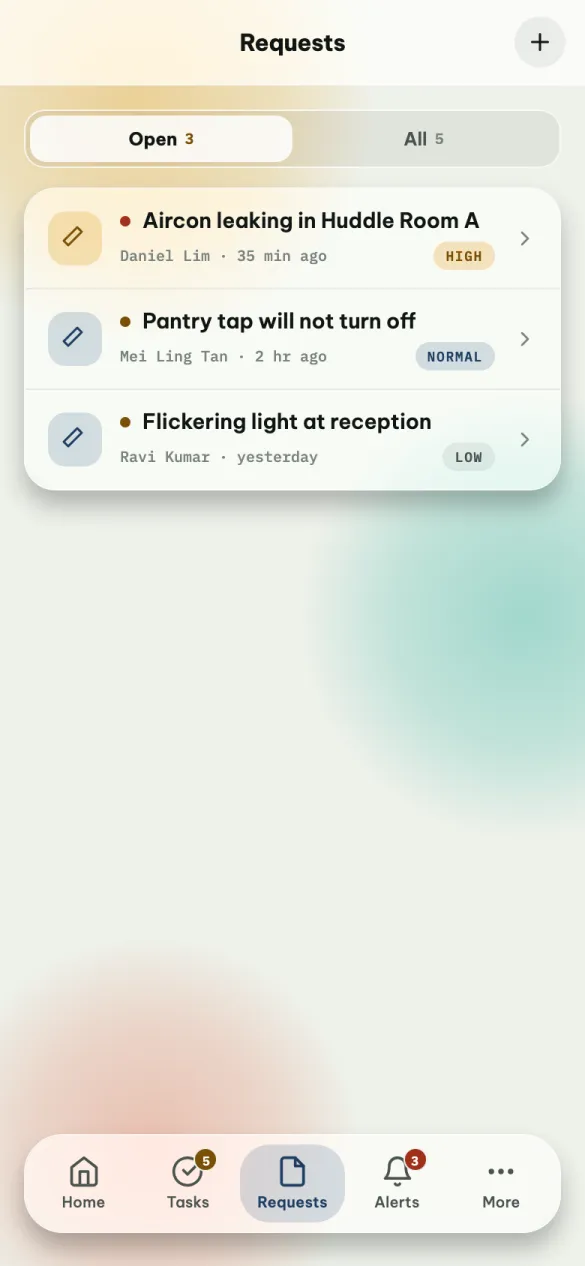
Problems reported at the site — by you, by colleagues, by visitors. Open shows the ones still waiting on a decision; All shows every one, with its status.
To report a problem, tap + at the top right. The form is the same as in the Facility app: see Report a problem.
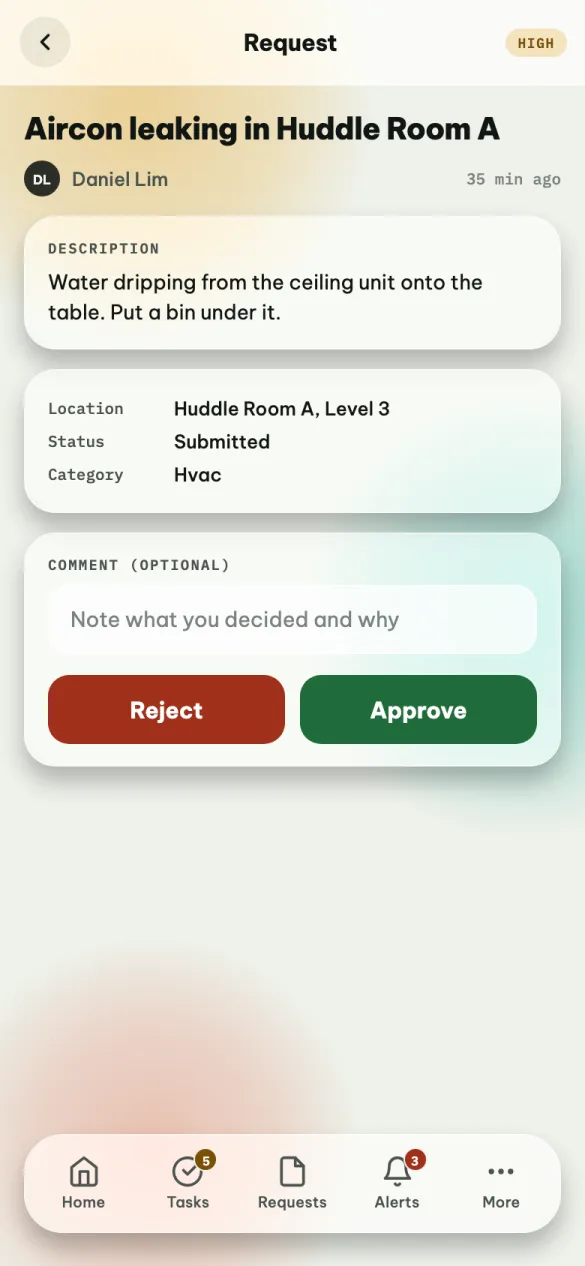
Tap a request to read it: who reported it and when, the description, photos (tap one to see it full screen), where, the status and the category.
- Admins see Approve and Reject while it is still open. Add a comment first if you want to explain — the person who reported it sees the decision.
- Staff can read it but not decide it.
The phone cannot close a request. Once it is approved it becomes a job for the facility team, who follow it from there.
This tab is missing when your organisation does not use the Facility app.
Alerts
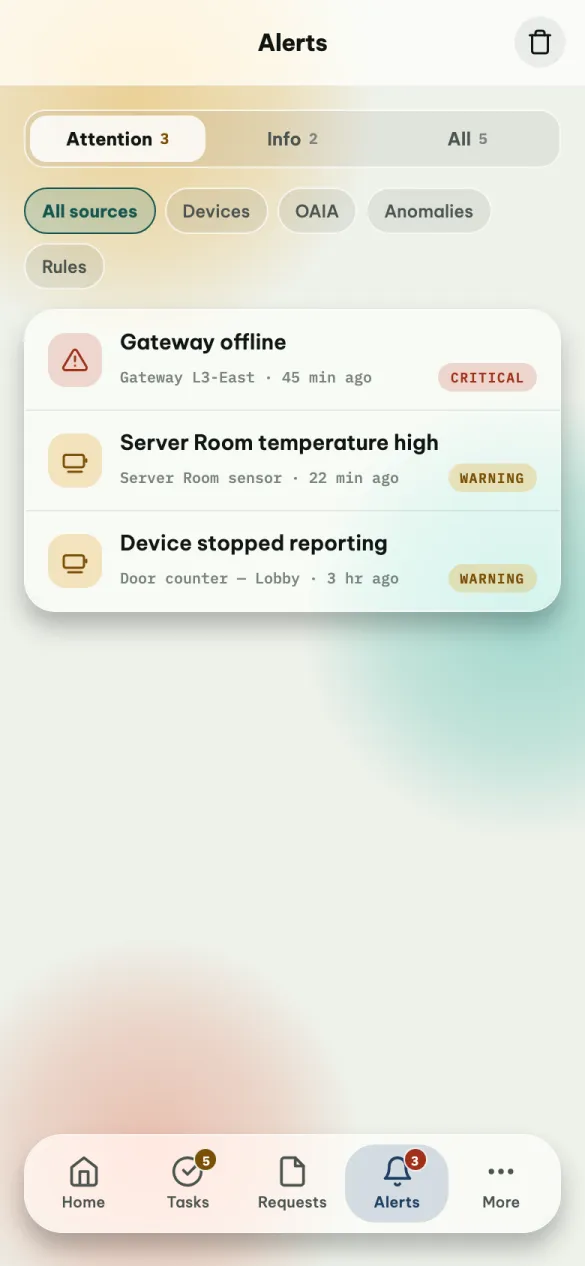
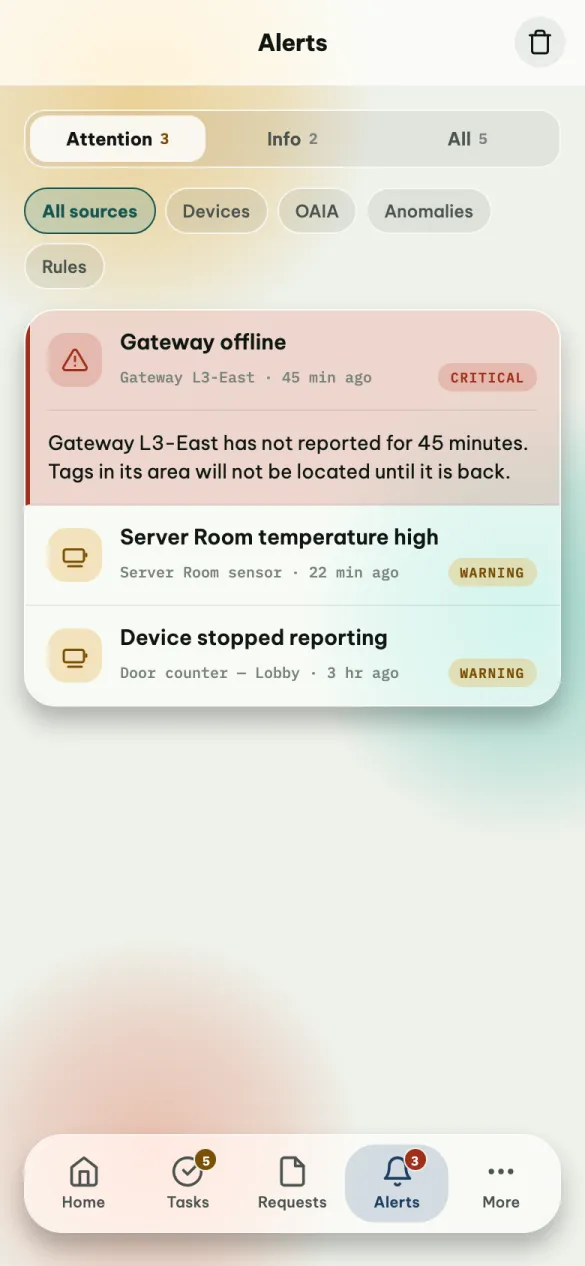
Attention shows critical and warning alerts — the same ones the red number counts. Info shows the rest, and All both. When there is more than one kind, chips let you narrow it down: Devices, OAIA, Anomalies, Rules.
Admins and staff see different alerts. Admins see the building's: devices that stopped reporting, gateways going offline, rules that fired, OAIA's findings. Staff see the ones about them: their bookings, their requests.
Tap an alert to read all of it. Some have a link to open the page they are about.
When you have dealt with an alert, swipe it in either direction:
- Admins: Acknowledge. It is acknowledged for every admin — on the web too — and leaves everybody's list. Undo is offered for a few seconds.
- Staff: Hide. It is hidden on your phone only; nothing changes for anybody else. Hidden alerts collect under Hidden, where you can swipe one to show it again.
The bin icon at the top right does the same for every alert in the list at once. Critical alerts are left alone — swipe those one by one, so none is cleared by accident.
More
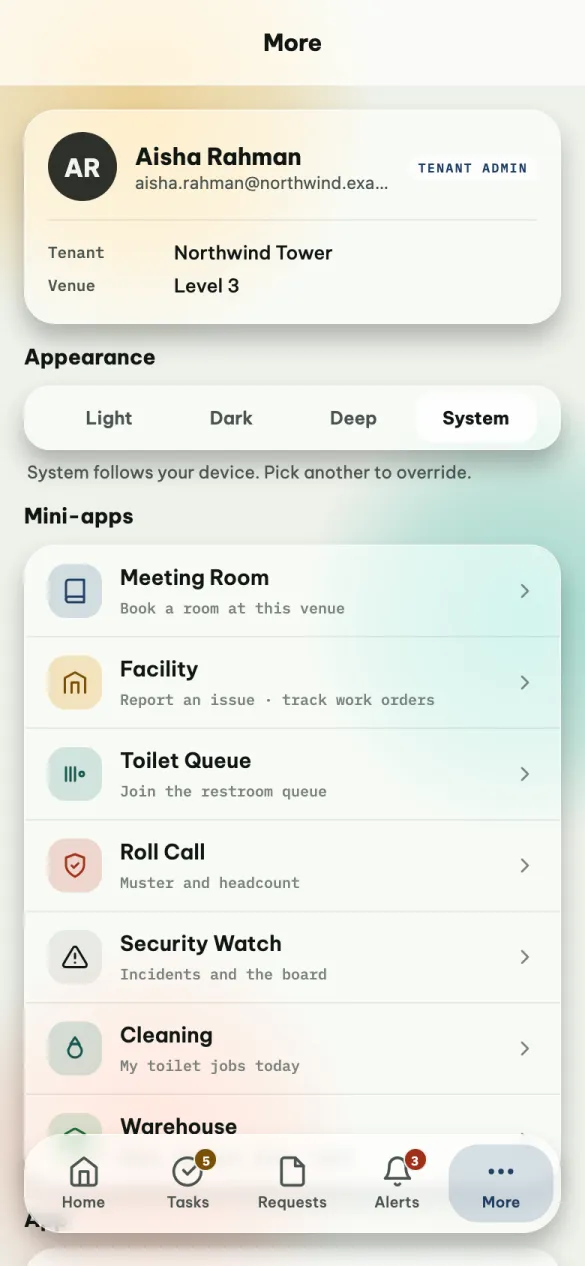
- Your account — name, email, role, organisation and venue. You cannot edit these in the app; ask your administrator.
- Appearance — Light, Dark, Deep (true black, easy on the battery of some phones) or System, which follows your phone's setting.
- Mini-apps — the same apps as on Home.
- App version.
- Sign out.
How the app behaves everywhere
A few habits are the same on every screen, so once you know them you know the app.
Pull down to refresh. Every list. Lists also refresh when you come back to them.
Tap a row to open it. What you can do with something is inside it.
Swipe for the common action. Drag a row sideways to do the most common thing with it (see the picture under Tasks).
Undo, or a question first. If an action can be taken back — acknowledging an alert, assigning a job — it happens at once, and the message at the bottom offers Undo for a few seconds. If it cannot — marking a job done, ending a roll call, cancelling a booking — the app asks you first.
A message confirms what happened. After every action a short message appears at the bottom: Marked done · Check pantry tap, Assigned · Gateway L3-East not reporting → Siti Nur. It closes by itself, or with ×.
+ adds, × closes. A + at the top opens a form for something new; while the form is open it turns into ×.
Search appears when you need it. A list of eight rows or more gets a search box. Type several words to narrow it down: every word has to match.
No connection? An amber strip says Offline — showing what loaded earlier. You can still read what was on screen, but anything you do is not saved — do it again once you are back online.
Something went wrong? Could not load… with a Retry button means the app could not reach the server. Pull down or tap Retry.